
Published Nov 26, 2026, 5:05 PM EST Haroun authors features for Android Police, covering Android, Samsung, Google, and AI. He first joined in 2021, writing over 200 news stories before moving on to features and how-tos. A one-time OnePlus die-hard who genuinely couldn't stand Samsung, he's since done a full about-face — he now daily-drives a Galaxy S24 Ultra and keeps an S23+, S22+, and his old S20 within arm's reach, which gives him a lot of hardware to put through its paces. He also holds a medical degree (MBBS) and has been obsessed with consumer tech for more than a decade. His work has appeared on How-To Geek and Android Authority. When he's not buried in Google's apps or a Samsung settings menu, he's trying to get his chess rating past 1500 or reading up on genetics and preventive medicine. Samsung Galaxy phones come with Samsung Calendar preinstalled, so your events naturally route there. It also syncs with your Google account, so you see everything in one place. Most Galaxy users also have Google Gemini as their default assistant instead of Samsung Bixby, and I'm one of them. I use it to schedule calendar events all the time, and for a long time, it just worked. One day, however, it broke, and I had to install Google Calendar. So I did a deep dive into Gemini and Samsung Calendar, and I found that the integration isn't as seamless as I'd imagined. Let me explain. Gemini works with Samsung Calendar, partly It does the basics well Gemini works with several Samsung apps, including Calendar, but I needed to see how well it worked. It added, moved, and deleted calendar events without issues. I asked Gemini to add a dentist appointment to my Samsung Calendar for Thursday, Dec. 3, at 2 p.m. The event showed up in the app right away. It also read my calendar events and told me when I was free on a particular day. But it can't edit an event's details After creating the dentist appointment, I asked Gemini to add the location. It couldn't and said, "Samsung Calendar doesn't support editing the location of an existing event directly." Google Calendar nailed everything on the first attempt Including edits Credit: Lucas Gouveia / Android Police I needed to be sure that the issues I noticed were specific to Gemini and Samsung Calendar. So I sent similar requests to Gemini, directed at Google Calendar. I asked it to add a haircut for Wednesday, Dec. 2, at 11 a.m. at a specific location. As with Samsung Calendar, it created the event seamlessly. I also sent an event flyer to add to my calendar. It did, filling in the title, date, time, location, and entry fee. Unlike with Samsung Calendar, when I asked Gemini to change the haircut's location, it did without a hassle. Gemini has a problem with both calendars It mishandles reminders Credit: Lucas Gouveia / Android Police Gemini couldn't handle reminders properly in either Samsung Calendar or Google Calendar. I asked it to change my haircut's notification to an hour before. It said it couldn't directly modify notification or alert times on Google Calendar events and gave me steps to do it manually instead. When I changed my wording to ask for a reminder instead, it created a separate one in Google Tasks or Samsung Reminder, depending on which app I was actively using. The problem is that these reminders are separate from the event. So, when you change the event date, for example, they remain on the same day. Samsung's Reminder app is a little more helpful, because its reminders show up next to your events in Samsung Calendar. But they're still separate, so you have to move the reminder when moving the event. Thankfully, Gemini helps with this. If it detects a reminder with the same details as a calendar event, it suggests moving it alongside the event. Bixby edits Samsung Calendar events just fine So it's a Gemini integration problem Credit: Lucas Gouveia / Android Police I wanted to see whether the failed editing problem was from Samsung Calendar or the Gemini integration, so I gave Bixby the same prompts. As with Gemini, I told Bixby to create the same dentist appointment, which it did. I then asked it to add a location. And it did, unlike Gemini. It also moved the event to another day without issues. This just confirms that Bixby still controls Samsung apps better, even if Gemini is the more versatile assistant. Keeping both apps isn't worth it Samsung Calendar is just there for the vibes In the past, I had actually opted to keep Samsung Calendar over Google Calendar. Here's why. Samsung Calendar syncs with your Google accounts so that you can see all your events in one place. And because I prefer its interface, I stuck with it. Unfortunately, it has been working against me. Any events I save to my Google account in Samsung Calendar can be accessed everywhere, including Google Calendar. However, Samsung Calendar also has "My Calendar," which stores events separately. Those events are stored with Samsung, not Google, so you won't see them if you later switch to Google Calendar. Gemini also can't fully edit those events. I'm switching to Google Calendar fully I actually prefer Samsung Calendar's UI. It shows events as simple bars that make it look neat. Google Calendar, on the other hand, always looks cluttered. For a long time, I didn't have any issues with Samsung Calendar. And if you use Bixby, you won't. But as Gemini becomes more central to my workflow, and because I don't like having two of the same app, I've decided to switch to Google Calendar. You can even use it as a productivity hub.
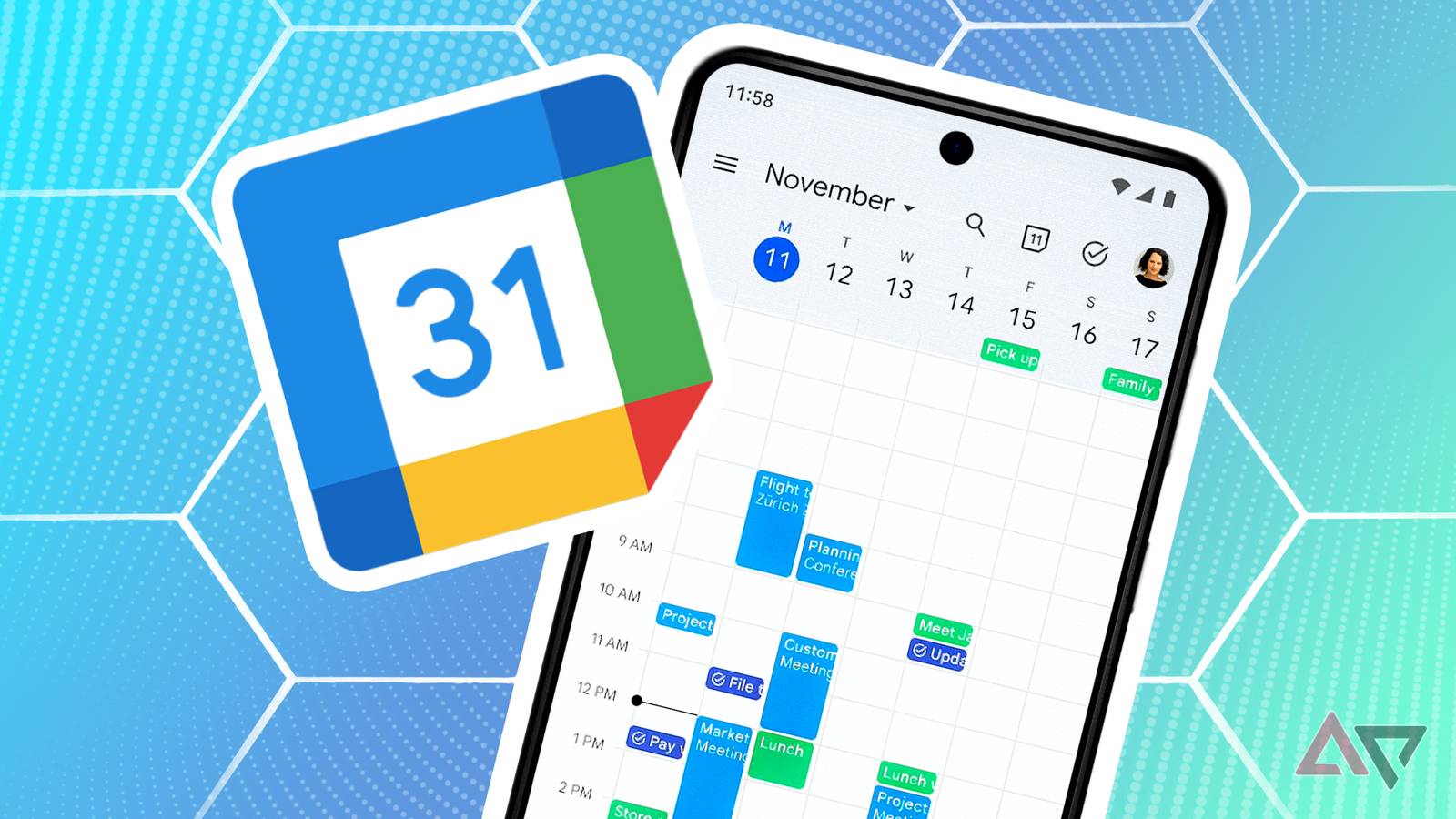
I switched from Samsung Calendar to Google Calendar because of Gemini
Full Article
Original Source
Read the full article at Androidpolice →KhanList aggregates and links to publicly available news content. We do not host full articles from third-party sources. Always verify important information with original sources.