
Published Nov 19, 2026, 6:30 AM EST A Computer Engineer turned tech-savvy. Sanya is part of the How to Geek team, and she covers Android, Samsung, Google, apps, and everyday technology, combining hands-on experience with thorough research. She helps readers understand technology without getting lost in technical jargon. I take hundreds of photos and videos, mostly of my daughter, and I’m not particularly good at deleting the ones I don’t need. I like having Google Photos back up everything , but I don’t like how quickly it eats through my Google storage. I had just 1GB of my 15GB Google storage left, and those constant storage warnings were getting annoying. So I started wondering what was taking up so much space. Turns out, Google Photos had a few things going on that I hadn’t paid much attention to. Why Google Photos keeps eating up my storage I found several reasons behind the storage drain Google Photos storage I used to think Google Photos only backed up the pictures I took with my phone’s camera. But that’s not always the case. When you turn on Backup, Google Photos automatically uploads new photos and videos from your selected device folders. Depending on your settings, that can include screenshots, downloaded images, and pictures saved by other apps if their device folders are selected for backup. I don’t need all those files backed up, but they can quietly pile up in my library. Videos make things worse, especially long clips and 4K recordings. Backup quality also makes a difference. Google Photos offers Original quality, which keeps photos and videos at the resolution you captured them in, without changing their quality. These files count toward your Google storage limit. Storage saver compresses photos and videos to reduce their size, but those uploads also count toward your quota if uploaded after June 1, 2021. Before that date, High-quality (now called Storage saver) and Express quality uploads didn’t count. Another thing I didn’t pay enough attention to is Google’s shared storage limit. Every personal Google Account gets up to 15GB of free storage, shared across Google Photos, Gmail, and Google Drive. On Android, WhatsApp backups and other device backups also count towards that limit. This means Google Photos might not be the only reason you’re running out of space. Large Gmail attachments, Drive files, and WhatsApp chat backups can all eat into the same allowance. I could spend an afternoon deleting photos and still have very little storage left if another Google service took up most of it. There’s also a difference between freeing up Google storage and freeing up space on your phone. Backing up a photo doesn’t automatically remove its original copy from your device. Those local copies continue to take up phone storage until you remove them yourself. Similarly, deleting a photo from Google Photos doesn’t immediately free up cloud space because it stays in Trash for 30 days unless you empty it sooner. The same goes for Gmail and Drive, where deleted items in their Trash folders can continue counting toward your Google storage. No wonder that storage warning keeps coming back! How do I clean up my Google Photos settings? I have stopped backing up things I didn’t need The first thing I changed was what Google Photos was allowed to back up. I don’t need every screenshot, downloaded image, or random picture from another app sitting in my cloud library. On my Galaxy Z Fold 6, I opened Google Photos, tapped my profile picture, went to Google Photos settings -> Backup -> Back up device folders, and switched off folders I didn’t need. You can do the same for WhatsApp images, screenshots, and downloads, depending on which folders appear on your phone. I also turned off the option to back up all device folders so new folders wouldn’t automatically get added to my backups. I also checked my backup quality. Under Backup -> Photos & videos quality, I switched to Storage saver instead of Original quality. This compresses photos and reduces videos higher than 1080p to 1080p, which can save space without making most everyday pictures look noticeably different. Keep in mind that Storage saver uploads still count toward your Google storage quota. If you’ve already uploaded photos in Original quality, you can use the Recover storage option on the Google Photos website under Settings -> Manage storage to convert eligible existing uploads. Google says this conversion can only be done once a day, and the quality reduction is irreversible, so I’d check my original files before using it. A little cleanup never hurts I don’t want to stop using Google Photos or worry about every picture I back up. I just want to avoid filling my Google storage with things I don’t need. I’ll check my backup settings and storage every few weeks instead of waiting for another warning. One thing to remember: deleting photos from Google Photos can also remove them from synced devices. Download anything important before permanently deleting it. Losing family pictures just to save a few gigabytes isn’t worth it.
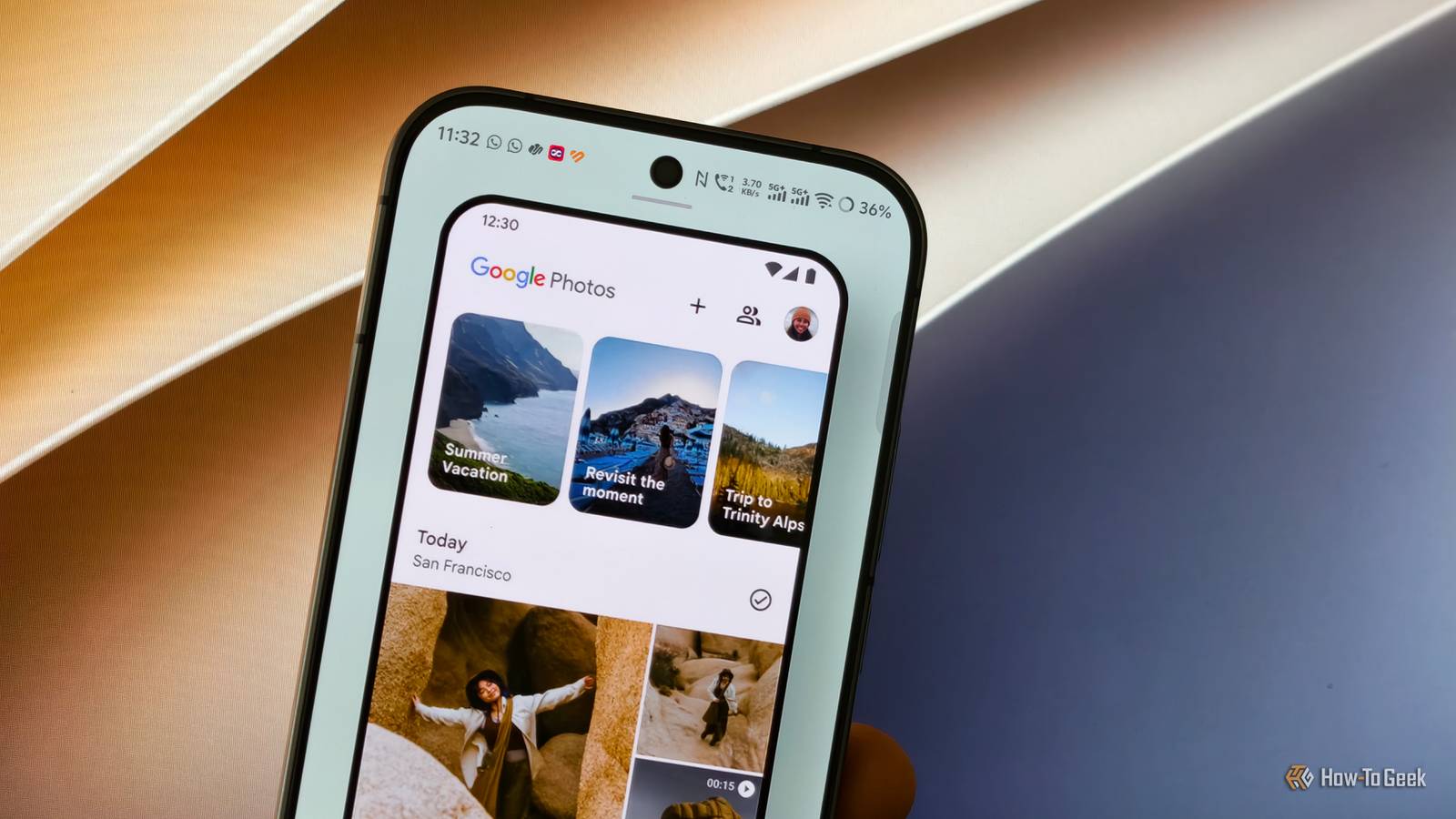
I stopped Google Photos from eating up all my storage
Full Article
Original Source
Read the full article at Howtogeek →KhanList aggregates and links to publicly available news content. We do not host full articles from third-party sources. Always verify important information with original sources.