
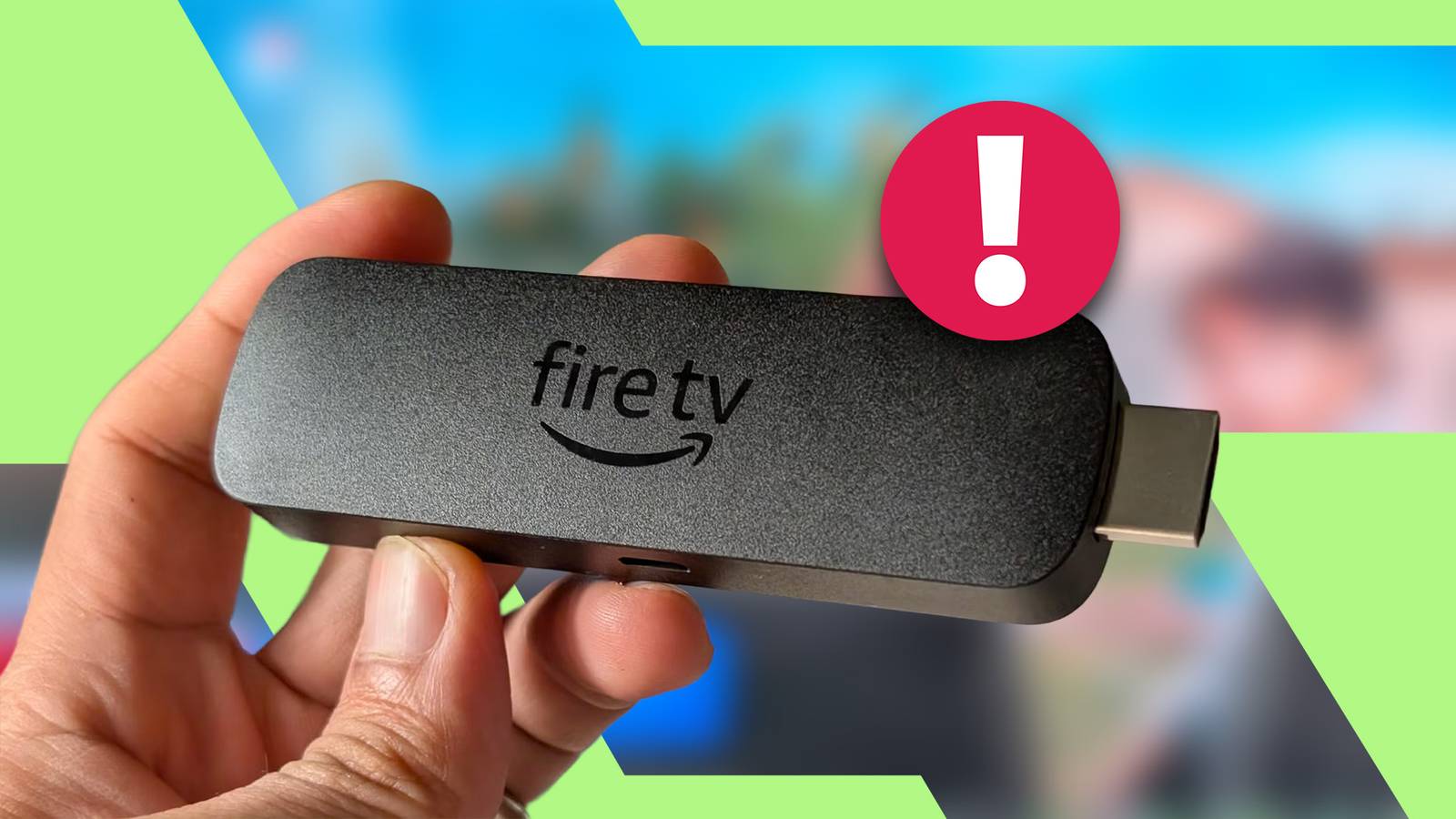
Published Sep 1, 2026, 6:00 AM EDT Jade Bryan is a Feature Author at Android Police with over a decade of tech reviews and news reporting experience, stretching back to the Symbian era and the early days of Android. He covers the breadth of the mobile industry, specializing in operating system deep-dives, app testing, and hardware analysis. In his spare time, you can find him tinkering with his Android devices and wearables, seeking ways tech can improve daily life. He also enjoys playing MMORPGs, traveling, or feeding stray cats and dogs. If you're still using an older-generation Fire TV Stick at home, you may have been struggling to get it running smoothly, especially after the major redesign earlier this year. You're not alone, and I've certainly been there. After countless times of trying to figure out what was causing the sluggishness on my Fire TV device, I discovered the real culprit along with how to fix the lag for good. Why your older Fire TV is suddenly crawling to a halt Rouge background apps are hogging your memory While newer-generation Fire TV devices come with faster processors and larger RAM configurations, older models get a muted chipset and modest memory. That wasn't a problem initially, but with more updates and new features being shipped, these changes have started to severely impact performance on older hardware. Amazon's latest Fire TV update, released in April, also introduced a completely overhauled Fire TV OS interface. It added dynamic and richer visual elements that directly contributed to heavier background processing. On top of that, a new app management behavior keeps many apps running in the background for quicker app switching and faster resumption. This means those apps keep running in the background and continue to hog system memory even after you switch your Fire TV off and back on. Over time, as more apps pile up, especially heavy streaming platforms, they create a massive bottleneck that slows everything down. This results in sluggish UI and slower app launch speeds. Fortunately, there's a reliable fix that stops background apps from dragging your Fire TV's performance. How to manually kill background apps in Fire TV OS Use managed apps to clear background processes Admittedly, it took me some time to figure this out. I focused on tweaking the surface of Fire TV OS on my Fire TV Stick 4K Max, which involves clearing caches and offloading unused apps. But those methods mainly benefit from reclaiming storage space rather than freeing up active resources like RAM. I realized there is a more effective way to stop apps from running persistently in the background. If you have an older Fire TV device and haven't updated to the latest Fire TV OS version shipped a few months ago, there is a direct background limit toggle inside Developer Options. In the newer builds, however, Amazon has locked down many of those developer tools, meaning you need to rely on the Manage Installed Applications menu instead. To navigate there, open your home screen menu (hamburger icon) and select Settings. From there, select Applications > Manage Installed Applications. Use the Sort option and set it to Recency to easily see the most recently used apps. Because Fire TV OS provides no visual indicator to show which apps are actively open in the background, you have to check them manually. Highlight an app, select it, and then choose Force stop. Repeat this process for the remaining active apps. Use a utility app to close apps in batch Install Background Apps and Process List A much quicker way is to install Background Apps and Process List. It's a third-party application available directly from the Amazon Appstore. Go to the Appstore search bar and look for Background Apps and Process List, or use Alexa voice search to pull it up. Install the application and launch it. When opened, you'll see several action buttons across the top row. Select Close All Apps. The tool automatically lines up all currently open background apps in a sequential queue, letting you jump to each info screen and tap Force stop. I prefer this method over navigating the standard settings because it is faster, letting you trigger the cleanup routine in a few taps. You can also pin the app to your home screen carousel for quicker access. You don't need to repeat this sequence on every boot, as the closed state of these background apps is retained across restarts. This leaves more free memory every time you turn on your Fire TV. If you only have one app running before turning off your television, your device keeps only that app in memory when you boot up next time. I suggest you close apps before putting your Fire TV to sleep, or at least close a handful that are running in the background. Amazon would rather sell you a new dongle than improve Fire TV OS I know manually managing background processes feels like a tedious chore. But it's an effective workaround to keep my Fire TV device usable, and it takes only a minute to purge background apps. This workaround proves my older device has plenty of life left, letting me save money by skipping a replacement or upgrade. And with Amazon hiking the prices, there's more reason to hold on to my current Fire TV device for another year or two. Amazon Fire TV Stick 4K (2nd Gen, 2023) 6.5/10 Dimensions 108mm x 30mm x 14mm What's Included Alexa voice remote, power cable with adapter, HDMI extender, 2 AAA batteries, and Fire TV Stick 4K Integrations Alexa Ethernet Yes, via external dongle The Amazon Fire TV Stick 4K Max (2023) features a faster processor and a more powerful graphics for smoother 4K playback and gaming.
I spent months clearing my Fire Stick cache before realizing a background process setting was the real culprit
Full Article
Original Source
Read the full article at Androidpolice →KhanList aggregates and links to publicly available news content. We do not host full articles from third-party sources. Always verify important information with original sources.