
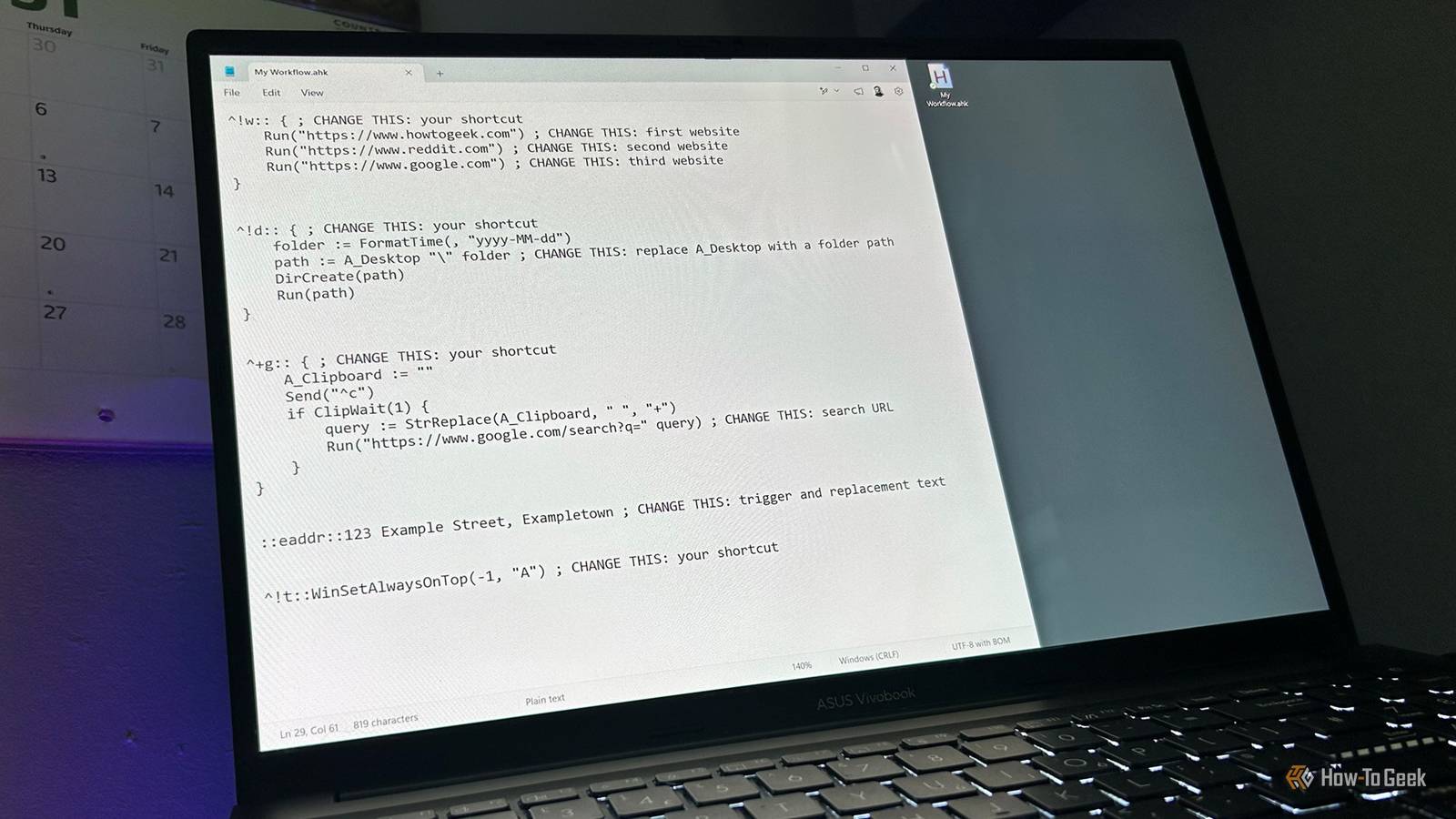
Published Aug 24, 2026, 11:30 AM EDT Tony Phillips is an experienced Microsoft Office user with a dual-honors degree in Linguistics and Hispanic Studies. Prior to starting with How-to Geek in January 2024, he worked as a document producer, data manager, and content creator for over ten years, and loves making spreadsheets and documents in his spare time. Tony is also an academic proofreader, experienced in reading, editing, and formatting over 3 million words of personal statements, resumes, reference letters, research proposals, and dissertations. Before joining How-To Geek, Tony formatted and wrote documents for legal firms, including contracts, Wills, and Powers of Attorney. Tony is obsessed with Microsoft Office! He will find any reason to create a spreadsheet, exploring ways to add complex formulas and discover new ways to make data tick. He also takes pride in producing Word documents that look the part. He has worked as a data manager in a secondary school in the UK and has years of experience in the classroom with Microsoft PowerPoint. He loves to encounter problems in Microsoft Office and use his expertise and legal-level training to find solutions. Outside of the Microsoft world, Tony is a keen dog owner and lover, football fan, astrophotographer, gardener, and golfer. I got tired of doing the same little tasks in Windows over and over: opening the same websites, creating folders, and copying text just to search for it. So I started using AutoHotkey to make those jobs happen with a keystroke or a few characters. Over the course of a week, those tiny shortcuts save me hundreds of clicks and keystrokes. AutoHotkey is easier than it looks You don't need to be a programmer to use these scripts AutoHotkey is a free, open-source scripting tool for Windows that lets you create custom shortcuts and automate repetitive tasks. After downloading and installing AutoHotkey v2.0, I right-click an empty area of my desktop (or a File Explorer folder) and select New > AutoHotkey Script. I then give the file a name, click Edit, and choose Notepad as the program where I want to create and edit my code. Once done, I save the file (Ctrl+S), double-click it on my desktop to run it, then use the keyboard shortcuts or text triggers I've assigned to run the scripts. You can copy the following scripts directly into the same AHK file rather than creating separate files or learning the language from scratch. Just leave a blank line between each script. Throughout the scripts, you'll see various AutoHotkey symbols: ^ = The Ctrl keystroke ! = The Alt keystroke + = The Shift keystroke ; = Everything on a line after a semicolon is a comment. So, for example, ^!w represents Ctrl+Alt+W, and a comment such as ; CHANGE THIS points out the websites, folder locations, or text you might want to customize. To edit an existing AutoHotkey script, right-click the AHK file and select Edit in Notepad. When you're done, press Ctrl+S to save, then double-click the AHK file again to reload the script and apply your changes. Open several websites at once One shortcut replaces several clicks I often need to open the same handful of websites. I could bookmark them or use my browser's startup pages, but AutoHotkey gives me a single shortcut that opens exactly the sites I want, whenever I want them. I don't have to launch all of them every time I open my browser. My script looks like this: ^!w:: { ; CHANGE THIS: your shortcut Run("https://www.howtogeek.com") ; CHANGE THIS: first website Run("https://www.reddit.com") ; CHANGE THIS: second website Run("https://www.google.com") ; CHANGE THIS: third website } In this example, pressing Ctrl+Alt+W opens all three sites in my default browser. Because the script is so short, updating, adding, or removing Run lines takes seconds. Create and open today's folder A dated location for today's files Each morning, I like to create a new folder to store whatever I'm working on that day. Before AutoHotkey, that meant opening File Explorer, navigating to the right location, creating a folder, typing the date, and then opening it. Now I press one shortcut: ^!d:: { ; CHANGE THIS: your shortcut folder := FormatTime(, "yyyy-MM-dd") path := A_Desktop "\" folder ; CHANGE THIS: replace A_Desktop with a folder path DirCreate(path) Run(path) } Pressing Ctrl+Alt+D takes the current date, formats it as yyyy-MM-dd, creates a folder with that name on my desktop, and opens it immediately. The A_Desktop part tells AutoHotkey to use the Windows desktop, so I don't need to enter my actual desktop path. If you'd rather create the folder somewhere else, replace A_Desktop with the path to your preferred location. I like this one because there are several little actions involved in doing it manually, but the script turns the whole process into a single shortcut. There's no need to remember what today's date is or type it correctly, either. Search selected text No need to touch the search bar When I'm reading something and want to look up a word or phrase, I could select it, right-click it, and choose a search option. But when I do this repeatedly, I don't want to stop and work through a context menu every time. With AutoHotkey, I can speed up this process. Here's the script I use: ^+g:: { ; CHANGE THIS: your shortcut A_Clipboard := "" Send("^c") if ClipWait(1) { query := StrReplace(A_Clipboard, " ", "+") Run("https://www.google.com/search?q=" query) ; CHANGE THIS: search URL } } I select the text I want to search, press Ctrl+Shift+G, and AutoHotkey sends the selected text to Google in my default browser. The StrReplace() line handles spaces in multi-word searches, so you can leave it alone unless you want to change how the search text is formatted. If you'd rather use another search engine, you can change the URL in the Run() line, although you'll need to use that search engine's URL and query format rather than simply replacing google.com. I find this particularly useful when I'm reading an article and keep coming across names, products, or unfamiliar terms I want to investigate. I don't have to break my flow to start another search. One thing to bear in mind: this script replaces whatever was already on your Windows clipboard with the text you've highlighted, so make sure you don't have anything important copied before using it. Expand frequently used text Stop typing the same phrases over and over There are certain phrases I type so often that I get tired of typing them. AutoHotkey can turn a short trigger into a much longer piece of text, which is particularly useful for addresses, repeated email sentences, or anything else you regularly reuse. For example, I use this: ::eaddr::123 Example Street, Exampletown ; CHANGE THIS: trigger and replacement text Whenever I type eaddr followed by a space or punctuation, AutoHotkey replaces it with the full address. The nice thing is that you can choose a short trigger that makes sense to you. I choose something short that's easy to remember but unlikely to appear accidentally in normal writing. For example, eaddr is unlikely to appear as part of an ordinary sentence, so I won't accidentally trigger it while typing. This can save surprisingly number of keystrokes over time. Once you've identified a phrase you type repeatedly, there's very little reason to keep typing the whole thing manually. Keep a window always on top One line gives me a useful Windows feature Sometimes I want a window to stay visible while I work in another one. Maybe I'm following a tutorial while working in Excel, keeping a calculator handy, or referring to a document while writing. Instead of repeatedly clicking between windows or pressing Alt+Tab to bring the window I need back to the front, I use AutoHotkey to keep it visible. The entire script is one line: ^!t::WinSetAlwaysOnTop(-1, "A") ; CHANGE THIS: your shortcut I press Ctrl+Alt+T while the window I want to pin is active, and it stays above my other windows. Press the same shortcut again, and it returns to normal. The -1 tells AutoHotkey to toggle the setting, while "A" means the currently active window. So I don't need separate shortcuts for turning Always on Top on and off. Five tiny scripts can add up to a lot of saved time What I like about AutoHotkey is that none of these scripts are complicated. Each removes a small annoyance, and those savings add up quickly. Once you notice the Windows tasks you repeat every day, it's surprisingly easy to find another one AutoHotkey can take off your hands.
I saved hundreds of clicks and keystrokes with these 5 tiny AutoHotkey scripts
Full Article
Original Source
Read the full article at Howtogeek →KhanList aggregates and links to publicly available news content. We do not host full articles from third-party sources. Always verify important information with original sources.