
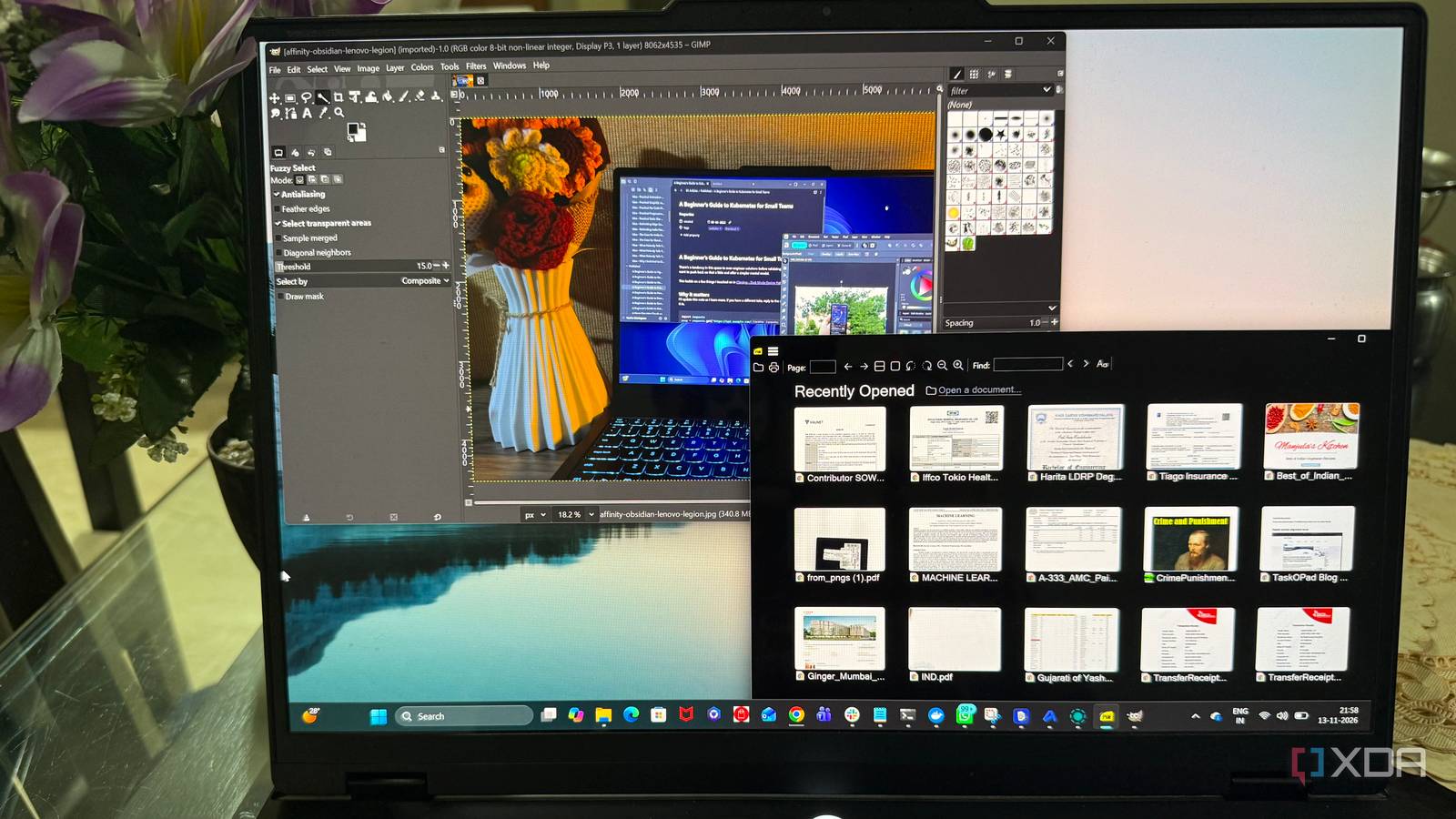
Published Nov 14, 2026, 2:00 PM EST Beginning his professional journey in the tech industry in 2018, Yash spent over three years as a Software Engineer. After that, he shifted his focus to empowering readers through informative and engaging content on his tech blog – DiGiTAL BiRYANi. He has also published tech articles for MakeTechEasier. He loves to explore new tech gadgets and platforms. When he is not writing, you’ll find him exploring food. He is known as Digital Chef Yash among his readers because of his love for Technology and Food. Modern applications come with plenty of useful features, integrations, and tools that can genuinely improve productivity. However, all that functionality comes at a cost. Some apps consume far more system resources than their everyday tasks should require, leaving less memory and processing power for everything else. I started noticing how this affected my PC's responsiveness, especially when multitasking. That's when I decided to explore alternatives that deliver the features I need without putting unnecessary pressure on my system. SumatraPDF Lightweight and superfast PDF reader Waiting for a PDF to open shouldn't feel like a task in itself, but that's exactly how Adobe Acrobat Reader often felt. After putting up with its slow loading times for so long, switching to SumatraPDF was a pleasant surprise. Documents open almost instantly, and navigation feels much smoother, without the occasional lag I experienced with Acrobat. It also supports several formats, including EPUB, MOBI, CBZ, and XPS, eliminating the need for separate readers for different documents. The memory difference was just as impressive. With the same PDFs open, SumatraPDF used roughly 97% less memory than Adobe Acrobat Reader. The only thing I initially missed was Adobe's PDF editing functionality. However, editing PDFs is a rare part of my workflow. I now use self-hosted BentoPDF for those occasional tasks. SumatraPDF handles my regular reading, while BentoPDF takes care of editing and processing. It's a combination that works perfectly for me. Sumatra PDF SumatraPDF is a lightning-fast, minimalist, open-source PDF reader optimized for viewing documents, not editing. It is portable, low on system resources, and supports other formats like ePub and CBR. ImageGlass I replaced Microsoft's bloated Photos app I still remember when Windows' image viewer was a simple tool that did exactly what its name suggested. Microsoft Photos has gradually turned into something much bigger, with OneDrive and iCloud photo integration, basic editing tools, and AI-powered features that I hardly use. All these additions feel unnecessary when I just want to browse screenshots or check a few downloaded pictures. ImageGlass keeps things focused on browsing images, with an interface that doesn't get in the way. It also offers a range of customization options, supports numerous image formats, and lets me adjust how images are displayed. More importantly, images open quickly, and moving between files feels noticeably smoother. Memory consumption is lower, too, sitting around 40–50MB compared with the 150–170MB I saw with Microsoft Photos. For someone who primarily needs an image viewer rather than a photo management suite, ImageGlass is a much better fit. ImageGlass ImageGlass is a fast, lightweight, and open-source image viewer designed as a modern replacement for default OS photo apps. Everything Finding files no longer feels like a chore Windows File Explorer's built-in search has often tested my patience, particularly when looking for files buried deep inside multiple folders. Even searching for a document I recently downloaded can take longer than expected. Everything makes file searches considerably less frustrating. For example, typing 'invoice' immediately brings up matching files across my drives, without needing to remember where I saved them. What makes it particularly useful is its ability to filter results by file extension, folder, and other search operators. Its interface is straightforward, and results update as I type. Unlike Windows Search, it stays focused on finding local files rather than mixing in unrelated suggestions. It also has a smaller memory footprint in my experience, using around 140–150MB of RAM compared with Windows Search's 320–350MB. Even while indexing files across my drives, it doesn't noticeably get in the way of my other work. It's one of those utilities that makes you wonder why Windows doesn't offer something this responsive by default. Everything Individual pricing Free Platforms Windows Everything indexes all the files on your computer within seconds, and you can find any file or folder you are looking for quickly. Thorium Chrome's familiar experience without the memory overhead Chrome is convenient, but its memory consumption can become frustrating when several tabs are open alongside other applications. Thorium caught my attention as a Chromium-based browser with additional performance optimizations. Its familiar interface made the transition effortless, while compatibility with Chrome extensions meant none of my essential browser tools had to go. The RAM savings became more apparent when I opened multiple tabs. With 10–15 tabs open, Thorium used around 40–45% less RAM than Chrome in my comparison. Browsing remains responsive, while the lower memory consumption leaves additional room for other applications, making it easier to work across multiple tools without worrying about my browser taking up too many system resources. Thorium Thorium is an open-source, cross-platform web browser built as a custom fork of Chromium, designed to be one of the fastest browsers available. GIMP I found a lighter way to edit my photos Photoshop is a powerful, resource-heavy toolkit, but I was using it only for basic image editing for my blogs and social media posts. I barely scratched the surface of its features, yet running it on my old 8GB RAM machine often meant closing other applications just to keep things running smoothly. Switching to GIMP was a practical decision. It covers the editing features I rely on without making me pay for a professional toolkit I barely use. GIMP gives me control over layers, masks, selections, color adjustments, and image retouching. The interface takes some getting used to, especially if you're coming from Photoshop, and certain advanced workflows feel less polished. The difference was equally noticeable in Task Manager: GIMP typically consumed 500–700MB of RAM, while Photoshop used around 1.2–1.4GB for comparable editing tasks with my blog images. With GIMP, I no longer need to sacrifice other applications just to edit an image. GNU Image Manipulation Program (GIMP) The GNU Image Manipulation Program (GIMP) is an open source, free image editor with support for multiple operating systems. You don't need every feature an application offers Not every task requires a feature-packed application, and I've learned that the hard way. Sometimes, a focused tool that handles a handful of things exceptionally well is more useful than a full-fledged suite with features I'll rarely touch. These switches have reminded me to be more selective about the software I install. After all, the best application isn't necessarily the one that does the most; it's the one that fits the way I actually work.
I replaced these resource-hungry apps with lightweight alternatives, and my PC feels faster
Full Article
Original Source
Read the full article at Xda-developers →KhanList aggregates and links to publicly available news content. We do not host full articles from third-party sources. Always verify important information with original sources.