
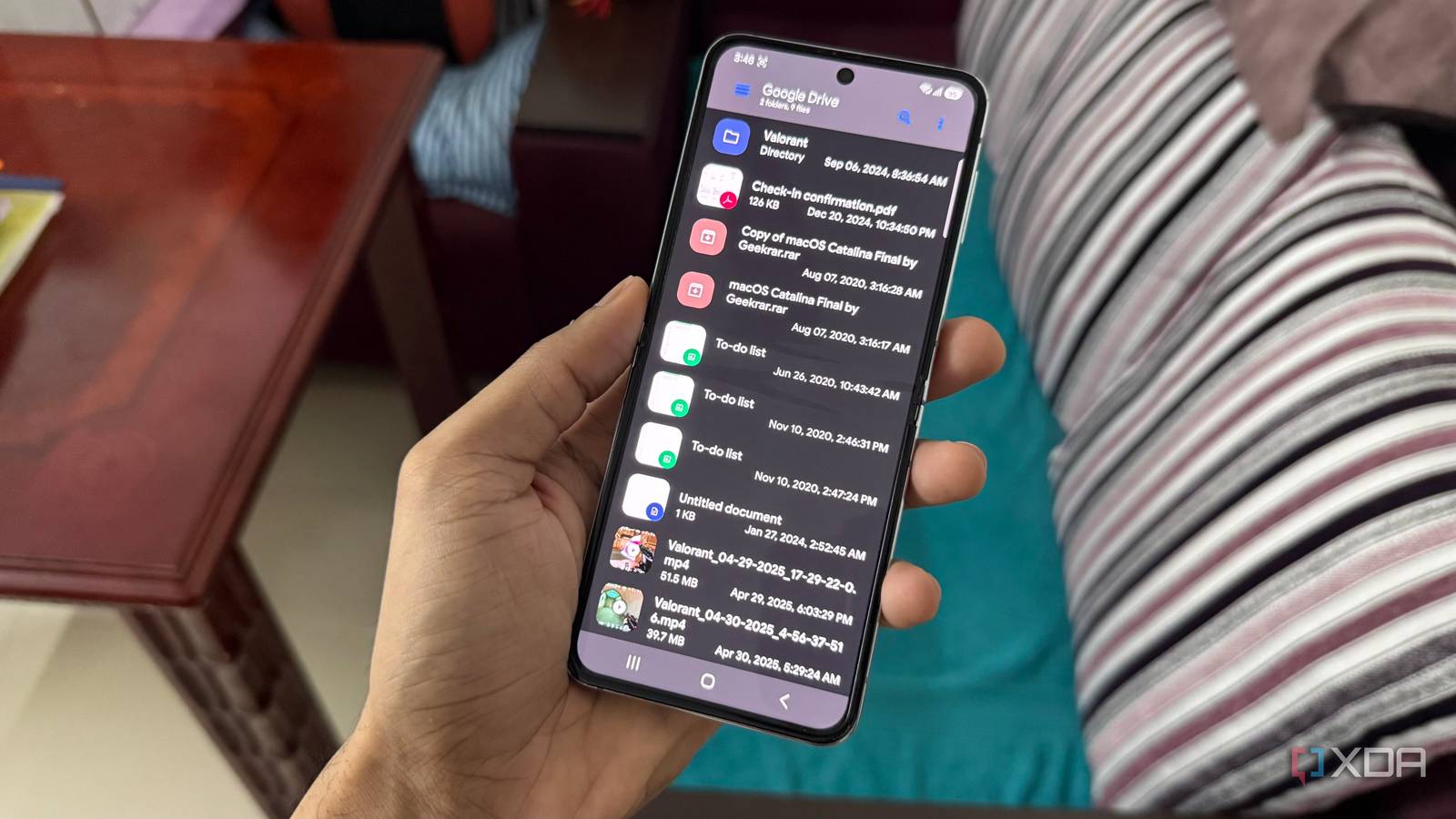
Published Sep 7, 2026, 2:00 PM EDT Hamlin has been in the tech field for over nine years. Since 2017, his work has appeared on MakeUseOf, Android Police, OSXDaily, Beebom, and more. He served as the Senior Editor at Valnet's MakeUseOf for over two years before joining XDA. He uses a high-end gaming rig for desktop use and a MacBook for traveling, but dislikes some of the quirks of macOS. You're more likely to catch him at the gym or on a flight than anywhere else. Samsung already gives its phones a file manager out of the box with My Files, so for most of my time with the Z Flip 5, I didn't feel the need to replace it. If anything, it's arguably the best file manager you can get preinstalled on an Android phone. And since I mostly just use it to move downloads around, compress files, and occasionally clean up things I no longer need, I didn't need anything more. After all, managing files on my phone is nowhere near as important to me as it is on my PC. Recently, I've been trying out different third-party apps because my phone feels pretty boring these days, and that's how I came across Solid Explorer. I thought this would be like most apps that I check out for a couple of days and forget about, but to my surprise, it only took a few days to stop reaching for My Files altogether. This app just makes managing files so much easier that I now wish My Files incorporated some of its features. Solid Explorer's dual-pane layout is what won me over Two panes make it far more convenient to drag and drop files Samsung's My Files app already has drag-and-drop functionality, but the way that works isn't quite as convenient. You long-press on a file or folder, then navigate to the destination while holding onto it before you can finally drop it where you want. With Solid Explorer, though, I just need to turn my phone sideways, which brings up the app's dual-pane layout. Now, I can open the source folder in one pane and the destination folder in the other, then simply drag and drop files between them. This might not sound like a huge deal if you're only moving one or two files, but when I'm managing a bunch of downloads at once, the dual-pane layout is incredibly handy. I can leave the Downloads folder open in one pane while jumping between different folders in the other to sort my files more quickly. I just like how Solid Explorer removes a lot of friction with this one feature, which is what made me gravitate toward this app almost immediately. Yes, using a file manager in landscape did feel weird at first, but now I've gotten used to it. Solid Explorer has everything I used My Files for and more I didn't have to give anything up when I switched As much as I like the dual-pane layout, I probably wouldn't have switched to Solid Explorer if that meant giving up features I already used in My Files. Thankfully, that hasn't been the case. For instance, I can still compress and extract files, but Solid Explorer gives me more options like RAR and TAR. I can also analyze my storage to find what's taking up space and remove older files or duplicates. And just like My Files, Solid Explorer lets me connect my cloud storage, but I like that it supports more services like Dropbox and Box instead of limiting me to Google Drive and OneDrive. There's another feature that I now use, which My Files doesn't have, and that's the ability to turn my phone into an FTP server. I can set it up in Solid Explorer, enter the FTP address it gives me into File Explorer on my PC, and access my phone's files without needing Phone Link or another third-party app. I also sometimes use it to batch-rename multiple screenshots I've taken for my articles instead of going through them one by one, as I did with My Files. All these extras make Solid Explorer feel more like an upgrade than a replacement. My Files is still more than enough for most users Even though I find the ads annoying, Solid Explorer makes some tasks easier To be fair, My Files doesn't really give you a solid reason to look elsewhere. Out of the box, you're already getting one of the most capable file managers on Android. Besides the typical things anybody would use a file manager for, I've used it to connect to my NAS and access files over my network without needing another app. And the fact that it's completely free and doesn't have any ads getting in the way gives you even less of a reason to install Solid Explorer. I'd be lying if I said the ads that pop up right after I finish moving files around in Solid Explorer don't annoy me. Still, the things that I regularly do are simply easier with it. I don't need a dual-pane layout to move files or an FTP server to access them from my PC, but you can't deny that they are useful additions. I haven't spent $20 on the lifetime version just yet, but if I keep using this app as much as I have over the past couple of weeks, I wouldn't mind paying to get rid of those ads and get access to more features like file encryption. I just wish Samsung would copy some of its features At $20 for a lifetime license, I still think Solid Explorer is expensive. If it weren't for the ads, I would be totally fine staying on the free version because I don't see myself actually using those premium features. Sure, file encryption is nice to have, but I don't really have anything on my phone that I'd go out of my way to encrypt with a file manager. Most of what won me over is already available for free, which makes paying $20 to get rid of ads a tough sell for me. If anything, I'd rather wait for Samsung to take a few notes and bring some of these conveniences to My Files. That would probably be enough to send me straight back to My Files. Solid Explorer File Manager Solid Explorer is easily one of the best file managers for Android, standing out with its dual-pane layout, extensive network storage support, and extras like batch renaming. It's free to use with ads, but you can remove them and unlock premium features with a $20 lifetime license.
I replaced Samsung's My Files with Solid Explorer, and now I can't go back
Full Article
Original Source
Read the full article at Xda-developers →KhanList aggregates and links to publicly available news content. We do not host full articles from third-party sources. Always verify important information with original sources.