
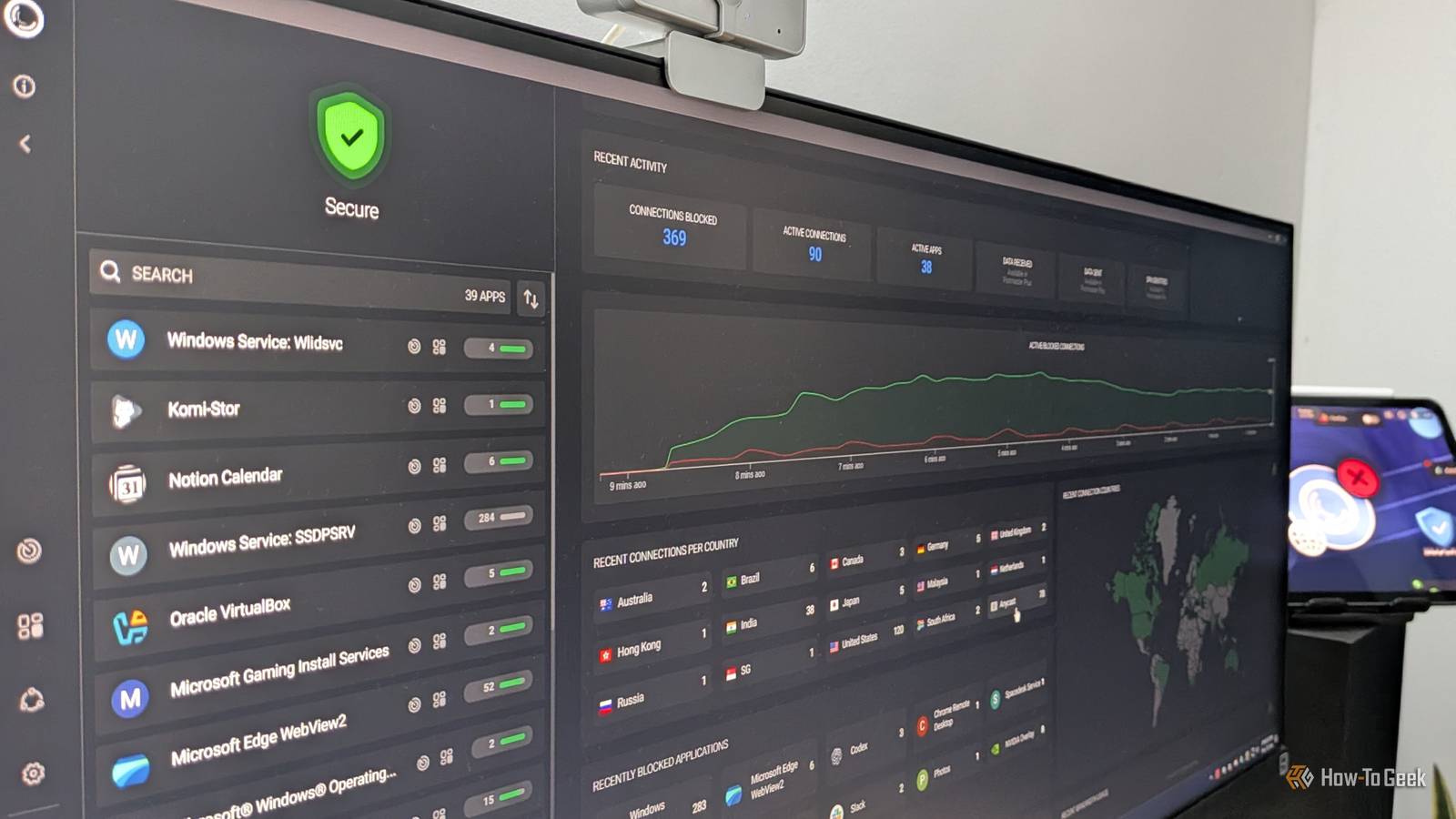
Published Sep 23, 2026, 7:00 AM EDT Dibakar Ghosh is a tech journalist at How-To Geek, where he focuses on Linux, Windows, and productivity tools. His goal is simple—help readers at every skill level get more done with the tech they use every day. He began his writing career in 2016 with WordPress tutorials, later moving into digital marketing, where he spent years reviewing complex tools for marketers. His work has also appeared on Authority Hacker, where he’s shared in-depth guides on digital workflows and online productivity. That experience now shapes his journalism, blending analytical depth with practical, real-world advice. When he’s not writing or testing software, Dibakar is usually watching movies or playing video games. He’s a huge Christopher Nolan fan and a strong proponent of the theater experience. In gaming, he has sunk hundreds of hours into Insomniac’s Spider-Man series, Returnal, Prototype, Darksiders, and Final Fantasy titles. Pi-hole is one of the most popular tools out there for securing your home network against online threats — and it’s great at its job. The only problem is that it can be a bit too complicated to set up for the average user. Plus, the sheer number of features you get from Pi-hole can be overkill for what you actually need. Sometimes, you want something that’s easier to set up and maintain while still being free, open-source, and offering the same level of security. If that sounds like you, let me introduce you to Portmaster — the tool I’ve been using to protect my system for the past couple of years. An intuitive graphical interface to view network activity A clear picture of who's talking to what, and when Portmaster, by Safing, offers a clean and intuitive interface to monitor network activity across all your apps. As soon as you open the app, it lands you on a dashboard showing every single app currently running on your system, how many connections each one has, all your active and blocked connections, the countries you’ve recently connected to (complete with a map view), and your most recently blocked applications. If you click one of the applications, it shows you all its outgoing and incoming connections — which connections are allowed vs. blocked, which countries it's talking to, the IP addresses involved, and whether it's still active. You can click on a specific connection to view when the connection started and ended, the protocol used, whether the connection is encrypted, and much more. It's a genuinely detailed view. For example, I’ve recently started using LM Studio Bionic as a Claude alternative. It gives me access to affordable open-source AI models developed in China, but according to LM Studio, they are all hosted in the US. Well, to verify that, I can use Portmaster to check Bionic’s traffic and see if it’s indeed talking to US servers or not. Portmaster can also show total data sent and received and retain detailed network history for each app on your computer, but those features are only accessible with the Plus plan. Yes, despite being a FOSS app, Portmaster follows a freemium model. There’s even a Pro tier that unlocks Safing’s Privacy Network (SPN) — a cross between Tor and a VPN. That said, I’ve been exclusively using Portmaster on the free tier and find it more than adequate for my day-to-day needs. Block an app's internet access or a specific domain Cut off exactly what you don't trust Apart from letting you see network activity on a per-app basis, Portmaster also allows you to block specific connections if they look suspicious. Simply click on the connection you think is a cause for concern and click on “Block Domain.” It will create a new rule to always block that specific domain from making network connections. In fact, you can take this a step further and cut off an app’s entire internet access. I’ve always found this particularly useful as someone who is constantly downloading and testing a bunch of random apps. I can simply block the app using Portmaster and not worry about it phoning home and compromising all my data. I should also mention that you can go into Portmaster’s global settings and set network control rules for your whole device. However, sometimes blocking a connection system-wide can break a specific app that you actually need. This is again where having this level of granular control comes in clutch. You can create a per-app exception to that global rule, allowing that one trusted app to work while everything else stays locked down. Automatically blocks trackers and malware Secure your system with a couple of clicks Apart from letting you monitor all network connections and block suspicious ones manually, Portmaster can also automatically block a bunch of known malicious domains. During the setup process, it’ll ask you to enable certain filter lists and then reference the domains contained in your selected lists to decide which connections to block. Now, if you missed enabling something during setup, don’t worry. You can access the settings again by heading into Global Settings (the gear icon on the left-hand sidebar) and scrolling down until you see Filter Lists. The available lists cover ads and trackers, malware, deception sites, NSFW content, Big Tech, and more. I simply enable them based on the type of activity I want to block. However, if you want to actually see which domains are being blocked, you can expand a list and hover your mouse over one of the entries to see a link to the page containing all the domains. I’d be careful about blocking Big Tech and Experiments, as doing so can make a lot of websites and services dysfunctional. Is it really an alternative to Pi-hole? Honestly, it depends… Portmaster is an on-device application firewall. It gatekeeps connections on that specific device. So if you just want to monitor and control the network activity of a single computer or laptop, Portmaster is hands-down one of the easiest ways to do it. In fact, even if you've got a handful of PCs and laptops, you can still install Portmaster on each of them, connect them to the same account, and end up with a streamlined network firewall setup. However, if you’re running a more complex setup — think multiple computers, Raspberry Pis, home labs, smart TVs, security cameras, and IoT devices — and you want DNS-level control over all that traffic in one place, well, that’s where Pi-hole comes in. Your smart devices can theoretically phone home to send telemetry data or display ads on their own, and Pi-hole can safeguard against that. But at the same time, it also comes with a more technically involved setup process. Overall, I feel that Portmaster is like a Honda Civic, while Pi-hole is a Ford F-250. It isn’t about one being better than the other, but rather about what your intended use case is. And just like the Honda, I feel Portmaster is the better deal for the average user. Portmaster Portmaster is a free and open-source (FOSS) application firewall for Windows and Linux. It shows you every connection your machine makes and lets you kill any of them.
I replaced Pi-hole with this easier, free, and open-source alternative
Full Article
Original Source
Read the full article at Howtogeek →KhanList aggregates and links to publicly available news content. We do not host full articles from third-party sources. Always verify important information with original sources.