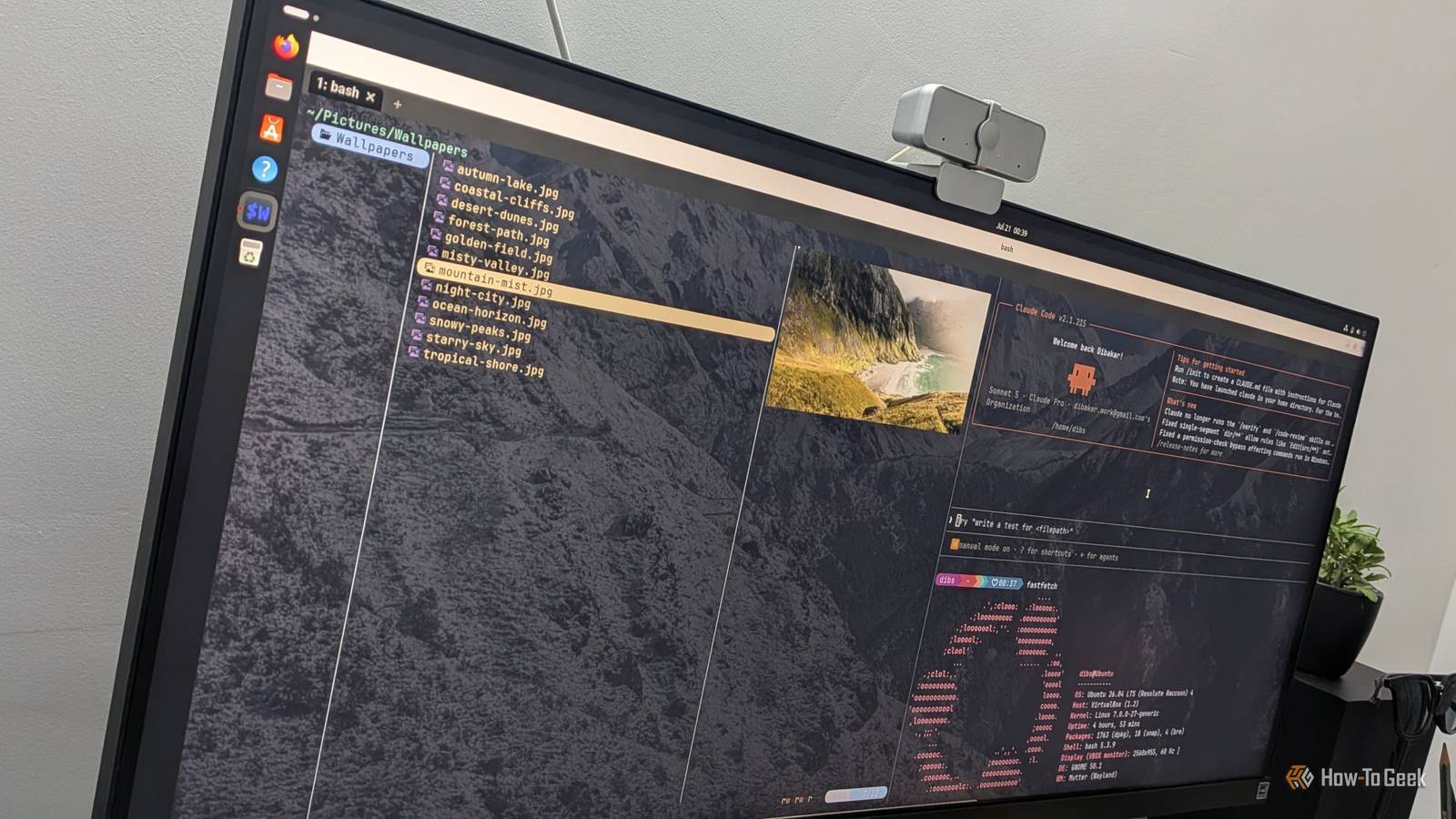
Published Jul 22, 2026, 8:30 AM EDT Dibakar Ghosh is a tech journalist at How-To Geek, where he focuses on Linux, Windows, and productivity tools. His goal is simple—help readers at every skill level get more done with the tech they use every day. He began his writing career in 2016 with WordPress tutorials, later moving into digital marketing, where he spent years reviewing complex tools for marketers. His work has also appeared on Authority Hacker, where he’s shared in-depth guides on digital workflows and online productivity. That experience now shapes his journalism, blending analytical depth with practical, real-world advice. When he’s not writing or testing software, Dibakar is usually watching movies or playing video games. He’s a huge Christopher Nolan fan and a strong proponent of the theater experience. In gaming, he has sunk hundreds of hours into Insomniac’s Spider-Man series, Returnal, Prototype, Darksiders, and Final Fantasy titles. Did you know there are different Linux terminals, some with unique and special features that can genuinely improve your day-to-day experience? For the average user, the choice doesn't matter much, but if you're planning to get serious about the terminal—using terminal apps, Vim, or Emacs—the terminal you choose becomes almost as important as the Linux distribution you run. With that in mind, here's why I settled on my current terminal, along with how the other popular options compare to my daily driver. All Linux terminals aren’t the same And your default terminal might be holding you back While I've been using desktop Linux for over a decade, I only started taking the terminal seriously around 2021–22. I was getting into the world of window managers, and working on the terminal felt far more elegant and efficient than relying on graphical apps. However, when I tried to recreate the look, feel, and workflows I saw other people using, I quickly realized my default terminal couldn't do the same. For context, I was using Ubuntu at the time, which ships with GNOME Terminal by default. Many customization features weren't available, it couldn't display images, and it couldn't split the window into multiple panes. That frustration eventually sent me down the rabbit hole of Linux terminal emulators. The diverse world of Linux terminals Some digging revealed that there are dozens of Linux terminals, many of which ship with very different feature sets. Back then, there was GNOME Terminal, which came with the GNOME desktop environment—that's what you got on Ubuntu and Fedora. But if you were using something like Kubuntu, powered by KDE Plasma, you get Konsole instead, since most KDE Plasma-based distributions ship with it. Now, Konsole is much more feature-rich than GNOME Terminal. Unlike GNOME Terminal, it can display images inline, and it properly renders programming ligatures—things like arrows, not-equal signs, and greater-than-or-equal symbols—which make prompt customizations, such as those using Starship, look much cleaner. That said, these two terminals are mainly popular as they're the defaults for the two most popular desktop environments. There are also third-party terminals you can install separately, such as Kitty, Alacritty, Ghostty, Terminator. Each offers a different combination of features, resulting in a distinct user experience. But that raises an obvious question: Which features are actually worth caring about? The main terminal features you should focus on What actually separates a good terminal from a great one Technically, there are dozens of ways to evaluate a terminal. But if you're just getting started, these are the features I'd pay the most attention to: GPU acceleration: A GPU-accelerated terminal uses your graphics card to render text instead of relying primarily on the CPU. The result is smoother scrolling, lower latency, and better performance, especially when displaying lots of output. Native image rendering: This allows the terminal to display actual images inline instead of crude text-based approximations. It's typically implemented using graphics protocols like the Kitty graphics protocol or Sixel. Native split panes: This lets you divide a single terminal window into multiple panes, making it easy to monitor logs, edit files, and run commands side by side. Built-in multiplexer: A multiplexer goes beyond simple split panes by managing multiple sessions, windows, panes, and layouts while keeping sessions alive independently of the terminal window. Traditionally, you'd use an external tool like tmux, but some modern terminals build these capabilities in. Tabs: Like browser tabs, terminal tabs let you keep multiple sessions in a single window and switch between them quickly. It sounds simple, but if you're monitoring one process while editing files in another session, tabs quickly become indispensable. Container integration: This makes the terminal aware of tools like Podman or Distrobox, letting you jump directly into isolated container environments. If you work with containers regularly, it's a major convenience. Font ligature support: Proper rendering of programming ligatures, which is useful if you spend a lot of time coding or use your terminal as a lightweight IDE. Configuration style: Some terminals use text-based configuration files, while others provide graphical settings panels with toggles and menus. Neither approach is objectively better, but most people strongly prefer one over the other. So, which Linux terminal did I switch to? The one that checked all the boxes—almost As of this writing, GNOME Terminal has been replaced by Ptyxis—both Ubuntu and Fedora now ship with it—so I'm leaving GNOME Terminal out of this comparison. Beyond that, I've spent time using Konsole, Kitty, Alacritty, Ghostty, WezTerm, Terminator, and Foot. Here's a quick breakdown of how they stack up based on the features I covered: Feature Ptyxis Konsole Alacritty Kitty Ghostty WezTerm Terminator Foot GPU text renderer ✅ ❌ ✅ ✅ ✅ ✅ ❌ ✅ Inline image support ❌ ✅ ❌ ✅ ✅ ✅ ❌ ✅ Native split panes ❌ ✅ ❌ ✅ ✅ ✅ ✅ ❌ Tabs ✅ ✅ ❌ ✅ ✅ ✅ ✅ ❌ Built-in multiplexer ❌ ❌ ❌ ❌ ❌ ✅ ❌ ❌ Font ligatures ❌ ✅ ❌ ✅ ✅ ✅ ❌ ❌ Container integration ✅ ❌ ❌ ❌ ❌ ❌ ❌ ❌ Configuration GUI GUI File File File File GUI File As you can see, WezTerm has the most checkmarks, while Alacritty has the fewest, with everything else falling somewhere in between. Now, that doesn't necessarily make Alacritty a bad terminal. In fact, it's one of the best choices if you want something that's extremely fast and minimal. WezTerm, on the other hand, is the best choice if you're looking for a feature-rich terminal. Since I'm looking for something feature-rich and highly customizable, WezTerm is my terminal of choice. That said, the one area where WezTerm—and every other terminal here—falls short is container integration, which happens to be Ptyxis's unique selling point (albeit it’s free). If containers are a major part of your workflow, you'll probably be happiest with GNOME’s new default terminal. The Linux world is just filled with choices Linux never ceases to surprise me with how many choices it offers. First, there are the distributions. Then come the desktop environments you can run on them. And once you start spending more time in the terminal, you discover there are dozens of terminal emulators to choose from as well. For some people, that level of choice is confusing and overwhelming. But just because you're presented with options doesn't mean you have to choose. I'd argue that, with modern Linux, you can safely stick with the defaults—they're good enough for most people. The need to choose only arises once you start running into their limitations. By then, choosing is much easier because you already have a good idea of what you're looking for. If you're trying to become terminal-native and finding your terminal is getting in the way, that's when it's time to go terminal shopping. Fortunately, every terminal I've discussed here is free, so switching only costs you a little time. Hopefully, this guide—and the comparison table above—helps you find the right one.
I replaced my default Linux terminal with this cross-platform one—and I'm not going back
Full Article
Original Source
Read the full article at Howtogeek →KhanList aggregates and links to publicly available news content. We do not host full articles from third-party sources. Always verify important information with original sources.