
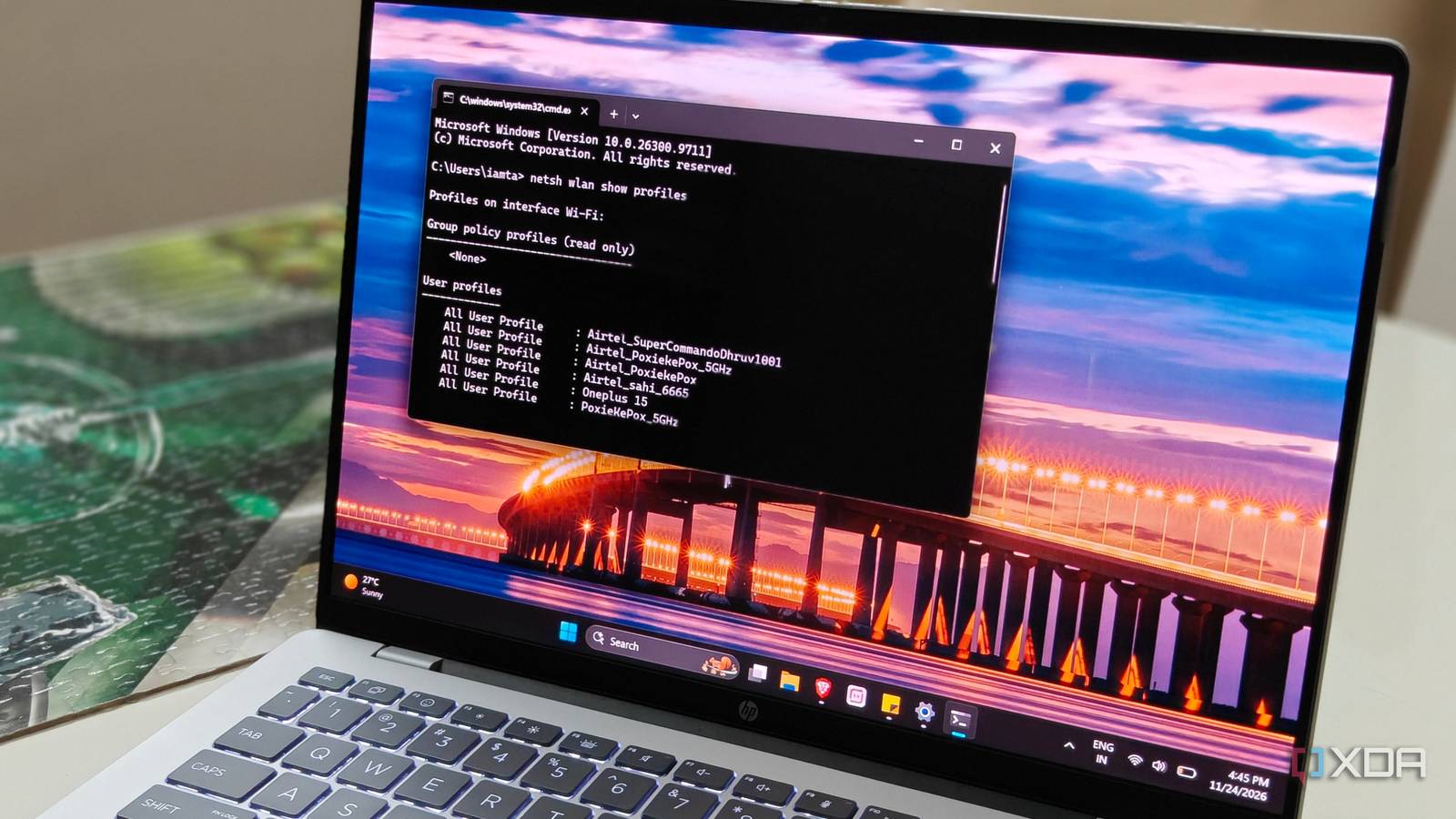
Published Nov 24, 2026, 8:00 PM EST Gaming has been Samarveer’s greatest passion, and the Literature graduate in him takes immense joy in dissecting games for their themes, messages, and impact. Samarveer holds a deep appreciation of gaming, and considers the platform to be the most immersive and impactful across all media. He can be found engaging with gaming communities online, always ready to debate the finer points of ray tracing or itching to write an 8-page collegiate thesis on any game that impacts him emotionally. I've used the same Windows PC for years, so I assumed there wasn't much left for it to surprise me with. Turns out I was wrong, because while poking around some of Windows' older networking tools, I stumbled across something that made me wonder just how much digital baggage I'd been carrying around without even realizing it. Finding out that Windows has a surprisingly long memory when it comes to the Wi-Fi networks I've connected to was not on my 2026 bingo card, and here we are. In fact, I was caught off guard by just how much information was still attached to some of those forgotten connections. Windows remembered Wi-Fi networks I had completely forgotten about My PC apparently has a better memory than I do The first thing I did was open Command Prompt and run netsh wlan show profiles. I expected to see the Wi-Fi networks I currently use, perhaps a couple of old ones I'd forgotten to remove. Instead, Windows served up what looked like a small archaeological record of everywhere I'd connected to. That list included networks I hadn't touched in years. I saw old apartments, workplaces, hotels, family homes, and random connections I couldn't even remember, and they were all sitting there as saved WLAN profiles, even though I had no reason to keep them. Windows had been keeping track of them long after they had stopped being relevant to me. On second thought, though, I realized that this actually makes sense. Windows saves wireless profiles so it can remember things like the network's configuration and automatically reconnect when you return. The problem, however, is that there's a difference between "I connected to this once," and "I still need Windows to remember this." The command itself is also refreshingly straightforward. netsh wlan show profiles doesn't reveal passwords or perform any hacking wizardry, though. All it does is ask Windows to list the wireless profiles currently stored on the machine. You can then identify individual profiles by their exact names. However, all you need to do is add one more argument to the string, and you'll see every Wi-Fi password you've used with those profiles. One command later, Windows handed me the password The password was sitting there the entire time The second command is where things get considerably more interesting. Once I had a profile name, I ran netsh wlan show profile name="NETWORK-NAME" key=clear. Immediately, Windows returned the selected profile's stored configuration, including its security settings that had the Wi-Fi password in plain text under Key Content, "for all to see." In a nutshell, netsh wlan show profiles gives you the names, and adding the profile name plus key=clear asks Windows to display the stored security information for that specific connection. As you might expect, replacing the network name with another saved profile will let you check that one, too. Now, this only works with credentials that Windows has actually retained in the saved profile, and what gets returned depends on the network's authentication method and your permissions on the machine. If the profile is gone, there's nothing for netsh to retrieve in the first place. Still, seeing an old password appear after I had completely forgotten the network existed was bizarre. Windows had simply been keeping the information around quietly, waiting for me to ask for it. Naturally, this made me wonder if I should really be leaving all those old profiles there on my PC. The passwords live in XML files on the PC Thankfully, a PC's secrets don't travel well Curiosity got the better of me, so I went digging deeper than the netsh output. Windows stores each wireless profile as an XML file on the C drive. Heading to C:\ProgramData\Microsoft\Wlansvc\Profiles\Interfaces showed me the profiles, all organized according to the wireless adapter they belong to. Opening one of those files doesn't reveal a convenient little password line, though. Instead, the credential that I could see from the command line was represented by an encrypted blob inside the keyMaterial field. I even tested this by copying one of the profile files to another PC and trying to make sense of it there. As it turned out, nothing happened. The profile wasn't portable, and the netsh command couldn't even conjure up the network adapter, let alone the password from the copied file. Whatever Windows had stored in that blob wasn't useful outside its original environment. Windows stores the profile's key material in protected form, rather than as a readable password. That means copying the XML file alone doesn't make the password readable; access to the protected key material depends on Windows and the required permissions. It's not completely bulletproof, though. Someone with access to your PC and sufficient permissions may be able to retrieve a stored Wi-Fi key using Windows tools. That risk is different from simply copying the profile XML file, which contains protected key material rather than a readable password. Windows isn't leaking your passwords But you probably don't need all those profiles anymore Truth be told, this isn't another "Windows is secretly stealing your data" story. This isn't a security flaw with your PC, either. Windows needs to retain Wi-Fi credentials if you expect it to reconnect to networks automatically, and the netsh command just exposes information that your account is already authorized to access. The surprising part is really how long some of these profiles can stick around. Regardless, I still don't want years of forgotten networks cluttering up my PC, though. Running the show profiles command is a surprisingly good way to see what Windows still remembers, and removing an obsolete profile is just as easy with netsh wlan delete profile name="NETWORK NAME" to remove a particular Wi-Fi network's security data. If you haven't used a network in years, there's little reason to keep its profile around. The bigger lesson is that Windows has an absurd memory for things most of us consider disposable. I had forgotten half the networks in that list existed, while Windows had dutifully kept their profiles tucked away. It isn't sinister, and it isn't particularly new. It's just another example of Windows quietly remembering far more about your computing history than you probably realized. Windows has a memory problem, and honestly, so do I We spend so much time installing utilities to expose information Windows already knows that finding one of these buried tools feels like uncovering a secret passage in your own house. It also makes me wonder how many other perfectly useful commands I've ignored simply because they look like something from Windows XP. Every now and then, you pull at one seemingly insignificant thread inside Windows and discover an entire layer of functionality underneath it. The netsh command isn't glamorous or new, but it certainly has become a command I'll never forget. Windows 11 Pro A USB installation drive and license key for Windows 11 Pro, with additional features like Hyper-V and Windows Sandbox support.
I ran one Windows command and it showed me every Wi-Fi password I've used since 2019
Full Article
Original Source
Read the full article at Xda-developers →KhanList aggregates and links to publicly available news content. We do not host full articles from third-party sources. Always verify important information with original sources.