
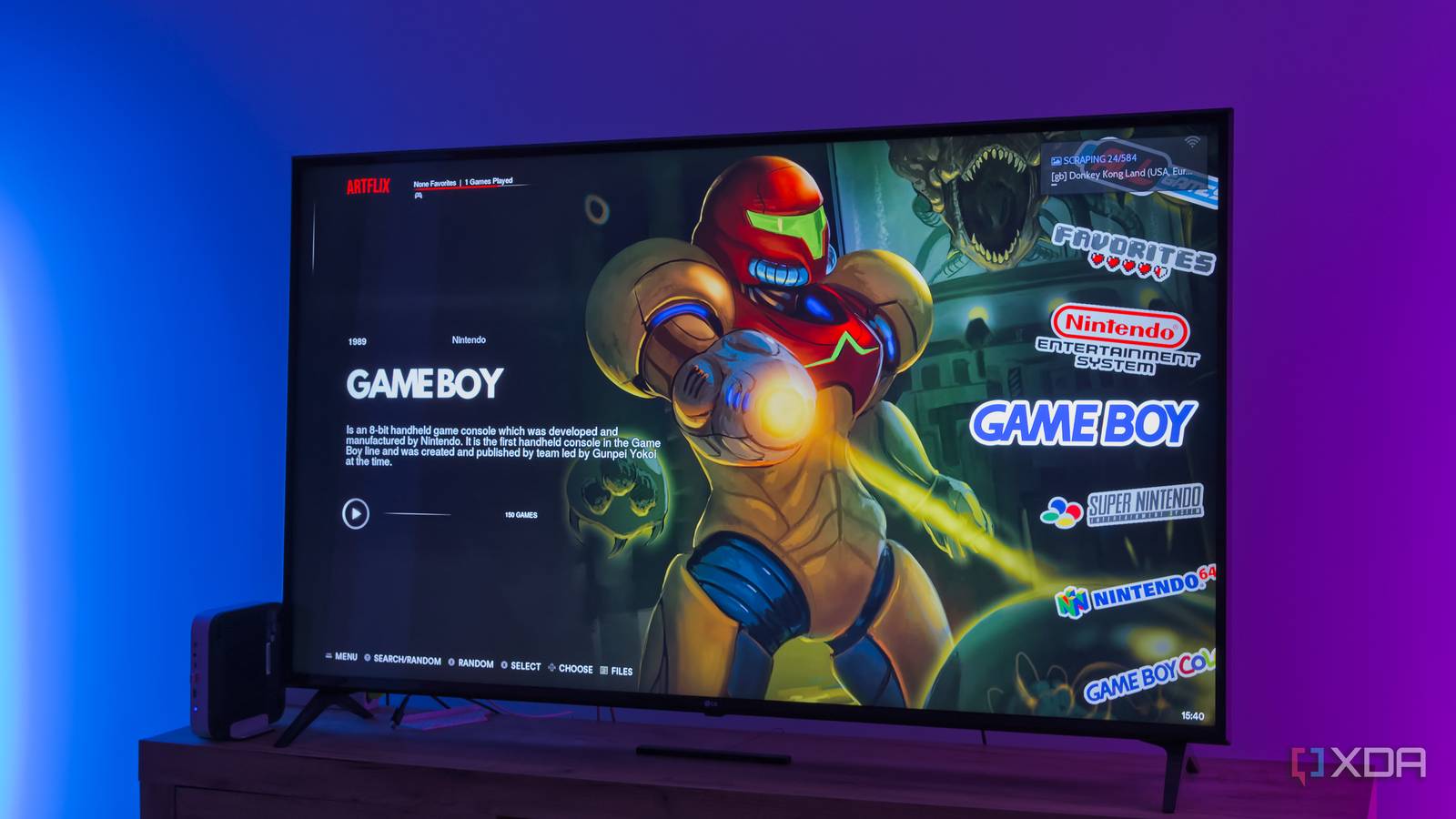
Published Nov 29, 2026, 3:00 PM EST João has been covering the tech world for over 7 years, with a heavy focus on laptops and the Windows ecosystem. I also love all things tech and videogames, especially Nintendo, which he's always happy to talk about. Prior to joining XDA in 2021, he worked at Neowin: https://www.neowin.net/news/poster/jo%C3%A3o-carrasqueira/ Modern gaming can offer experiences many of us couldn't dream of as children, and games like Grand Theft Auto VI are irrefutable proof of that. But as far as technology has come, and despite the incredible vision behind some modern games, it's fair to say we all miss the simpler games of our youth at times. Thankfully, it's also easier than ever to access those games and enjoy them with modern flourishes and controls. One of the best ways to do it is with Batocera, a free Linux distribution focused on offering a console-like experience for games from bygone eras. I loaded it up on a mini PC and put it next to my TV, and it's now the perfect machine for reliving my favorite childhood games. Batocera is a complete package An operating system with everything you need Emulation has become so easy these days that there are a ton of ways to approach it depending on whether you want the most granular control or the easiest setup. I always love to highlight solutions like EmuDeck or RetroDeck, but those still require you to have an operating system beforehand, and you have to actively load into those experiences to really use them as a console. Batocera uses a different approach. While it relies on many of the same core tools — such as the Emulation Station frontend, or RetroArch for the emulators, for example — it's also an operating system in its own right. It's a Linux distribution tailor-made to provide a console-like experience, and as such, it doesn't go out of its way to offer a typical desktop interface. It boots straight into ES-DE, and you're always meant to be using it with a controller. One interesting aspect of Batocera is that it doesn't even need to be installed on your PC. It's a live Linux distro you can run off of a USB drive and just used to play games stored on your PC. However, for this setup, I wanted it running off my PC so I didn't need to keep the flash drive plugged in. Batocera is completely free and it's been around for a long time. It's up to version 44 now, and it recently celebrated its 10-year anniversary, so it's not a one-off project that will go unsupported in a few months. Setting up is easy Up and running in no time Setting up Batocera is extremely easy, partly because of the OS itself and partly thanks to using ES-DE in the first place. Because it's a complete package, Batocera already includes both the frontend for browsing your games and the emulators required to play them. It's just a matter of tailoring it to your liking and adding your games. Batocera boots straight into its custom EmulationStation UI on first boot, and you can control it with a mouse and keyboard, or with a wired controller (or one that uses a USB dongle). This is potentially the most frustrating part of the experience, as you need to go into Bluetooth settings yourself to connect a Bluetooth controller. The UI is also mostly designed for a controller, and keyboard instructions aren't plainly available. Take it from me, the spacebar opens the main menu, and from there it should be easy to navigate to the controller settings and get started. Once you have a controller plugged in, navigation is way more obvious. If you're using Batocera from a USB drive, adding your games may be easier since you can leave your main disk untouched, add games to the main operating system on your PC, and then load them using Batocera. If you install Batocera directly on the PC like I did, the easiest way to go about it is using the SMB share. Once you connect to the internet, Batocera automatically makes its folder structure available over SMB, so you can use any other device to drag files into the roms folder and get started. Otherwise, you can plug in a USB drive with the games and use the built-in file manager by pressing F1. There's a learning curve, though While getting started is fairly easy, getting into the nitty-gritty of using Batocera can be a little less obvious. You have to read the team's guide in advance to have a better idea of what you're doing. For example, it's not entirely clear how you can quit a game unless you look it up. On an Xbox controller, you have to press Xbox + Menu, for example, but you may want to check the hotkey settings in Batocera first so you don't get frustrated by the available options. Batocera also incorporates manu emulator options into its own UI, which is not always what you might be expecting. I'm more used to these options being in RetroArch, and some still are, but you may need to look around for specific settings if you want to mess with more complex things. A beautiful way to browse my games Emulation Station is always a treat Once everything is set up, actually using Batocera is a wonderful experience. I've sung the praises of the ES-DE frontend many times before, but Batocera actually uses a fork of the original Emulation Station (from which ES-DE is also built). It definitely feels familiar, but with some differences here and there in terms of the overall look. You boot into the interface, and you get an overview of all the consoles for which you have ROMs loaded on the system, all presented in beautiful ways. The default theme labels each console using its official logo, but you can install a wide range of custom themes to suit your liking. Some use a picture of the console or controller, others have dedicated icons to match a specific aesthetic, and others still may use art from specific games on that platform. Once you dive into a specific platform and use the built-in scraper to pull related metadata, each game is presented beautifully, with box art, cartridge art, screenshots, and even a trailer. Browsing ES-DE feels like going through a museum of retro games, and it's always a spectacle. I love seeing video games get treated with this kind of respect, and it genuinely makes it easier to find games you may not have known about before, while making the ones I already love feel even more special. I can play all the consoles I owned as a kid And the games I never got to play back then Depending on the mini PC you're using, this setup can let you play almost any game from your childhood. Older platforms, like the NES, SNES, and the Game Boy models, are all extremely easy to emulate now, so pretty much any computer should do the job. I'm using a mini PC with an AMD Ryzen AI 9 HX 375, which can also handle more demanding consoles just fine. I loaded games from the platforms above, as well as things like Nintendo 64 and GameCube, and they all ran beautifully on this setup. Batocera comes with great emulators selected by default, and this machine has more than enough power to play these games smoothly, often at higher resolutions than the original releases. Rendering games like The Legend of Zelda: Twilight Princess at higher resolutions still produces a pretty great result on a 4K TV in 2026. Sure, it still looks like an old game, but it looks much sharper, and it still plays very smoothly. Of course, platforms like the Nintendo 64 and earlier also run perfectly fine here. Of course, I'm not limited to Nintendo consoles, that's just where my preferences and childhood memories are, but early Sega and PlayStation consoles are also perfectly viable to use with this setup. Some more recent consoles may require additional files to work fully, as is the case with the PlayStation 2. Retro gaming is better than ever If you often find yourself missing the games you played as a kid, or games you wish you'd played but never got the chance to back then, a mini PC might be your gateway to that experience. You can easily put it next to the TV, load it up with all the games you could want, and sit back on the couch with a controller. Batocera takes all the fuss out of the setup, and it's wonderful. batocera
I put Batocera 44 on a mini PC under my TV, and it's never been easier to relive my childhood favorites
Full Article
Original Source
Read the full article at Xda-developers →KhanList aggregates and links to publicly available news content. We do not host full articles from third-party sources. Always verify important information with original sources.