
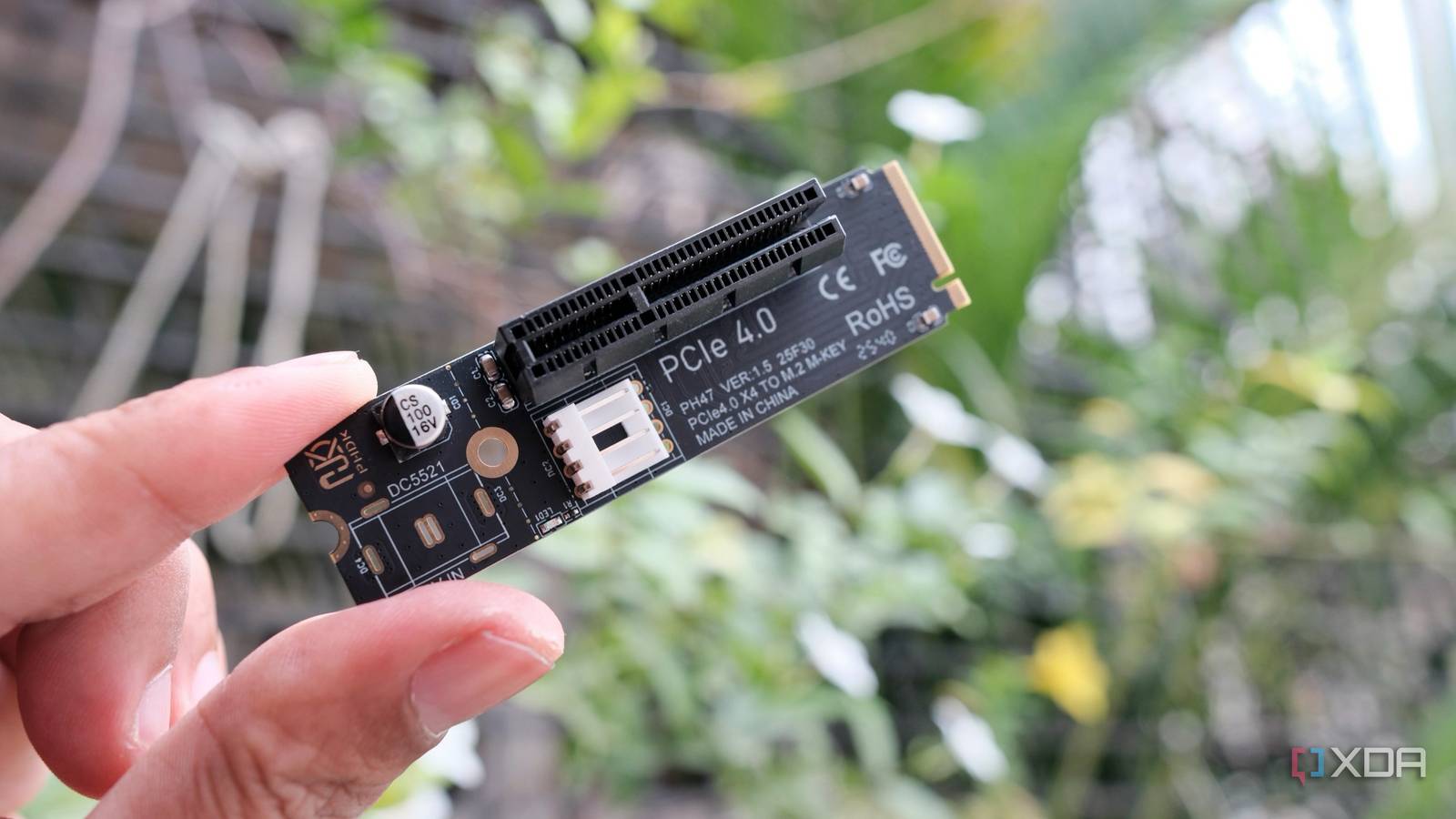
Published Sep 21, 2026, 12:00 PM EDT Samir Makwana is a technology journalist and editor from India since past 18 years and his work appears on MakeUseOf, HowToGeek, GSMArena, BGR, GuidingTech, The Inquisitr, TechInAsia, TechWiser, and others. He has written news, features, and gadget reviews for national technology media publications. His passion is to help people with their technology problems and gadget purchases. For that, he has worked for some of the biggest international technology publications, covering news, explainers, how-to guides, listicles, and product-buying guides. He has worked as an editor and managed teams since 2015. His expertise broadly covers computers, smartphones, game consoles, headphones, smart home products, browsers, and apps. When I upgraded my desktop to the AM5 platform, I wanted to fill every M.2 slot. That never happened, so I built my home lab instead. That revealed the real bottleneck. My home server and my desktop were stuck at Gigabit speeds, and transfers were slow. I picked up a couple of 2.5GbE network cards to fix that, one for my desktop and one for my server, a mini PC. On my desktop, I wondered if I could skip the usual route and plug the network card straight into an M.2 slot instead. The idea was to create a direct lane between the PC and my home server. That’s the part I love exploring, and it had nothing to do with speed. Like many, I treated the M.2 slot as “a second SSD slot,” but it became a lot more useful once I stopped thinking of it as a storage-only option. All thanks to an M. 2-to-PCIe adapter. A private lane for two machines Cheaper than upgrading the whole network My primary PC connects directly to my router, an ASUS RT-AX88U with only Gigabit LAN ports. Even though my motherboard has a 2.5GbE network chip, the router still holds it back. At the same time, my phone, laptop, TV, game console, and every other device didn’t care about going beyond regular Gigabit speeds. Getting a dedicated 2.5GbE card for my desktop and home server was part of the plan to create a private lane for faster data transfers. That turned out cheaper than upgrading the whole network to 2.5GbE. So the fix wasn’t a new router or a managed switch. All I wanted was to skip my router’s Gigabit ports. A spare M.2 slot is a PCIe slot in disguise Putting the spare M.2 slot to work My mid-tier Gigabyte X870 Eagle Wi-Fi7 motherboard has three M.2 slots. Right now, my boot drive takes up one, wired straight to the CPU. The other two were sitting empty, and buying more NVMe SSDs isn’t happening in this economy. With a cheap M.2-to-PCIe adapter, I moved the same card to the spare M.2 slot, assuming the adapter’s advertised speeds would open up more bandwidth. That turned out to be wrong. The empty M.2 slot connects to the motherboard’s chipset rather than straight to the processor. My network card also only uses the narrowest connection a slot offers, no matter what slot or adapter sits behind it. I read the card’s spec sheet and the motherboard’s manual thoroughly to confirm that. As a bonus, I freed up the traditional PCIe slot the network card used to occupy. More than a network card fits A short list of things you can fit in an M.2 slot The M.2 adapter gave me a normal PCIe slot to work with, so I could plug in a variety of expansion cards. That turned out to be better than looking for purpose-built M.2-native cards, which are pricier. Here are some cards you can plug in. USB expansion cards, for adding two or four USB-C or USB-A ports to the desktop. SATA controllers, for adding extra storage when you’ve run out of SATA ports in a DIY NAS or DAS. Wi-Fi and Bluetooth cards, for boards that lack wireless connectivity. Sound cards, for a dedicated audio chip without giving up a full-size slot. Capture cards, using a regular x1 version rather than hunting for the M.2-native kind. The niche M.2-native cards are hard to find, but I found enough options to add more storage or PCIe-based peripherals. Setup was painless Refer to the motherboard’s user manual Mounting the network card on the M.2 adapter was routine. After seating the card, I closed the case and booted my computer. Windows 11 found the card immediately and automatically grabbed the latest Realtek driver. I didn’t have to flip any BIOS settings or deal with conflicts with my boot drive. One caveat: I had to check my motherboard’s manual to understand how the M.2 slots share bandwidth with the neighboring slot. If I used both at once, the system would cap one of them. An M.2 adapter taught me the slot was never the bottleneck What I actually walked away with was a freed-up PCIe slot. Now I know exactly what’s going there next: a sound card and a capture card. I’ve been putting off those two things because I didn't have an open slot. That’s a tangible win, and it’s the part of this whole detour that actually changed something in my PC case. The bandwidth gain I was chasing never showed up. The card was always the limiting factor, not the slot it sat in. I’m okay admitting that it didn't go the way I expected. I also built a direct channel between my PC and my home server, and picked up a spare PCIe slot, without losing anything. It also changed how I’ll shop for my next motherboard. A spec sheet listing three M.2 slots doesn’t tell me much about their full speed potential. Neither does it say directly that using one of them quietly throttles the other. For a single network card, that didn’t matter. But if you’re building a home lab where you plan to stack NVMe drives, extra network cards, capture cards, and SATA controllers across every slot you can find, it matters a lot more. So I’ll read the motherboard’s manual for the fine print on shared bandwidth before I buy one, not after.
I plugged a network card into my M.2 slot, and it's the most boring upgrade I love
Full Article
Original Source
Read the full article at Xda-developers →KhanList aggregates and links to publicly available news content. We do not host full articles from third-party sources. Always verify important information with original sources.