
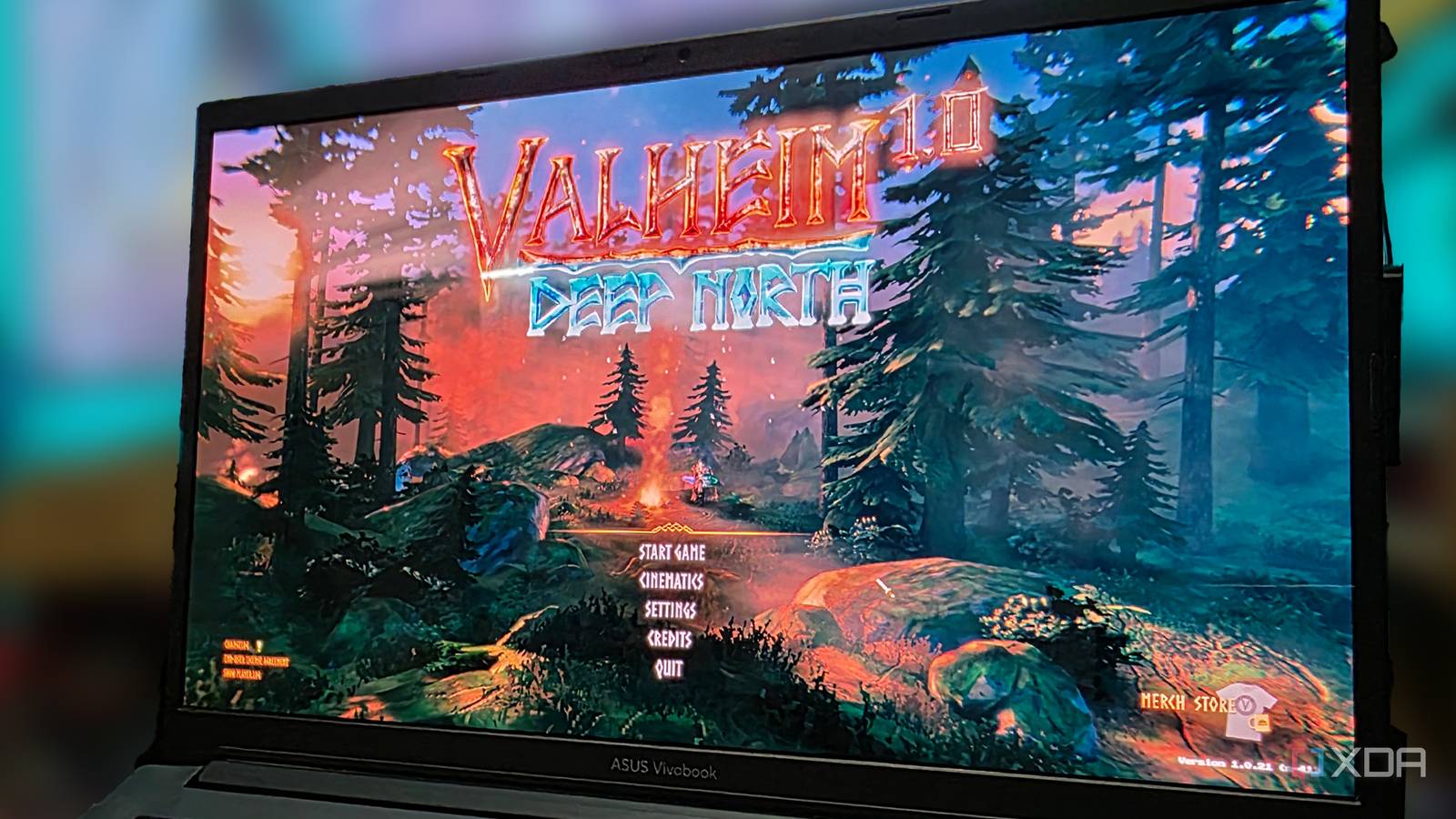
Published Nov 16, 2026, 7:00 AM EST Mainak is an ardent tech lover who grew up with computers. Since childhood, he has had the privilege of tinkering, taking things apart to fuel his curiosity. He is a computer science graduate specializing in programming, particularly memory management, as well as networking. Still, he has always had a soft corner for tech, which led him to develop a deep passion for tech journalism. Mainak loves explaining complex technical terms in simple layman's terms and lightening the conversation to set the mood right. Beyond tech, he is also a self-taught audio engineer and jazz guitarist who has mixed and mastered many audio projects. Whenever frame generation comes up, the first question that comes to mind is: why deal with fake frames and all that extra input lag when we can just lower in-game settings and hit the frame rate we want? The problem is that dropping graphics settings to rock bottom doesn't always boost frame rates in CPU-heavy games, and let's get real: no one wants to look at a blurry mess. Even when you do use it, running frame generation on a maxed-out GPU adds its own performance penalties that drag down the base frame rate and eat into VRAM headroom. On my ASUS Vivobook with a Ryzen 7 5800H, a 4GB RTX 3050, and 16GB of soldered dual-channel DDR4 memory, Nvidia's native DLSS Frame Generation isn't supported. Turning to Lossless Scaling gave me a clever workaround: instead of putting the FG compute burden on my outdated 4GB RTX 3050, I offloaded the entire process onto my processor's integrated Radeon graphics. While this trick works wonders for smoothness, pushing that tiny Vega GPU too far exposes a hardware catch that can ruin everything. Why simply lowering graphics settings doesn't always work A budget GPU can only get so far with frame generation Turning down visual presets does indeed work fine in lightweight shooters, but some games, particularly survival and open-world games that deal with a lot of things on the screen, are a lot more difficult to deal with. For example, in Valheim, once I load into a base in the Ashlands, my frame rate settles at around 45 to 50FPS at 1080p, and the game is already stuttery because the Ashlands is such a heavy area. Dropping every setting to low doesn't improve performance because my CPU is holding back the game engine. The same is true for Enshrouded; the game doesn't run that well, and it even starts up with a warning that my PC isn't compatible. Even when I'm speed running quests, clinching mobs, and clearing shroud trees, my frame rate doesn't stay pinned at 60; instead, it drops quite a bit, especially when I try to build a lot of structures or explore areas like the Hollow Halls. Tell XDB what you want the PC to do and how much you want to spend. We'll find parts that fit, with current prices. What will you use it for? Pick any Games or apps Optional Budget Enshrouded has been updated, and the new optimizations have improved the situation to some extent; still, my laptop components aren't built for gaming, and their TDP isn't set up for that either. Using DLSS in Performance mode in Enshrouded helps, but the image still doesn't look good. Using aggressive DLSS settings gets the job done, but it worsens the CPU bottleneck because the render resolution is much lower. With only 35W of TDP, my Ryzen 7 5800H can only do so much. This is where frame generation starts to make more sense: instead of turning the game into a blurry smear, we can increase the frame rate to the point where it’s smoothly playable and looks better than before, unless you hit a catastrophic wall (which we'll get to in a bit). One might argue why even bother running LSFG on the iGPU; well, running Valheim or Enshrouded at any playable setting already pins the dedicated GPU at 99% usage, and the 4GB VRAM is almost completely full; adding frame generation on top of that only worsens the situation with severe micro-stutter, screen lag, and game crashes. How an iGPU, along with a laptop's wiring, makes frame generation shine Routing frame generation through the integrated Radeon Vega saves precious VRAM, but system RAM usage goes up To get around that single-GPU penalty, I put my 5800H's built-in Radeon Vega 8 graphics to work. Unlike newer gaming laptops, my laptop doesn't have a physical MUX switch or Advanced Optimus. Though it has a dGPU, the display is still wired through the integrated Vega 8, which is a boon for me. For LSFG to work properly when offloading to an iGPU, the display typically needs to be wired through the integrated graphics, which is already set up by default in my instance. By locking Valheim and Enshrouded to the RTX 3050 in Windows Graphics Settings and setting the Preferred GPU in Lossless Scaling to AMD Radeon Graphics, my RTX 3050 puts all of its usage and all of its VRAM towards rendering real frames, while the Vega iGPU intercepts the stream and multiplies the frame rate on the way to the screen. Since the Vega 8 iGPU has no dedicated memory of its own, turning on frame generation on the iGPU in my tests pushed my Windows 11 RAM usage up by around 500 to 800MB, which is a trade-off I gladly took to save my 4GB VRAM buffer. As for my in-game settings (screenshots shared above), everything is set on the lower side, so performance holds up without making the games look ugly. In Lossless Scaling, I set Flow Scale to 70% and turned on Performance mode, using a 3X FG multiplier for Valheim and a 2X multiplier for Enshrouded. That said, the difference in Valheim was night and day. Walking into my Ashlands base, where my frame rates normally stutter around 40 to 45FPS, turning on FG clocked it at over 100FPS while keeping it smooth. During intense combat inside the Ashlands fortress, FG pushed my default 40–45FPS past 100 as well. Combat was smooth, and even parrying attacks was pretty easy, with no noticeable input lag. The hardware catch shows up once iGPU usage crosses 80% Pushing the Vega 8 too far turns gameplay into slow motion, while CPU bottlenecks still bleed through When testing the absolute limit of my Vega 8 iGPU, pushing past the 70% Flow Scale drove its usage close to 90%, triggering that catastrophic wall I mentioned: frame rate deteriorated, and the entire game turned into slow motion. Interestingly, the issue is nearly impossible to capture in a screenshot or video recording because of interpolation that masks the effect on playback; you'll have to take my word for how jarring it is in person. Latency is also a problem because the display is wired through, which adds more input delay, though it remains manageable in combat. In Enshrouded, 2X frame generation smooths out solo roaming nicely, provided there aren't too many structures around. However, the moment I start building a base or place a lot of objects, my system's performance plummets, and frame generation cannot magically fix it, since my hardware is weak. Offloading frame generation is a lifeline if you respect its limits Integrated graphics can buy outdated hardware more time, even though it's not an absolute solution My testing showed that offloading Lossless Scaling Frame Generation to the Ryzen 7's iGPU helped me improve playability in the games I tested, but given how weak the Vega is, it's hard to stay below 85–90% iGPU usage and avoid that slow-motion bug. Regardless, the system RAM and added latency tradeoffs are still apparent, and the results are specific to my laptop's APU, memory, and display wiring. For budget laptop gamers, tuning in-game settings and watching memory usage should come first. Dual-GPU frame generation is worth exploring when your primary GPU has zero headroom left, and you have the patience to test your limits properly.
I offloaded frame generation to my iGPU to save performance, but there is a hardware catch
Full Article
Original Source
Read the full article at Xda-developers →KhanList aggregates and links to publicly available news content. We do not host full articles from third-party sources. Always verify important information with original sources.