
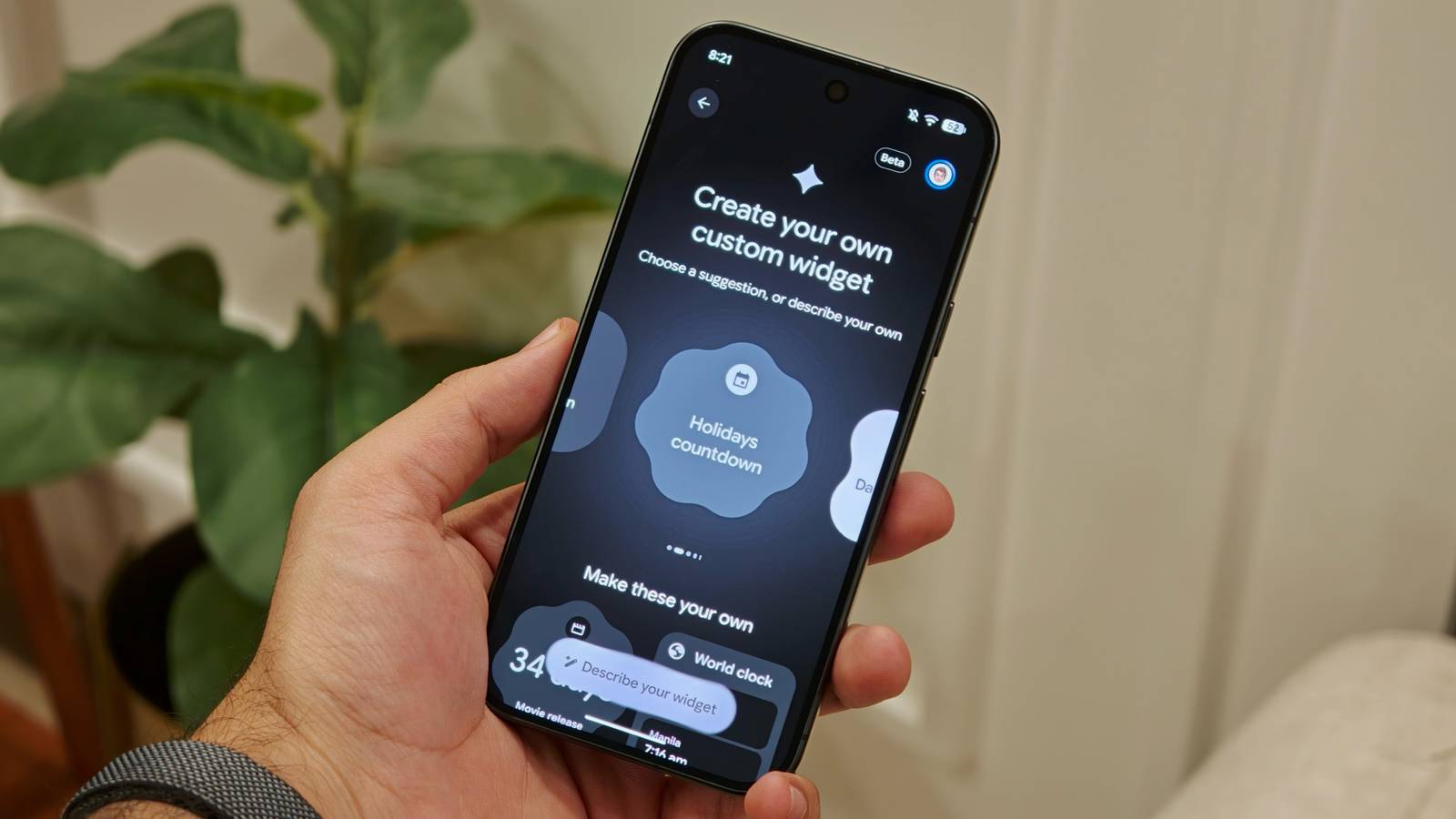
Published Nov 21, 2026, 11:00 AM EST Sanuj is a freelance tech journalist with over six years of experience covering smartphones, wearables, and consumer technology. He currently writes for Android Police, Tom's Guide, Android Central, Android Authority, and Pocket-lint. He has previously contributed to publications like Pocketnow and MakeUseOf. Since the start of 2025 alone, he has tested over 30 smartphones. He has also attended major global trade shows including MWC (2024, 2025, 2026) and IFA (2024, 2025), along with launch events hosted by Google, Samsung, and other leading Android brands. When he's not writing about tech, you'll find him sipping a cup of chai, scrolling Twitter, and reading updates about his favorite football club, Chelsea FC. Feel free to reach out to him via email at sanujb6 [at] gmail [dot] com. Google Pixel's Create My Widget feature is finally available. After showcasing it with Googlebook earlier this year, Google started rolling out Create My Widget with the November Pixel Drop. It's worth noting that Create My Widget is currently available only for the Google Pixel 10 and Google Pixel 11 series, excluding the Pixel 10a for now. Google says the feature requires a phone that's compatible with Gemini Intelligence, which currently includes only its flagship Pixel devices. I've been using Create My Widget on my Google Pixel 11 Pro for the past week or so, and here are five widgets I've created. You can enable the feature without waiting for Google If you have a compatible Google Pixel phone but still haven't received Create My Widget, it's straightforward to enable. As Google detailed earlier this week, Create My Widget is currently available only in beta, so you'll need to join the beta program and update the app to use it. Here's how you can get it on your device: Open this Google Play Store link on your Pixel phone. Tap the Become a tester button. Open this Google Play Store link again on your device and tap Update. After you've updated the Create My Widget app on your Pixel 10 or Pixel 11, you should be able to use the feature. To get started, go to your Pixel's home screen and long-press an empty area. Tap Widgets, and you should see a new Create button in the upper-right corner. From there, you can create your own custom widgets for your Pixel phone. From football fixtures to flights, here's what I made When you open the Create My Widget feature on your Pixel phone, you're taken to a screen where you can choose from a list of suggestions or describe the widget you want to create. There are plenty of options to explore based on your needs. For example, you can create a widget that tracks a particular company's stock price or one that tracks daily fuel prices in your area. After you describe what you want or choose a suggestion, Gemini takes a few seconds to generate the widget. You can then preview it before adding it to your home screen. You can also tweak the widget you've created if it doesn't turn out how you wanted on the first try. You can also create widgets that pull data from your Google account. For example, you can ask it to use information from your Google Calendar or Gmail, and it'll automatically pull that data into the widget. You can have only five Create My Widget widgets on your home screen at a time. If you have five and try to create another one, you get an error and have to remove an existing widget before adding a new one. My experience with Create My Widget has been a bit hit-or-miss so far. If you ask it to create something fairly basic, it usually does the job just fine. Keeping track of the next Chelsea game Being a Chelsea fan, one of the first things I wanted was a widget that would show me when the team is playing next. I asked Create My Widget to display the next Chelsea fixture, including the date, kickoff time, and venue. Thanks to this widget, I no longer need to open apps like FotMob or SofaScore to check when the next match is. Having all my flight details in one place Another thing I wanted to keep track of was my upcoming flights. Google's At a Glance widget does a good job of showing flight information automatically, but I wanted something dedicated to it. So I created a widget that pulls my flight details directly onto the home screen, with the option to manually refresh the information when I want. Tracking packages without opening Gmail Since we're talking about keeping track of things, I also created a widget that pulls delivery information from Gmail and shows my package status. I've kept it simple: it shows the status, what it is, where it's from, and the expected delivery date. Counting down the days to my next trip Then there's a countdown widget I created for my next trip. Nothing particularly complicated here, but it's nice to have the number of days remaining on my home screen. Remembering birthdays and anniversaries The last one might be the most useful. I'm terrible at remembering birthdays and anniversaries, so I asked Create My Widget to pull upcoming occasions from my Google Calendar, which is synced with Facebook. Now, I can see who I need to wish for that week without opening my Calendar or scrolling through Facebook. Not every widget I asked Gemini to create worked out If you ask Create My Widget to make something more complex, it can struggle. For example, I wanted to create a custom clock widget that combined analog and digital time, along with the date and day of the week. But it couldn't get that right and instead gave me a standard digital clock widget. This shows you don't have complete control over the design of the widgets you create. But if there's a widget you've wanted for years, especially one that's personalized to your needs and can pull information from your Google account, Create My Widget gives you a way to make it happen. Google needs to bring this to more Android phones I've been using Create My Widget for the past week and have been thoroughly impressed. I've always wanted widgets that cater to my specific needs, and this feature makes that possible. However, I don't understand why Google limits users to creating only five widgets at a time. And since the feature seems largely powered by Gemini, I feel Google should expand it to at least all Pixel phones. I wouldn't be surprised if Google expands Create My Widget to flagship Samsung Galaxy phones or if Samsung introduces a similar feature of its own.
I let Gemini build 5 widgets for my Pixel home screen; the results surprised me
Full Article
Original Source
Read the full article at Androidpolice →KhanList aggregates and links to publicly available news content. We do not host full articles from third-party sources. Always verify important information with original sources.