
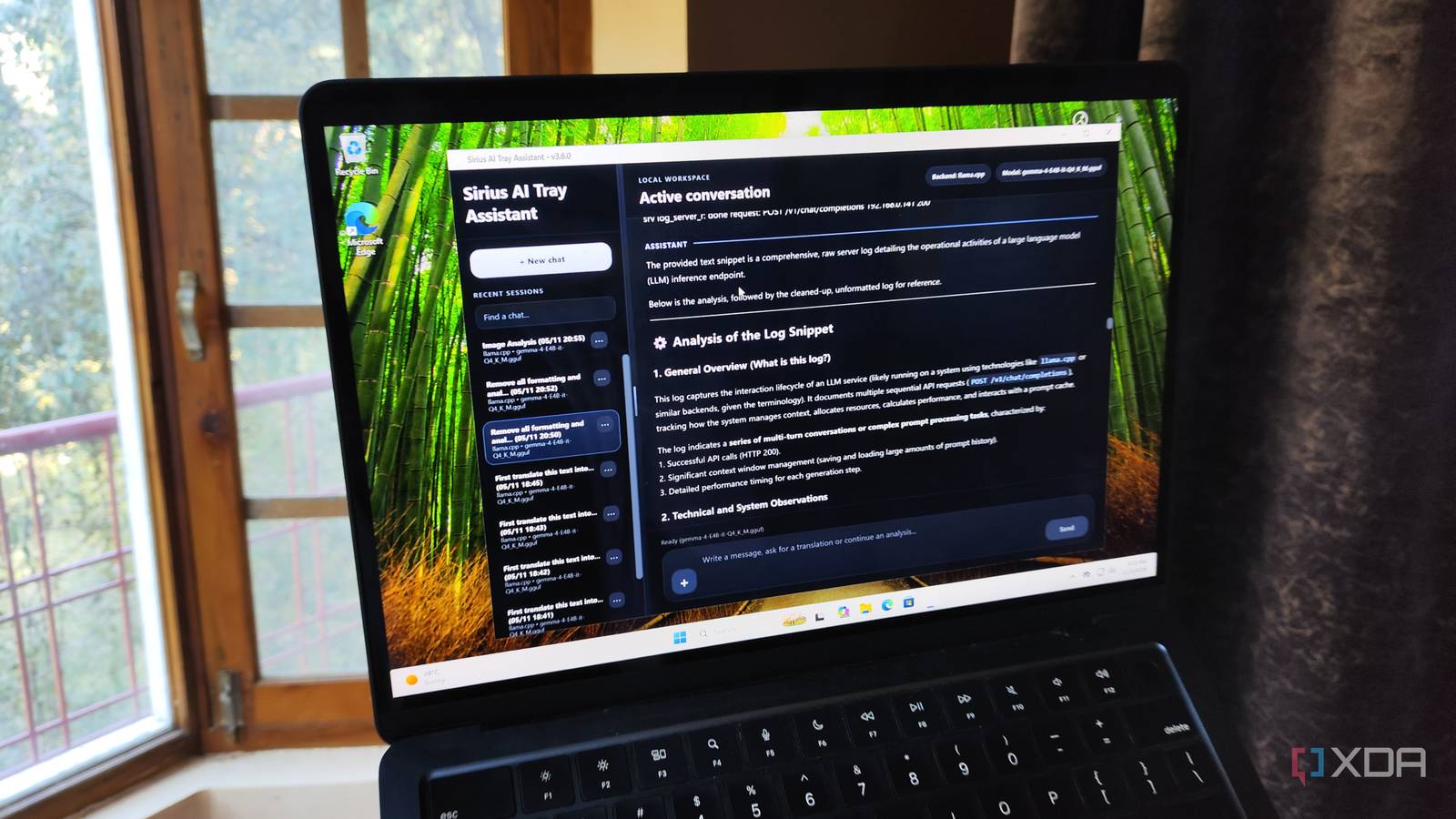
Published Nov 6, 2026, 7:00 PM EST Ayush Pande is a PC hardware and gaming writer. When he's not working on a new article, you can find him with his head stuck inside a PC or tinkering with a server operating system. Besides computing, his interests include spending hours in long RPGs, yelling at his friends in co-op games, and practicing guitar. On paper, locally-hosted models don’t have the same computational prowess as their bulky frontier counterparts running on cloud servers. But as someone who has spent the last couple of months pushing my outdated hardware to its limits, I must admit that the majority of my productivity needs are easily met by local LLMs running on my home lab nodes. In fact, between my self-hosted repertoire of productivity apps and lightweight agent harnesses, I’ve got a decent collection of services that rely on my local AI models. My clipboard assistant is one such addition to this suite. And despite sounding like a simple tool, it lets me run analysis tasks on copied elements, translate text in different languages, and run OCR workloads on screenshots – all without forcing me to spend a dime on premium subscription fees or sending my data to external servers. While Gemma 4 E4B serves as the brain of this setup Seeing as how my clipboard assistant would gain access to every piece of text I’d end up copying during my everyday tasks, I wanted to use something that respects my privacy and doesn’t phone home for simple inference tasks. After sifting through different community-created tools, I eventually came across the Sirius AI Tray Assistant repo by developer Zoott28354, and it seemed like the perfect companion for my self-hosted clipboard manager. But before I go over how I use it in my setup, let me quickly discuss the LLM powering this app: Gemma 4 E4B (Q4_K_M). Since it has an effective parameter size of 4.5B, it’s light enough to run on pretty much any GPU in my arsenal. Better yet, it runs at a break-neck pace on my outdated graphics cards – to the point that my RTX 3080 Ti manages to hit well over 110+ tokens/second for this LLM. For a clipboard analysis tool, where I’d rather not wait several minutes for the inference tasks to wrap up, the Gemma 4 E4B + RTX 3080 Ti combo meshes really well for my productivity tasks. Pairing my local LLM with Sirius AI Tray Assistant was just as easy. Once I’d downloaded this clipboard companion, I opened the Configuration button within its tray menu, chose llama.cpp as the server, and used the http://localhost:8080/v1 link as the Gemma 4 E4B host. That said, I’ve also tinkered with remote connections here, as I can’t always spare my daily driver’s GPU for LLM inference tasks. And as long as I use a Custom server profile and add the IP address pointing to the llama-server running on my Proxmox-powered LXC, I can still use the other GPUs in my arsenal to drive the clipboard inference operations on the Sirius Assistant. Custom clipboard prompts make this setup a godsend for productivity And the persistent memory retains important analysis tasks By default, the analysis option within the Sirius AI Tray Assistant’s menu uses my Gemma 4 E4B instance to convert the contents of my clipboard to English and generates a detailed analysis on their utility, which is pretty impressive in its own right. But what makes this tool a powerhouse for handling everyday tasks is the custom prompt window, where I can freely tweak the analysis operation to suit my use case. For example, I often need to remove formatting when I grab PowerShell scripts, Linux commands, and random code snippets when I document my projects. Well, adding the “Clear formatting” instruction as the custom prompt for my text searches gets the job done. Speaking of code, I’ve configured this AI app to go over the commands, snippets, and scripts I often copy from documentation, and all I have to do is click on the Analyze text option to get a brief summary of what it can do. Likewise, if I’m researching something in a different language, I can leave the “translate to English” prompt enabled and wait a few seconds for the Sirius + Gemma 4 E4B combo to work its magic. And for tasks where I may need to consult my clipboard contents, I can always access the persistent chat logs on Sirius AI. It’s pretty handy for running OCR tasks on screenshots Aside from my copied text, Sirius Assistant can even look into the screenshots I create using the Windows Snipping Tool, and it works well with Gemma 4 E4B because the LLM ships with image analysis capabilities. For example, if I’ve got text that I can't copy with the ol’ reliable Ctrl + C shortcut, I can just take its screenshot using the Windows Snipping Tool and have Sirius + Gemma 4 E4B create an OCR report highlighting it – provided the text in question is somewhat readable and isn’t a pixelated mess, of course. The Sirius AI Tray Assistant has become my newest work companion Considering that I don’t need a bulky GPU or pay huge to drive the Sirius Assistant, it meshes well with the outdated systems in my home lab. In fact, I’ve even tested it with Gemma 4 E4B instances running on my GTX 1060 laptop and GTX 1080-powered llama.cpp LXC, and both setups are fast enough for everyday tasks. Combine that with the fact that everything runs locally, and you can see why I’ve installed it across all the Windows machines in my arsenal. llama.cpp
I gave my Windows 11 clipboard a local LLM brain, and it made trivial copy-paste operations a lot more productive
Full Article
Original Source
Read the full article at Xda-developers →KhanList aggregates and links to publicly available news content. We do not host full articles from third-party sources. Always verify important information with original sources.