
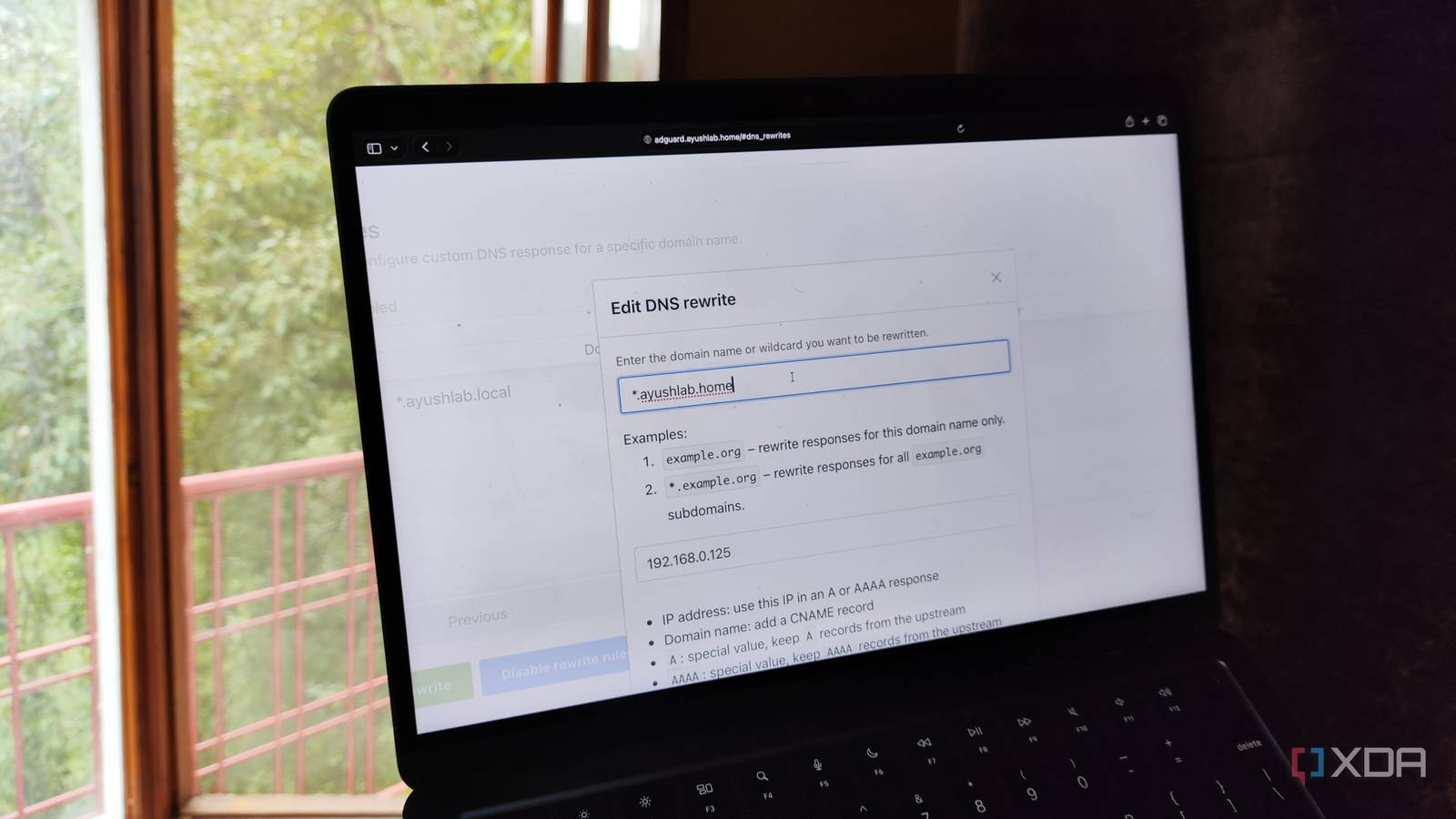
Published Sep 3, 2026, 2:30 PM EDT Ayush Pande is a PC hardware and gaming writer. When he's not working on a new article, you can find him with his head stuck inside a PC or tinkering with a server operating system. Besides computing, his interests include spending hours in long RPGs, yelling at his friends in co-op games, and practicing guitar. Having spent years maintaining my home lab nodes, I have to admit that micromanaging bazillion services and making sure that everything is running smoothly can get a little annoying at times. That’s why I’ve got dozens of administration tools to aid my server management tasks. For example, my Authentik server not only increases the authentication security of my setup, but it also makes logging into essential servers a cakewalk. Likewise, my Pulse + Gotify combo keeps a weather eye on every node, container, and VM in my arsenal, and notifies me every time my botched experiments bring something down. But the biggest problem I ran into when I began expanding my home lab was the sheer number of IP addresses I’d have to remember just to access my nodes and the services they host. As such, I configured hostnames and domain names to ensure I don’t have to remember a single IP address. I modified the hosts file to give hostnames to my local servers It made SSHing into my home lab nodes a breeze Starting with the easier process, I’ve set up hostnames on my main admin system that correspond to the IP addresses of my server rigs. That way, I don’t need to manually remember long IP addresses every time I need to run ping commands, connect to them over SSH, pair network shares running off them, and perform other CLI-driven server management tasks. On Windows 11, configuring hostnames was a piece of cake. First, I opened Notepad with administrator privileges, navigated to the C:\Windows\System32\drivers\etc directory, and chose the hosts file. Then, I headed to the bottom of the file and began adding different IP addresses alongside the hostnames I wanted to assign to them in the following format: IP_address hostname192.168.0.138 ayush-x15192.168.0.117 ayush-truenas With that, I could access the server nodes over SSH with just their hostnames. Since I’ve saved many PVE nodes this way, I could even use these hostnames to access their web interfaces after appending port number 8006 at the end. That said, I’ve got dozens of these services configured on these servers, which I also need across multiple systems, including smartphones and tablets. So, I needed another means to tinker with my self-hosted toolkit, one that doesn’t involve creating these configurations on several systems. And that’s where my AdGuard + Nginx Proxmox Manager setup comes in handy… AdGuard + Nginx Proxy Manager let me use custom domain names for my FOSS stack AdGuard is responsible for DNS rewrites, while NPM routes the traffic to the right service Switching gears from simple hostnames to domain names that I can use to point to my painstakingly-crafted collection of Docker containers, LXCs, and even the underlying platforms, I’ll admit that it took me quite a while to learn how to get them up and running. This setup includes a reverse proxy that’s responsible for routing the traffic to my self-hosted services. But here’s the thing: I use custom domain names for most of my home lab devices. Unless I configure the local DNS records for these custom domain names, my client devices wouldn’t be able to query them. That’s where a local DNS server comes into the equation, as it maps the custom domain names to the IP address of my reverse proxy server, thereby helping the latter route traffic to the right applications. I use Nginx, or rather, its Proxy Manager image for my reverse proxy needs, and that’s because its web interface is more accessible than a command-line interface for configuring proxy hosts. In fact, doing so is as simple as creating a domain name for my tool and entering the protocol, IP address, and port number that correspond to its network parameters. I also appreciate that NPM lets me set up access lists to add an extra layer of authentication to FOSS utilities that don’t support user credentials natively. Finally, AdGuard provides the local DNS records for my custom domain names. When I first tried to configure domain names for my virtual guests, I relied on Pi-hole and its local DNS settings. But since I’ve already got an AdGuard instance running on my OPNsense firewall, I ended up migrating everything to it. I’ve created a wildcard domain name that points to my Nginx Proxy Manager server’s IP address (specifically port 80, which handles all the incoming traffic, and not port 81, which lets me access the web UI). That way, I don’t have to feed the custom domain names for every service in my home lab. Nginx Proxy Manager
I gave my home lab hostnames and domain names, and now I never think about IP addresses again
Full Article
Original Source
Read the full article at Xda-developers →KhanList aggregates and links to publicly available news content. We do not host full articles from third-party sources. Always verify important information with original sources.