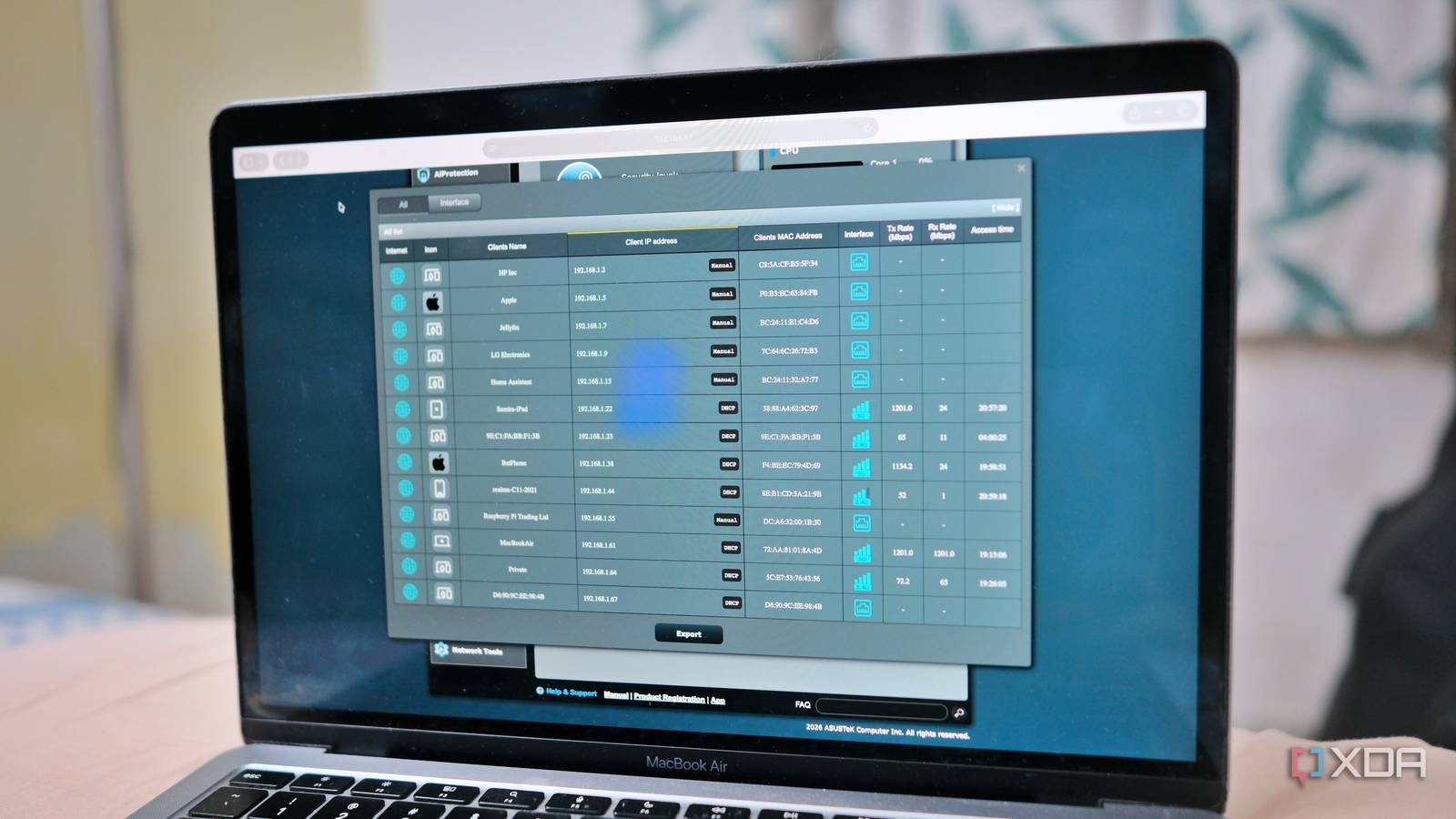
Published Aug 14, 2026, 2:30 PM EDT Samir Makwana is a technology journalist and editor from India since past 18 years and his work appears on MakeUseOf, HowToGeek, GSMArena, BGR, GuidingTech, The Inquisitr, TechInAsia, TechWiser, and others. He has written news, features, and gadget reviews for national technology media publications. His passion is to help people with their technology problems and gadget purchases. For that, he has worked for some of the biggest international technology publications, covering news, explainers, how-to guides, listicles, and product-buying guides. He has worked as an editor and managed teams since 2015. His expertise broadly covers computers, smartphones, game consoles, headphones, smart home products, browsers, and apps. One of the tricky parts of building a home lab with several devices, smart gadgets, and self-hosted services is tracking constantly shifting addresses. Repeated IP conflicts on my Windows 11 PC prompted me to set up DHCP reservations for my primary devices. That list grew organically over time, and I’d dig through hostnames whenever a conflict popped up, or a device dropped off the network. However, troubleshooting got more painful, not less. Eventually, that turned into a weekend project. I reorganized every reservation into defined IP ranges. I set a fixed address for every wired device on my network and for the wireless devices that were critical for my automations. Phones and laptops stayed on regular DHCP so they could keep roaming. Everything else, from my console to Apple TV 4K, got a permanent IP address. My network setup didn’t change much, but the way I troubleshoot did. Sorting my network into ranges helps me with troubleshooting Specific ones for infrastructure and primary devices While configuring a fixed IP address on devices, I planned the range assignment carefully so it would help me troubleshoot later. For starters, all the infrastructure devices, like my home server on a mini PC and Raspberry Pi 4, sit in the 192.168.1.2–10 IP range. I set my desktop, game console, streaming box, and smart TV in the 192.168.1.11–20 IP range. The rest of the wired devices follow suit. Whenever something breaks, the fixed address is already part of the diagnosis for me. When the smart TV or streaming box stops working, I know to check the primary device range. Similarly, when a self-hosted service becomes unreachable (and it's mostly the DNS), I simply look for a specific IP range. I no longer memorize the IP address of all my wired devices. Instead, I identify which category an address belongs to and determine the device accordingly. That is useful for reducing the troubleshooting steps before I start pinging the device. Half of my devices going ‘unavailable’ were actually DNS problems Pinging the address rules out DNS or mDNS as the culprit One of the common failure points in home networks is the local hostname resolution. It is easily overlooked because it fails quietly. For example, a mini PC is online and perfectly reachable, but its hostname doesn’t get resolved over mDNS or my router’s local DNS. Whenever I try connecting to it by name, it looks identical to a device that’s actually down. That’s why pinging the IP address instead of the hostname eliminates any ambiguity. The device is fine if there’s a response from the address and the problem turns out to be resolution. So I check the DNS or mDNS service instead of troubleshooting the device itself. But when the device doesn’t respond to the IP address pings, that confirms the actual fault without wasting any more time. Digging through router and firewall logs reveals something useful Cross-referencing log entries against an address makes it easy Auditing the router and firewall logs is tedious at first, but worthwhile. Both router and firewall logs record activity by address rather than hostname. So once those addresses stop moving, the entries actually mean something. That’s how I learned that a particular Home Assistant integration keeps hammering a device with requests, and why a port-forwarding rule for my media server silently stopped matching traffic. I can trace those entries to a known device without needing to cross-reference anything first. Those logs become helpful records I can actually read, rather than a wall of numbers. It is useful as my setup grows past a handful of always-on services on my Pi 4 and home server. Viewing the traffic graph makes it easy to spot a bandwidth hog Matching a spike to a device doesn’t require checking the lease table My router’s traffic monitoring and QoS dashboard let me view usage by address. I learned its limitations the hard way on a DHCP-only network. The graph was only useful as long as the offending device stayed connected. After the lease gets renewed, the culprit device isn’t visible since the address on the graph may not belong to anything. With a fixed address, I can map the spikes directly to the device I can easily recognize. Sometimes my game console quietly downloads games in rest mode, and the photos are uploaded to my cloud storage backup account. Monitoring the bandwidth usage has become convenient. I only watch out for unusual spikes in the traffic. A device with an unfamiliar address stands out instantly Anything outside the assigned range gets scrutinized What started as a weekend project for better troubleshooting resulted in an unexpected payoff. Organizing my devices by fixed addresses within the defined ranges made it easy to spot anything that fell outside those ranges. I no longer need to look up the MAC vendor or guess whether the new entry in the client list is yet another phone. Its address outside my defined range tells me more about the device. Any new device outside the defined IP range eating bandwidth also gets a closer look. I used to check every new client list entry. But now, the range checks them for me. Recognizing addresses beats investigating them every time Over time, I realized that assigning fixed addresses directly on devices didn’t make my network faster or fix a flaky device. However, it stopped turning troubleshooting into a deep investigation. Now it feels like recognizing patterns. Letting DNS handle the daily convenience of typing names instead of addresses still remains unchanged. When something actually breaks, or a device becomes unavailable, I know where to look, and that takes far less time than combing through everything.
I gave every device in my house a fixed address, and troubleshooting connections became easy
Full Article
Original Source
Read the full article at Xda-developers →KhanList aggregates and links to publicly available news content. We do not host full articles from third-party sources. Always verify important information with original sources.