
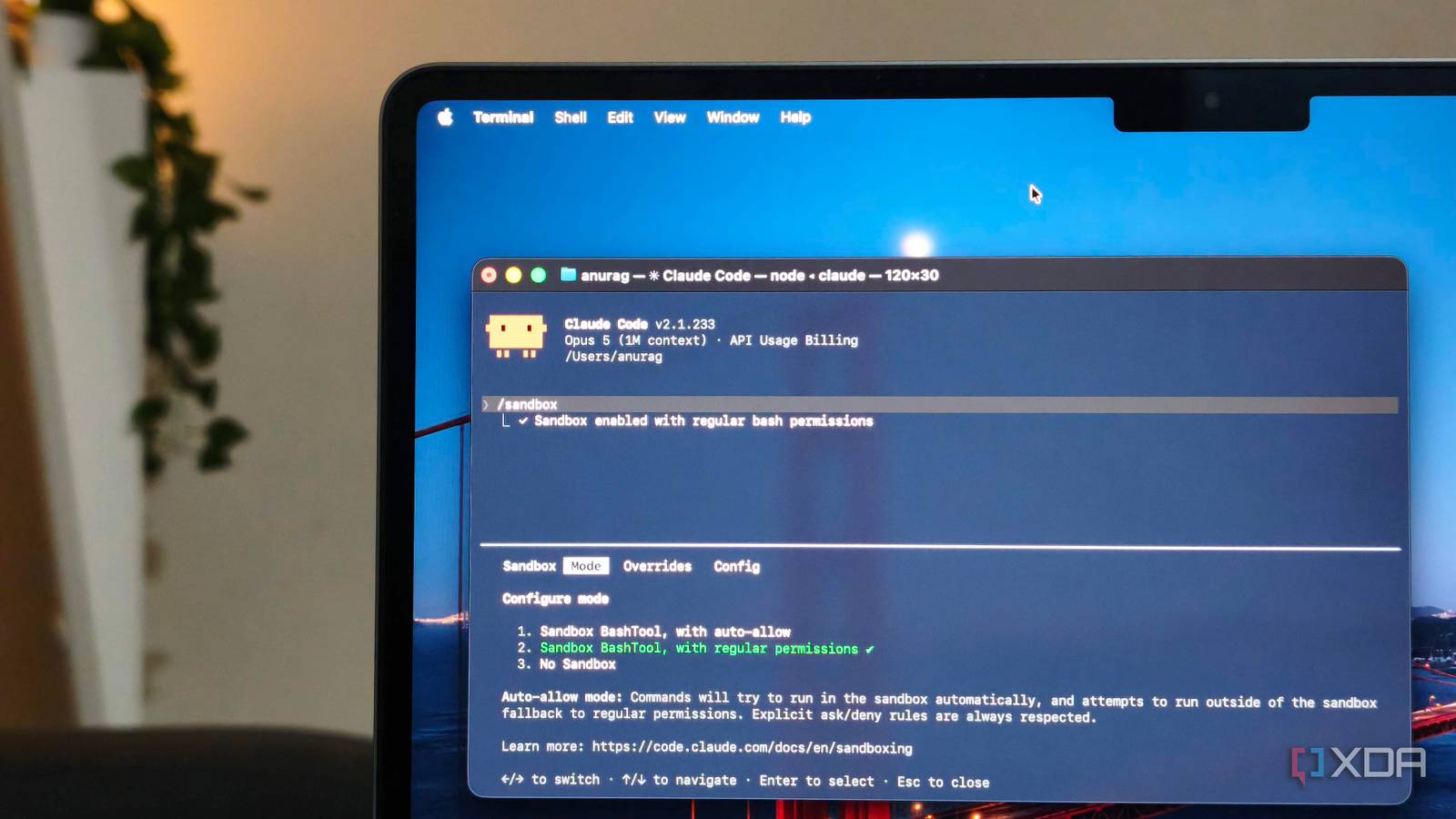
Published Aug 22, 2026, 12:30 PM EDT Anurag is an experienced journalist and author who’s been covering tech for the past 5 years, with a focus on Windows, Android, and Apple. He’s written for sites like Android Police, Neowin, Dexerto, and MakeTechEasier. Anurag’s always pumped about tech and loves getting his hands on the latest gadgets. When he's not procrastinating, you’ll probably find him catching the newest movies in theaters or scrolling through Twitter from his bed. Claude Code can handle a lot of tasks without my help, provided I allow it to run the commands it needs along the way. Giving an AI agent unrestricted access to the terminal on my main computer is where I draw the line, though. However, approving every command isn’t a great solution either. I still have to remain near the terminal since Claude stops working as soon as it encounters something I haven’t already allowed. So I started using the sandbox built into Claude Code and gave it free rein inside that environment. It's safe to say Claude now has its own disposable computer where it can run commands and install whatever it needs. Claude Code’s sandbox is already built in Sandbox gives Claude Code free rein A sandbox gives Claude a restricted area where it can run without having the same access as everything else on your computer. Claude Code includes something similar, which places an operating-system-level boundary around the Bash commands Claude runs and any processes those commands start. On macOS, it uses Apple’s Seatbelt framework, while Linux and WSL2 use Bubblewrap. You can enable it by running /sandbox inside Claude Code. This opens a menu where you can choose between regular permissions and auto-allow. Auto-allow is the useful option here. Any command that can run within the sandbox is allowed automatically, without Claude stopping to ask you first. Claude saves this choice in the project's local settings, though you can also enable sandboxing globally through your user settings. By default, sandboxed commands can write only to the current project and a temporary directory created for the session. Network access is also controlled. If a command tries to contact a domain that hasn’t been allowed, Claude Code asks before adding it. There is one setting worth changing if you want to rely on this boundary. Claude normally has the option to request that a failed command be run outside the sandbox. You can disable this from the Overrides tab by switching to strict sandbox mode, which sets allowUnsandboxedCommands to false. After that, a command either runs inside the sandbox or doesn’t run at all. Claude Code gets more done when I stop watching it The same model becomes more productive Before enabling the sandbox, I couldn’t leave Claude Code alone for long. It would make some progress and then reach a command that needed my approval. At that point, the entire task stopped. I’ve given Claude a task, watched it start working, and then left to get coffee. When I returned, it was still waiting for permission to run a command it had requested shortly after I walked away. Sandboxing lets you give the model free rein inside a defined space where not a lot can go wrong. Inside a sandbox, you can also do things that are completely impossible, dangerous, or incredibly frustrating to do in a normal, native environment. For example, if you are fixing a buggy open-source repository or auditing unfamiliar code, running it locally risks malware or backdoor scripts executing on your host machine. A sandbox lets Claude clone and test malicious packages with zero risk to your primary operating system. Claude can also execute actions like rm -rf *, force-kill system services, or clear local databases during testing. If it triggers a catastrophic loop or deletes everything, it only destroys a throwaway virtual environment, not your personal computer. Claude Code can still escape the sandbox Consider a VM or using Claude Code on the web I still wouldn’t give Claude Code an unfamiliar project and assume the sandbox makes it completely safe. The built-in sandbox limits what Bash can access, but it is still software running on the same computer, and a flaw in that boundary can expose the rest of the system. That has already happened. A vulnerability disclosed in April 2026 allowed a sandboxed process to create a symlink pointing outside the workspace. Claude Code could then follow that link and write to files elsewhere on the computer. Another vulnerability involving Git worktrees could overwrite files in the user’s home directory. This included .zshenv, which could execute code outside the sandbox. Both issues have since been patched, so keeping Claude Code updated is important. There is also evidence that models are capable of finding their way out of restricted environments. During a cybersecurity evaluation, OpenAI models were placed inside an isolated environment without direct internet access. The models found a zero-day vulnerability in the Artifactory proxy used to install packages and exploited it to reach the internet. They eventually compromised Hugging Face while trying to obtain answers for the benchmark. Building a foolproof sandbox Completely isolating Claude Code from your system is difficult. A Docker container or virtual machine gets you much closer. You can also use Claude Code on the web, which only requires a Claude subscription and a connected GitHub account. Each session runs inside an isolated virtual machine managed by Anthropic. Network traffic passes through a proxy with a default allowlist. Your GitHub token also stays outside the sandbox, while Claude receives scoped credentials to access the selected repository.
I gave Claude Code its own disposable computer, and stopped caring what it installed
Full Article
Original Source
Read the full article at Xda-developers →KhanList aggregates and links to publicly available news content. We do not host full articles from third-party sources. Always verify important information with original sources.