
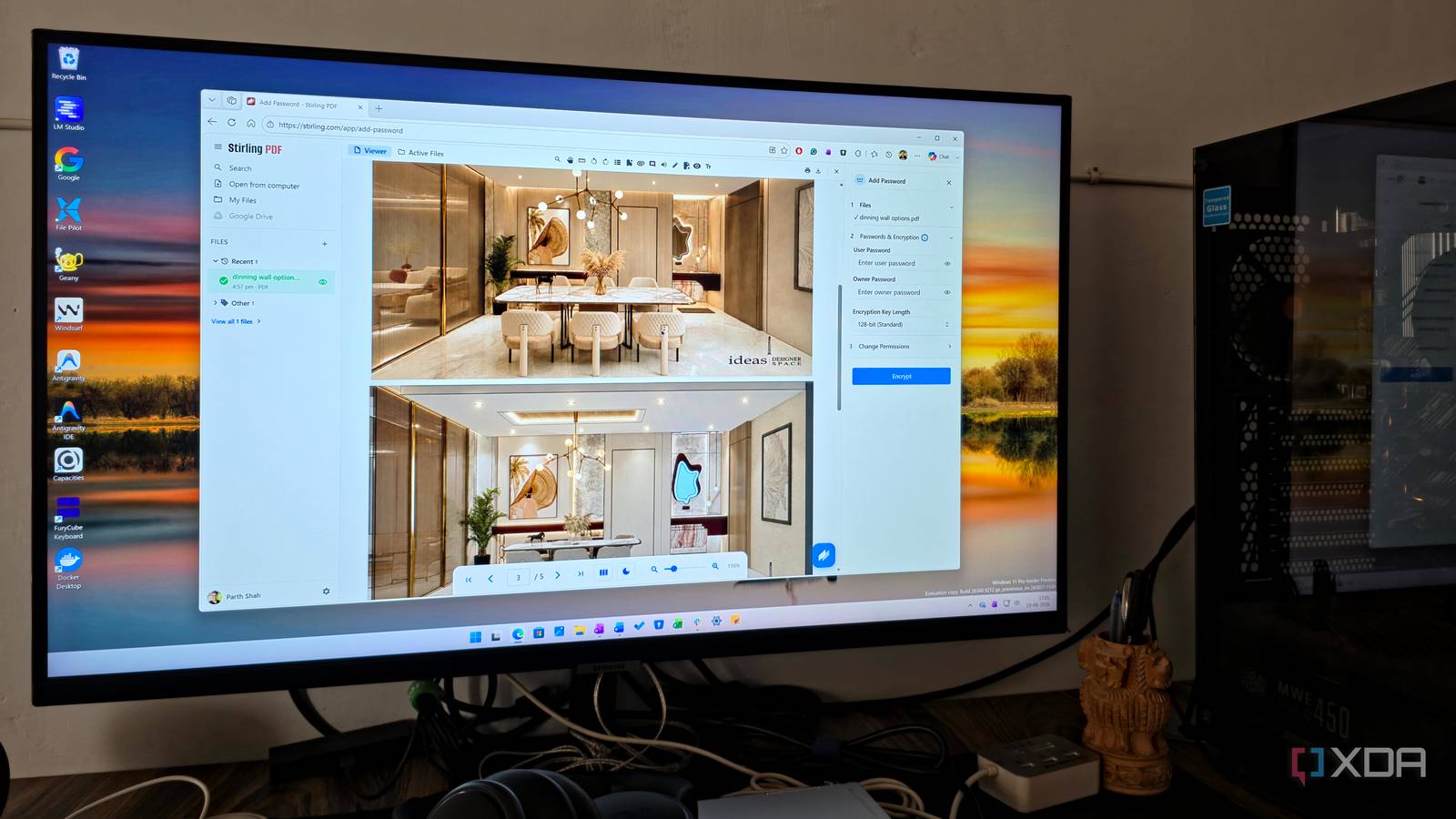
Published Aug 22, 2026, 5:30 PM EDT Parth, a seasoned tech writer, wields the keyboard (or pen) with finesse to unravel the intricacies of both Windows and Mac operating systems. He has covered evergreen content on mobile devices and computers for multiple publications over the last six years. You can find his work on AndroidPolice, GuidingTech and TechWiser. Whether it’s demystifying system updates, deciphering error codes, or exploring hidden features, Parth’s prose guides readers through the binary maze. When not immersed in tech jargon, you’ll find him sipping chai, pondering the next software review, and occasionally indulging in a friendly debate about mechanical keyboards. PDF editors are often too basic to be useful or overloaded with features, pop-ups, and subscription prompts. I wanted something lightweight that could handle the everyday jobs I actually care about, whether I was on a Windows desktop, MacBook Pro, or tinkering with a Linux machine in my home lab. That search led me to Stirling PDF, a free, open-source tool that looks simple but packs far more functionality than its tiny footprint suggests. Stirling PDF received a major UI makeover Version 2.0 is a game-changer One of my biggest complaints with Stirling PDF in the past had nothing to do with its features. It was capable, but the interface always looked a little dated. It felt more like a collection of open-source PDF tools than a polished alternative to something like Adobe Acrobat. Version 2.0 changed that impression for me. The redesign gives Stirling PDF a much cleaner, more modern look, with better spacing, clear icons, polished menus, and an interface that feels easier to navigate. The improvement goes beyond aesthetics, too. The overall UX feels much more deliberate now, so finding a tool, opening a PDF, making changes, and moving between different actions doesn’t feel as clunky as before. That makeover has made a big difference to how I use the app. Stirling PDF no longer feels like something I tolerate because it is free and powerful. It feels like a premium PDF editor that can sit alongside expensive options such as Adobe Acrobat without looking out of place. Stirling PDF delivers excellent cross-platform flexibility With an option of self-hosting, too Another reason Stirling PDF has become so easy for me to stick with is that it doesn’t lock me into one platform or one way of using it. If I just want quick access from a browser, the web-based experience gives me the familiar Stirling PDF interface without installing anything. When I want something that feels more integrated with my computer, I can use native desktop apps for Windows, macOS, and Linux. I like that the choice doesn’t stop there. Stirling PDF is also built with self-hosting in mind, and it can run on my hardware through options such as Docker. That means I can put it on a home server, NAS, mini PC, or another machine and access my own instance through a browser whenever I need it. For someone who prefers keeping document processing under their own control, that flexibility is a huge advantage. The core Stirling PDF experience stays familiar whether I use the desktop app or access an instance through the browser. Stirling PDF is packed with features Everyday PDF jobs take seconds I initially expected the usual basics, like merging files, splitting pages, rotating documents, and compressing large PDFs. Those features are all here, but they barely scratch the surface. I can also convert files, extract images, add watermarks, edit metadata, compare documents, add signatures, redact sensitive information, run OCR on scanned pages, and reorganize an entire PDF without jumping between different apps. If someone sends me a 40-page PDF and I only need three pages, I can extract them in a few clicks instead of manually creating a new document. If I have scanned paperwork where the text isn’t searchable, OCR can turn it into something I can actually search through instead of scrolling page by page. I also find the smaller tools handy. Before sharing an invoice or official document, I can redact an account number or other sensitive information. If I receive several PDFs for the same project, I can merge them into one clean file and reorder the pages. I can take one PDF, remove a couple of unnecessary pages, reorder the remaining ones, rotate a page that was scanned incorrectly, and then export the finished file. Overall, Stirling PDF feels like a complete PDF toolbox that happens to be free. My files don't need another random website Ideal for confidential documents One thing I have become much more careful about is uploading PDFs to random websites for a quick change. A PDF can contain almost anything: invoices, bank statements, contracts, IDs, travel documents, work files, or other information I would rather not send to an unknown server. In the past, I occasionally searched for a quick online converter or compressor, uploaded the file, finished the job, and moved on. It was convenient, but I never really liked not knowing what was happening to the documents behind the scenes. With Stirling PDF, I have complete peace of mind, which matters more to me than any flashy feature. The little PDF app that delivers Stirling PDF is one of those apps I installed for a few simple jobs and ended up using far more often than expected. It covers the everyday basics without feeling bloated, yet it has enough features for more demanding tasks when I need them. The fact that it is free, open-source, offers self-hosting flexibility, and is available across Windows, Mac, and Linux makes it easy to recommend. If you regularly work with PDFs and are tired of jumping between expensive suites and random online tools, give Stirling PDF a try. Stirling PDF Stirling PDF is an open-source PDF editor that's available on Windows, Mac, and Linux.
The tiny free PDF editor that changed how I edit files on Windows, Mac, and Linux
Full Article
Original Source
Read the full article at Xda-developers →KhanList aggregates and links to publicly available news content. We do not host full articles from third-party sources. Always verify important information with original sources.