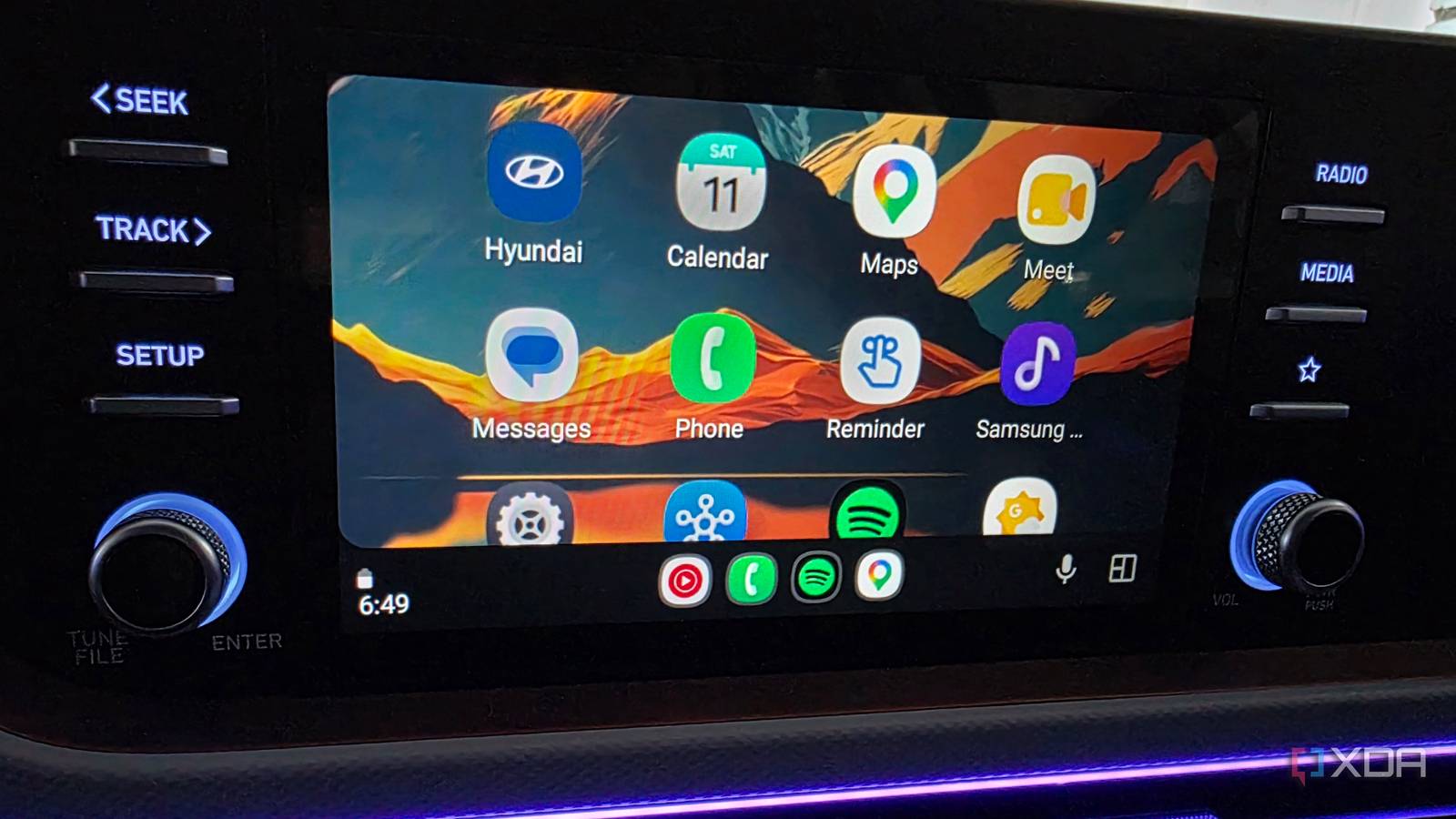
Published Aug 1, 2026, 11:30 AM EDT Parth, a seasoned tech writer, wields the keyboard (or pen) with finesse to unravel the intricacies of both Windows and Mac operating systems. He has covered evergreen content on mobile devices and computers for multiple publications over the last six years. You can find his work on AndroidPolice, GuidingTech and TechWiser. Whether it’s demystifying system updates, deciphering error codes, or exploring hidden features, Parth’s prose guides readers through the binary maze. When not immersed in tech jargon, you’ll find him sipping chai, pondering the next software review, and occasionally indulging in a friendly debate about mechanical keyboards. Android Auto already handles navigation, calls, and music well enough that I rarely think about how much better it could be. Still, controlling Spotify while driving often felt more rigid than it should. Basic commands worked, but anything slightly more specific often meant repeating myself, remembering the exact name of a playlist, or reaching for the screen. I had almost accepted those limitations as part of the experience. Then I tried a feature that understood what I wanted with far less effort. Spotify voice control always felt limited Gemini comes to the rescue Google Assistant could handle the basics in Android Auto, but its Spotify controls always felt rigid to me. It worked when I asked for a specific song, album, or playlist with the exact name. The moment I became vague, the experience started falling apart. I could not simply describe my mood, mention the kind of drive I was on, or ask it to find something similar to a song I already liked. I had to think like a voice assistant, structure the command correctly, and sometimes repeat myself when it misunderstood the request. That changed after I connected Spotify to Gemini. I opened the Gemini app on my phone, headed to Settings > Personal Intelligence > Connected apps, and enabled Spotify from the available services. I stopped memorizing exact commands Natural requests finally worked behind the wheel Once connected, Gemini could search Spotify for songs, artists, albums, playlists, and podcasts without forcing me to use carefully constructed commands. Gemini is far more forgiving because I can speak the way I normally would. For example, I can simply say, "Play the latest podcast episode from MKBHD," and it understands that I am referring to the Waveform podcast and starts the relevant episode on Spotify. I do not need to remember the full podcast title or search for it manually on the Android Auto screen. The same flexibility works well for music. During an evening drive, I can say, "Play something calm and relaxing for the ride home," and Gemini searches Spotify for music that matches the mood instead of waiting for a specific playlist name. It is equally useful when I know the artist but not the exact song. I can ask it to "Play some of Akon’s biggest hits," and it immediately starts a suitable selection. I can focus on the kind of music or content I want rather than translating my thoughts into robotic commands, which makes Spotify feel far more natural to control while driving. Vague requests are where Gemini shines Half-remembered songs were no longer lost Vague requests are where Gemini really separates itself from everything else. I do not always remember the name of a song, especially when I have only a movie scene, a lyric, or a general description in my head. With Gemini, that is often enough. I once asked it to "Play that Adele song from the James Bond movie," and it immediately understood that I was referring to the Skyfall track. I did not need to remember the film’s name, the exact title track, or phrase the request in a particular way. I had a similar experience when I asked it to "Play that Kelly Clarkson song about women empowerment." Gemini correctly picked ‘Stronger,’ which was exactly the track I had in mind. My most impressive test, however, came when I asked for ‘that rooftop song from the Suites series.’ The request was vague, and there are several memorable tracks associated with the show, so Gemini gave me two possible options instead of playing the wrong one. One of them was "Whatever It Takes by Imagine Dragons," which was the song I was looking for. These examples changed how I use Spotify in Android Auto. In another example, I asked Gemini to play that popular Goblin song from a K-drama, and it perfectly picked up the ‘Stay with me’ track from the library. I barely touch the Spotify interface now My voice replaced endless screen taps I barely touch the Android Auto dashboard now. I often opened the app to browse playlists, search for a podcast, or switch to a different artist. With Gemini, most of that happens through voice. I no longer abandon a request simply because I can’t remember the exact title. I can describe the artist, movie, show, scene, theme, or feeling connected to a song, and Gemini usually works out what I mean. It helps me keep my hands on the wheel and makes the entire listening experience feel far less distracting. My music now follows every command Gemini has not changed what Spotify can play, but it has changed how I control it in Android Auto. It removes the pressure to remember names, navigate menus, or phrase every request perfectly while I am behind the wheel. More importantly, it makes Spotify adapt to how I naturally think about music, whether that is through a scene, an emotion, or a half-remembered detail. That may sound like a small improvement, but it has made my drives noticeably smoother. Android Auto finally feels less like a dashboard full of apps and more like a capable assistant built for the road. Spotify Spotify is a music streaming app that rivals Apple Music and YouTube Music.
I found Android Auto’s smartest feature hiding in plain sight, and it completely changed my drives
Full Article
Original Source
Read the full article at Xda-developers →KhanList aggregates and links to publicly available news content. We do not host full articles from third-party sources. Always verify important information with original sources.