
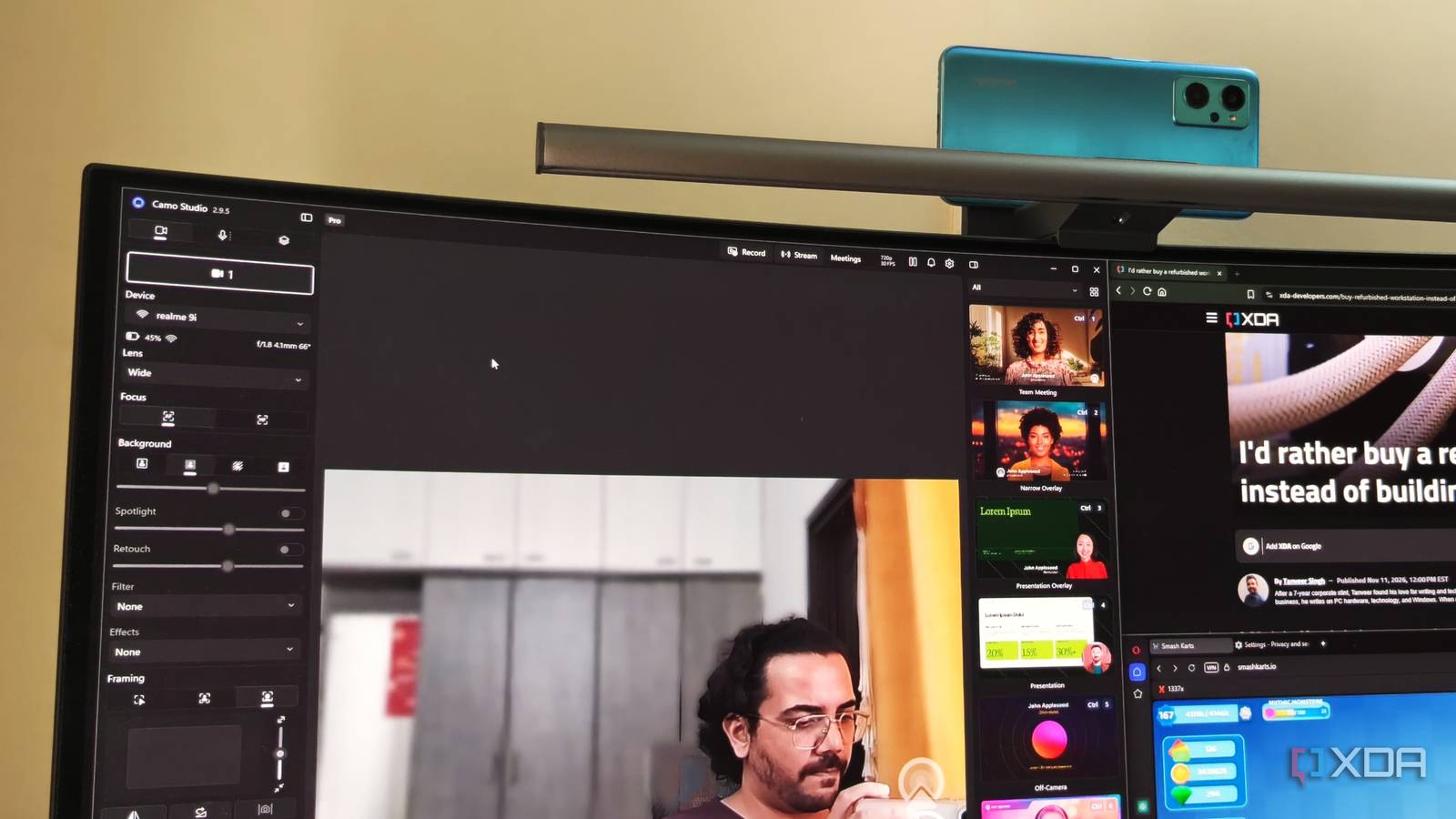
Published Nov 12, 2026, 1:31 PM EST After a 7-year corporate stint, Tanveer found his love for writing and tech too much to resist. An MBA in Marketing and the owner of a PC building business, he writes on PC hardware, technology, and Windows. When not scouring the web for ideas, he can be found building PCs, watching anime, or playing Smash Karts on his RTX 3080 (sigh). My gaming PC has doubled up as my work machine ever since I left my corporate job for a career in tech journalism. It's where the magic happens from morning till evening, but when it's time to jump on a video call, I always bring in my phone or iPad to make up for the lack of a webcam. I never got around to buying a dedicated webcam for my PC since I always had a separate device available. Lately, however, I have grown tired of using two separate screens for my team calls — showing my face on my iPad and referring to my monitor for article ideas. Buying a webcam (finally) would have been the simple answer, but then I remembered that I had an old Android phone tucked away in a drawer since 2023. With a free Windows app and a companion client on the phone, I could set up a 50MP webcam for my PC in no time. Why I never bought a webcam for my PC I had more than a few devices with capable cameras It's not that I've never used webcams before. I remember we had one with a whopping 0.5 MP sensor around 15 years ago. As smartphones started shipping with more capable cameras, I stopped needing a webcam around the mid-2010s. After that, I always had either an office laptop for work-related calls or an iPad for video calls with friends. In fact, I had been using my 5-year-old iPad for XDA calls until recently. While the dual-screen arrangement was going well, I realized it was less than optimal. Although I could look up my notes on my monitor screen and use my iPad for the video call, this setup meant I always had to switch between the two. Having a webcam attached to my main monitor would obviously make things more seamless, so I started searching for one on Amazon. I realized, though, that I already had a potential webcam (or two) in my drawer. My old Android phone that I stopped using in 2023 had been dead for over three years, but all I needed to repurpose it as a webcam was a free app. Its 50 MP sensor was more than capable of decent video calls, and it would save me the hassle of buying a separate webcam for my PC. Camo was the ideal choice for my use case You either die an outdated phone or live long enough to become a webcam Before I switched to the OnePlus 15, I used a Pixel 7 for three years. The Pixel had replaced my old Realme phone, a budget device with a triple-camera setup, one of which was a 50 MP sensor. The phone was now terribly slow for everything else, but its decent camera was more than what I needed for a DIY webcam. I got it out of my "old tech" drawer and put it on charge as I considered the next steps. Now, I had used the built-in Phone Link app on Windows and the Link to Windows app on Android before, but I didn't like the fact that it required an account. I wanted a simple app that I could download on my PC and phone, and start using without creating an account. Both DroidCam and Camo Studio were great options that worked locally, but the latter was faster to set up, so I picked it. Pairing the Camo Studio app on Windows with the one on my old phone was simple. I just had to scan the QR code shown on the Windows app (hidden in the screenshot above) with the Camo app on the phone, and the connection was in place. It allows pairing via Wi-Fi or USB, whichever is more convenient. I tested a few backgrounds, filters, and effects, and ran a test call with my partner to ensure everything worked well. The free plan on Camo Studio offers 720p resolution at 30 FPS, autofocus and auto tracking, several lighting corrections, and streaming support. There are no ads or spam either. These features are enough for my usage, allowing me to set up a more-than-basic webcam for free. For now, I'm keeping the phone plugged in all the time, since its battery runs out fast, even when I'm not using it as a webcam. The battery is already degraded, so I'm not worried on that front. Repurposing my old phone as a webcam isn't just about saving a few bucks Repurposing old hardware is underrated I know I could have bought a $30–$40 webcam with 4K 30 FPS or 1080p 60 FPS video, but I didn't really need that feature. I just got a cheap clamp that secures my old Android phone to my monitor, only when I need it for a call. That and a free app turned my dead phone into a 720p webcam for free, and the setup only needed a few minutes. The savings weren't huge, but the satisfaction of repurposing something you already have instead of buying additional hardware matters much more. I'm enjoying the convenience of using a single screen for my video calls, but the project has also saved my old phone from going to a landfill. Plus, this project has given me motivation to repurpose two other old phones gathering dust in my home. A discarded Android phone can do a lot more than you think While my old phone has become a webcam for my PC, yours might be able to do so much more. You can turn it into a PC performance monitor, stream deck, DNS ad-blocker, file server, and more without necessarily spending money. Instead of buying more hardware than you really need, reusing what you already have for similar results deserves consideration. It not only teaches you stuff, but also protects the environment. Camo
I finally turned my discarded Android phone into the PC accessory I always wanted
Full Article
Original Source
Read the full article at Xda-developers →KhanList aggregates and links to publicly available news content. We do not host full articles from third-party sources. Always verify important information with original sources.