
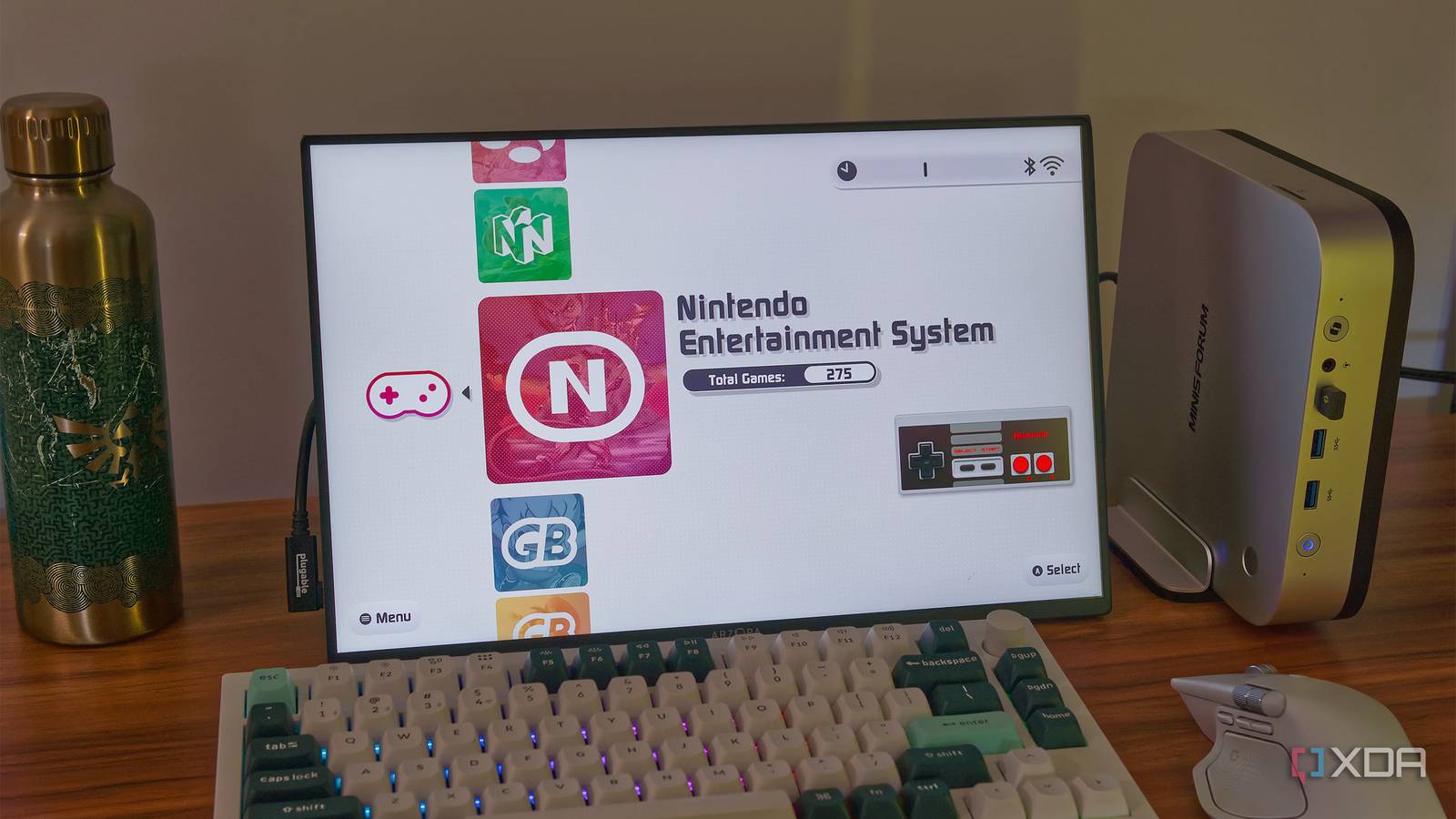
Published Sep 6, 2026, 8:30 AM EDT João has been covering the tech world for over 7 years, with a heavy focus on laptops and the Windows ecosystem. I also love all things tech and videogames, especially Nintendo, which he's always happy to talk about. Prior to joining XDA in 2021, he worked at Neowin: https://www.neowin.net/news/poster/jo%C3%A3o-carrasqueira/ Gaming wasn't the most accessible hobby to me as a kid, since I couldn't afford either many consoles or a ton of games for the ones I did have. And these days, coming to those old games in person is just extremely unlikely, even if I could afford them. Thankfully, emulation has made it a breeze to access these older games, and they're lightweight enough that almost any machine can run them. That's why a simple mini PC today can play just about every game from all the consoles I wanted back in the day. And the best part is I never have to deal with Windows to play them. Emulation has become incredibly easy Old consoles run just fine Back in the day, my computer struggled to run GameCube games or even the Nintendo DS at times, so I usually didn't try to get too deep into newer consoles. Today, though, all those consoles are old enough — and computers powerful enough — that those games run completely fine on the vast majority of modern PCs. From the NES all the way to the Nintendo GameCube, PlayStation 2, or even the Wii, a mini PC can handle it all just fine. It's gotten to the point where the focus of emulation isn't so much on the ability to run the games as on making it a user-friendly experience. RetroArch is one of the most notable examples of this. It turns most major emulators into "cores" which you can download and use under the same unifying interface. All your consoles are in the same place, and you can even set different emulators for different games on the same platform. But there are other frontends that work with RetroArch to make things even more pleasant, specifically EmulationStation (ES) and ES-DE. This is a customizable frontend that focuses on delivering a beautiful, easy-to-browse experience while retaining many of RetroArch's benefits, and it also works with emulators that aren't in RetroArch. EmuDeck makes it all a breeze One installer, all the setup While you can set up RetroArch and ES-DE individually to work together, or even use RetroArch on its own, the best way to make this all happen is to use EmuDeck. EmuDeck is a tool available for all desktop platforms, and it essentially does all the hard work of setting up your game library. All I have to do is download EmuDeck, run the installer, and it downloads ES-DE, a handful of preset emulators (with some optional ones), and it links everything up so when you launch a game in ES-DE, it opens in the right emulator and you can just get started. EmuDeck also creates all the folders for storing your game ROMs, and they're even given custom icons to make them easier to identify. To start playing, all I need to do is move my ROMs into the folder for the respective system, and they'll be in my library the next time I launch ES-DE. With EmuDeck set up, the last general step is to scrape the games in the ES-DE library to get the necessary metadata. This downloads things like box art, trailers, and screenshots, making it even more pleasant to browse through all the titles I have. This is one of my favorite parts of ES-DE. It really makes this digital library feel like the physical collection I didn't get to have growing up. Windows can fade into the background It's like a real console This is all great so far, but if I want this computer to be my retro gaming console, I need a way to bypass Windows and focus on the console experience. Thankfully, this is the easiest part of the setup. All you need to do is make sure ES-DE is running at startup when Windows boots, so you go straight into the ES-DE UI without dealing with anything else. Just pair a Bluetooth controller and start playing. There's no dedicated way to make ES-DE run at startup, but you can do it relatively easily. Open the file location for the Emulation Station shortcut in the Start menu, copy the shortcut file, then press Windows+R and enter shell:startup. This opens the startup folder for Windows, and all you need to do is paste the shortcut inside the folder. Because ES-DE works perfectly with a controller, the only times I ever need to actively use Windows are when I want to add games to my library, though even then, I could create an SMB share and access the folder from another PC if I don't want to use Windows on this PC at all. What to look out for Make sure you tweak the controls While this is a nearly perfect solution for retro gaming, I did have a small problem when first setting up EmuDeck, which is the fact that ES-DE and RetroArch don't have exactly the same button assignments, and not much is taught to you about using the RetroArch menu (or whatever emulator you end up using). I had to do a bit of searching to find more information on how to open the RetroArch menu to customize my controls, which was frustrating at first. It's an easy enough problem to fix, but it's worth keeping in mind if you're expecting a completely smooth ride. A little bit of work may be required if you want to customize RetroArch or your emulator of choice for a given game. Turning a mini PC into a retro console is fantastic There are tons of games from the 80s, 90s, and 2000s that I wished I got to play back in the day, and it's amazing to live in a time when it's so easy to play all of them on a relatively affordable and compact PC I can hide behind my living room TV. It's even better that software solutions have made it so easy to do without ever having to deal with Windows. And it doesn't have to be a mini PC, either. You can turn an old laptop or desktop into a retro-gaming beast if you have one lying around. There's so much gaming that can still be enjoyed without spending hundreds of dollars on new hardware, and it's simply great to see. EmuDeck OS Windows, Linux, Android
I emulate every console I wanted as a kid on a single mini PC, and I never have to deal with Windows
Full Article
Original Source
Read the full article at Xda-developers →KhanList aggregates and links to publicly available news content. We do not host full articles from third-party sources. Always verify important information with original sources.