
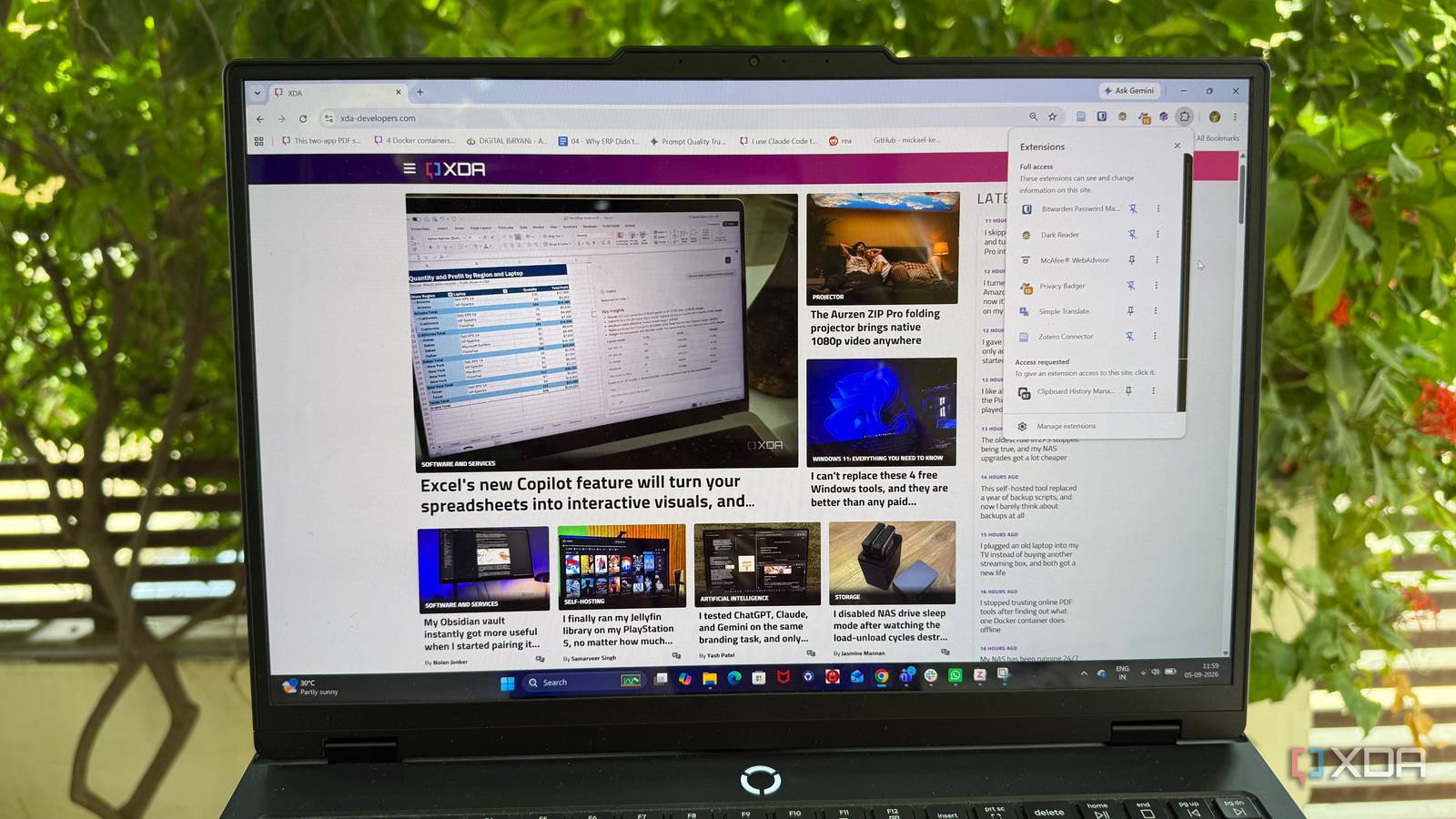
Published Sep 6, 2026, 10:30 AM EDT Beginning his professional journey in the tech industry in 2018, Yash spent over three years as a Software Engineer. After that, he shifted his focus to empowering readers through informative and engaging content on his tech blog – DiGiTAL BiRYANi. He has also published tech articles for MakeTechEasier. He loves to explore new tech gadgets and platforms. When he is not writing, you’ll find him exploring food. He is known as Digital Chef Yash among his readers because of his love for Technology and Food. Whenever I set up a new PC, I have a short list of software I install almost immediately. But some of the most useful additions aren’t traditional desktop apps. They’re browser extensions that quietly become part of my everyday workflow. I prefer open-source options because I like knowing what I’m putting into my browser and having more control over the tools I use. After trying plenty of extensions over the years, these are five that have earned a permanent spot in my setup. Tabox The tab manager I actually use I’m terrible at keeping my browser tabs under control, especially when I’m researching something and end up with an entire window full of related pages. Tabox has become my way of dealing with that without losing the work I’ve already done. I can save my entire browsing session as a collection with a single click. It keeps the tabs and tab groups together, so I can close everything and come back to the exact same setup later. I can also give collections names and organize them into folders, which makes it easier to separate work, research, and other browsing sessions. The restore feature is probably what I use most. Instead of searching through my history or trying to remember which tabs I had opened, I can bring the whole collection back when I need it. For me, Tabox turns a messy browser window into something I can actually manage without constantly closing tabs. Dark Reader The dark mode every browser needs A fresh browser setup can feel painfully bright, especially when I’m working late or reading for hours. Dark Reader fixes that by adding a dark mode to almost any website. What I like is that I’m not stuck with one look. I can adjust brightness, contrast, sepia, and other settings to make pages easier to read. I can also enable it only on specific websites, which is handy when a site already has a decent dark mode. I use it most on websites that still force me to stare at a bright white page. Instead of digging through menus or changing browser settings, I can simply switch Dark Reader on and get a darker interface instantly. It’s a small extension, but it quickly became one of those tools I notice whenever it’s missing. After using it across different PCs, installing Dark Reader has become part of my usual browser setup. Zotero Connector This academic tool became my secret weapon Zotero was built with academics and researchers in mind, but I’ve found it to be a surprisingly useful productivity tool for my own work. Whenever I’m researching a topic, I come across articles, studies, and webpages that I may need later. Zotero Connector gives me a quick way to save them without breaking my workflow. Instead of copying URLs or manually noting down source details, I can save a page directly to Zotero from my browser. It can also pull useful information such as the title, author, and publication details automatically, which saves me quite a bit of time. I especially like it when I’m working on a longer article and collecting sources over several days. Everything goes into one organized place instead of getting buried among random bookmarks. I didn’t start using Zotero because I needed an academic research tool. I started using it because it solved a simple productivity problem for me, and now I install the Connector on every new PC. Bitwarden I stopped worrying about my passwords I use Bitwarden to keep my passwords organized without relying on the browser to remember everything. Once I sign in, my saved logins are available whenever I need them. What I like most is how little effort it takes. When I create a new account, Bitwarden can generate a strong password and save it for me. Later, I can fill in my login details without remembering another complicated password. I also use it for things beyond passwords, such as secure notes and other important information I occasionally need while working. Since Bitwarden is open source, I also feel more comfortable making it part of my everyday setup. I don't have to keep a spreadsheet of passwords or reuse the same few passwords across different services. I simply install the extension, sign in, and get back to work. Privacy Badger The privacy tool I barely notice Privacy Badger is one of those extensions I install and then mostly forget about. That’s exactly what I like about it. It works quietly in the background, looking for third-party trackers that try to follow me across different websites. I don’t want to spend my time checking which scripts or trackers a website is running. Privacy Badger handles much of that automatically by learning which domains appear to be tracking my browsing and blocking them when necessary. What makes it different from simply blocking everything is that it focuses on tracking behavior rather than trying to break every website feature. I’ve found that useful because I still want websites to work normally while reducing unnecessary tracking behind the scenes. It’s not an extension I constantly interact with, and I think that’s the point. I install it, leave it running, and let it quietly do its job while I browse. My browser setup starts here These extensions have become part of my routine whenever I sit down with a fresh PC. I don’t install them because I want to fill my browser with tools. I install them because each one solves a small problem I regularly run into. Over time, those small improvements add up and make my browser feel much more comfortable to use. I also like knowing that I’m choosing open-source projects that I can inspect and trust more easily. Of course, everyone’s browser habits are different, so you may not need all five. But if you’re setting up a new PC, these are the ones I’d start with.
My browser setup starts with 5 open-source extensions that solve the problems I hit every single day
Full Article
Original Source
Read the full article at Xda-developers →KhanList aggregates and links to publicly available news content. We do not host full articles from third-party sources. Always verify important information with original sources.