
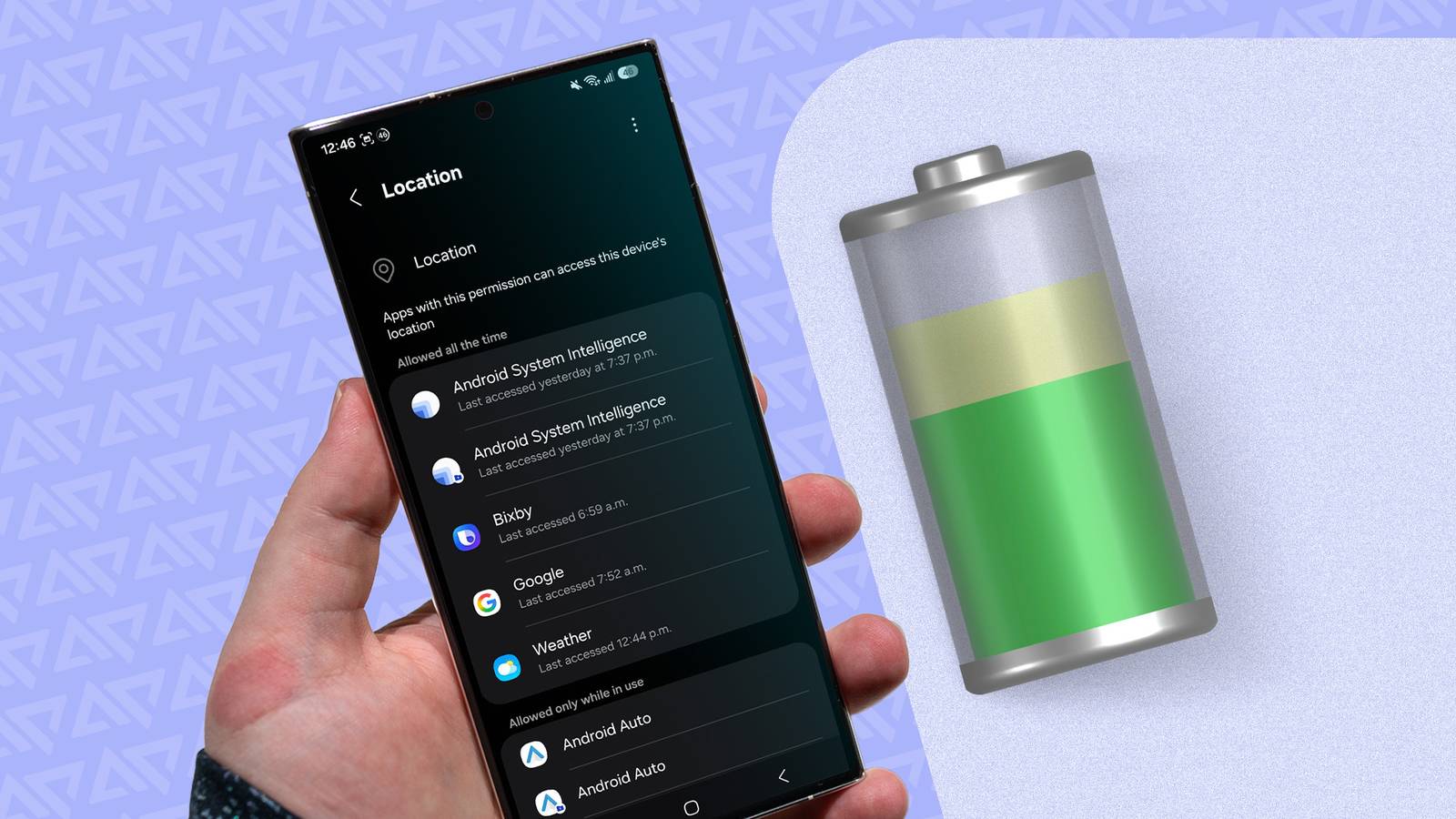
Published Aug 25, 2026, 4:00 PM EDT I am an author and features writer at Android Police. I primarily writes guides, how-tos, and roundups on the latest smartphone apps and features for Android Police since joining the team in early 2022. While my work often diversifies depending on the topic, you'll often find me writing about the newest entertainment or hidden utility Android apps or discussing my paranoia about digital privacy and poor smartphone practices. I will occasionally dabble in Samsung's latest features in One UI. On the games side, my area of expertise is in action RPGs and gacha games, but I will play and study the occasional competitive shooter. But most of all, my appetite for new stories still goes unquenched — as shown with my personal love for the Trails series. Before joining Android Police, I studied chemistry and graduated with an honors specialization in Chemistry in 2016, leading me to spend many hours toiling around the lab as an undergraduate. Eventually, all those hours spent at the lab led me to develop my analytical mindset. So now, if you give me a problem, I will relentlessly tackle it to find a solution. My favorite pastime as a student was always writing reports, presentations, tutorials, and literature reviews, which guided me into completing a graduate certificate in technical writing in 2019. Thanks to my current role with Android Police, I learned to appreciate user security and privacy, leading me into studying Cyber Security. My first Android phone was the Samsung Galaxy Note II in 2012, which gave me a taste of how a small piece of powerful hardware can open up endless opportunities for my favorite hobbies. Though if you ask about my purchasing regrets, I will always say missing out on the Google Nexus still stings to this very day. I've also been a gamer for over 20 years, starting with Super Mario Bros. on the NES. Thanks to those early influences, I now own over 15 devices for gaming, ranging from handhelds to consoles. Nowadays, you'll find me studying spreadsheets and assembling data to theorycraft new teams and builds for Genshin Impact, Honkai: Star Rail, Wuthering Waves, and Zenless Zone Zero. You'll also see me digging deeper to uncover the truth behind AI as a field: which part is actually useful, or it just a bunch of bloat being sold with your phone? It's easy to collect apps, especially when the Google Play Store is nearing 4 million apps. When I did a small case study on the battery health difference between my mother's Samsung Galaxy S25+ and mine, I found that while my device was still in good shape, it wasn't any better than my mom's. She also uses her device without optimizing battery usage. So, I compared the app differences and noticed that she is more cautious about downloading apps, and for any she no longer uses but wants to keep, she either puts them to deep sleep or removes her data from them. I also have triple the number of apps compared to her. That's when the idea dawned on me: What if I reduce the data some of these apps collect and see if it makes a noticeable difference in battery drain? So far, it has. Location permissions for non-essential apps were the first to go These data requests trickle down your phone's charge Credit: Lucas Gouveia / Android Police | Master1305 / Shutterstock One of the biggest culprits for battery drain is GPS usage. Apps that use location background services use the built-in GPS chip or Wi-Fi to check your geographic position when you are not actively using or looking at the app. How often depends on the app. Some apps require this to function properly, especially those that rely on the Map API for core features, like DoorDash, Airbnb, and Pokémon Go. That's not the only reason apps use background location services — any app that wants to collect data will probably need these permissions — which means your social media apps are a fair bet, since they tend to track the most information, including your detected location. Some users may try to turn this all off with airplane mode when their phone isn't in use. Despite what some people think, airplane mode won't turn off background location services because it doesn't cut off your phone's GPS receiver. That means your location data can still be processed locally in the background using satellite signals. So the best method is to revoke the permissions so that your operating system can manage it. You can do this per app in app management settings, or use the privacy dashboard. I prefer checking it in my privacy dashboard, since I also use it to run privacy audit checks for apps that might be abusing my permissions, as well as checking on services that run with my system apps. The dashboard breaks down which app or service has used which permission and how often. Permissions manager is the go-to for turning it off Using the location services filter to find all apps Credit: Lucas Gouveia / Android Police | Marynova / Shutterstock Turning off background location access for apps you don't need is a good way to preserve your battery. It can do several things to maintain your device's battery. One, it can prevent CPU wake locks, which can sometimes happen when an app does a location update (a background information request). Wake locks have been an issue for me in the past, and I needed to use a beta feature in Battery Guru to manage them actively. While it has been a great help, the feature still isn't perfect for managing them. Second, it communicates with the built-in hardware on your phone, which can be a major battery drain because it requires higher power consumption from components like your device's GPS chip, Bluetooth scanner, and Wi-Fi radio. Lastly, the network data process uses either Wi-Fi or mobile data, which means it needs to send/receive radio waves and sometimes requires a signal booster when reception is too weak, increasing the energy demand to complete these actions. Moreover, background data-sync requests continue while this happens, which further contributes to battery drain. Location services contribute to these issues because they can directly control how often — and how intensely — the system activates the CPU, GPS, Bluetooth, and Wi-Fi radios to calculate position data. That's why stricter location permissions force the operating system to reject hardware API calls early in the software stack, which keeps physical radios powered down and CPU sleep cycles uninterrupted. It's easy to do by accessing the permission manager section on your phone. To access the permission manager, navigate to the Privacy dashboard. On a Samsung device (One UI 8.5), go to Settings > Privacy or Security and privacy > More privacy settings > Permission manager. You don't need to select the setting to show system apps because you shouldn't alter permission settings for essential apps. On Google Pixel (Android 16), tap Security & privacy > Privacy controls > Permission manager. In the Permission manager section, look for the one labeled Location. From there, view non-essential apps and then tap either Not allowed or Allowed only while in use. After changing these settings, you may notice that some apps don't provide precise location data or return search results that aren't accurate to your location. If this hinders app quality, you can re-enable location permissions through the app manager section in your settings (which is what I sometimes do). Monitor your smartphone's battery drain One thing I wish I had done in year one of getting my phone was to monitor closely what might be causing the battery drain. Generally, after a new update and when you get your device, you may see more battery drain than normal, as it takes a few weeks for your device to learn your usage patterns. This is how adaptive battery works, and why background app consumption should, in theory, be under control. Still, it takes time for its algorithm to detect which apps you do and don't use regularly. I found that I relied on this feature a bit too much, thinking it could solve all my battery health problems. It wasn't always true, as other culprits trickled down the charge. That's why it is still a good idea to check your battery settings to see which apps drain the most battery, and restrict background usage if you have to.
I disabled Android background location access for non-essential apps, adding two full hours of daily charge
Full Article
Original Source
Read the full article at Androidpolice →KhanList aggregates and links to publicly available news content. We do not host full articles from third-party sources. Always verify important information with original sources.