
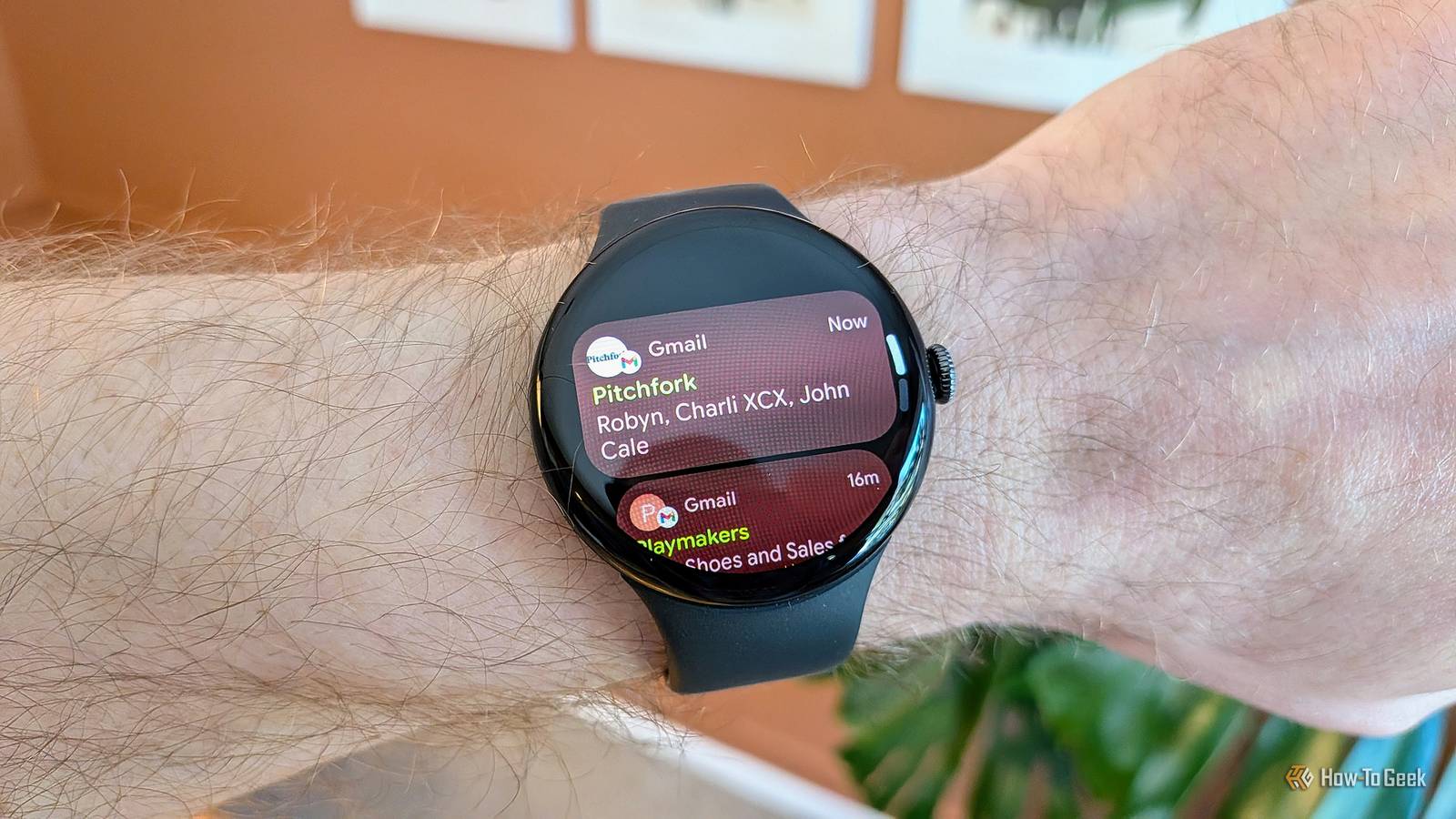
Published Sep 1, 2026, 5:00 PM EDT Joe Fedewa has been writing about technology for over a decade. Android and the rest of the Google ecosystem have been a focus for years, as well as reviewing devices, hosting podcasts, filming videos, and writing tutorials. Joe loves all things technology and is also an avid DIYer and food blogger. He has written thousands of articles, hundreds of tutorials, and dozens of reviews. Before joining How-To Geek, Joe worked at XDA-Developers as Managing Editor and covered news from the Google ecosystem. He got his start in the industry covering Windows Phone on a small blog, and later moved to Phandroid where he covered Android news, reviewed devices, wrote tutorials, created YouTube videos, and hosted a podcast. From smartphones to Bluetooth earbuds to Z-Wave switches, Joe is interested in all kinds of technology. After several years of jailbreaking and heavily modifying an iPod Touch, he moved on to his first smartphone, the HTC DROID Eris. He's been hooked ever since. I don’t know about you, but the main reason why I wear a smartwatch is for notifications. It allows me to pull out my phone less often, which is always a good thing. On my Pixel Watch, though, there was one setting that made the experience more cumbersome than it could be. Now, the Pixel Watch series has several exclusive features that you won’t find on other Wear OS watches, but the one I’m talking about today is pretty universal. However, it’s almost never enabled by default, and that’s true for the Pixel Watch as well. I want to see notifications on my Notification Machine One of the first things I enable Credit: Joe Fedewa / How-To Geek Out of the box, a Pixel Watch handles notifications in much the same way as a phone. That means the watch will either vibrate or sound an alert, but not wake the screen. I prefer this approach on phones, because it’s usually not directly in front of my face anyway. My Pixel Watch, on the other hand, lives on my wrist. There’s nothing between my eyeballs and the watch—no pocket, bag, or even a lock screen. When I feel the vibration or hear the alert of a notification, I can usually immediately check my watch to see what’s happening. In the Pixel Watch app, there’s a section titled “Show new notifications.” By default, it’s set to “On wrist raise.” Once a notification arrives on your watch, it doesn’t pop up and wake the screen until you lift your arm to look—even if “tilt to wake” is disabled. This is a good idea in theory, but it fails on two counts. First, in my experience, it doesn’t always show the full notification when I raise my wrist. Sometimes, it only shows the app icon at the bottom of the screen, and then I have to swipe up to see it. Second, a common complaint among smartwatch wearers is that the display often doesn’t turn on fast enough or at all with “tilt to wake” gestures. That makes it even less useful. All of this boils down to one thing: I’m wearing my watch for notifications—show me notifications. It doesn’t hurt battery life very much As I said, I’m almost always able to immediately look at my watch when I get a notification. So, the display might as well already be on when I do it. That’s what the “Immediately” option in the “Show new notifications” section does. Rather than waiting for me to raise my wrist, a new notification wakes the screen right away—even if “tilt to wake” is disabled. I don’t have to wait for a gesture to be detected or swipe on the screen at all. This setting can be enabled from the watch itself or the companion app on your phone. On the Pixel Watch, go to Settings > Apps & notifications > Notifications > Show new notifications > Immediately. In the phone app, go to Notifications > Show new notifications > Immediately. Google doesn’t enable this by default because it can use more battery, but that’s never been an issue for me. If you’re concerned about the potential battery impact, make sure to enable “Mute notification from phone.” This ensures notifications won’t wake up your watch screen when you’re actively using your phone. At the end of the day, this is one of those things that I have more to say about why it doesn’t make sense than why I like it. This is simply the default behavior I would expect, and toggling it on feels like putting things in order.
I changed one Pixel Watch setting, and notifications finally make sense
Full Article
Original Source
Read the full article at Howtogeek →KhanList aggregates and links to publicly available news content. We do not host full articles from third-party sources. Always verify important information with original sources.