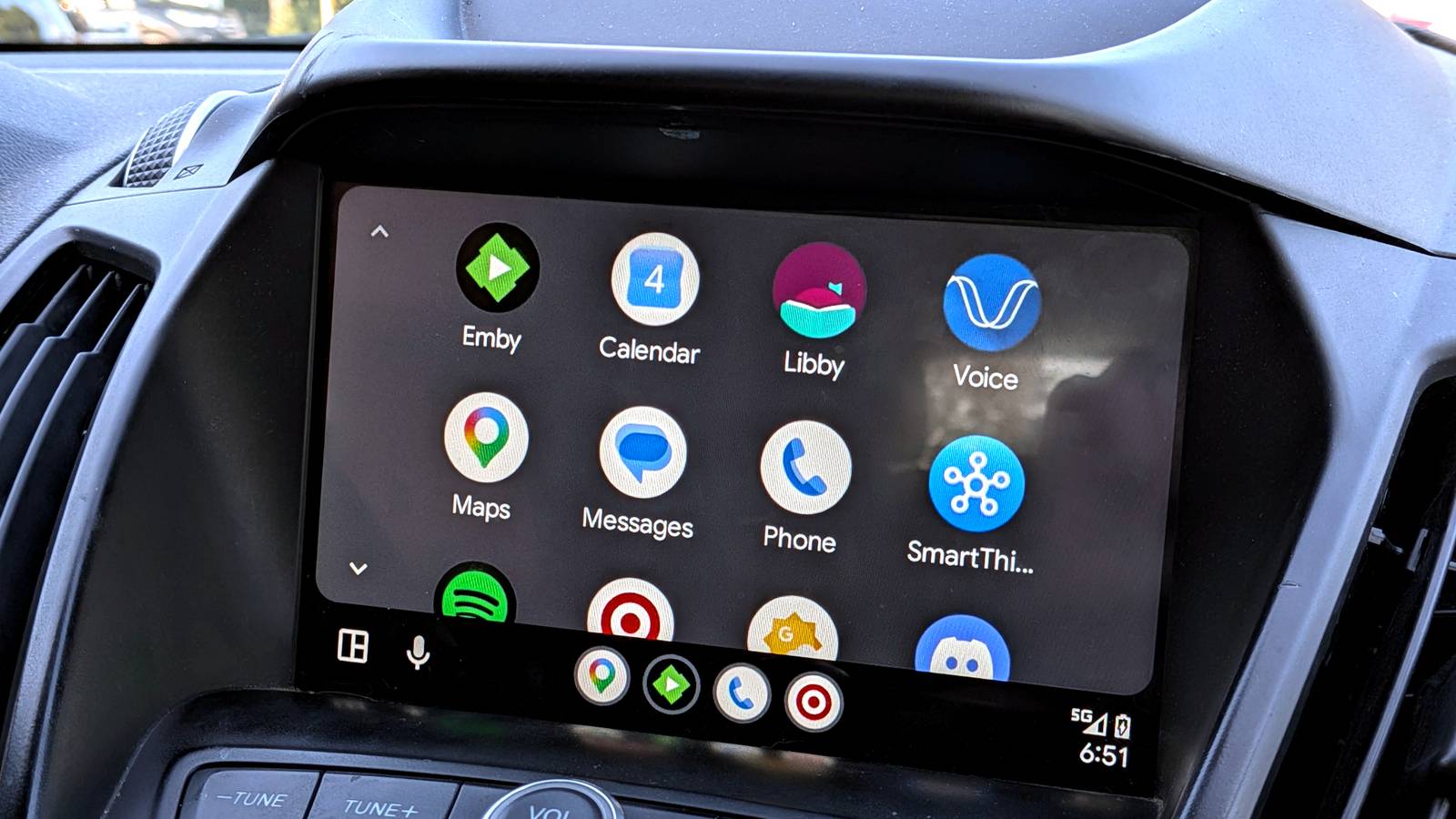
Published Aug 7, 2026, 8:45 AM EDT Joe Fedewa has been writing about technology for over a decade. Android and the rest of the Google ecosystem have been a focus for years, as well as reviewing devices, hosting podcasts, filming videos, and writing tutorials. Joe loves all things technology and is also an avid DIYer and food blogger. He has written thousands of articles, hundreds of tutorials, and dozens of reviews. Before joining How-To Geek, Joe worked at XDA-Developers as Managing Editor and covered news from the Google ecosystem. He got his start in the industry covering Windows Phone on a small blog, and later moved to Phandroid where he covered Android news, reviewed devices, wrote tutorials, created YouTube videos, and hosted a podcast. From smartphones to Bluetooth earbuds to Z-Wave switches, Joe is interested in all kinds of technology. After several years of jailbreaking and heavily modifying an iPod Touch, he moved on to his first smartphone, the HTC DROID Eris. He's been hooked ever since. Android Auto has built-in automations called “shortcuts.” If this is news to you, I’m not surprised—they’re not very good. Thankfully, it’s possible to create much more useful automations with a great app called MacroDroid. That’s exactly what I did. In order to use the built-in automations in Android Auto, you actually need to create Google Home automations first. That’s because these “shortcuts” are nothing more than Gemini commands. So, if you have automations in Google Home, you can simply tell Gemini to run them. Now, Google Home and Gemini are great at a lot of things, but advanced automation is not one of them. They’re essentially limited to working with first-party apps and Google services. We can do a whole lot better than that with MacroDroid. Automatically hear messages read aloud Skip the button press Android Auto does a pretty good job of keeping your eyes on the road, but interaction is still required from time to time. One example is messaging notifications. You’ll hear a notification sound, but you have to look at the screen to see the sender and tap “Play aloud” to hear the message. Wouldn’t it be nice if Android Auto could read messages aloud right away, without needing your input first? Here’s how to set up a MacroDroid automation that does exactly that: Triggers Notification Received > Choose the apps you’d like to hear notifications from. Optionally, you can specify certain text in n notifications to exclude or include. For example, I don’t want to hear Google Messages’ “Device pairing” notifications read aloud. Actions Speak Text > In the “Enter text to speak” field, tap the three-dot icon and choose the “Notification title” and “Notification text” variables. Use them to write a sentence that reads: “Notification title” says: “Notification text.” When you get a message, the voice will say “[Sender’s name] says: [Message contents].” Constraints Device connected > Choose your vehicle from the list of Bluetooth devices. This will ensure the automation only runs when you’re using Android Auto. Get a notification with your saved parking spot Google doesn’t do it anymore A long time ago, a feature called Google Now had the ability to intelligently save your parking location on it’s own. Google Assistant eventually received the feature, too, but Gemini simply can’t do it. Thankfully, there’s a handy toggle in Google Maps on Android Auto for saving your parking spot, but MacroDroid can do one better. This automation takes a bit more setup, but the result is a notification that automatically appears with a link to your parking location as soon as you leave your vehicle. Here’s how it works: First, we need to make a simple macro that will be activated from the notification. Triggers Empty Trigger. Actions Open Website > Enter this exact URL: https://maps.google.com/?q={last_loc_lat},{last_loc_long} With that out of the way, we can create the location notification automation. Triggers Application Closed > Select “Android Auto” from the list of apps—you’ll need to toggle on “Show non-launchable apps” to find it. Actions Force Location Update > Select “Block next actions until complete” before saving. This will ensure your phone gets the most accurate current location before sending it to you. Set Local Variable > Enter this text in the variable name field: [Parked_Lat] = {last_loc_lat}, [Parked_Long] = {last_loc_long} Display Notification > Choose an icon, title, and text for the notification, then scroll down and tap “Add action button.” Give the button a label, something like “Open Google Maps, and select the first macro we made to “Run when pressed.” Constraints None Now, when you shut off your vehicle, and Android Auto closes in the background, your phone will pull the current location, fill in the latitude and longitude variables, and send a notification with a button that will launch Google Maps to that location. Make your car send ETA messages A small quality of life improvement Many people who go to work each day have people at home waiting for their arrival. It’s common to send a simple “omw” or “heading home” text. Of course, there are other reasons why you might want to send a message as soon as you get in your car. MacroDroid can automate this process very easily with the help of Android Auto. Triggers Application Launched > Select “Android Auto” from the list of apps—you’ll need to toggle on “Show non-launchable apps” to find it. Actions Send SMS > Enter the recipient's phone number and the text of the message. Constraints Time of Day > Choose a window of time when you are likely to get into your car to drive home. This will ensure the automation only runs when you leave work (or however you want to use it). Automations can keep our eyes on the road The great thing about all three of these automations is that they help me use my Android Auto screen and phone less while I’m in my car. I’m not interacting with the screen to hear a message read aloud, frantically saving my parking spot on my phone while walking, or sending that ETA message I forgot to send before I started driving.
I built 3 custom MacroDroid automations that Android Auto should offer by default
Full Article
Original Source
Read the full article at Howtogeek →KhanList aggregates and links to publicly available news content. We do not host full articles from third-party sources. Always verify important information with original sources.