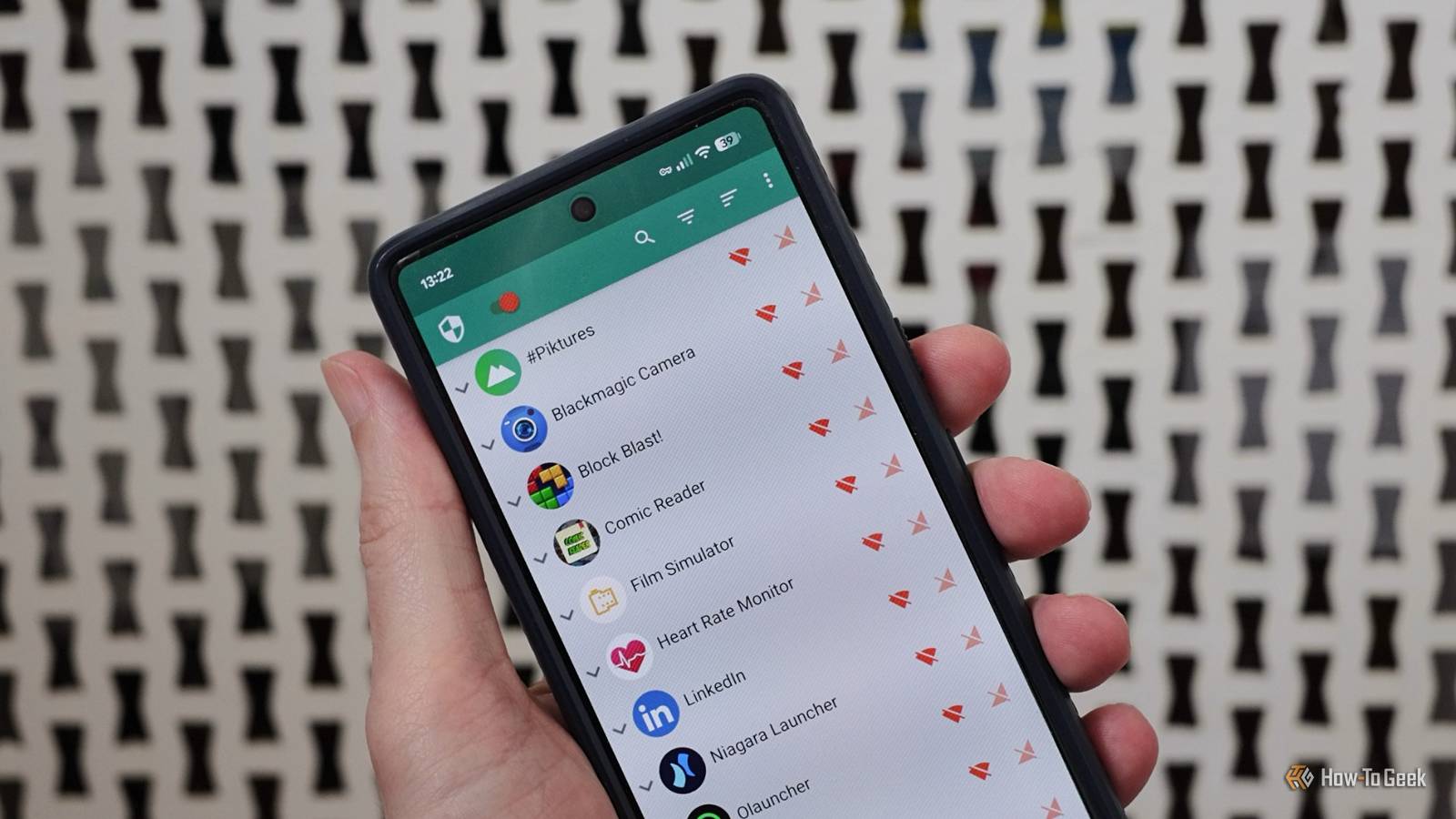
Published Aug 6, 2026, 11:00 AM EDT Andy is a senior writer and former Mac editor at HTG. He has over 20 years experience as a consumer tech journalist, and has covered everything from the old Palm Pilots to the original iPhone and Android devices, to the latest gadgets. He has written and edited for UK-based print publications like PDA Essentials and Android Magazine, and online at sites including MUO, Android Tips and Hacks, broadband.co.uk, and Envato. He has a passion for all things mobile and has been a keen Mac enthusiast since 2005. Many Android apps need internet access. Lots don't, but connect anyway. By installing a firewall app on my Pixel, I was able to lock down more than a dozen apps. It brings a big privacy boost as well as data and battery savings. And it's surprisingly simple to set up. NetGuard gives me a feature Android should already have Control which apps can access the internet In the early days of Android, internet access was a permission you had to grant to every app. But now every app has internet access whether it needs it or not. It's more convenient, but it brings with it potential privacy issues and is open to abuse. Lots of apps simply don't need to be able to go online. To fix this glaring hole in Android's privacy controls, I installed the free and open-source firewall app, NetGuard. It makes it trivial to control which apps do and don't have internet access. It lets you decide whether an app can use Wi-Fi or mobile data, or neither. You can even block access only when the screen is turned off. It gives you far more control over how your apps behave and lets you rein in those that are going to misbehave. NetGuard works by creating a local VPN connection that filters all the traffic from your apps. If you set an app to be blocked over Wi-Fi, then the local VPN won't let the connection through. You don't need to worry about the technicalities of it, other than to say that you can't run another VPN service at the same time. It doesn't need root access and is incredibly simple to set up and use. Once you've done it, you can leave it running, and you won't even know it's there. As well as the obvious privacy improvements a firewall brings, it can also cut ads and bring battery improvements and data savings, which is especially useful if you're on a metered connection. Setting it up only takes a minute It's easy yet very configurable Install NetGuard from the Play Store or via the alternative F-Droid store. Launch the app and activate it using the toggle in the top left corner. Click through any other screens and clear the info boxes. Some phones are more aggressive about shutting down background apps. If NetGuard keeps being closed, set it to Unrestricted battery access. When it's set up, you'll see the home screen listing every app you've got installed on your phone. Alongside them are Wi-Fi and mobile data symbols. The process from here is simple. Tap the Wi-Fi symbol to prevent an app from connecting over Wi-Fi. Tap the mobile data symbol to stop it using your mobile connection. Tap them both to block the app from connecting to the internet completely. That's it. Work your way through the list and disable access for those apps that don't need it. If you aren't sure which of your apps are using the internet, go to Settings > Advanced and enable both Log Internet Access and Notify on Internet Access. You'll now get a notification every time an app tries to access the internet. You won't want to keep this setting enabled permanently because it gets annoying after a while. You might be surprised at just how many of your apps are connecting to the internet, even when you don't expect them to. But it can help you make decisions about which apps to block. These are the apps I blocked first Not all apps need internet access The most important thing when using NetGuard is to make sure you don't block the apps that absolutely need internet access to work. You can't block some, like WhatsApp or Slack, and plenty of others obviously need to be online, like your web browser or Google Photos. A weather app, similarly, can't pull in a forecast if you've blocked its internet access. The apps to block are the ones that work well offline, and there might be more than you think. Launchers often need a lot of permissions to work, but rarely need to go online on a day-to-day basis. Many utilities do their job on the device—file managers, document viewers, comic book readers, and so on, plus those that use local files, like video players. And there are those apps that are packed with ads and sometimes designed to hoover up as much data as possible. Free single-player games are among the most common culprits here. Remember, your decision isn't permanent. You can block a wallpaper app from going online, and only re-enable it when you want to download something new. I do that with LinkedIn, which I rarely use and don't entirely trust. I ended up blocking at least 16 apps across six categories. I blocked big names like VLC and Zedge, plus Niagara Launcher, Comic Reader, Heart Rate Monitor, and obscure games and tools. To me, it doesn't matter whether or how often these apps connect, or what happens when they do. If they don't need internet access, I'll block them. When you do block something, make sure to launch it again to check that it still works okay. A firewall is the ultimate privacy tool Firewalls sound complicated to use, but on Android, they couldn't be simpler. NetGuard is the final piece of the puzzle when it comes to controlling what apps can do. It's a tremendous privacy tool because it prevents blocked apps from sending data to their servers when they're offline. It's more secure for the same reason. When I started using NetGuard, I was surprised at how many apps I was able to disable, and also how little difference it made to them. Most just carried on working as normal, just without quietly connecting to the internet in the background.
I blocked 16 Android apps from accessing the internet with one free firewall tool
Full Article
Original Source
Read the full article at Howtogeek →KhanList aggregates and links to publicly available news content. We do not host full articles from third-party sources. Always verify important information with original sources.