
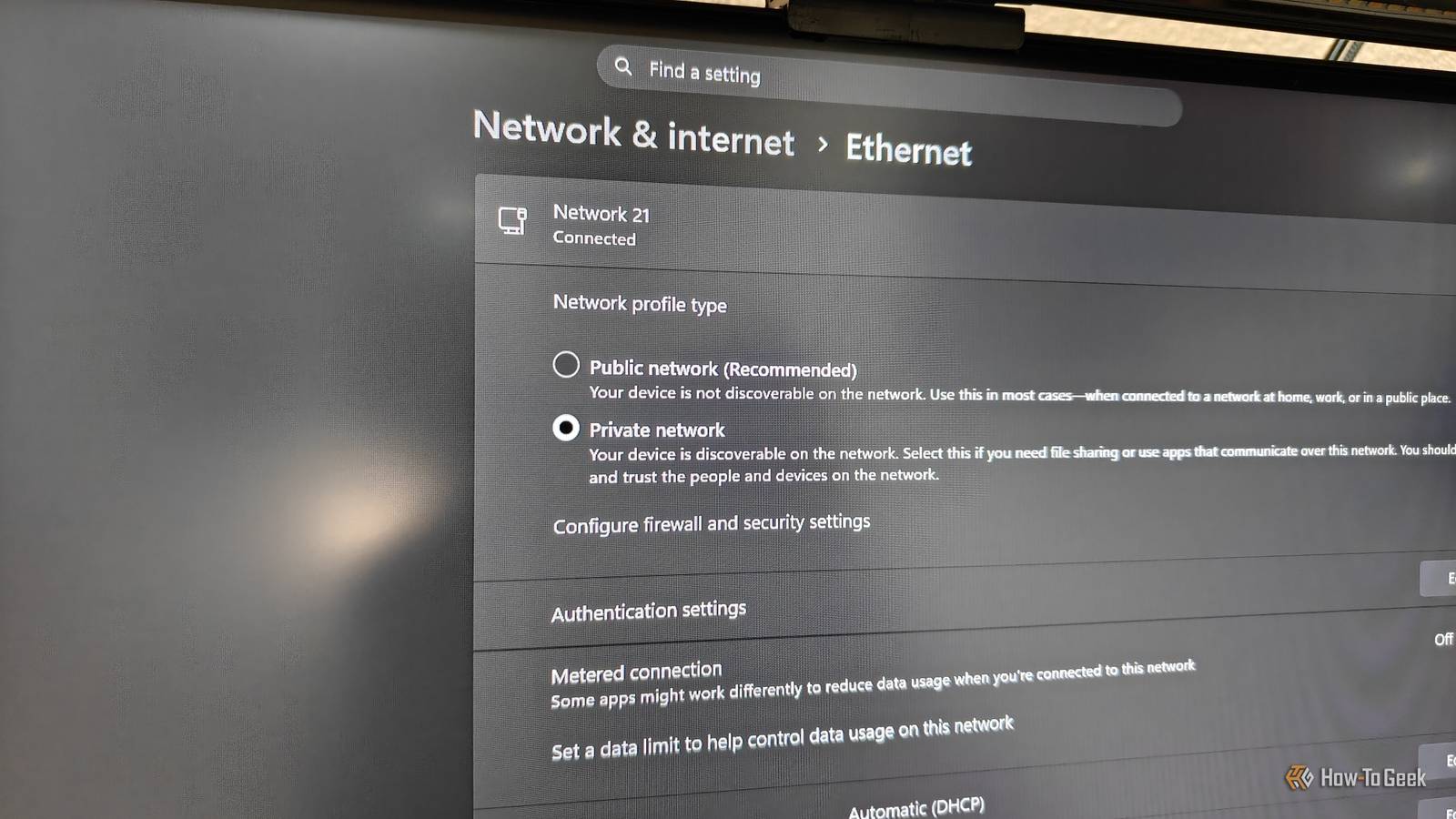
Published Sep 23, 2026, 4:30 PM EDT Ismar is a Senior Author at How-To Geek. He previously worked as a writer, editor, and general manager at a content agency before joining the team in 2023. He began his writing career in 2021 after completing a BA in English Language and Literature. Beyond How-To Geek, Ismar has contributed to Red Stag Fulfillment and Authority Hacker. He has also worked on various SEO projects to help clients improve their search visibility. Ismar has been around Windows PCs since the age of three, so friends and family naturally chose him as the resident tech support. His projects often involve tinkering, such as disassembling mechanical keyboards and gaming mice to mod his beloved gear. He also enjoys pushing hardware to the max through overclocking while staying on a reasonable budget. An avid gamer, Ismar has logged thousands of hours across various genres, including first-person shooters, RPGs, racing games, and roguelites. When he is not at his desk, he is probably exploring other people’s phones to discover their quirks and features or experimenting with the latest AI tools. In his free time, Ismar enjoys spending time with his wife, working out at the gym, playing guitar and bass, cooking gourmet meals, and traveling. Above all else, he’s a proud cat owner. A few days ago, I wanted to run some iPerf3 Wi-Fi speed tests from my phone to my PC to see how well my phone's Wi-Fi signal was holding up if I placed my router in a cabinet. But no matter what I tried, my phone simply couldn't see my PC. So, I spent an embarrassing amount of time blaming my router before realizing a simple Windows setting was messing with me: my network profile was set to Public, which was hiding my PC from other devices on the network. Several things on my PC refused to work, and I couldn't figure out why It was strangely limited I never really gave much thought to my Windows network profile or firewall settings because, for the most part, everything worked exactly as I expected. I could mess around with my homelab directly from my PC, transfer files to and from other devices on the network over SMB, and even use things like Phone Link without any problems. That's what made this so confusing. I never noticed a problem with other devices accessing my PC, because everything worked just fine. It was only when I tried to connect to an iPerf3 server instance running on my PC from my phone to test my Wi-Fi that I discovered there were some kinds of local connections that didn't work as expected. Google's Quick Share just never worked for me for some reason, either. I assumed that it needed Bluetooth to work, just like when connecting two phones. Since my motherboard doesn't have built-in Bluetooth, I figured there was no easy workaround. Well, maybe other than getting a Bluetooth dongle. Windows was treating my home network like public Wi-Fi The setting was hiding in plain sight Windows 11 has two general network profiles: Public and Private. They mostly adjust the firewall and a few related security settings. When you connect a Windows PC to a new network, Windows initially sets it to a Public network profile. This is the default and recommended setting, so there's a very good chance your Windows PC is running in Public mode too. When it's set to Public, Windows uses a relatively strict firewall profile that blocks unwanted inbound traffic by default and hides your PC from other devices through network discovery. This is incredibly useful when connecting to an untrusted public network, like a hotel or library Wi-Fi. The Public profile still allows outbound traffic by default, which is part of the reason it took me so long to realize that this was causing some of my LAN connectivity issues. I've mentioned Quick Share and accessing a server on your PC, but running your PC in Public network mode may interfere with a handful of other things too: network discovery, screen casting, sharing files from your PC, printer sharing, and other features that rely on devices on your network connecting to your PC. Interestingly, Phone Link worked just fine, which is a good example of why a Public profile doesn't automatically mean all local networking stops working. This is likely because Windows treats Phone Link as a trusted service and allows the traffic it needs through the firewall, even when you're using it on an actual public network outdoors. Switching the network profile fixed my problems Windows makes switching between network profile types surprisingly simple It took me a while to figure out what was going on with my PC. I really narrowed things down when I tried pinging my phone from my PC, and it returned a response, but it just plain refused to work the other way around. Long story short, this was user error, as the fix was embarrassingly simple: I just had to switch my network profile to Private. To do this, open Start > Settings > Network & internet > Ethernet (or Wi-Fi if you're connected via Wi-Fi). Under Network profile type, simply switch it to Private, and that's literally it. Immediately after changing this one setting, my iPerf3 server became accessible from my phone, and I was also able to fix my long-standing Quick Share issue. I didn't even have to reset my router or anything. There isn't a single best network setting, even for a stationary desktop PC The right setting depends on what you trust As much as I'd love to tell you to just permanently switch your network profile from Public to Private on your PC, especially if it's a desktop that resides permanently on your home network, the decision isn't actually as straightforward as it might seem. While switching to Private won't automatically turn your system into a vulnerable target for hackers, there are some important precautions you need to keep in mind. It makes your PC discoverable to other devices on the network and allows different firewall rules and sharing features to apply, which is where things can get tricky. For starters, if your IoT gadgets, smart TV, and other "untrusted" devices live on the same LAN as your PC, you should strongly consider putting them on their own isolated VLAN or, at the very least, the guest network that your router supports. Another serious concern is that if somebody were able to compromise your network, either through a device weak point, an improperly exposed NAS, or the Wi-Fi itself, they could potentially discover your PC and interact with services that are accessible on the local network. That's why it's worth taking the appropriate precautions before enabling this option. Honestly, it's so easy to switch between Public and Private that you might as well use Private if you fully trust your network or need to access your PC, and stick to Public when you're not. Check your network profile before blaming your network Before you start blaming your router the next time you're having problems with a Windows feature that requires access to your PC, check your network configuration first. It only takes a few seconds to switch to Private, and it could save you a lot of troubleshooting and frustration.
I blamed my router for hours before finding this Windows setting causing my LAN connectivity issues
Full Article
Original Source
Read the full article at Howtogeek →KhanList aggregates and links to publicly available news content. We do not host full articles from third-party sources. Always verify important information with original sources.