
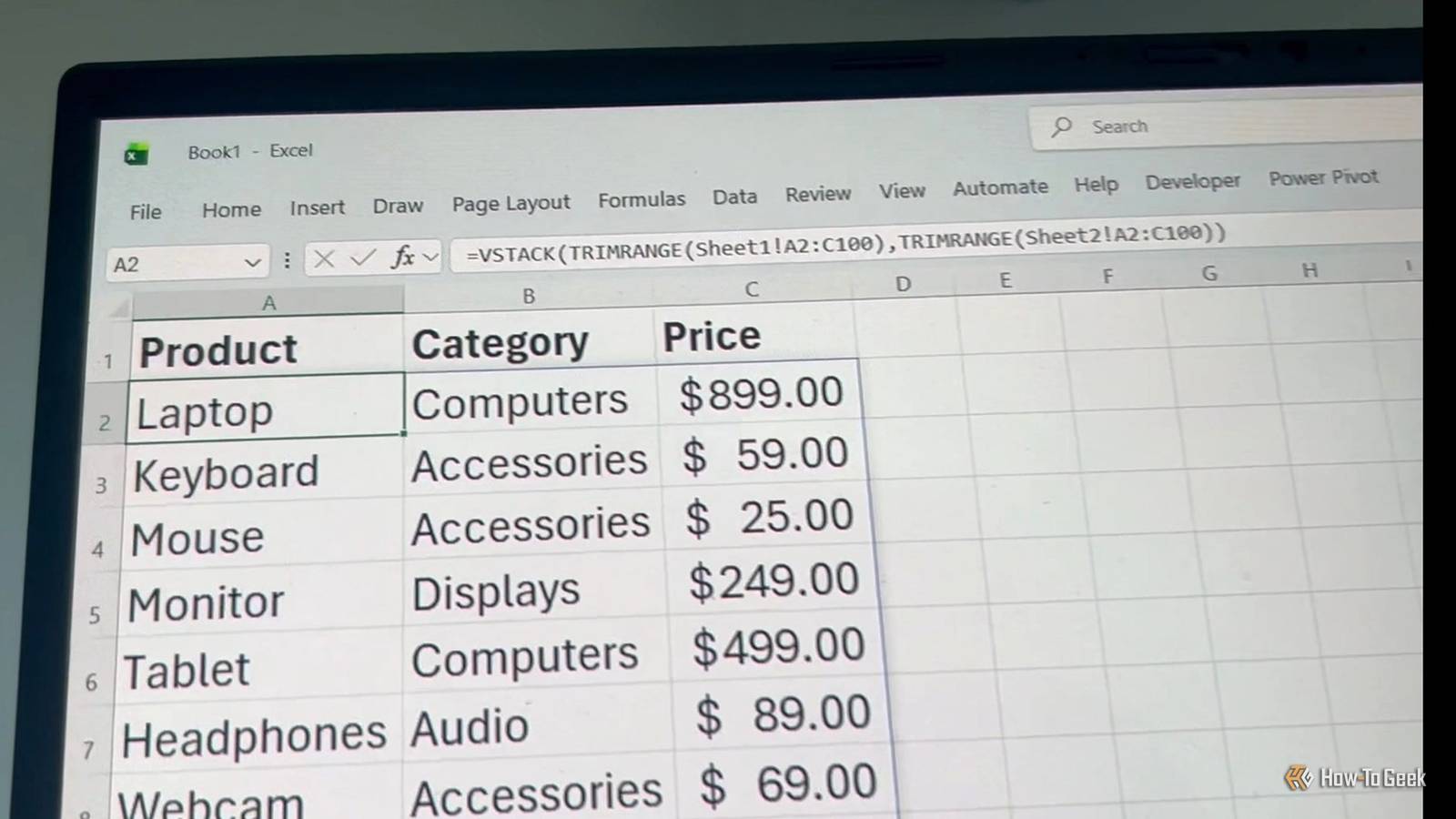
Published Oct 28, 2026, 1:30 PM EDT Tony Phillips is an experienced Microsoft Office user with a dual-honors degree in Linguistics and Hispanic Studies. Prior to starting with How-to Geek in January 2024, he worked as a document producer, data manager, and content creator for over ten years, and loves making spreadsheets and documents in his spare time. Tony is also an academic proofreader, experienced in reading, editing, and formatting over 3 million words of personal statements, resumes, reference letters, research proposals, and dissertations. Before joining How-To Geek, Tony formatted and wrote documents for legal firms, including contracts, Wills, and Powers of Attorney. Tony is obsessed with Microsoft Office! He will find any reason to create a spreadsheet, exploring ways to add complex formulas and discover new ways to make data tick. He also takes pride in producing Word documents that look the part. He has worked as a data manager in a secondary school in the UK and has years of experience in the classroom with Microsoft PowerPoint. He loves to encounter problems in Microsoft Office and use his expertise and legal-level training to find solutions. Outside of the Microsoft world, Tony is a keen dog owner and lover, football fan, astrophotographer, gardener, and golfer. Excel has hundreds of functions, and nobody needs to know them all. But a few are worth keeping in your back pocket because they save you headaches as your data changes. TRIMRANGE is a great example. When you build a spreadsheet that's going to grow, you usually leave room for data you haven't entered yet. Those empty cells can turn dynamic array results into a mess, but TRIMRANGE quietly trims the blank edges off a range and keeps things tidy. TRIMRANGE has its place alongside Excel tables Know when to keep your data as a range If you're wondering why you'd bother with TRIMRANGE when Excel tables already grow with your data, that's a fair question. For conventional datasets, tables are usually the better choice: they expand as you add rows, use structured references, and carry calculated-column formulas into new records. But tables aren't the answer to everything. Dynamic array formulas such as SORT, UNIQUE, and VSTACK need room to spill their results, and spilled arrays can't live inside a table. You might also have ordinary ranges on multiple worksheets that you want to combine without carrying hundreds of empty cells into the result. That's where TRIMRANGE comes in. It chops empty rows and columns off the edges of a range or array, so your formulas work with the data you actually have instead of all the blank space you've set aside for later. TRIMRANGE has three arguments Choose which edges Excel trims The syntax is straightforward: =TRIMRANGE(range,[trim_rows],[trim_cols]) where range is the range or array you want to trim. trim_rows (optional) specifies whether to trim leading rows (top), trailing rows (bottom), both, or neither. trim_cols (optional) specifies whether to trim leading columns (left), trailing columns (right), both, or neither. Both optional arguments use the same settings: Argument Effect 0 Don't trim 1 Trim leading blanks 2 Trim trailing blanks 3 Trim leading and trailing blanks (default) When a dynamic array formula returns blank cells, Excel displays them as zeros in the worksheet. As you add entries within the referenced range, TRIMRANGE includes them automatically and adjusts the result to exclude blank rows and columns at the edges. There are a few catches. TRIMRANGE only trims empty rows and columns at the outer edges—it won't remove blank rows between populated records. A stray entry, or even a sneaky space, beyond your intended dataset will move where the range ends. And if the entire range is empty, you'll get a #REF! error. TRIMRANGE keeps dynamic arrays tidy Sort your data without the empty rows Imagine you have a list of product names in column A, with a header in the first row and empty rows beneath the list. You want to sort the names alphabetically and leave room for more products later. First, try returning a sorted copy of the data using the SORT function: =SORT(A:A) However, this sorts the entire column alphabetically, including the header, and returns zeros for the empty cells beneath your product list. You can use the DROP function to remove the first row of the source range before sorting, then add a new header manually above the results: =SORT(DROP(A:A,1)) But the formula still returns zeros for the empty cells beneath your list. To get rid of those zeros, add TRIMRANGE to the mix: =SORT(DROP(TRIMRANGE(A:A),1)) Because only the range argument is supplied, TRIMRANGE uses its default behavior, trimming leading and trailing empty rows and columns. DROP then removes the header, and SORT arranges the remaining product names alphabetically. The result is just your sorted names, with no stray zeros. You can add more products to your original list, and the spilled results will update automatically. To keep the results to product names only, don't leave gaps in your source list. Otherwise, any blanks in the middle will show up as zeros in the sorted results. TRIMRANGE helps you combine data from multiple sheets Stack ranges without carrying the blanks along Say you keep similar lists on two worksheets and want to combine them into one spill range. Each list occupies columns A through C, with headers in row 1, and you've extended the references to row 100 to allow for future entries. You could stack the ranges with the VSTACK function: =VSTACK(Sheet1!A2:C100,Sheet2!A2:C100) But that leaves you with all the unused rows from both worksheets. Instead, trim each range before stacking it: =VSTACK(TRIMRANGE(Sheet1!A2:C100),TRIMRANGE(Sheet2!A2:C100)) TRIMRANGE trims the empty edges of each source range before VSTACK combines the results. Ideally, both trimmed ranges will have the same number of columns. Because TRIMRANGE removes empty columns at the edges, one result might be narrower than the other, even though both original references cover columns A through C. VSTACK pads any missing columns in the narrower array with #N/A errors. TRIMRANGE only removes blank rows and columns at the outer edges of each source range, so any blank rows within either list remain in the combined result. Trim references offer a shortcut Trim ranges with a dot If you find yourself nesting TRIMRANGE inside other functions, there's a shortcut: the trim reference operator, which wraps periods around the range colon. For example, this formula: =SORT(TRIMRANGE(A1:A100)) can be shortened to: =SORT(A1.:.A100) A period before the colon trims leading blank rows and columns, while a period after the colon trims trailing blank rows and columns. Reference What it trims A1:.A100 Trailing blank rows and columns A1.:A100 Leading blank rows and columns A1.:.A100 Leading and trailing blank rows and columns As with TRIMRANGE, the operator trims empty rows or columns at the edges of the reference; it doesn't remove gaps inside the data. For example, a blank cell between two product names can still appear as 0 when you sort the range. The notation also works with full-column or full-row references. Trim references are neat, but those tiny periods are easy to miss when you're reviewing a formula. Use them when you want something compact, and stick with TRIMRANGE when you want your intent to be obvious. TRIMRANGE isn't the answer to every blank-row problem TRIMRANGE is a handy one to keep in your Excel toolkit, especially when you're working with dynamic arrays or combining ranges with room to grow. And if your spreadsheet has blank rows scattered throughout your data, not just around the edges, I tested six ways to remove blank rows in Excel to find out which methods work best.
How to use the TRIMRANGE function in Excel
Full Article
Original Source
Read the full article at Howtogeek →KhanList aggregates and links to publicly available news content. We do not host full articles from third-party sources. Always verify important information with original sources.