
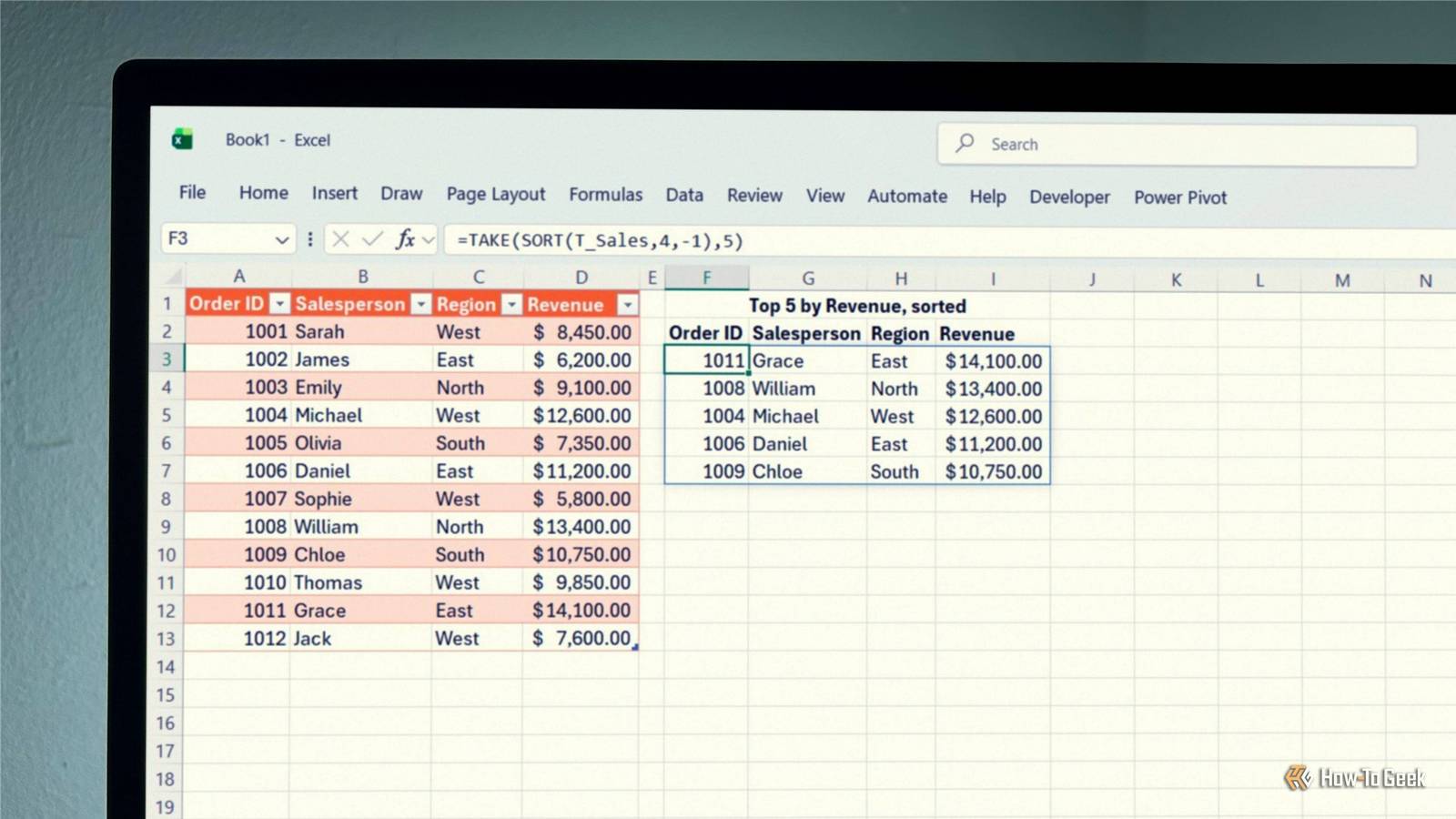
Published Oct 31, 2026, 10:31 AM EDT Tony Phillips is a senior author at How-To Geek with over a decade of experience working with documents, data, and digital productivity tools. Holding a dual-honors degree in Linguistics and Hispanic Studies, he combines technical expertise with a passion for making complex topics easy to understand. Before joining How-To Geek in 2024, Tony worked as a document producer, data manager, legal document specialist, and content creator. He has also proofread and edited more than 3 million words of academic and professional writing. While Tony specializes in Microsoft 365, particularly Excel, his interests extend far beyond Office. He enjoys testing software, exploring open-source projects, discovering useful companion apps, and finding ways to customize and optimize Windows. Whether he's building spreadsheets, evaluating new tools, or uncovering hidden features, Tony enjoys helping readers get more from their technology. Outside of tech, he enjoys spending time with his dog, watching football, astrophotography, gardening, and golf. Some of Excel's most useful functions are also its simplest. SORT is a good example: with a single argument, you can alphabetize a list, and with a couple more, you can sort an entire dataset. Better still, the results update automatically when the data in your source range changes, so you don't have to repeat the process every time a number or name changes. You might think SORT is redundant if you already use SORTBY, which is more flexible in some situations. But SORT has advantages of its own, especially when you want a shorter formula or want to combine it with other dynamic array functions. Here's how to put it to work. SORT gives you a sorted copy of your data Get the order you want with one formula The SORT function returns a sorted version of an array without rearranging your original data. Its syntax is: =SORT(array,[sort_index],[sort_order],[by_col]) where: array (required) is the range or array you want to sort. sort_index (optional) specifies which column or row to sort by. It defaults to 1. sort_order (optional) sets the direction: 1 for ascending or -1 for descending. The default is 1. by_col (optional) determines whether Excel sorts vertically by rows (the default) or horizontally by columns. Use TRUE to sort by columns. For example, suppose you have an Excel table named T_Inventory with a Product column. This formula returns the product names in alphabetical order: =SORT(T_Inventory[Product]) That's all you need. Excel automatically alphabetizes the results, and the original table remains untouched. You can sort a complete dataset just as easily. Suppose the fourth column of T_Inventory contains stock quantities. To sort the entire table from highest quantity to lowest, use: =SORT(T_Inventory,4,-1) Here, 4 tells Excel to sort by the fourth column in the supplied array, while -1 specifies descending order. A few things to keep in mind. SORT spills its results into neighboring cells, so make sure that space is clear, or you'll get a #SPILL! error. Enter the formula outside an Excel table, since dynamic arrays can't spill inside one, and leave the source headers out of the array so Excel doesn't sort them among your records. A SORT formula also sorts only the data in the range or array you reference. If you use a fixed range, new entries outside that range won't appear automatically. Using an Excel table with structured references solves this problem because the reference expands as you add rows. SORT becomes more useful when you combine it with other functions Build reports that sort themselves SORT is useful on its own, but it becomes even more powerful when you combine it with other dynamic array functions. You can filter a dataset before sorting it, or sort the entire dataset before extracting just the rows you need. Suppose you have a sales table named T_Sales, with a Region column and revenue in the fourth column. Cell G1 contains the region you want to report on. To return matching sales, ordered by revenue from highest to lowest, use: =SORT(FILTER(T_Sales,T_Sales[Region]=G1),4,-1) FILTER uses the value in G1 to return records from the selected region. SORT then orders those records by the fourth column in descending order. Change G1 to another region, and the report updates without you having to edit the formula. You can also use SORT with the TAKE function to extract the top five records from a dataset: =TAKE(SORT(T_Sales,4,-1),5) SORT orders the sales records by the fourth column, highest first, and TAKE returns the first five rows. The beauty of combining these functions is that you can build a report once and let Excel do the repeated work. When the underlying data changes, the formulas recalculate and return the updated results. FILTER is available in Excel 2021, Excel 2024, Microsoft 365, and Excel for the web. TAKE is available in Excel 2024, Microsoft 365, and Excel for the web. SORT can handle more than one sorting criterion Use multiple criteria to break ties Sometimes, sorting by one column isn't enough. If two people have the same score, for example, you might want Excel to sort those tied records alphabetically by name. SORT can handle multiple criteria, letting you specify a secondary rule for records with matching values. Imagine you have a scores table named T_Scores, with names in the first column and total scores in the fourth. You want the highest scores first, with tied scores sorted alphabetically by name. First, enter 4 and 1 in cells F2 and F3, respectively. These tell Excel which columns to use as sorting criteria, in order: total score first, followed by name. Then enter -1 and 1 in G2 and G3 to specify the corresponding sort directions: descending for scores and ascending for names. You can then use this formula: =SORT(T_Scores,F2:F3,G2:G3) Keeping your criteria in worksheet cells means you can change the sorting rules without editing the formula. For example, you could change the first sort order to 1 to put the lowest scores first. If you're already comfortable with SORTBY, you may recognize this as one of the areas where the two functions overlap. The difference is largely in how you specify the criteria. SORT and SORTBY solve similar problems in different ways Know when to use each function SORT and SORTBY can both return dynamically sorted data, but they approach the task differently. SORT SORTBY How you specify the sort A positional index within the array. A separate sort-by array. Sorting a single column A concise, one-argument formula. Requires a separate sort-by array. Multiple criteria Multiple sort indexes and orders. Additional sort-by array and order pairs. Handling structural changes May require index adjustments after structural changes. Direct references to sort-by columns can avoid positional-index adjustments. SORT is particularly convenient when you want to sort an array by one of its own columns. Its short syntax also makes it a natural fit for combinations with functions such as FILTER and TAKE. SORTBY is often a better choice when you want to sort one array using values in a separate range, or when referencing a column directly makes your formula easier to maintain. Because SORT uses positional indexes, inserting or deleting columns in the source can mean you need to review those indexes. Neither function makes the other redundant. Once you know how they differ, you can choose the one that best suits your data and the result you want. Choose the right tool for the job SORT isn't the only way to reorganize data in Excel. You can use Flash Fill to split or merge text, transpose rows and columns, or use Excel's built-in sorting tools to rearrange data in place. The best method depends on how your data is laid out and whether you want to change the original or create a separate, automatically updating result. But when you want a sorted list that updates with your source data, SORT is one of the simplest tools to use.
How to use the SORT function in Excel
Full Article
Original Source
Read the full article at Howtogeek →KhanList aggregates and links to publicly available news content. We do not host full articles from third-party sources. Always verify important information with original sources.