
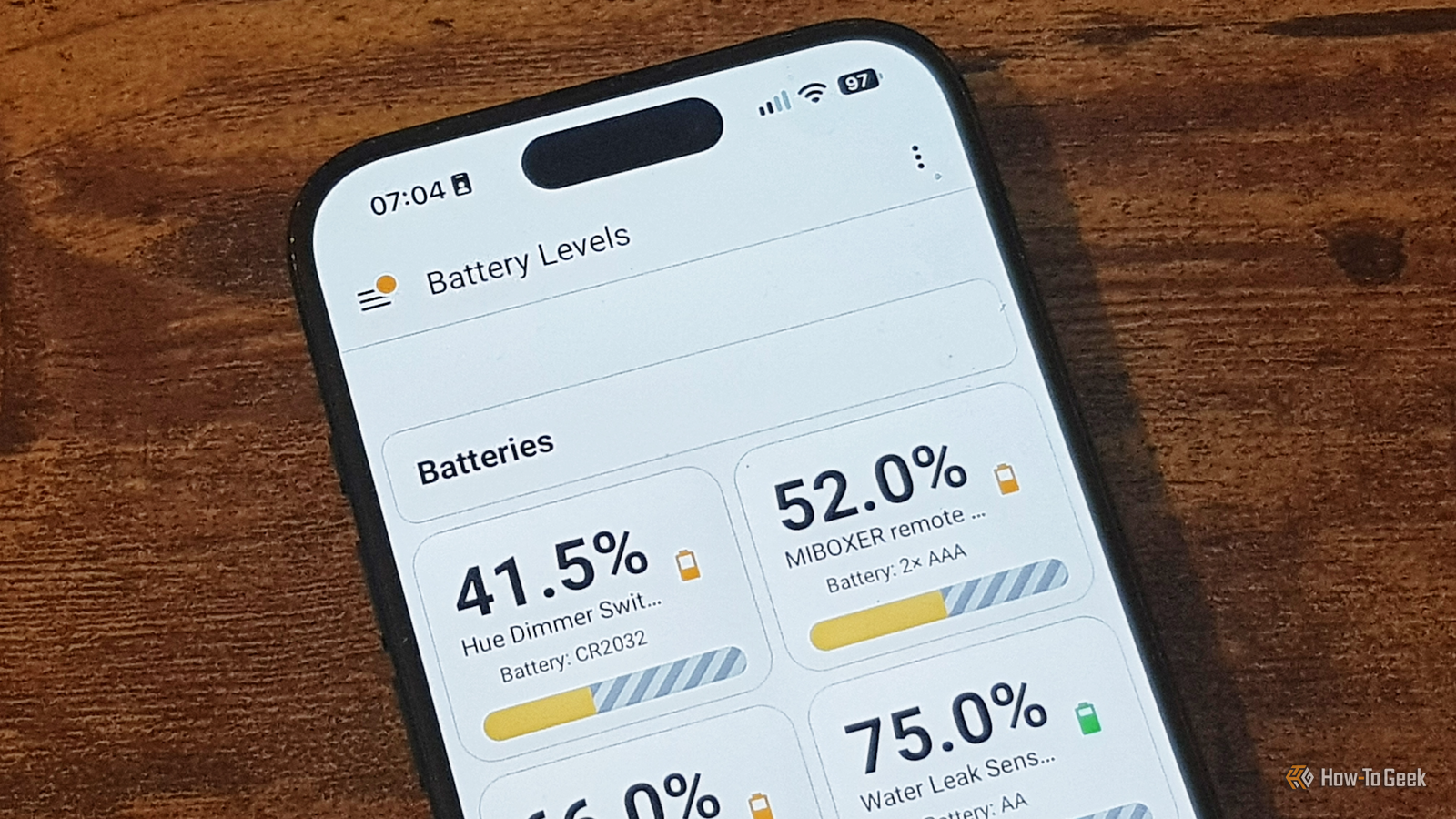
Published Nov 10, 2026, 10:00 AM EST Adam has a degree in Engineering and has a life-long interest in technology. He has been writing for over a decade for various print and online publications, with a focus on consumer tech. He joined How-To Geek in 2024 while working at Pocket-lint. As well as being a long-term fan of Apple products, he also has a strong interest in smart home tech, running a Home Assistant server at home to automate all his smart home devices. He believes that the ideal smart home should work with minimal interaction from the user, with automations running as if by magic rather than requiring you to push buttons on a control panel. You can find more of his work on Muck Rack. One of the biggest benefits of Zigbee is that it uses less power than Wi-Fi, so many devices can run on batteries. You can put battery-powered devices almost anywhere without worrying about where the nearest power outlet is, but the downside is that all batteries will eventually run out. There are plenty of ways that you can use Home Assistant to keep track of your batteries so that your devices don't keep dying. Find all the batteries in your smart home Not every battery will be one you want to track The more devices that you add to your smart home, the harder it can be to keep track of them all. It's not always easy to remember which devices are running on batteries when you have so many around your home. Home Assistant doesn't have a dedicated section that can show you all your battery-powered devices in one place, but it does already track them for you. All you need is to make the right search. To see a list of every device that exposes a "battery" entity in Home Assistant, go to Settings > Devices & services > Entities, and type battery into the search field. This will bring up every entity that contains the word "battery", so each device may show multiple entities. The results can be grouped by device, so you can scroll through and see all the battery-powered devices in your smart home. Not every device will necessarily be one with removable batteries you can replace; my own list shows devices such as phones, tablets, and laptops with rechargeable batteries. It's worth figuring out which devices you want to track at this stage, and which you don't. Battery Notes does the hard work for you It doesn't just monitor levels; it knows the type of batteries you need Knowing which devices use batteries is helpful, but what you really want to know is the current battery levels of devices and even what type of batteries the devices use, so you know which batteries to buy when they're running low. Thankfully, someone has already done the work for you. Battery Notes is a custom integration you can install via HACS (or the new Marketplace). It has a database of known battery-powered devices along with the number and type of batteries that they use. Add Battery Notes via HACS or Marketplace, restart Home Assistant, and then go to Settings > Devices & services > Integrations. Click Add integration and search for Battery Notes. Set up the integration, and Battery Notes will discover all the battery-powered devices it can find. You can accept the ones you want, and Battery Notes will create multiple entities for each device, including details of any battery levels available in Home Assistant, the number and type of batteries that the devices take, a button to mark a battery as being replaced, and the date that the button was last pressed. If a device isn't found in the database, you can add your own devices manually. A dedicated dashboard makes keeping tabs on batteries easy Your dashboard can sort itself so you can see which batteries are getting low Battery Notes gives you all the information you could want about your batteries, but having a long list of devices, each with multiple battery-related entities, isn't particularly helpful on its own. What you need is a simple way to see which batteries are running low. That's where a dedicated dashboard can help. I'm not a huge fan of typical smart home dashboards that try to pack every control and chart onto a single display, but dedicated dashboards can be really useful. I made a Battery Levels dashboard that shows me only the key information I need. My dashboard uses two useful free cards that you can install via HACS or Marketplace: the auto-entities card and the button-card. The auto-entities card automatically displays all entities that match a filter. By setting the filter as sensor.*_battery_plus, every device set up in Battery Notes will appear on the dashboard, and if I ever add new battery-powered devices, they will automatically show up on the dashboard. The devices are sorted by numeric state, so the emptiest batteries always appear at the top. The button-card turns the numbers into something that you can see at a glance. It uses two custom fields, one of which turns the Battery Notes data into progress bars, with the color of the bar changing to amber and then red as the battery drops. The other custom field displays the type of battery that the device uses. The YAML for the dashboard is in the screenshots above. Get alerted when batteries are low A low battery level won't catch everything A dashboard showing battery levels is useful, but only if you remember to check it. If you have a lot of battery-powered devices, you'll want to be alerted when battery levels are getting low. You could build your own automation to do this, but once again, most of the hard work has been done for you. There's a useful blueprint you can find and install from the Blueprints Exchange called Low battery level detection & notification for all battery sensors. There are three key settings: Threshold, Exclude, and Action. Threshold lets you determine the battery level that will trigger an alert, Exclude lets you remove battery-powered devices from the alerts, and Action lets you send a notification to the devices of your choice. The blueprint checks batteries once a day and lists every battery that's below your set threshold. There's one thing it doesn't do, which is detect devices that have gone unavailable if their batteries are completely dead. I set up another automation with a State trigger for all my battery sensors, which sends me a phone notification if any device goes unavailable and stays that way for two hours. Keeping track of batteries doesn't need to be a chore Some of the battery-powered devices in my home, such as water leak sensors, are devices that I don't want to stop working. Thankfully, Home Assistant makes it possible to keep track of battery levels and get alerted when they're running low, so I can replace batteries in plenty of time.
How to track battery levels in Home Assistant devices
Full Article
Original Source
Read the full article at Howtogeek →KhanList aggregates and links to publicly available news content. We do not host full articles from third-party sources. Always verify important information with original sources.