
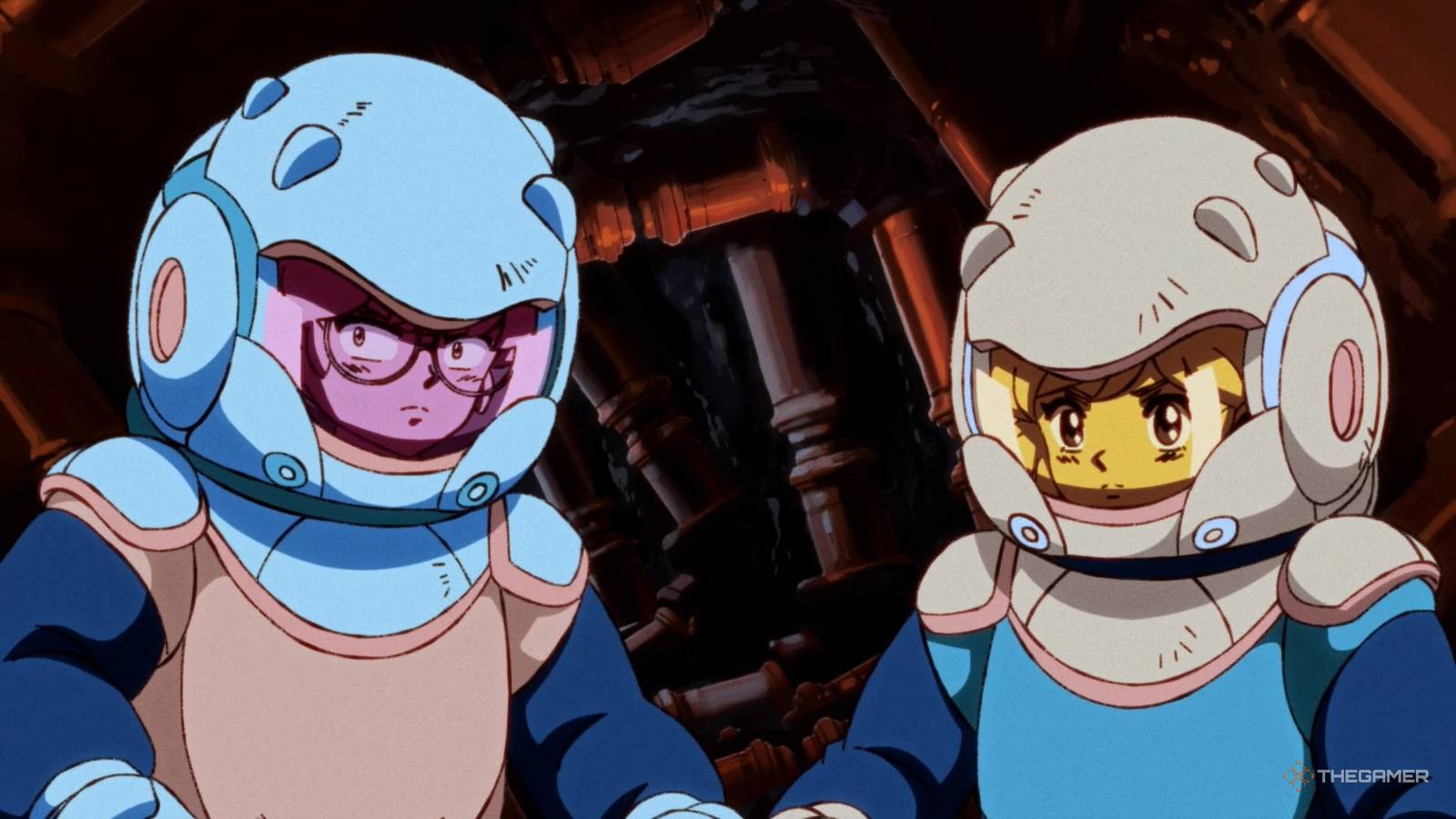
Published Sep 3, 2026, 5:20 AM EDT Although Kaitlyn grew up with a passion for both video games and writing, she never imagined she'd eventually combine them into a career. Now, with several years of experience in the industry across Guides, Features, News, & Reviews, Kaitlyn enjoys nothing more than continuing to deep dive into the games she's passionate about and share her findings with readers. In her downtime, Kaitlyn enjoys unwinding with her favorite horror films, despite being a major scaredy-cat. Since Orbitals is a mandatory co-op adventure, Shapefarm and Kepler Interactive have done everything to ensure players have plenty of options when organizing a session with a friend. These options even include a free friend pass, so only one player actually needs to own the game. Whether you're playing online or locally, both players will enjoy a split-screen view that lets them work together to solve puzzles or complete tasks. To determine the best setup option for you and your player 2, check out the options and setup instructions outlined in this article. Local Co-op is the easiest of the different methods to set up. Once you load up Orbitals, you'll be brought to the main screen. When you click 'Continue', you'll be prompted to register for Nintendo Switch Online. Ignore this, press the B button, and you'll progress to the main menu. NSO only matters if you're playing online, and if you're reading this section, then I assume you are not. Once you're on the main menu, select the 'Play Local' option, where you'll now be prompted to connect to another controller if you haven't already. You cannot use two individual Joy-Cons to play Orbitals co-op. Each player needs either two Joy-Cons or a Pro Controller. Note that Switch 1 Joy-Cons and Pro Controllers are compatible with the Switch 2, so one player can use these if you have them. After connecting a second controller, you will be brought to the screen where each player will pick their character. For an overview of the differences between Omura and Maki, please see the section at the bottom of this article. Though it obviously won't be an option for everyone, local co-op is recommended for the best overall experience. At the very least, players should ensure they have a clear way to communicate with one another while playing. How To Set Up Online Multiplayer Online Multiplayer is the option for anyone who wants to play Orbitals with someone on a different Switch 2. This could be because you're in different places or simply because you'd both prefer to play on your own devices. The reason doesn't matter, just that you'll be using different Nintendo Switch 2s. For this, when you start the game, you'll need to ensure you both have active Nintendo Switch Online memberships. If you don't, you'll be prompted to sign up. Additionally, the person you're playing with will either need to have a copy of Orbitals themselves or have downloaded the Orbitals Friend Pass for free from the Nintendo Shop. For the latter, the process is detailed in the subsection below. Both players must have NSO to play online. Only local co-op can be played without an NSO subscription. Once that's set up, proceed to the main menu and select 'Play Online'. Here, the hosting player can select an option to invite another player. This will prompt the Nintendo Switch 2 to show your friend screen where you can select the player you'd like to invite. The other player will then have the invite listed on their profile under Online Invites, which can be found by selecting the profile icon at the top left. How To Use The Friend Pass The Friend Pass is used when only one player owns a copy of Orbitals and will be playing online with someone who does not own the game. The Friend Pass is free to download from the Nintendo eShop, but it's important to note that this is not a copy of the game. The player with the Friend Pass can only play Orbitals when paired with a player who owns the game. This allows two players to enjoy the game without paying for it twice. Plus, you can save money by splitting the cost of the game. After the Friend Pass is downloaded, the player using it must wait for an invitation to join the hosting player's game. The Friend Pass is an alternative to GameShare that avoids the black border and potential connection issues that may arise from GameShare. However, it cannot be used for sharing with players on an original Nintendo Switch. The Friend Pass can also be used to play a demo version of Orbitals on a Switch 2 that doesn't have a full version of the game. The last method of playing Orbitals is through Gameshare. For those who haven't already tested this Switch 2 feature, it allows you to share multiplayer games from a Nintendo Switch 2 with a Nintendo Switch or Switch 2 player who doesn't own the game. The process on either device is mostly the same. However, it's worth noting that while it does make an otherwise Switch 2 exclusive game playable on the Switch, it is usually a lower-quality visual experience on the Switch 1 and is only recommended if there's simply no other way to play together. Keep in mind that Gameshare with a Switch 1 is only available over Local Gameshare, meaning you must still be near the other player. Switch 2 Gameshare with another Switch 2 does not have this restriction. With that said, to use Gameshare, the player on the other console must select the Gameshare option from their console's home screen, which is in the taskbar at the bottom. Once it opens, they'll have the option to 'Join GameShare' which will begin searching for a GameShare game to join. As long as the player on the Nintendo Switch 2 has selected GameShare from Orbitals' menu, the pairings should find each other relatively quickly and load the game on both devices. Note that while playing on GameShare, you will have a black border on both screens. For players using two Nintendo Switch 2 platforms, the setup process is the same, but you will have the additional option of Online GameShare, which doesn't require you to be in the same place. Also, Switch 2 players will be able to utilize the GameChat feature. Should You Play As Maki Or Omura If you've played any of Hazelight's co-op games, you likely know that the character you select at the start of the game plays a major role in the abilities you'll have access to throughout the game, since they are pre-assigned to that specific character. In a way, this offers replayability, but it can also be frustrating if you find yourself in scenarios where both players prefer each other's abilities, or if you don't plan to replay the game but still want to experience everything. Thankfully, that is not the case for Orbitals. While there are two unique characters to choose from, and you do select which one you'll play, nothing is inherently tied to either character. All the tools you'll use throughout the game are on the ship, and when you are ready to disembark on a mission, you'll be free to pick up whichever tool you'd like. This allows players to take turns and test out the various tools on different missions, if they'd like to. Additionally, during flying sequences or boss battles, the Pilot and Gunner positions are selected by going to that seat and sitting in it. This means you can constantly change who is flying and who is shooting simply by choosing those seats for each mission. So, whether you pick Omura or Maki, it won't affect gameplay beyond the simple fact that you will be controlling that character. Everything else will be determined by the choices you and your partner make while playing, giving you all the freedom to play exactly the way you want to.
How To Set Up Co-Op In Orbitals
Full Article
Original Source
Read the full article at Thegamer →KhanList aggregates and links to publicly available news content. We do not host full articles from third-party sources. Always verify important information with original sources.