
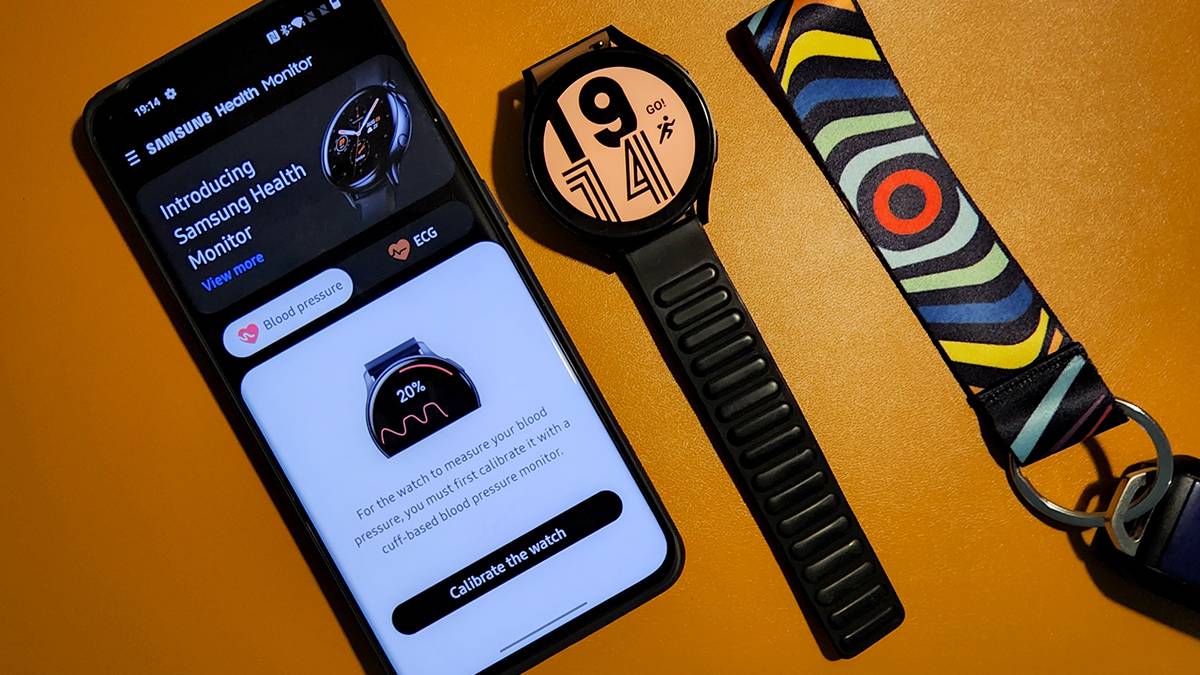
Updated Nov 2, 2026, 4:00 PM EST I chanced upon the XDA Forums while looking for a way to update the original Motorola Defy to Android 4.0 ICS. Now I help people find answers to similar questions while covering the latest developments in the tech world. You can reach out to me at pranob@xda-developers.com or on Twitter @pranobmehrotra. One of the downsides of buying the Samsung Galaxy Watch 4 is that a lot of its features aren't available for all users. For instance, the ECG and blood pressure features are restricted to certain regions. Additionally, you can't use these features when the watch is paired with a non-Samsung phone, even in supported regions. These restrictions truly take away from the overall experience of using them, but thankfully, there's a workaround. That's right, you can get those features working across all regions, even on non-Samsung devices, as long as you don't mind tinkering a bit. If you're using your Galaxy Watch 4 with a non-Samsung phone or don't have access to the features due to regional restrictions, here's how you can enable ECG and blood pressure on your Galaxy Watch 4. You can also check out the newer Galaxy Watch 7 or Galaxy Watch Ultra models if it's time for an upgrade. The modded Samsung Health Monitor app you'll need Rename the APK before installation Samsung Galaxy Watch 4 Classic next to the Galaxy Watch Active 2 Download the modded Samsung Health Monitor app from XDA Senior Member Dante63's trusted folder. Crucially, you must rename the APK file to Watch.SHM.MOD.apk before installing it. Skipping this step will cause signature verification to fail, and the app simply won't launch. However, the process isn't as straightforward as it might sound. To make things easier, we've outlined the instructions in detail. But before you proceed any further, download all the required files from the link below. Download the Modded Samsung Health Monitor App The Google Drive folder linked above includes all the files you'll need to enable ECG and blood pressure monitoring on your Galaxy Watch 4. It also includes a couple of guides to help you out in case you get stuck somewhere during the process. Pairing your watch via Wi-Fi ADB Enter only the IP address, not the port Installing the modded Samsung Health Monitor app on your phone is straightforward. Locate the modded APK in the Drive folder and transfer it to your phone's root directory. Tap on the modded Samsung Health Monitor APK to install it. You should now see a permissions pop-up to install apps from unknown sources. Follow the prompts to head over to the device settings and allow app installations from the file manager. You should instantly see another pop-up with an Install button. Tap on it to install the app, and then tap on Done on the following pop-up to complete the installation. Installing the app on the watch Installing the modded Samsung Health Monitor app on the Galaxy Watch 4 requires ADB. If you're not familiar with installing ADB on your PC, download Dante63's Minimal ADB Fastboot tool and extract it to your desktop. Double-click the cmd-here executable to open a command prompt window. Enable ADB debugging and Debug over Wi-Fi on your watch. Head to Settings > About watch > Software version, and tap Software version repeatedly until Developer mode unlocks. Return to Developer options, toggle on both debugging options, then tap your active Wi-Fi network to note the IP address. 5. On the following page, select the Software option and then tap on the Software version on the following page a few times to enable the Developer mode. 6. Jump back to the device settings and select Developer options. Then, tap on the toggles next to the ADB debugging and Debug over Wi-Fi settings to enable them. 7. Once connected to Wi-Fi, tap on the active connection and note down the IP address mentioned on the following page. Back on your PC, type adb pair : and enter the pairing code displayed on your watch. This mandatory step establishes a secure handshake for modern WearOS versions. Once paired, you can use adb connect (IP only, no port) to establish the connection. 9. You should instantly see a prompt on your watch asking you if you'd like to allow debugging. Select OK if you just want to allow debugging one time, or Always allow from this computer if you don't want to repeat the process again. Type the following ADB command, and hit Enter to install the modded Samsung Health Monitor app on the watch. For this command to work as intended, you need to have the renamed Watch.SHM.MOD.apk in the same directory as the cmd-here executable, i.e., the folder in which you installed ADB. Also, replace the X in the command mentioned below with the current version number of the APK. adb -s "IP address" install Watch.SHM.MOD.X.X.X.XXX.dante63.apk Once the app is installed successfully, you should see "Success" in the command prompt window. Now, disconnect from ADB using the following command. adb disconnect You should now be able to see the modded Samsung Health Monitor app in your watch's app drawer. When you open the modded app on your phone, your Galaxy Watch 4 should connect automatically, and you should be able to see the Blood Pressure and ECG tabs. You can follow the instructions provided in the app to set these features up. Once that's done, add the ECG and blood pressure tiles to your watch, and you're good to go. Before you start using these features, make sure to disable ADB debugging on your Galaxy Watch 4, or it will drain your battery overnight. To do so, head back to the Developer options and tap the toggle next to the ADB debugging option. Will this method work on other Galaxy Watch models? This workaround uses a modded Samsung Health Monitor app, and that means it's not guaranteed to work on your specific device. The mod is continually in development and receives patches and updates from the community. While it may work on other Galaxy Watch models, your results may vary. It's also worth mentioning that since this method uses a modded Samsung Health Monitor app, you might encounter some expected issues. In addition, you won't be able to sync blood pressure data between your watch and the Samsung Health app on your phone. However, we have a simple workaround to enable BP sync on the Galaxy Watch 4 as well. Galaxy Watch 5 and 6 limitations If you're rocking a Galaxy Watch 5 or 6, the standard SHM MOD method often fails on the Classic variants. You'll likely need to use specific GitHub companion tools or hunt down a custom MOD version built for Wear OS 3.1+. Furthermore, blood pressure on the Watch 5+ requires initial calibration with a traditional cuff-based monitor before the watch can track trends accurately. Galaxy Watch 7, 8, and 9 compatibility Newer hardware introduces the Heart Health Score and Advanced Sleep Coaching, which may have different compatibility nuances than the Watch 4. On newer watches, you must slightly long-press the power button to initiate the ECG rather than just tapping it. You can view, download, and share ECG results as PDFs directly from the Samsung Health Monitor app for your healthcare provider. Alternative methods for stubborn watches Official APK route: Users unwilling to use ADB can download the official Samsung Health Monitor APK from a trusted repository, enable "Install from Unknown Sources," and manually install it. Clear the app's cache if it crashes, and check your region settings for grayed-out features. Clear Data workaround: For rooted or non-rooted users hitting snags, try clearing data for Google Play Services, Google Play Store, and Huawei Wi-Fi services (if applicable), then restart your device. Liability and troubleshooting Modding your watch involves flashing custom software. We are not responsible for bricked devices, warranty voids, or lost data. If you encounter an "error: too many devices" message during the ADB process, run adb kill-server in your command prompt and try again.
How to enable ECG and Blood Pressure features on the Samsung Galaxy Watch
Full Article
Original Source
Read the full article at Xda-developers →KhanList aggregates and links to publicly available news content. We do not host full articles from third-party sources. Always verify important information with original sources.