
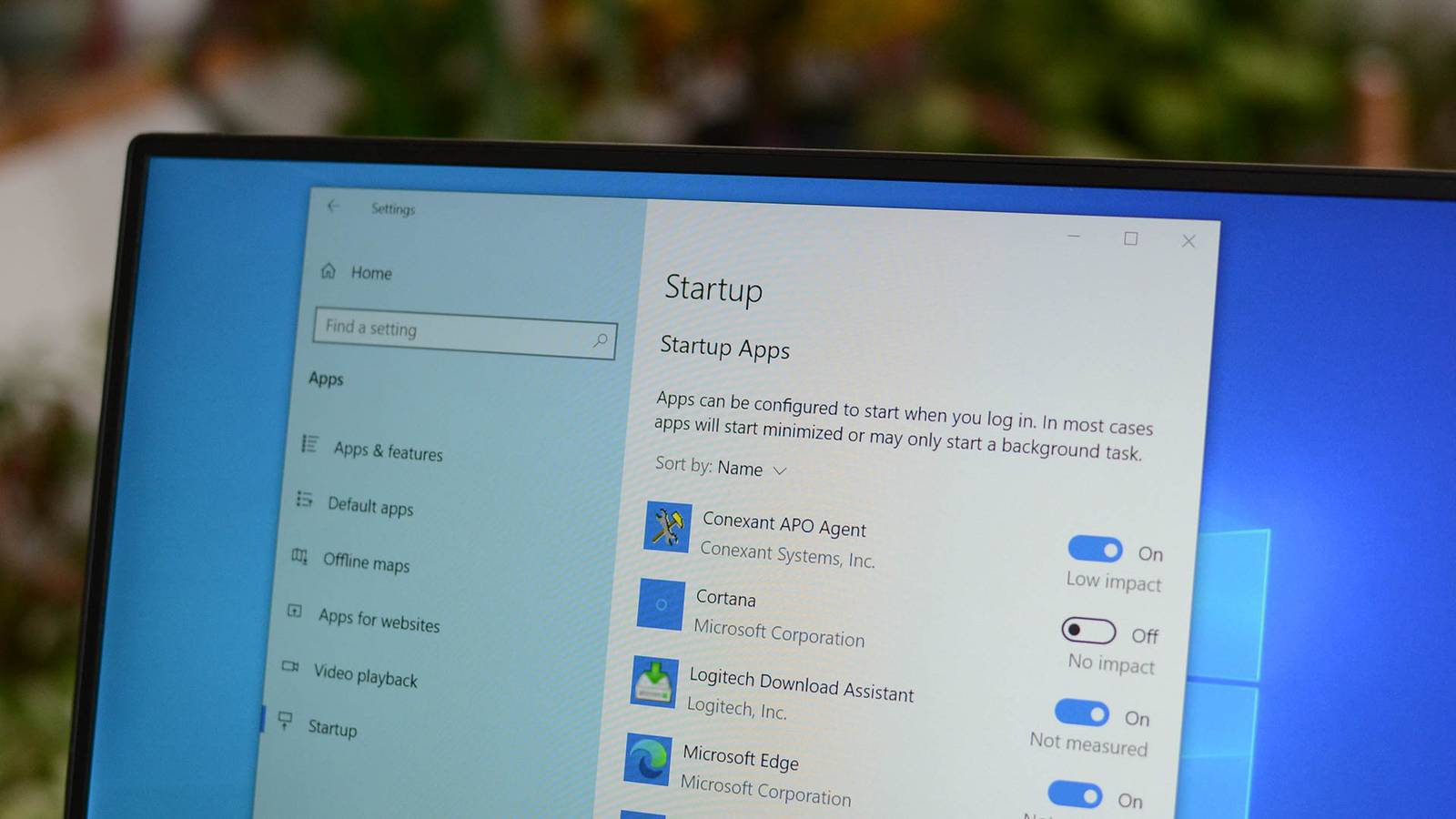
Credit: Jason Fitzpatrick / How-To Geek Updated Nov 11, 2026, 12:43 PM EST Nick Lewis is an editor at How-To Geek. He has been using computers for 20 years --- tinkering with everything from the UI to the Windows registry to device firmware. Before How-To Geek, he used Python and C++ as a freelance programmer. In college, Nick made extensive use of Fortran while pursuing a physics degree. Nick's love of tinkering with computers extends beyond work. He has been running video game servers from home for more than 10 years using Windows, Ubuntu, or Raspberry Pi OS. He also uses Proxmox to self-host a variety of services, including a Jellyfin Media Server, an Airsonic music server, a handful of game servers, NextCloud, and two Windows virtual machines. He enjoys DIY projects, especially if they involve technology. He regularly repairs and repurposes old computers and hardware for whatever new project is at hand. He has designed crossovers for homemade speakers all the way from the basic design to the PCB. Nick enjoys the outdoors. When he isn't working on a computer or DIY project, he is most likely to be found camping, backpacking, or canoeing. Sign in to your How-To Geek account The more software you install on your computer, the longer it may seem to take to start up Windows. Many programs add themselves to the list of programs started when you boot your computer, and that list can get long. Here's how you can disable startup programs in Windows to speed up your boot time and free up system resources. How to disable startup programs on Windows 11 There are two convenient ways to stop an application from running on startup on Windows 11 and 10: the Task Manager and the Startup Apps page of the Settings app. Both methods work across recent versions of Windows, so you can use whichever feels more comfortable. To disable startup apps with the Task Manager, press Ctrl+Shift+Esc to open Task Manager, then switch to the Startup tab. Select the program you want to disable from the list, then click "Disable" at the top right of the window. You can also right-click a program on the list and select "Disable" from the context menu. If you change your mind, the exact same process works in reverse: select any app that has been disabled, then click "Enable" to automatically launch it when Windows boots. Using the Settings app You can also use the Settings app to remove programs from the startup list. Search "Settings" in the Start Menu or press Windows+I, then navigate to Apps > Startup. Click the toggle next to the app to disable it. You can sort the list by "Startup Impact" to see which apps are using the most resources, helping you prioritize which ones to turn off first. How to disable startup programs via the Startup folder Some applications don't show up in Task Manager or Settings because they use a different mechanism to launch at boot: the Startup folder. If an app is missing from the lists above, this is where to look. Press Windows+R to open the Run dialog, type shell:startup, and press Enter. This opens the Startup folder for your current user account. Any shortcut in this folder will launch automatically after you sign in. Select the shortcut and press Delete to stop that app from starting. If you need to disable a startup item for all user accounts on the machine, type shell:common startup in the Run dialog instead. This opens the all-users Startup folder. You'll need administrator rights to modify it. Deleting a shortcut from the Startup folder doesn't uninstall the application or delete the program files. It only stops the app from launching automatically at sign-in. What not to disable Disabling startup programs is safe and reversible, but not every entry is safe to touch. Avoid disabling: Antivirus or security software Hardware drivers and companion utilities (audio, graphics, touchpad, or mouse drivers) System utilities that manage power, display, or input devices If you're unsure whether an entry is safe to disable, use Task Manager's right-click menu to select "Open file location" or "Search online" to identify what it is before you disable it. The safest approach when you're experimenting: disable one item at a time, reboot, and see if anything misbehaves. If something breaks, you can immediately re-enable that single app and know it was the culprit. Dealing with apps that re-add themselves Note that some applications need to be configured to stop launching themselves when the computer boots, or they will just add themselves to the list of startup programs again. In this case, there is usually a setting in a program's options to prevent it from starting with Windows. You may also occasionally find that some applications create Task Scheduler jobs that automatically launch them after a certain period of time. In those cases, you'll have to track down the specific job and disable it to prevent them from starting automatically.
How to disable startup programs in Windows
Full Article
Original Source
Read the full article at Howtogeek →KhanList aggregates and links to publicly available news content. We do not host full articles from third-party sources. Always verify important information with original sources.