
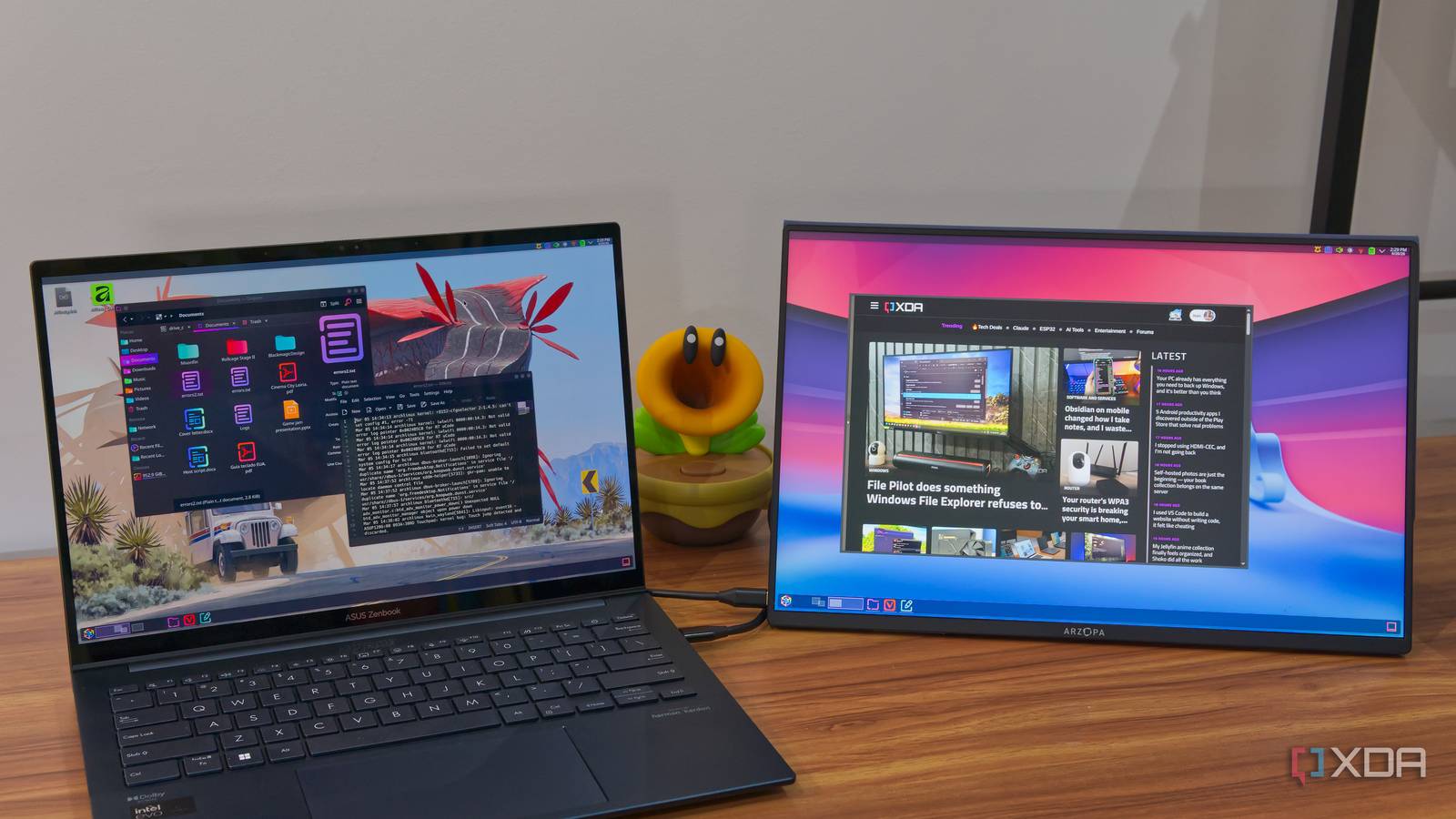
Published Nov 11, 2026, 1:30 PM EST Simon is a Computer Science BSc graduate who has been writing about technology since 2014, and using Windows machines since 3.1. After working for an indie game studio and acting as the family's go-to technician for all computer issues, he found his passion for writing and decided to use his skill set to write about all things tech. Since beginning his writing career, he has written for many different publications such as WorldStart, Listverse, and MakeTechEasier. However, after finding his home at MakeUseOf in February 2019, he would eventually move on to its sister site, XDA, to bring the latest and greatest in Windows, Linux, and DIY electronics. When I first moved to Fedora KDE, I played around with the virtual desktop feature for a little bit. It's a handy tool that lets you swap between different desktops by clicking on its icon on the panel or pressing a hotkey. However, I never truly gelled with it because when you swapped desktops, all of them changed. Ideally, I wanted something that would let me swap just one monitor's desktop. That way, I could have my main focus on the primary monitor and swap between desktops on my secondary. Fortunately, KDE implemented the feature a few months ago, and I've been loving it ever since. Having an 'all-or-nothing' virtual desktop setup just wasn't what I wanted... It was a cool idea, but it wasn't for me When I first arrived on KDE, I was fascinated by the virtual desktop feature. It appears as a little bar on the panel, and each section of it represents a separate desktop. You can open apps and windows on one desktop, then click the icon or press Ctrl + Meta and an arrow key to slide over to another one. All your open windows stay on the previous virtual desktop, giving you a fresh canvas for a second setup without having to close anything. I gave this version of virtual desktops a spin, but it wasn't doing it for me. When I use my PC, I usually have an important window on the main monitor open that I'd rather not move away from. The secondary monitor is where I put everything else I want to swap between, such as my current sources for the article I'm writing, social media, or a stream of some sort. Whenever I gave the virtual desktop feature a try, I loved how I could swap between different windows on the secondary monitor without needing to minimize anything. However, it also took the primary monitor with it, and there was no way to tell it not to do that. You had to move your entire virtual desktop, or you didn't move it at all. ...but separating them was the perfect solution Now I can't get enough of them Sometime in mid-2026, KDE released a patch that allowed people to swap between different virtual desktops on a monitor-by-monitor basis. Even better was the reveal that the feature had been requested 20 years ago, and that KDE had finally fulfilled a feature that had been sitting in the suggestions box ever since. I'm glad that KDE did finally get around to adding it, because it easily made virtual desktops a lot handier for me. Because they can now swap between individual monitors, I can keep my main monitor completely static. Whatever I'm working on or focusing on doesn't move whatsoever, which is perfect. Meanwhile, I can set up different secondary monitor desktops for each use case. For instance, I could load up my other monitor with three different desktops: my music, my Slack window, and whatever source I'm working off. Whenever I need to swap to another window (say, I get a Slack notification, or I want to change my music, I can just click the virtual desktop or use a hotkey to bring it up. No need to mess around with windows. Getting them set up is really easy You can get them working in about a minute If you use KDE and you want to try out virtual desktops, it's actually remarkably simple. First of all, pull up the virtual desktops settings page. A quick way to do this is to open the Application Launcher or KRunner, type 'virtual desktops', and click the entry that appears. Once you're here, you can start making a grid of virtual desktops. When you're starting out with virtual desktops, I recommend just adding new desktops to Row 1. This adds the new desktops to the right of your primary one, letting you browse them all by going left and right. When you need a little more customization, you can add more rows and more desktops to those rows to create a grid you can navigate by holding Ctrl + Meta and an arrow key. Check the box at the bottom that reads "Switch desktops independently for each screen." This lets you move between desktops on a monitor-by-monitor basis. You can also check the box for wrap-around navigation if you want to see all your desktops by tapping a single direction, and you can replace the sliding animation with a simple fade. That's all there is to it. Set up your virtual desktops with the windows and apps you want, then slide around them by clicking the little boxes on the panel or by using your hotkeys. KDE's virtual desktop feature is now really useful What started as a fun little idea quickly became a mainstay in my KDE toolbox, and I'm really glad the community added the feature. Hopefully, you, too, will get as much use out of it as I did.
Fedora KDE finally lets my monitors use different virtual desktops, and it makes my second screen more useful
Full Article
Original Source
Read the full article at Xda-developers →KhanList aggregates and links to publicly available news content. We do not host full articles from third-party sources. Always verify important information with original sources.