
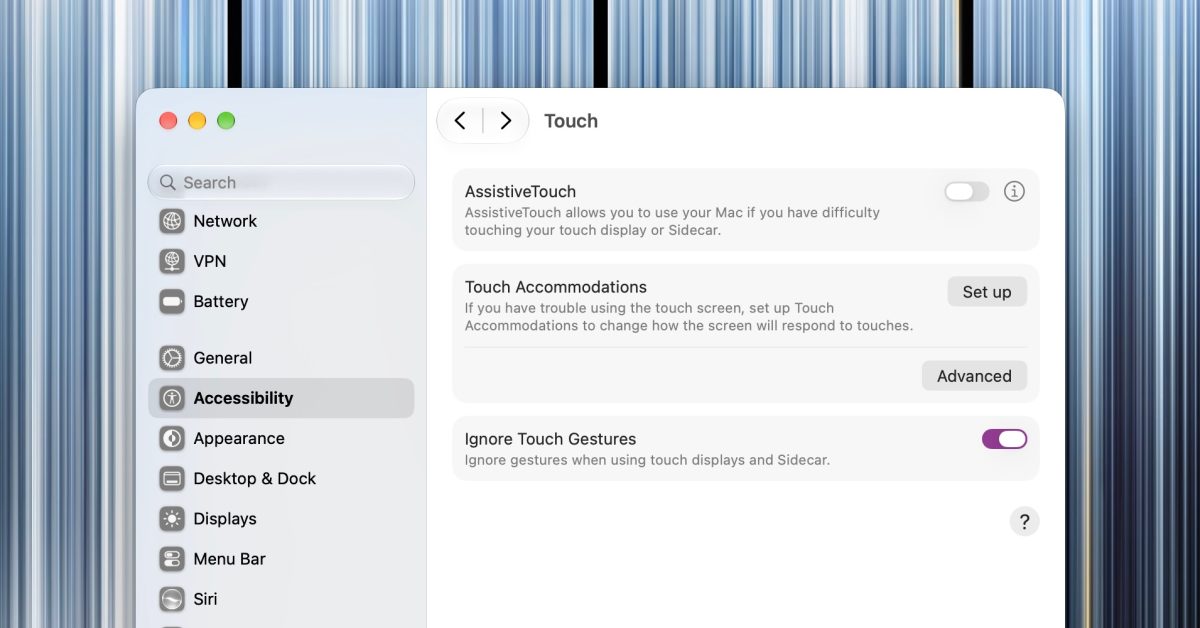
A headlining feature of Apple’s new MacBook Pro with PROLED XDR Display is the long-awaited addition of a touchscreen. However, not everyone has been so thrilled about this addition. Here’s how you can turn it off. How to disable Touch on the new MacBook Pro (and Sidecar) For those who would rather have a touch-free experience, there is a simple toggle to completely disable the touchscreen on the new MacBook Pro: Open System Settings Choose Accessibility In the Physical and Motor section, select Touch Finally, toggle on Ignore Touch Gestures. Note, this will also affect using touch with Sidecar. After enabling this, your Mac will completely ignore all touches (except for the setting toggle itself, just in case). How to customize the touch experience If you would rather disable or customize certain gestures rather than disable touch altogether, you can customize most gestures. Just choose the Touch Display option at the end of System Settings. Alternatively, if you are having trouble using touch gestures, you can set up Touch Accommodations and AssistiveTouch from the Touch Gestures accessibility settings panel. If you would also like to disable the glowing Apple logo, you can learn how to do so here. Also, make sure to check out 9to5Mac’s review of the MacBook Pro and its PROLED XDR display! My favorite Apple accessories: Beats Pill MOFT MagSafe iPhone Stand Beats 10-foot USB-C charger Satechi Vegan Leather Desk Mat BenQ ScreenBar Pro AirPods Pro 3 Anker Nano 30W Charger Apple 40W–60W Charger Follow Dylan: Twitter, Threads FTC: We use income earning auto affiliate links. More.
How to customize or disable the touchscreen on the new MacBook Pro and Sidecar
Full Article
Original Source
Read the full article at 9to5mac →KhanList aggregates and links to publicly available news content. We do not host full articles from third-party sources. Always verify important information with original sources.