
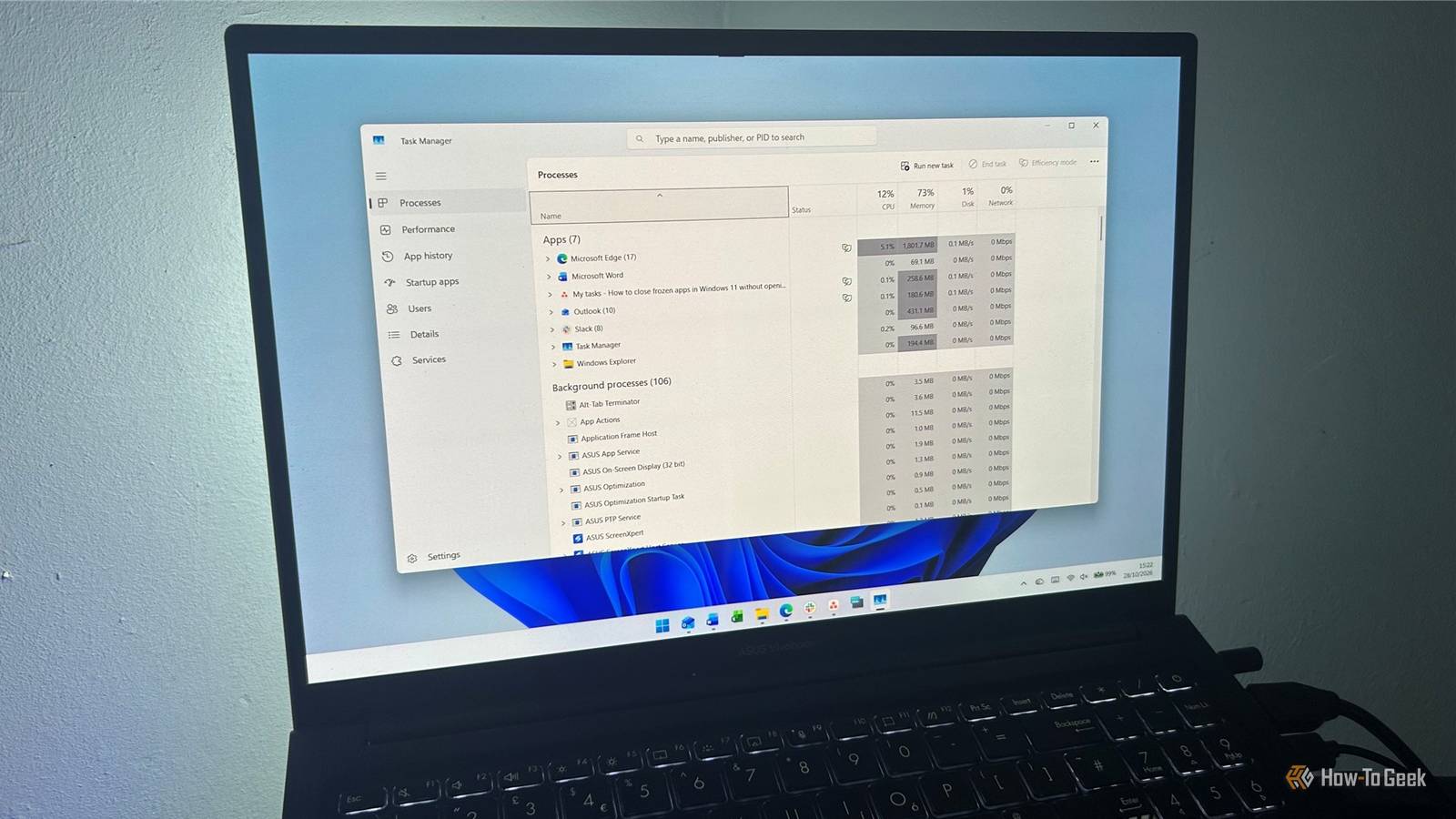
Published Oct 31, 2026, 8:00 AM EDT Tony Phillips is a senior author at How-To Geek with over a decade of experience working with documents, data, and digital productivity tools. Holding a dual-honors degree in Linguistics and Hispanic Studies, he combines technical expertise with a passion for making complex topics easy to understand. Before joining How-To Geek in 2024, Tony worked as a document producer, data manager, legal document specialist, and content creator. He has also proofread and edited more than 3 million words of academic and professional writing. While Tony specializes in Microsoft 365, particularly Excel, his interests extend far beyond Office. He enjoys testing software, exploring open-source projects, discovering useful companion apps, and finding ways to customize and optimize Windows. Whether he's building spreadsheets, evaluating new tools, or uncovering hidden features, Tony enjoys helping readers get more from their technology. Outside of tech, he enjoys spending time with his dog, watching football, astrophotography, gardening, and golf. When an app freezes, opening Task Manager, hunting down the right process, and forcing it to close can feel like more work than it should be. Fortunately, Windows 11 has a built-in shortcut that lets you force-close a misbehaving app right from the taskbar. Here's what it does, how to turn it on, and when to use it. Know what happens when you end a task Close the app, not just its window Before using End task, here's how it differs from closing an app normally. When you click the X in a window's top-right corner or choose Close window from the taskbar menu, Windows politely asks the app to shut down. That gives it a chance to save your work, wrap up whatever it's doing, and close cleanly. But if an app has stopped responding, it might ignore that request entirely. End task skips the niceties and terminates the app's process instead of waiting for it to cooperate. That makes it useful when a program has frozen completely, but it also means you could lose unsaved work. Microsoft 365 apps such as Word and Excel have AutoRecover features that might restore some of your work, but you shouldn't rely on them. Enable End task in Windows 11 Find the hidden setting The taskbar's End task shortcut stays hidden until you switch it on in Settings. The good news is that you only need to do this once: Press Win+I to open Settings, or type Settings into the taskbar search box and press Enter. Click System. Click Advanced or For developers, depending on your version of Windows 11. Find the End Task setting. Switch it on. Microsoft has shuffled this option around between Windows 11 versions, so don't worry if it isn't where you expect it to be. Search Settings for End Task to find it faster. Once it's on, the shortcut is ready to use. You don't need to restart your PC. Force-close an app from the taskbar Skip Task Manager entirely With End task enabled, you can deal with a frozen app right from the taskbar. Here's what to do the next time a program locks up: Find the app's icon on the taskbar. Right-click the icon to open its context menu. Select End task. Windows will force-close the app instead of asking it to close normally. No waiting for Task Manager to load, no scrolling through a list of processes to find the right one. One quick catch: if you have multiple windows of the same app open, Windows offers End all tasks rather than letting you terminate just one window. If you only want to close a single document or browser window, stick with the regular Close window command. Keep in mind that this is an emergency option, not the best way to close apps routinely. If a program is still responding and you have work to save, close it normally first. But when an app has locked up completely, the taskbar shortcut is a quick way to close it. Enable End task through the Registry Use a workaround if the setting is missing If you can't find the End Task toggle in Settings, you can turn the feature on through the Registry. Editing the Registry the wrong way can cause serious Windows problems, so follow these steps exactly and back up the relevant key first. Press Win+R to open the Run dialog, type regedit, press Enter, and approve the User Account Control prompt if it appears. In Registry Editor, navigate to: HKEY_CURRENT_USER\Software\Microsoft\Windows\CurrentVersion\Explorer\Advanced If you don't see TaskbarDeveloperSettings, right-click Advanced, select New > Key, and name the new key TaskbarDeveloperSettings. If the key already exists, continue to the next step. Right-click TaskbarDeveloperSettings, select New > DWORD (32-bit) Value, and name it TaskbarEndTask. Finally, double-click TaskbarEndTask, set its value to 1, and click OK. Setting TaskbarEndTask to 1 enables the taskbar's End task option; changing it to 0 disables it. If the toggle is available in Settings, though, use that instead. Know when Task Manager is still useful Keep the bigger troubleshooting tool The taskbar shortcut is handy, but it doesn't replace Task Manager. It's built for force-closing an app, not managing everything running on your PC. For example, if you want to inspect individual processes, see which apps are consuming your CPU or memory, or investigate a wider performance problem, Task Manager is still the better choice. You can open it directly with Ctrl+Shift+Esc and use its more detailed tools to investigate what's happening. The taskbar option won't solve every problem. If Windows itself has locked up or the taskbar won't respond, you might not be able to use the shortcut at all. It's a quick way to deal with one stubborn app, not a cure for a frozen PC. A small Windows tweak that saves time You probably won't need End task every day, but turning it on now means you won't have to dig through Task Manager the next time an app freezes. It takes only a moment, and you'll be glad it's there.
How to close frozen apps in Windows 11 without opening Task Manager
Full Article
Original Source
Read the full article at Howtogeek →KhanList aggregates and links to publicly available news content. We do not host full articles from third-party sources. Always verify important information with original sources.