
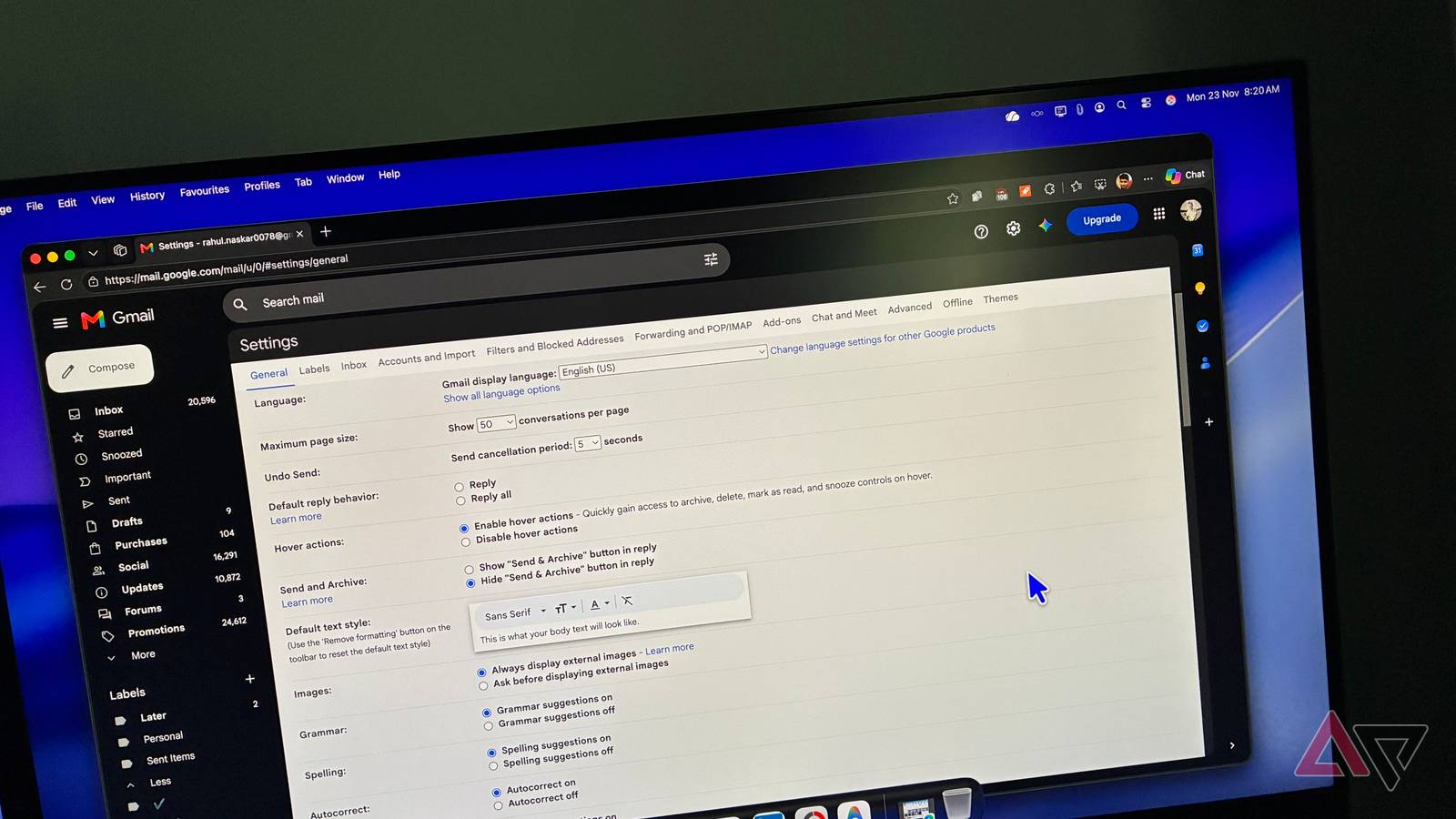
Published Nov 24, 2026, 9:02 AM EST I have 2 years of experience covering Android, with a focus on apps, features, and platform updates. Before taking on my new role as an Android writer, I wrote news pieces and feature articles related to PCs, Windows, and other Microsoft software. Altogether, I have nine years of experience as a technology writer. I love looking at even the minute changes in apps and software updates that most people would scroll past, and sharing my opinion unabashedly. My background in tracking Android updates and app ecosystems gives me an instinct for what's worth paying attention to, especially the changes that companies don't always openly talk about. I worked for XDA as a news writer from 2023 to 2026. Before joining XDA, I worked as a Feature and List writer at MUO for nine months, from January 2023 to November 2023. I also spent more than a year as a news writer at Neowin, from February 2022 to July 2023. As a teen, when I started using the internet, I created multiple email addresses for fun. I deleted many of those accounts, but I kept Gmail as my primary inbox. I have no regrets about reducing my email addresses to two because Gmail is more than capable of preventing me from wanting numerous email accounts for different purposes. My single Gmail account can create multiple email addresses. They appear as unique email addresses, but they are not. The fun part is that the senders may never realize all these emails are actually part of the same Google account. You don't need to enable any settings to do this on Gmail. Gmail already has it built in, and I needed to know how to use it smartly. I didn't do it for the sake of it, though. It actually achieved something meaningful: I used one Gmail account to create multiple email addresses and tamed my inbox. How did I create multiple email addresses using the same Gmail account? Different emails, but they all land in the same place I don't have a custom domain, but I can set up unlimited email addresses using the same Gmail account. The trick is using the right characters when you register for a website using your email. You can't use every character on your keyboard to achieve this. Google has officially documented that you can modify your email using two separate characters and still receive your mail. My favorite one is the plus addressing. Let me explain how it works. Gmail ignores everything you enter after the "+" sign. That means xyz@gmail.com and xyz+abc@gmail.com are the same. If someone sends emails to your appended address, you'll receive those in your original inbox. I append my email using "+shopping," "+newsletters," "+work," "+subscriptions." When I sign up for a shopping website, I append "+shopping" to my Gmail address. I use "+newsletters" when I sign up for a newsletter. The other one is using dots (".") in your email address. But unlike the plus sign, you can use the dot anywhere in your email address. For example, xyz@gmail.com and x.y.z@gmail.com belong to the same Gmail account. It happens because Gmail doesn't recognize periods as characters in email addresses. I created multiple email addresses using these two characters on my keyboard with the same Gmail account. These tricks sound cool, but creating multiple emails alone can't tame your inbox. You need something more. How I built a system that keeps my inbox clean despite using multiple email addresses This is the most intelligent setup I've ever built on Gmail I'm proud of the system I built. It won't allow those unimportant emails to occupy my inbox without deleting them. After creating four different addresses on the same Gmail account, I created a filter for each one. The option to create filters is available on the Settings page in Gmail. This is the easiest step because you only need to find and click the gear icon at the top right of Gmail and select the See all settings option. The next set of steps is where the intelligence lies. After hitting the "Create a new filter" button, I put the email addresses I appended in the "To" field and clicked Continue. Next, I selected the Skip the inbox (Archive it) and Apply the label checkboxes. The latter one lets you choose the filter you want to apply, so you either choose from the built-in options or create your own. My Gmail account didn't have a "Shopping" label, so I created one before hitting the Create filter button. That's all I did. Emails I receive at those appended email addresses don't reach my inbox because the filter is in effect. It makes those emails skip the inbox. Of course, I can find these emails on the All Mail page in Gmail, but this isn't the smartest way to find them. In case you need to access them, you can just click any of the labels you created. Emails I receive at my address with the "+Shopping" tag are available on the Shopping label. Similarly, I can quickly access newsletters and emails from subscription services. I've been using this system for several months, and it hasn't failed even once. When you append your email address with the "+" sign or dots and share it with websites, you can guess who exposed your email. To make this foolproof, you must use different email address variations for different services. I don't make different email address variations for each service. Instead, I created these emails based on categories, and they still help me narrow down where my emails have been exposed. I created multiple email systems in the past, but none is as efficient as this.
How to build a bulletproof filtering system using multiple Gmail aliases
Full Article
Original Source
Read the full article at Androidpolice →KhanList aggregates and links to publicly available news content. We do not host full articles from third-party sources. Always verify important information with original sources.