
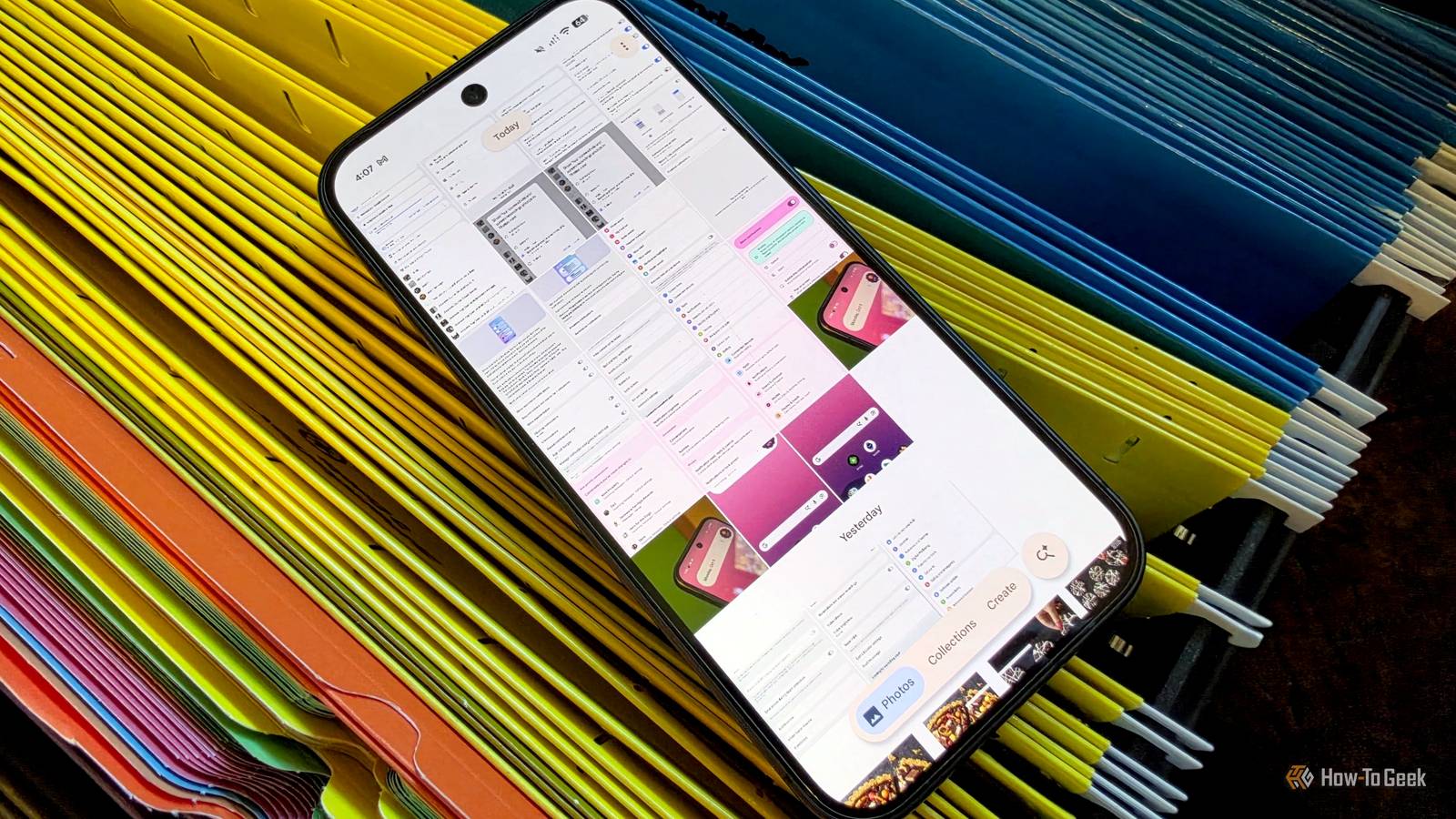
Published Oct 6, 2026, 1:00 PM EDT Joe Fedewa has been writing about technology for over a decade. Android and the rest of the Google ecosystem have been a focus for years, as well as reviewing devices, hosting podcasts, filming videos, and writing tutorials. Joe loves all things technology and is also an avid DIYer and food blogger. He has written thousands of articles, hundreds of tutorials, and dozens of reviews. Before joining How-To Geek, Joe worked at XDA-Developers as Managing Editor and covered news from the Google ecosystem. He got his start in the industry covering Windows Phone on a small blog, and later moved to Phandroid where he covered Android news, reviewed devices, wrote tutorials, created YouTube videos, and hosted a podcast. From smartphones to Bluetooth earbuds to Z-Wave switches, Joe is interested in all kinds of technology. After several years of jailbreaking and heavily modifying an iPod Touch, he moved on to his first smartphone, the HTC DROID Eris. He's been hooked ever since. I use Google Photos for cloud backups and as my general gallery app — that's where my main problem comes from. It's handy for me to back up screenshots and access them on other devices, but I was getting annoyed with seeing them mixed in with my photos and videos. Thankfully, a simple toggle is the solution. Admittedly, I take more screenshots than the average person. I took several for this very article. However, I know it's a common thing to do (don't get me started on how many times I've been sent a screenshot of a photo instead of the actual photo). Google knows this, too, and it took me too long to discover a feature that makes screenshots in Google Photos a whole lot less messy. You can choose what shows up in the photo feed Wish I'd known about this sooner My Samsung phone has a dedicated "Gallery" app, but I prefer to use Google Photos. It works well for this purpose, but the one downside is that it puts any image or video that you choose to back up in the main "Photos view" feed by default. If you're like me, that includes screenshots and screen recordings. I like having my screenshots and recordings backed up so I can access them on other devices. You might feel the same way about "Downloads" or a folder from a specific app. I always assumed that I just had to live with all this stuff in my main feed if I wanted to back it up, but Google actually allows you to choose what appears in the Photos view. Screenshots in Google Photos are organized differently depending on your device. On a Galaxy phone, they're lumped into the main "Camera" folder. Pixel devices put them in a dedicated "Screenshots" folder. Regardless of the device, the process below will work. To see what I'm talking about, open the Google Photos Settings and go to Preferences > Photos view > Customize by app. The name is a bit deceiving, because it's not only apps: "Your screenshots and screen recordings" is an option as well. Selecting "Your screenshots and screen recordings" brings up a menu with several choices. By default, it's "Not customized." You can change it to "Show all," "Hide clutter," or "Hide all." The "clutter" option will hide screenshots if they're backed up, while "all" will hide every screenshot, no matter what. This is the best of both worlds Backed up screenshots without the mess I was very happy to find this option, and not only for screenshots. It makes Google Photos a better gallery app. I can keep the main Photos view feed for actual photos and videos, while everything else remains tucked away in folders. The best part is, it doesn't stop me from keeping screenshots backed up to the cloud. I don't mind having to go out of my way to open the Screenshots folder. It's not something I do all the time anyway. However, this does bring up one little annoyance. As I mentioned in the note above, Google Photos on a Galaxy phone lumps screenshots into the "Camera" folder — yet there's a "Screenshots" folder in Samsung's Gallery app. This makes it slightly cumbersome to find screenshots in Google Photos since I can't go to a specific folder. I'm not sure why it works this way, or who is to blame for it. Regardless, if you're looking to clean up your Google Photos feed, check out the "Customize by app" option and turn off some apps. It's a very underrated feature — one of many you should be using.
Google Photos has a quick setting that banishes screenshots from your main feed
Full Article
Original Source
Read the full article at Howtogeek →KhanList aggregates and links to publicly available news content. We do not host full articles from third-party sources. Always verify important information with original sources.