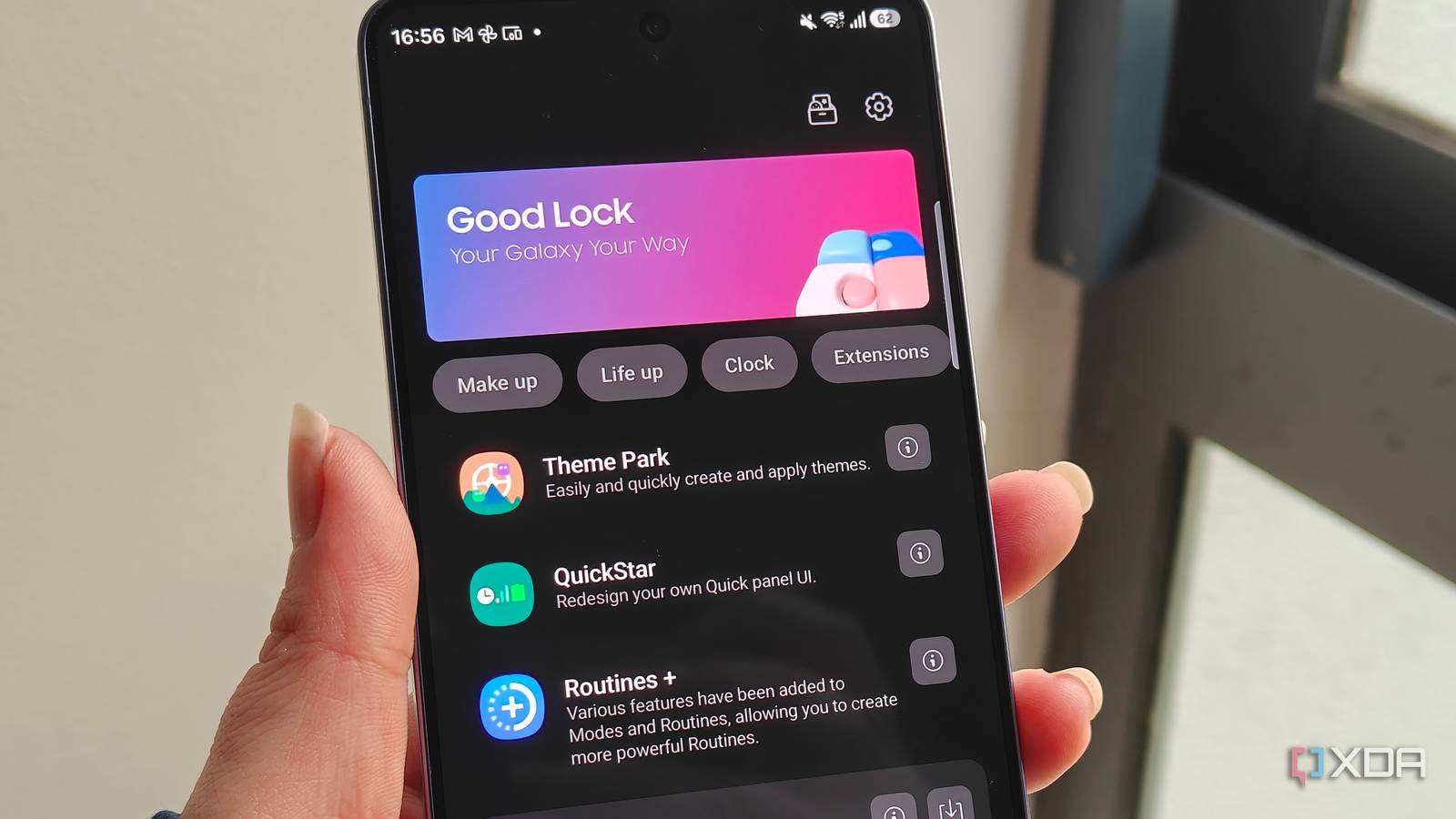
Published Jul 28, 2026, 1:00 PM EDT Abhishek is an author at XDA who covers computing. He has loved computers since he got the Lenovo G570 in 2012. Abhishek holds a master's degree in computer applications and began his writing career in 2018. He loves writing how-to articles, listicles, and informational posts on popular operating systems and web services. He closely follows the Windows Insider program and tests new Insider builds to discover upcoming experimental features and upgrades. His past work includes long-term collaborations with reputed publications like Tom's Hardware, and Windows Latest. When not writing anything, he is busy watching new episodes of One Piece or searching for something binge-worthy. Phone UI customization for me in the old days was trying out new ROMs. But I stopped doing that when some OEMs like OnePlus and Samsung started shipping great Android skins with their phones. There was still scope for a launcher or some other widget modification, but I never ventured outside the One UI settings app. I don't hate One UI, and it's one of the best-looking and functional skins in any modern Android smartphone. But despite all its goodness, it can feel restrictive at some point. The features and options feel limited, and that's where an app like Good Lock can help. I've used it to change the way my phone looks and behaves and to gain greater control over most of the One UI elements. If you are tired of downloading independent apps to tweak UI elements on your Samsung Galaxy phone, Good Lock can change the game. Good Lock is a weird name But it's a customization powerhouse Good Lock is an official app with a confusing name. It might deceive you into thinking that it is related to app security or something, but it's not meant for that. Instead, it's a Galaxy phone customization app with plugins that can change the behavior of a UI element. There's also a resources section in the app that updates with new releases, shares tips for plugins and general use, and provides some more information. The main part of the app is plugins. You don't get an elaborate list of settings that you can change, and you must use plugins to tweak UI elements based on the available settings. For example, there is a QuickStar plugin that lets you change the appearance and functionality of the Quick Panel (the one you open by swiping down at the top of the screen). Similarly, LockStar lets you change the lock screen appearance, add widgets, and do more than place a clock and notification nudges available in One UI settings. There are seventeen more such plugins to modify notifications, clocks, navigation bars, and a lot more. It's better than using individual themes, launchers, or UI tweaking apps because it's an official app, doesn't cost a dime, and shows no ads, which is common with free customization apps. Theme Park, QuickStar, and LockStar are my favorites Changing the quick panel, lock screen, and themes The first thing that I tried in Good Lock was QuickStar because I wanted more control over the Quick Panel design. One UI has options to edit icons and move elements around, but QuickStar can do a few more things. I can hide the icons that I don't want to see when a feature is active in Quick Panel and can adjust the appearance and layout settings. If you prefer smaller icons like me, you can use the button spacing option to adjust their size. Smaller icons make it easy to glance at all the options in one go, and I don't need to scroll too much. There's a separate clock section to edit the position and clock format. I can display the date next to the time, move the clock to the right, or show seconds. Since Quick Panel looks very bleak, there's a Pane Theme option to build and edit themes with Theme Park. As I mentioned at the beginning, Theme Park lets you build custom designs that not only change the behavior of the home screen, wallpaper, and icons, but can also alter the design of the keyboard, Quick Panel, messages, and a few more apps. There's no option for the launcher. I built a custom design for the notification panel that makes the icons much more distinguishable and easier on my eyes. It is a lot more granular than I expected, but it's beneficial if you hate default designs. Similarly, I can build a custom icon design or keyboard design in Theme Park and then save it in my collection. The next useful plugin is LockStar, and I can make some interesting changes to the lock screen with it. I prefer keeping a few widgets on the lock screen, and there's no way to do it in the settings. LockStar can help me add both system and app widgets to the lock screen. I use a WhatsApp widget that shows a message counter on the lock screen, along with a quick app access bar, which can open apps and quick settings. It’s possible to change fingerprint unlock animations, add support text on the lock screen, and switch to better clock faces. I can even resize widgets if I want to reveal more information, as I sometimes do with WhatsApp or some other app widget. It helps me glance at unread messages without leaving the lock screen. Edge Lighting+, Wonderland, and Home Up Playing with more UI elements Samsung Galaxy phones can show screen animation effects for incoming notifications, and there are multiple styles you can choose from. Edge Lighting+ does all of that with more control over floating icons, animation variety, and gestures. I can use it to set up a custom water drop effect every time I get a message. It's even possible to force the lighting effect to appear only for messages containing specific text. I can add names of a few contacts, or a project-related name, or a bank account deduction that helps me spot and read them instantly. These notifications would otherwise be lost in the pile. Home Up offers a way to spruce up your home screen, change its gesture styles, mess with task changer design, and more. You can change the task view design to mini mode or vertical, which is useful if you prefer keeping many apps open in the background. Using a vertical display format makes it easy to scroll and switch to another app. Additionally, I can increase the number of app icons or add a scroll feature for recently used apps in the Edge Panel. Lastly, Wonderland helps me build 3D motion wallpapers and manage effects. I use it a little less than other plugins, but it's worth a mention. Free phone UI customization It's difficult to get over the fact that something as meticulous and effective as Good Lock is freely available on the Samsung Store. Even home screen and launcher apps have a premium tier, but Good Lock allows you to customize your phone without a price tag. I love the idea of plugins, as I can only use the features I want rather than dealing with a bloated app. Good Lock is a Samsung app that allows you to customize your Galaxy smartphone with enhanced UI features and additional plugins.
Good Lock is Samsung's best-kept secret for customizing One UI, and I stopped using random tweaking apps
Full Article
Original Source
Read the full article at Xda-developers →KhanList aggregates and links to publicly available news content. We do not host full articles from third-party sources. Always verify important information with original sources.