
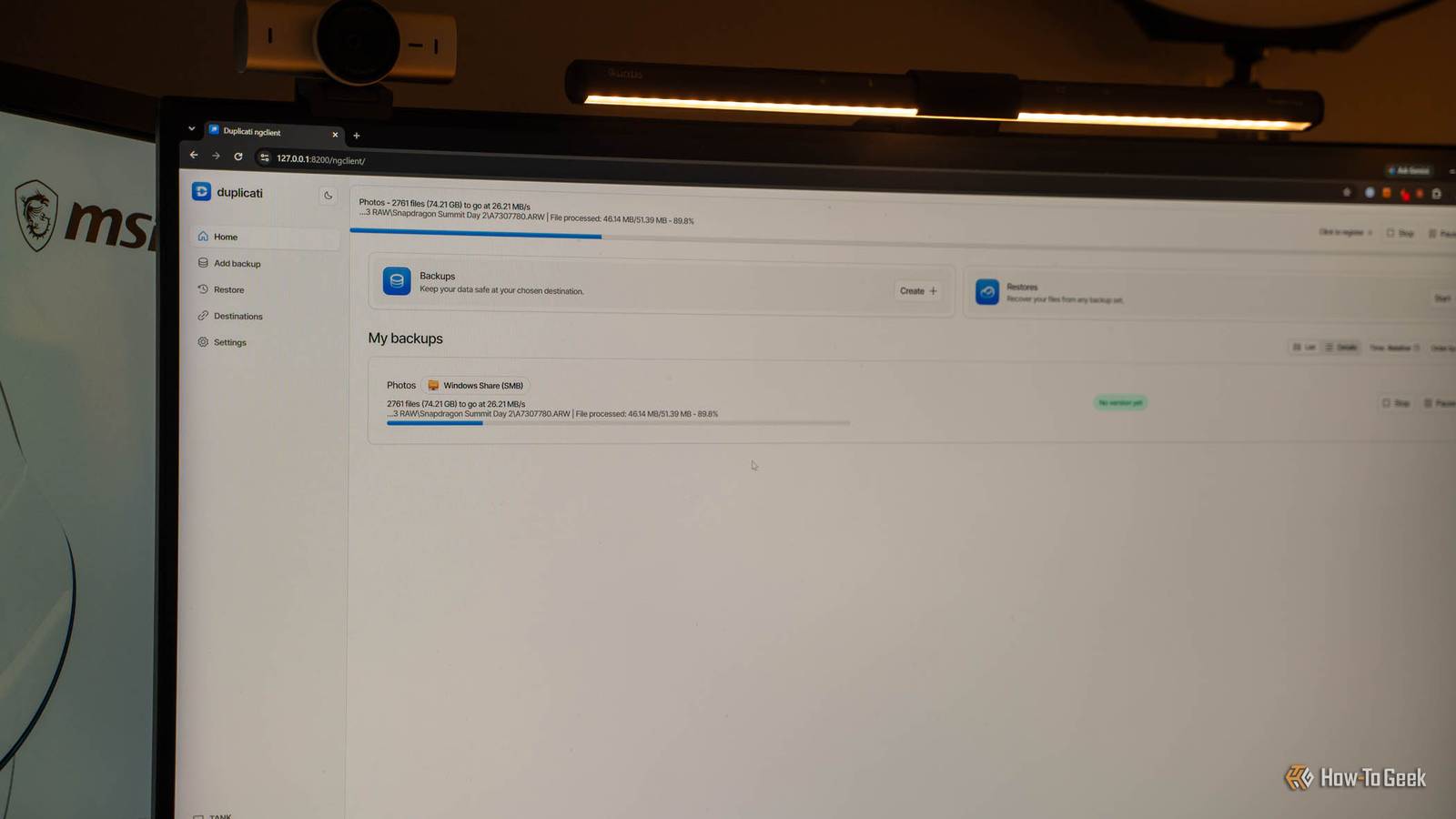
Published Nov 14, 2026, 10:30 AM EST Patrick Campanale has been in the tech space for well over a decade, specializing in PC/gaming news and reviews, as well as maker-focused products to build small businesses. With a start in technology back in 2010 surrounding the Palm/webOS ecosystem, Patrick spent his formative years developing mobile applications as well as blogging for various publications, eventually leading to starting his own website in 2014. After running a technology blog for a few years, he stepped out of that role and into the world of high-end custom PC manufacturing and building, with a focus on YouTube video production and overclocking. Then, in 2017, Patrick joined the 9to5Toys team as an editor/writer/reviewer with over 14,000 articles being published during his time there, ranging from deals and roundups to in-depth reviews on the latest technology, video games, 3D printers, and more. In his free time, Patrick loves to create projects from wood using various robots and methods, including leveraging the technologies of CNCs and lasers. If Patrick isn't working on a computer or playing video games, he's likely in his 2-car garage workshop creating something unique. In addition to all this, Patrick is also the media director at his local church where he feels God has called him to serve, and he loves every minute of it. I got fed up with OneDrive running out of room and Windows Backup not working well for me. So, I decided to try a new piece of software that completely changed how I backed up my computer: Duplicati. With Duplicati, I’m able to keep everything precious to me backed up either to my NAS or even directly to the cloud. All the backups are encrypted, there’s version history, and I can restore the files to any system I choose. It’s really the perfect backup solution. Plus, it’s open source and free to run. Windows Backup isn't a real backup on free OneDrive 5GB won't even cover your photos Microsoft includes free file backups on all Windows computers through OneDrive. This backs up folders like Desktop, Documents, Pictures, Videos, and Music to your online account, as well as some settings and apps. The problem is, Microsoft’s free OneDrive plan only includes 5GB and that’s just barely anything. Once you hit that 5GB ceiling, files simply stop backing up. OneDrive doesn’t delete files automatically to make room for new ones. It just simply stops working quietly unless you buy more storage through Microsoft. For me, OneDrive isn’t an option, and I actually uninstall it on every one of my computers the moment I get into Windows because I just don’t want it interfering with the backup solutions that I do use. Duplicati backs up my files on a schedule I never think about Versions, encryption and no subscription Credit: Patrick Campanale / How-To Geek There are two backup programs that I use depending on my needs. I’ve been leaning toward Duplicati more lately, but still use Syncthing for certain tasks. Duplicati is my favorite backup software right now because it handles multiple backup destinations while Syncthing only backs up to other systems running Syncthing. With Duplicati, I’m able to set it to back up to my NAS, an external drive, or cloud storage. Every backup is encrypted by default (though that can be turned off) and stored as a blob at that destination. For instance, I have Duplicati running on every one of my servers backing up to Google Drive. I also have it running on my desktop backing that up to Google Drive, too. But, Duplicati can also keep things local. For instance, I have Duplicati on my desktop backing up my photos folder to my NAS, and then Duplicati on my NAS backing up the photos folder to Google Drive. The reason I have this two-layer setup is I only keep the current year's photos on my desktop, while the NAS has my entire library going back over a decade. Instead of having two different backups going to Google Drive, I just send one backup to the NAS and then the NAS sends everything to Google Drive. There are a number of ways to use Duplicati, and this is just the way that I’ve found works best for me. I’m also using the free, self-hosted version of Duplicati instead of their paid tier because I find that I don’t actually need the features of the paid tier. Write down the passphrase before you do anything else Lose it and every backup is useless I mentioned that Duplicati backs up in encrypted blobs, and that’s both a blessing and a curse. The blessing part comes from the fact that those encrypted blobs are useless to anyone who gets access to them without the encryption passphrase. The encryption layer gives me the peace of mind to be able to back up sensitive information from my NAS, like tax documents and other personal stuff, to Google Drive without worrying about it getting compromised. The downside to having the backups encrypted is if you lose that password, the backups are useless to you. Any restore from Duplicati needs the encryption passphrase in order to decrypt the files. It makes sense, but it’s something that I really think needs pointing out so you make sure that decryption passphrase is kept somewhere safe. I keep mine in 1Password, where I keep all my other passwords, so I never have to worry about losing it. Another plus to the backups being encrypted blobs is that ransomware can’t attack previous revisions. Ransomware might be able to attack files that are on a device and those files could even get backed up to Duplicati. But, since I have versioning turned on with Duplicati, I could always just choose to restore a backup prior to the ransomware hitting and that would restore the files as they were in that moment, not how they were modified after the attack. A backup you haven't restored is just a guess Restore to a different folder, not over the original All backups should be considered useless until a restore has been tested. If you haven’t gone through a restore procedure, then you don’t know exactly what it looks like or what’s required to restore. So, before I fully trust a backup, I make sure to test the restore flow to know what all it holds. The great thing about Duplicati is there is version history for what to restore. I typically have my Duplicati set up to keep the last seven backups and delete everything older than that. This allows me to pick a specific backup and restore it if there are files missing that I know were deleted or modified after a certain date. One of my favorite parts of Duplicati, though, is that a restore can go to any machine. I use Duplicati to keep my Docker containers backed up, as well as my Windows desktop. So, when I switch to a new computer (or a new Docker host), I just set Duplicati back up, point it to the remote folder where the files are, and it pulls everything right back down. Start with the folders you couldn't replace The main thing I keep backed up with Duplicati is my photos. I have pictures going back about 13 years now and the library grows every day. I can’t re-take the pictures of my first trip to Israel, my first CES trip, or trips my wife and I have taken. Those are precious memories and I would be devastated if they got lost. If you’re setting up Duplicati for the first time, start by backing up the files that you can’t recreate any other way. Do a test where you back the files up to whatever destination works best for you, and then test restoring them to another folder on your computer or another computer entirely. Give the whole flow a dry run and then, once you’ve proved it, keep that backup running so you never have to worry about losing precious files again.
Duplicati is the free, open-source app that automatically backs up my most important Windows files
Full Article
Original Source
Read the full article at Howtogeek →KhanList aggregates and links to publicly available news content. We do not host full articles from third-party sources. Always verify important information with original sources.