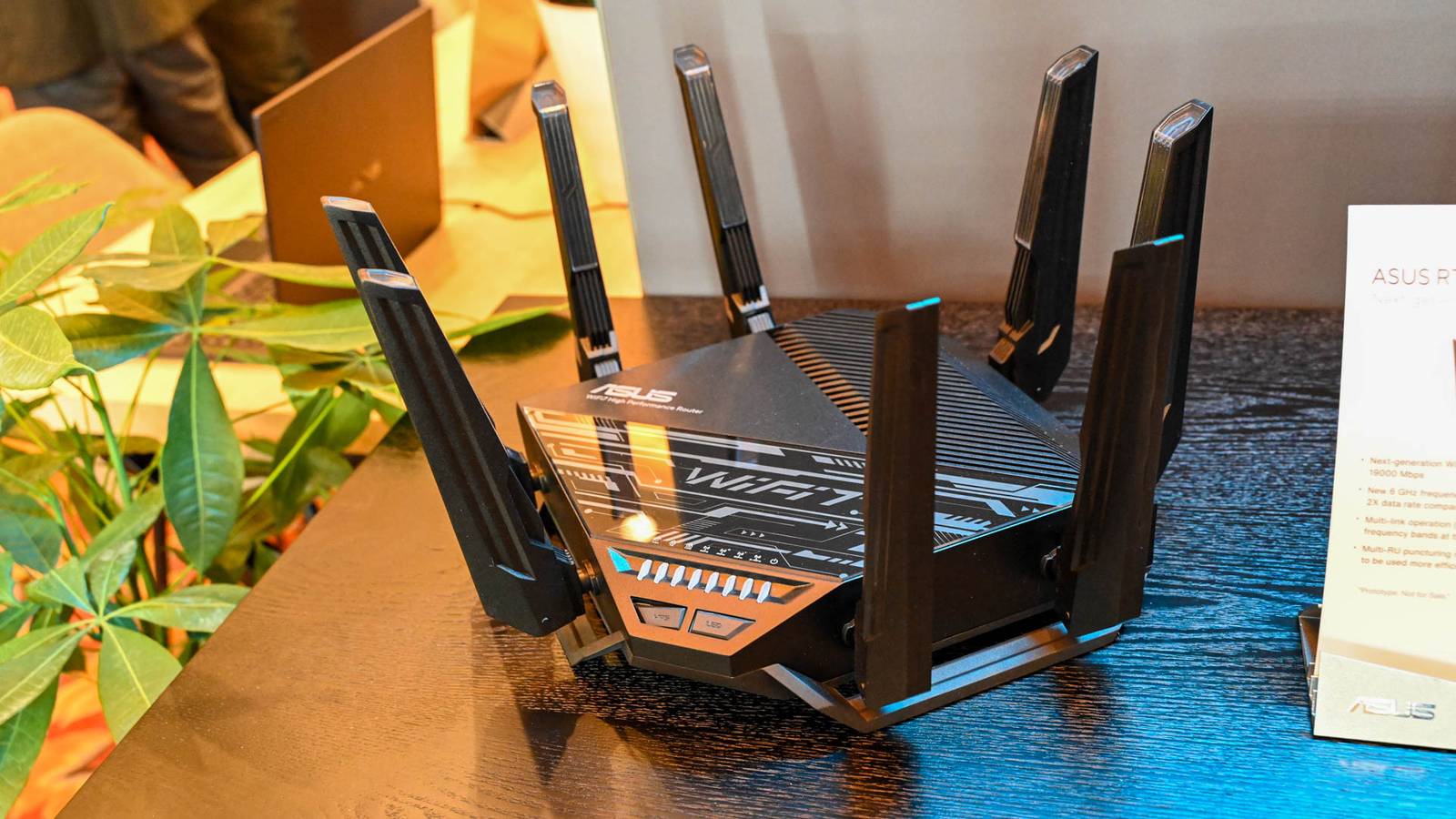
Published Aug 12, 2026, 10:45 AM EDT Monica J. White is a journalist with over a decade of experience in covering technology. She built her first PC nearly 20 years ago, and she has since built and tested dozens of PCs. PC hardware is her main beat, and graphics cards and the GPU market at large are her main area of interest, but she has written thousands of articles covering everything related to PCs, laptops, handhelds, and peripherals. From GPUs and CPUs to headsets and software, Monica's always willing to geek out over all things related to computing. Outside of her work with How-To Geek, Monica contributes to TechRadar, PC Gamer, Tom's Guide, Laptop Mag, SlashGear, Whop, and Digital Trends, among others. Her ultimate goal is to make PC gaming and computing approachable and fun to any audience. Monica spends a lot of time elbow-deep in her PC case, as she's always making upgrades, testing something, or plotting out her next build. She's the go-to tech support person in her immediate circle, so she's never out of things to do. Whenever she has spare time, you'll find her gaming until the early hours and hanging out with her dog. Whether you're starting college this year or coming back in the fall for another semester, one thing is almost universally true: dorm Wi-Fi is a bit of a joke. You can't expect much in a building shared with hundreds of other students, all of whom rely on the internet for both their studies and their entertainment. With everything working against it, dorm Wi-Fi is flawed from the get-go, but these fixes will definitely help. A Wi-Fi analyzer shows you what else is going on around you Full signal doesn't mean good internet, unfortunately If you live in a dorm, I'd wager that you don't have a lot of room to work with -- such is life. But there might still be Wi-Fi dead zones in your room, and a Wi-Fi analyzer will give you a better idea of what you're even working with before you start looking into solutions. Even if your so-called Wi-Fi bars are all full, you're not getting as much from them as you might think. A Wi-Fi analyzer gives you a much better look at what's happening around you, including nearby networks, their signal strengths, etc. You'll even learn about the bands and channels they're using. All of this is useful. You can grab this app for your laptop or for your phone, then walk around your room and watch the signal closely. You might find that your desk is actually the worst possible spot in the entire room. A USB Wi-Fi adapter can beat the radio built into your laptop Better antennas and newer Wi-Fi standards can make a real difference Your laptop already has Wi-Fi, but what if you got twice the Wi-Fi? I'll explain. The problem is that some laptops don't have the best wireless hardware. And yes, this is true even in newer laptops. I have a pretty new-ish gaming laptop and its basic Wi-Fi is actually super terrible. If yours is in the same place, it just might be using an older generation of Wi-Fi or have weak antennas. A USB Wi-Fi adapter gives you a little piece of hardware that's up-to-date with all the latest Wi-Fi goodies (provided you buy the correct one). It might have a larger external antenna that could pick up the signal in your dorm much better than what your laptop can do all on its own. But before you shop, make sure you check what Wi-Fi standard and bands your laptop already supports. No need to double-down and buy the exact same thing you already own. A USB extension cable can put your Wi-Fi adapter somewhere useful Sometimes moving the antenna two feet matters more than upgrading it Microsoft 15-inch Surface Laptop 7.Credit: Jon Fingas / How-To Geek Let's say you're already using this Wi-Fi adapter I just talked about. Don't assume it needs to stay glued to your laptop; somewhere else might be a better option. Better reception is where you want that gadget to live. So, if you have a desktop PC or just want your laptop to get good Wi-Fi in that particular spot, a USB extension cable can help. Plug the cable into your computer and then the Wi-Fi adapter into it. Mind you that every additional link in the chain may make your connection worse, but this is an inexpensive fix to try out. An Ethernet cable can let you skip Wi-Fi entirely The simplest solutions are often the best ones Credit: Zunaid Ali / How-To Geek I've been singing the praises of Ethernet cables ever since I started writing here at How-To Geek (and also for years and years before that, but to a smaller audience of my tired friends and relatives). Ethernet is always, always, always more stable than Wi-Fi, so if you can use it, you should. If your room has an Ethernet jack, that little socket on the wall could be the answer to all your problems. Just plug it in and enjoy a more stable connection with fewer drops, hopefully. Speed may or may not be faster depending on the quality of your cable, but if disconnects frustrate you, this is the first thing I'd try. UGREEN Cat 8 Ethernet Cable This high-speed Cat8 cable supports transfer speeds up to 40 Gbps and a bandwidth of 2000 MHz. Features shielded twisted pairs (F/FTP), pure copper, gold-plated connectors for anti-interference. Durable cotton-braided jacket withstands 10,000+ bends. PoE-supported (except 65ft). A USB-C Ethernet adapter gives your laptop an Ethernet port I love mine to bits Credit: Monica J. White / How-To Geek I know that most laptops no longer feature an Ethernet port. Or at least many of them don't. Well, good news: a USB-to-Ethernet adapter costs like $15 or less, and it lets you use that Ethernet connection I just talked about above. It's as simple as it gets: plug it into your laptop, plug the cable into the adapter, and enjoy the connection. Your phone's hotspot gives you an emergency second connection When campus Wi-Fi makes you pull your hair out in frustration Credit: Joe Fedewa / How-To Geek I've had my fair share of terrible internet providers, and my phone always came in clutch. You can use yours to share your phone's LTE or 5G connection with your laptop over Wi-Fi, giving you your very own route to the internet. On Android or iPhone, you'll find this under the cellular or connection settings, but the easiest way is to just type "hotspot" into search. USB tethering is another good option if you only need to connect one computer, and it can actually be more reliable, so check it out. A travel router can help a bit Better than nothing Credit: Justin Duino / How-To Geek Buying a massive gaming router for your college dorm probably makes no sense (and may not even be an option). But a travel router can do the trick with a much smaller footprint and at a lower cost. Depending on the model, it can connect to an existing Wi-Fi network and then let you set up your own, separate one just for your devices. It can also take an Ethernet connection and turn it into Wi-Fi, for instance, so all your devices can share it (plus whoever's visiting you, too). How useful this is heavily depends on your college network setup, though. I'd check with the campus IT department before investing in one of these. Do your best to improve your college Wi-Fi If your college Wi-Fi is awful, the good news is that a lot of the fixes I talked about above are free or really cheap. Try to get on it early and fix it as soon as possible, as you'll be using this connection every single day over the next semester. UniFi Travel Router Brand UniFi Wi-Fi Bands 2.4GHz/5GHz A travel router can really transform your connection when you're at college and still help out when you travel.
Don't suffer through dorm Wi-Fi—these 7 tools actually work
Full Article
Original Source
Read the full article at Howtogeek →KhanList aggregates and links to publicly available news content. We do not host full articles from third-party sources. Always verify important information with original sources.