
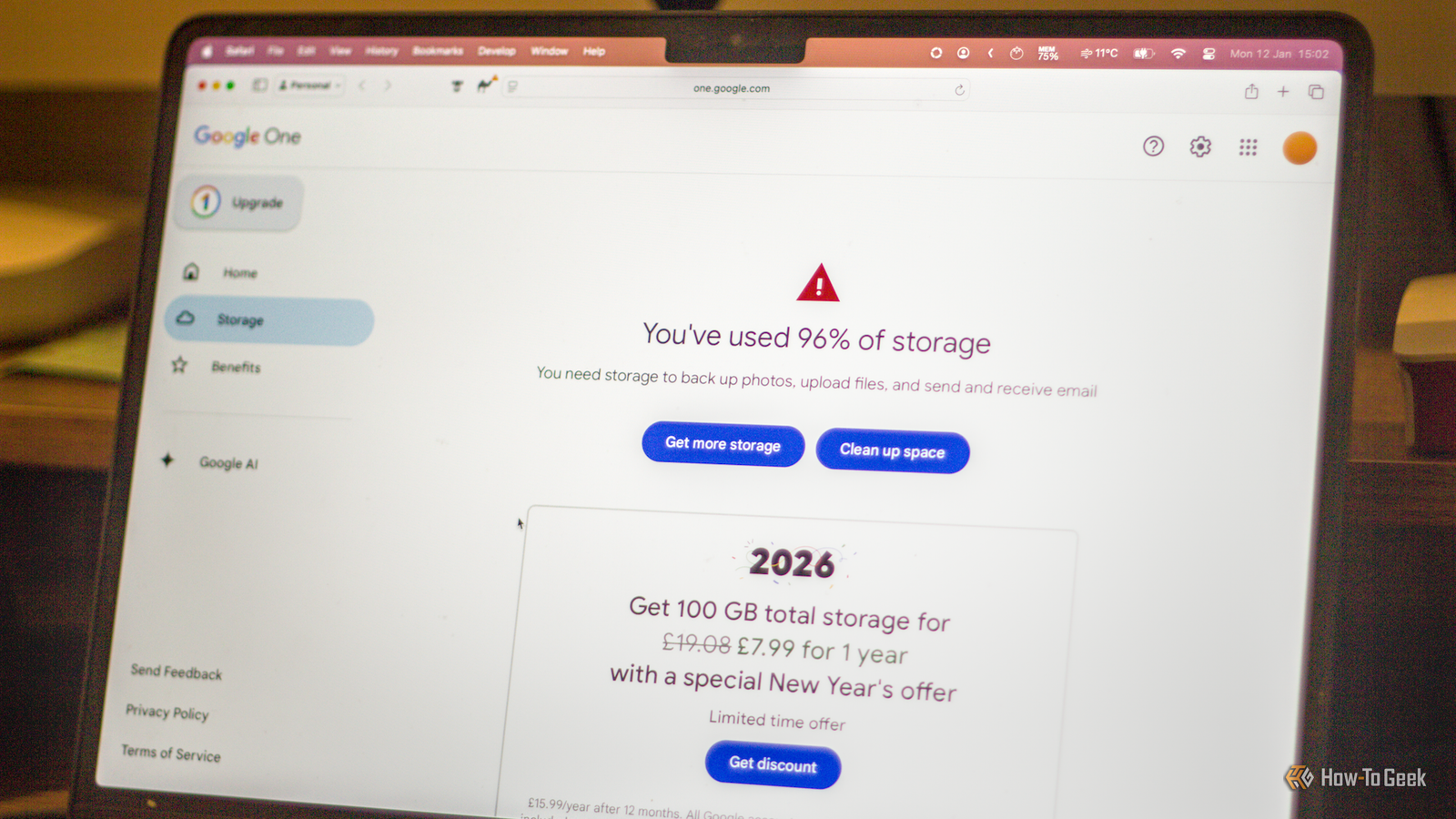
Published Sep 12, 2026, 9:30 AM EDT Adam has a degree in Engineering and has a life-long interest in technology. He has been writing for over a decade for various print and online publications, with a focus on consumer tech. He joined How-To Geek in 2024 while working at Pocket-lint. As well as being a long-term fan of Apple products, he also has a strong interest in smart home tech, running a Home Assistant server at home to automate all his smart home devices. He believes that the ideal smart home should work with minimal interaction from the user, with automations running as if by magic rather than requiring you to push buttons on a control panel. You can find more of his work on Muck Rack. I'm approaching the limit of my free Google storage, and Gmail has started prompting me to pay for additional storage to keep using my account. While paying for more storage is a simple solution, it's not the only option. Find out which Google app is using all the space It may not be Gmail If you're running out of space for your Gmail account, the culprit may not be your emails at all. You get 15 GB of free storage when you sign up for a Google account, but that 15 GB is shared across other Google apps, including Google Photos and Google Drive. If you have 14.9 GB of files in Google Drive, for example, then your Gmail will say that it's running out of space, even if it's almost empty. The easiest way to see which app is eating up most of your storage space is to go to one.google.com/storage and sign in to your account. You can see the storage details for Google Drive, Gmail, and Google Photos to determine which apps are using the most space. If it's Google Drive or Google Photos, deleting some of the content from these apps will free up more space for Gmail. Removing large video files can quickly free up a lot of space. Delete large files to free up storage A handful of emails may be responsible for your full account If it's Gmail that's eating up most of your storage space, then it's highly likely that you have a lot of large attachments in your emails. If you don't need these attachments any longer, deleting the emails can free up space in your Gmail storage. Gmail has some useful search terms that can help you find emails with large attachments. For example, entering has:attachmentin the search bar will show all emails with attachments. To find large attachments, entering larger:10Mwill find all emails that are over 10MB. You can replace "10M" with larger values to find bigger attachments, although the maximum Gmail allows you to receive in a single email is 50 MB. Once you find emails with attachments that you no longer need, deleting them will move them to the Trash folder. You'll then need to empty the trash to regain the storage space. Make Gmail automatically delete messages Clear up space without doing anything While there are plenty of emails you'll probably want to keep, there will also be plenty that you really don't need to hold onto, such as junk emails, newsletters, alerts, and more. You can use filters to automatically delete these messages so that they're not taking up storage space. To set up a filter, enter your search criteria in the search field. For example, enter "unsubscribe" to filter all emails that include the word unsubscribe, which indicates they're probably newsletters. Click the "Show search options" icon at the end of the search bar and select "Create filter." For safety, test your filter first by selecting "Apply the label" and creating a label such as "For Deletion." Click "Create," and your filter is created. After a week or two, check the emails that have the label applied. Change your search query, if necessary, until you are happy to have all the labeled emails deleted automatically. You can then recreate the filter, but select "Delete it" instead. Any emails that match your search terms will now automatically be moved to Trash and ultimately deleted. Export your data and delete what you don't need You can store those old emails yourself If the idea of deleting any of your emails fills you with existential dread, you might want to consider exporting your emails from your Gmail inbox. You can then delete those emails, safe in the knowledge that you have a copy saved somewhere else. Go to takeout.google.com, and sign in to your Google account. Uncheck everything except for "Mail," and click "Next step" at the bottom of the screen. Choose "Export once," and select the file type and size. If your Gmail inbox is larger than the file size you choose, your export will generate multiple files. Click "Create export" to start the export process. Once it's completed, double-check that your export contains all your emails before you start deleting emails from your Gmail account. Set up a new account and forward your messages The classic workaround Google only gives you 15 GB of storage for free for your Google account, but you can create a new Google account and gain another 15 GB of free storage. Having to get everyone to use a new email address can be a pain, however. The good news is that you don't have to. You can set up your original Gmail account to forward emails to your new one. It means any email sent to your original address will appear in your new account. By setting any forwarded mail to automatically be deleted from your original account, you don't have to worry about new mail filling up your original Gmail storage. This will only move new emails, however; it won't transfer any of your existing emails. Spam also won't get forwarded. Once you've set up a new Gmail account, go to your original account and click the "Settings" icon. Select "See all settings," and select the "Forwarding and POP/IMAP" tab. Click "Add a forwarding address," and enter your new Gmail address. You'll need to verify that you own the forwarding address. Once you've confirmed both addresses, select "Forward a copy of incoming mail to" in the "Forwarding" section, and enter the address of your new Gmail account. Click the dropdown and select "delete Gmail's copy." This will move the email to the Trash folder in your original account, which should be deleted permanently after 30 days. This should stop your original Gmail account from getting any larger, although you can empty the trash sooner if necessary. I'm not giving Google a dime Google already makes money from free Google accounts by using your data to hit you with targeted ads. As the saying goes, if something appears to be free, you are the product. When I started to run out of free storage, I didn't want to have to pay Google for the privilege of harvesting my data. Thankfully, using the methods above, I was able to free up enough Gmail storage that I could continue using my account without having to pay anything extra.
Don’t pay for Gmail storage, do this instead
Full Article
Original Source
Read the full article at Howtogeek →KhanList aggregates and links to publicly available news content. We do not host full articles from third-party sources. Always verify important information with original sources.