
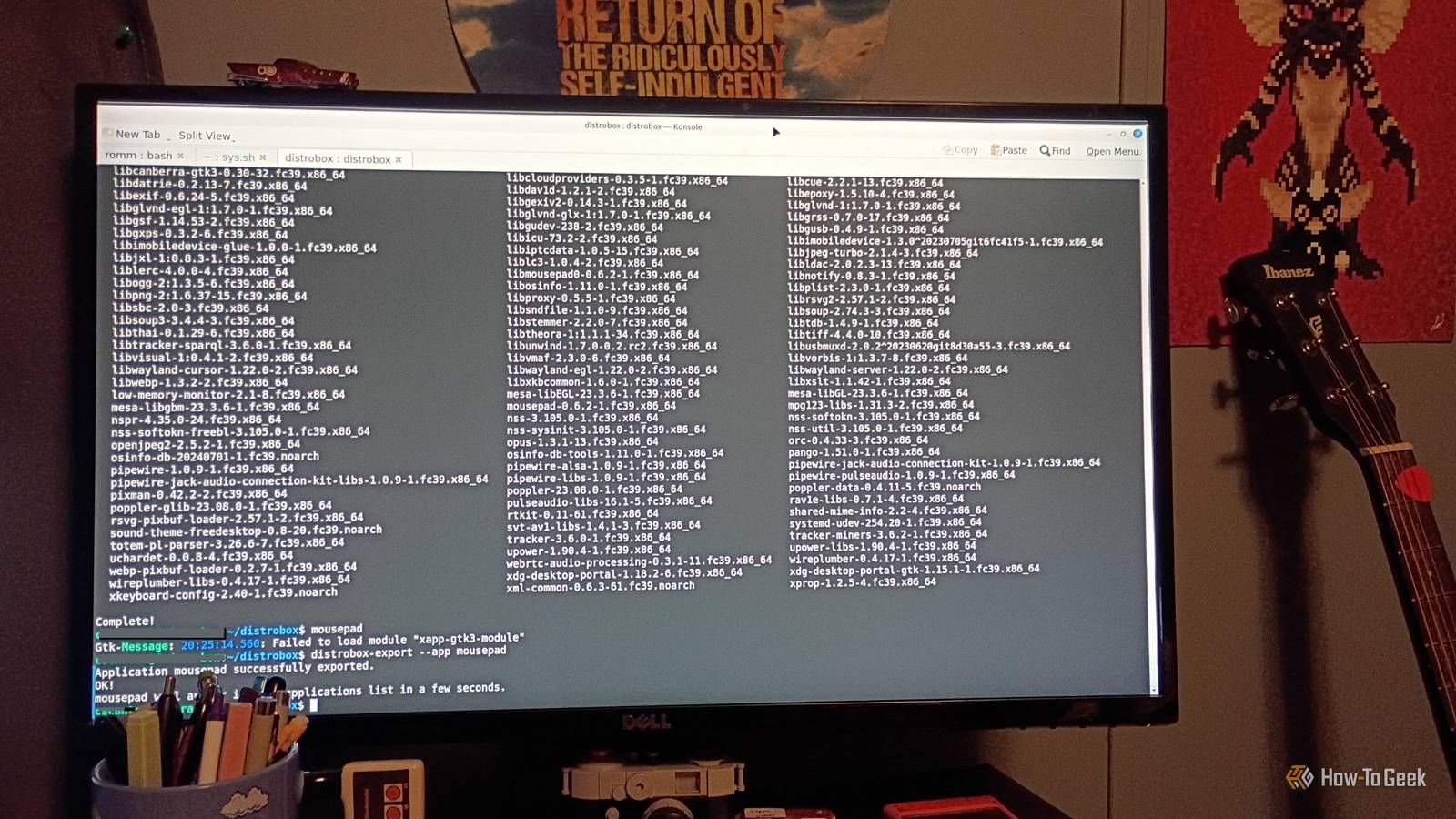
Published Nov 29, 2026, 8:00 AM EST Former radio and TV guy (I Heart Radio and PBS). Now a writer, researcher, and musician who writes about the absurdity of our modern world and other offbeat topics. Specializes in weird music, the old web, retro video games and tech, and researching strange, yet interesting things. His work has appeared in Vice, Tedium, Star Trek.com, Today I Found Out, Typebar, SyFy Wire, and How To Geek. Currently working on a variety of music, web, and writing projects. Visit him on the web at https://djbuckfreelance.neocities.org/. If there's one thing I truly enjoy while working on a computer, it's testing out different Linux distros and operating systems. I recently spent some time testing CachyOS, which I loved, and Haiku on virtual machines. I used GNOME Boxes for those. But I always like to try different utilities. When I heard about Distrobox, I knew I needed to give it a go. Distrobox is a container wrapper tool. You just need to install Distrobox, which creates containers of the Linux distribution you want to use rather than installing it from a disc on a partition. While it can't help you test a desktop environment, installer, or kernel, it's a great way to dip your toes into different distros fast. Getting started with Distrobox Testing different Linux distros with ease Dual booting can sometimes be a bit of a chore. It's not a bad thing, but I don't always like to set up extra partitions when I want to test-drive a different Linux distro. Full virtual machines aren't always a great idea, either, because they can end up eating a lot of your host system's RAM. I run into that problem sometimes with one of mine. Every Linux distro has its own quirks, and distro-hopping really doesn't work for me. Distrobox isn't a container manager. Instead, it uses Docker or Podman to create containers. That's important. The docs specifically say that "isolation and sandboxing are not the main aims of the project." Instead, you can use it to install a containerized version of a Linux distro that integrates with the host machine. I already have Docker installed on my machine (Distrobox needs Podman, Docker, or Lilipod on a machine in order to work). Because I use Distrobox with Docker, it creates a rootful container. That means root inside the container can modify files outside it on the host, and Distrobox prompts me to set up a password during initialization. You can use rootless Distrobox with Podman or Lilipod instead. I was okay with this because I don't use this particular machine for anything truly important and did so at my own risk. I installed Distrobox on a Linux Mint machine. Install it with sudo apt install distrobox. To test it out, I spun up an instance of Fedora using distrobox create --name fedora-box --image fedora:latest. This is just a command telling Distrobox to create a Fedora container from the latest Fedora image. The first part, distrobox create tells the machine to build a new container that will then integrate with my host computer. By appending --name fedora-box to the command, I'm nicknaming the container, which will make it easier to remember. Finally, --image fedora:latest is what tells Distrobox which distro image to pull. Never run distrobox create using sudo. You want to keep it in your home directory. Doing otherwise could be very, very bad. Sudo isn't off-limits everywhere (you need it for package installations later), but never use it here. When I ran the command for the first time, it asked if I wanted to pull the latest image. I said, "Yes." Within two minutes, it created the brand-new Fedora image. To run it, you enter distrobox enter fedora-box to start the container. The first time I did, it installed several packages as well. With my rootful Docker setup, I had to create a password for the container during initialization. Once I did, it led me to the command prompt for whatever distro you spun up. Now you can explore the distro, install packages, and navigate the Terminal. It reminds me a bit of running a Linux distro on my tablet through Termux, but this is certainly more useful for my work. Where the true value of Distrobox lies Once I verified I had Fedora running, it was time to test a few CLI and desktop apps. I chose to test htop as a CLI app and mousepad as a desktop app. Both are straightforward and ideal for testing in something like this, so I got started. I did a quick package installation test with htop. For Fedora, I used sudo dnf install htop. It asked me if I wanted to install htop and told me what dependencies were being installed. Then it installed the program. A quick test (launched from the Fedora instance) showed a working app, with no issues. Htop looks correct, displayed system information as expected, and didn't seem to be hogging too many host system resources. I know I can use this same method to try other CLI apps in Fedora, which will be helpful for further testing. Once I confirmed success with htop, I moved on to Mousepad. Mousepad is an Xfce app. It's lightweight and works well for testing. Obviously, Mousepad had a lot of dependencies (180 in total), but it installed fast. I ran a quick test. Mousepad works as intended. I can change fonts, color schemes, set up the display exactly how I like it, and jot down my notes. I like Mousepad so much that I decided to export it to Linux Mint. I used distrobox-export --app mousepad to send it over to the Mint host. It took a few seconds to appear. Exporting is a neat feature, and I can see it being quite useful depending on the work you're doing. Tearing down the box Removing the distro when you're done When I finished testing out the Fedora container, I wanted to remove it. I used distrobox stop fedora-box to stop my container. Then I removed it with distrobox rm fedora-box. Distrobox is wonderful for testing guest distros while keeping my home folder and configurations shared. I didn't have to create an entirely new virtual machine just to play around with Fedora. Exporting can also be a tricky thing, because I do have to keep track of what I export. But it's fantastic for testing, and this will be my first stop for testing new distros down the line. The optimal way to test different distros Distrobox is one of those amazing apps that, once you start using it, makes you wonder how you ever got along without it. It's such a useful tool. I like its ease of use, options, and export feature. I use Distrobox often, and if you spend time testing different distros, it's a must-have app.
Distrobox lets me run any Linux distro inside my distro
Full Article
Original Source
Read the full article at Howtogeek →KhanList aggregates and links to publicly available news content. We do not host full articles from third-party sources. Always verify important information with original sources.