
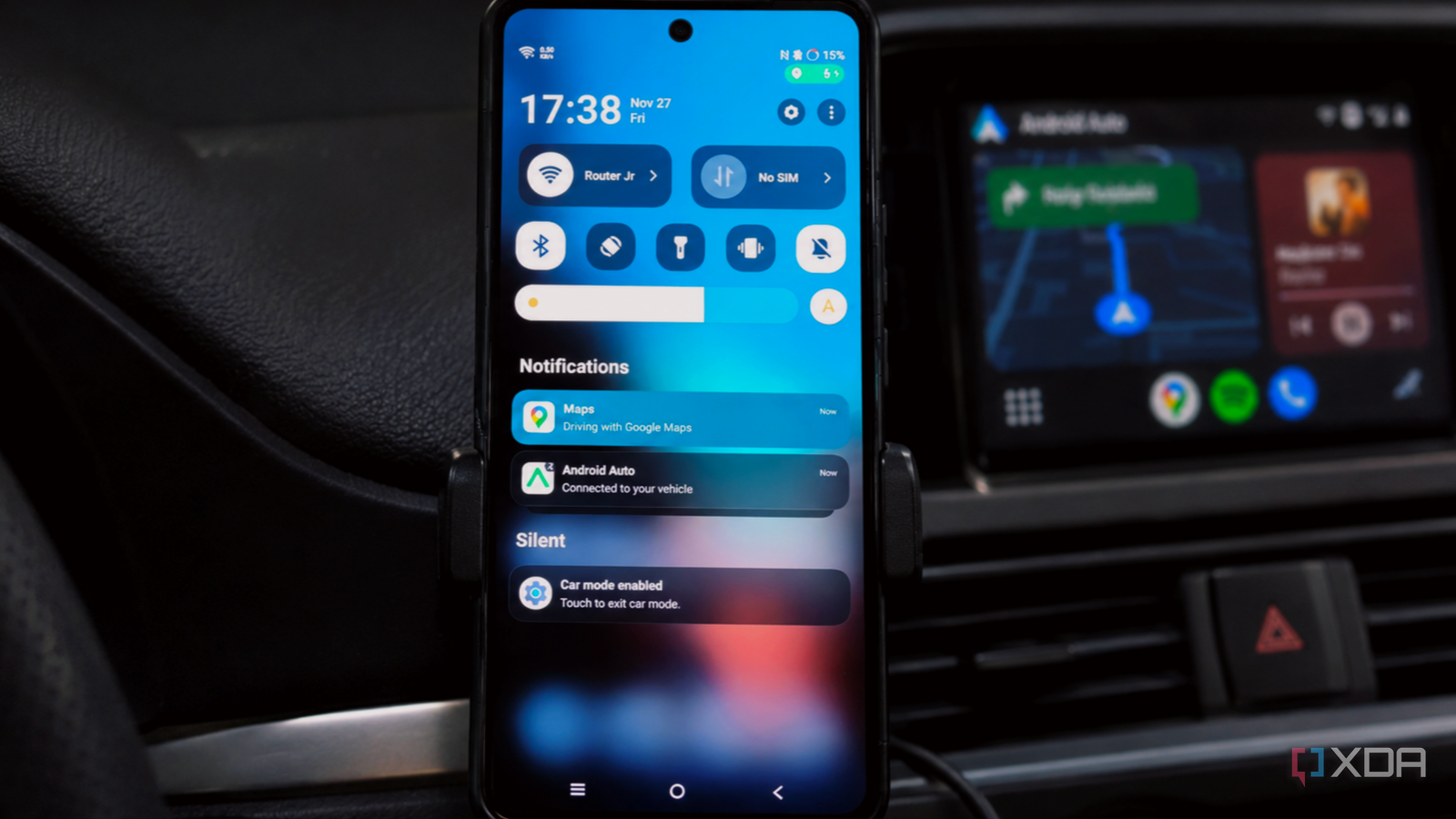
Published Nov 29, 2026, 8:31 AM EST Anurag is an experienced journalist and author who’s been covering tech for the past 5 years, with a focus on Windows, Android, and Apple. He’s written for sites like Android Police, Neowin, Dexerto, and MakeTechEasier. Anurag’s always pumped about tech and loves getting his hands on the latest gadgets. When he's not procrastinating, you’ll probably find him catching the newest movies in theaters or scrolling through Twitter from his bed. Wireless Android Auto can connect to your phone before you've even decided whether you want to use it. That's part of its appeal, of course. You get into the car, start the engine, and have Google Maps and music ready on the dashboard without taking your phone out of your pocket. For a long time, I preferred this convenience over having to plug in a cable every time I drove somewhere. However, I recently switched back to wired Android Auto, and surprisingly, battery drain, overheating, and connection drops weren't my biggest concerns. I was more frustrated with how wireless Android Auto handled connections, particularly when I didn't want it running or needed to use my phone for something else. Having multiple phones and other connected devices in my car only complicated things further. I don't always want Android Auto running Automatic connections are harder to control Wireless Android Auto's automatic startup is useful when you're heading out for a drive, but there are plenty of situations where I don't need it. Sometimes I'm just moving the car, waiting for someone, or listening to the radio. However, because my phone is already paired with the car, Android Auto can establish a connection as soon as the infotainment system starts. Another annoyance is that exiting Android Auto on the infotainment screen doesn't disconnect your phone. The wireless connection remains active in the background, and removing it requires going into the car's connection settings. Alternatively, you can disable Bluetooth or Wi-Fi on your phone, but that's inconvenient if you're using Bluetooth for calls, a smartwatch, or other accessories. Android Auto does offer some control over this behavior. You can change its automatic startup preferences, and some cars let you manage wireless connections separately. You can also disable Wireless Android Auto in the developer settings. I eventually disabled wireless projection through Android Auto's developer settings. Now I can leave my phone connected to the car over regular Bluetooth for calls and audio, and only start Android Auto when I connect a USB cable. Wireless Android Auto complicates other connections Your phone's Wi-Fi has other jobs Credit: Wireless Android Auto relies on more than just Bluetooth. While Bluetooth handles the initial pairing, the actual Android Auto connection uses 5GHz Wi-Fi to transmit data between your phone and the car's infotainment system. This creates another problem when you want to use Wi-Fi for something else. For instance, I have a secondary phone that I use in my car, and I sometimes need to share mobile data between devices. However, when I enable the mobile hotspot, it interrupts wireless Android Auto and at times prevents the hotspot from working properly. Some Android phones support simultaneous Wi-Fi connections, so this isn't a universal limitation, but compatibility varies between devices. A similar problem exists with cars that have their own Wi-Fi hotspots. You would expect to connect your phone to the car's hotspot and use its internet connection, especially if the vehicle has a separate data plan. However, some wireless Android Auto setups use the Wi-Fi connection for projection and continue routing internet traffic through the phone's cellular network. This is quite frustrating if you're paying for an in-car data plan or trying to conserve mobile data. Switching between phones is unnecessarily complicated Wireless connections create another headache Having multiple phones paired with the same infotainment system introduces a different problem. I use a secondary phone for my car alongside my regular smartphone, and sometimes both devices are within range. In my setup, Android Auto often reconnects to the last used phone and sometimes to whichever device becomes available first. If I have to switch to another phone, I have to disconnect the existing device through the infotainment system and then manually connect the other one. If you are using a wireless adapter, you might even need to temporarily disable Bluetooth or Wi‑Fi on the connected phone. The same problem comes up when you're sharing a car with someone. For example, if my partner wants to use her phone for navigation or music, the existing Android Auto session needs to end before hers can take over. And once she's connected, the next time she gets into the car, the infotainment system automatically connects to her phone instead. I'll admit that some wireless adapters handle this better. For example, the AAWireless TWO has a physical button for switching between paired phones. Some infotainment systems also let you configure connection priorities. However, these features aren't available on every car or adapter, and the process differs depending on the hardware you're using. With wired Android Auto, choosing a phone is super easy once wireless projection is disabled. The phone connected through USB runs Android Auto, and switching devices is as simple as moving the cable from one phone to another.
Wireless Android Auto is convenient, but I went back to a cable, and the reasons aren't what you'd think
Full Article
Original Source
Read the full article at Xda-developers →KhanList aggregates and links to publicly available news content. We do not host full articles from third-party sources. Always verify important information with original sources.