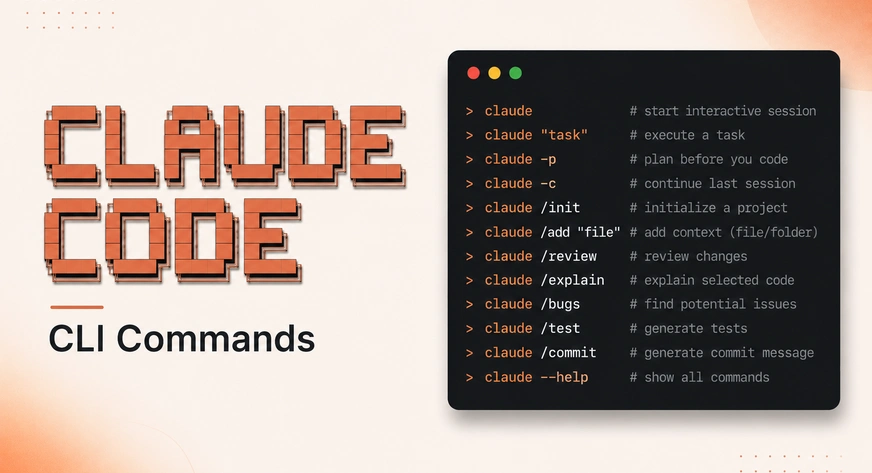
I used Claude Code daily for months before realizing that claude --help hides many of its most useful capabilities. I kept restarting fresh sessions, repeatedly explaining the same project structure, simply because I did not know a better workflow existed. While debugging an unrelated issue, I discovered the full CLI reference: dozens of commands and flags that completely changed how I use the tool. In this article, I walk through the hidden features that mattered most in practice and how they can make Claude Code significantly more productive. Table of contents1. The First Thing That Changed: I Stopped Losing My Sessions2. The One That Changed My Whole Working Day: Background Agents3. The Flag I Should Have Learned on Day One4. Where I Was Quietly Burning Money5. The Setting I Had Wrong for Months6. MCP From the Terminal7. System Prompts: Append or Replace, and Why It Matters8. When Something BreaksQuick ReferenceWhat I Would Tell Myself Six Months AgoFrequently Asked Questions Note: This article skips installation and beginner setup. If you are new to Claude Code, start with Getting Started with Claude Code for installation and first-run setup, and Claude Code: Master it in 20 Minutes for a quick overview of the tool. Everything below focuses on the less obvious CLI features and is verified against Claude Code v2.1.209 and later; version-specific flags are noted where relevant. 1. The First Thing That Changed: I Stopped Losing My Sessions Claude Code saves every session automatically. It always has. I just never knew how to get back into one. Three flags fix the entire problem: # Continue the most recent session in this directory claude -c # Name a session when you start it claude -n "auth-refactor" # Come back to it by name, days later claude -r "auth-refactor" "finish the PR description" The naming part is what makes this actually usable. Without a name you get an auto-generated ID like 7c5dcf5d, which works fine but is impossible to remember. With a name, resuming a piece of work three days later takes one command and Claude already knows everything about it. There is a fourth flag here worth knowing. If you want to pick up an old session but you are about to try something risky, –fork-session branches it so the original transcript stays untouched: claude -r auth-refactor --fork-session FlagWhat it actually does for youclaude -cPicks up your last session in this folder. Full context, no re-explaining.claude -n "name"Names the session so you can find it later without hunting for an ID.claude -r "name"Resumes a specific session by name or ID.claude --fork-sessionResumes but branches, so the original session stays as it was.claude --from-pr 123Opens the session picker filtered to sessions tied to a specific pull request. Try this now: Open a project you were working on yesterday and run claude -c. If you have ever used Claude Code in that folder, it will pick up exactly where you left off. This one command is the difference between a tool you restart every day and one that remembers your project. 2. The One That Changed My Whole Working Day: Background Agents If you take one thing from this article, take this one. Adding --bg to any command starts the task as a background agent and hands your terminal straight back to you. Claude keeps working. You keep working. You check on it when you feel like it. $ claude --bg "investigate why payments.test.js is flaky" Session started: 7c5dcf5d To attach: claude attach 7c5dcf5d To view logs: claude logs 7c5dcf5d To stop: claude stop 7c5dcf5d The moment this clicked for me was a Monday morning. I kicked off a background agent to audit an unfamiliar codebase for security issues, then spent the next forty minutes doing my actual planned work in a second terminal. When I came back, it had a full report waiting. I had not been sitting there watching a spinner. You can run several at once. My usual pattern now looks like this: # Fire off two long jobs claude --bg "audit the API surface for missing auth checks" claude --bg "find every TODO comment older than six months" # Get on with your own work, then check in claude agents Managing them CommandWhat it doesclaude agentsLive view of every session, running and finished.claude agents --jsonSame thing as JSON, so you can parse it in a script.claude attach Pull a background session into your current terminal.claude logs Print recent output without attaching.claude stop Stop a running session.claude rm Remove it from the list. The transcript stays on disk.claude respawn Restart a session with its conversation intact.claude respawn --allRestart everything. Useful right after a Claude Code update. One more that took me a while to notice. The –exec flag runs a plain shell command as a background job instead of a Claude session, which is surprisingly handy for long test runs: claude --bg --exec 'pytest -x tests/' If parallel agents interest you at a bigger scale, Anthropic pushed this much further with Dynamic Workflows, which can coordinate hundreds of parallel subagents in a single session. We covered that in our Claude Opus 4.8 article. 3. The Flag I Should Have Learned on Day One -p, short for --print. It runs your query, prints the answer, and exits. No interactive session, no waiting for follow-up. On its own that sounds boring. What makes it interesting is that it turns Claude Code from a thing you sit inside into a thing you can pipe into: # Ask one question, get one answer, back to your shell claude -p "what does auth.js actually do" # Pipe a file straight in instead of asking Claude to find it cat error.log | claude -p "summarise these errors by root cause" cat changes.diff | claude -p "review this diff for security issues" # Continue your last session but just get one answer claude -c -p "any type errors left?" The piping is the part I lean on most now. Feeding a log file or a diff directly into Claude is faster than describing where the file is and waiting for it to read from disk, and it works on files outside your project folder.Try this now: Find any log file on your machine and run: cat thatfile.log | claude -p “what is going wrong here”. It takes about ten seconds and it is the fastest way to understand what -p is for. Output formats, once you start scripting Once -p is in your toolkit, output formats become relevant. Text is the default. JSON gives you something parseable. Stream JSON gives you an event stream for real-time pipelines: claude -p "list all API routes" --output-format json claude -p "query" --output-format stream-json --verbose And if you are calling Claude Code from a script a lot, --bare is worth knowing. It skips auto-discovery of hooks, skills, plugins, MCP servers, and CLAUDE.md so the call starts faster. Claude still has Bash and file tools, nothing else loads: claude --bare -p "quick question about this one file" 4. Where I Was Quietly Burning Money This section exists because of a bill I did not enjoy looking at. Claude Code has an effort setting that controls how much reasoning it applies to a task. I had never touched it, which meant every trivial task got the same deep-thinking treatment as a hard architecture problem. claude --effort low # small edits, quick questions claude --effort medium # standard day-to-day coding claude --effort high # complex refactors, architecture work claude --effort ultracode # xhigh effort with ultracode on (v2.1.203+) Matching effort to the task is the single easiest cost lever in the tool. A one-line fix does not need max effort. Hard limits for anything automated For scripted or automated runs, two flags stop things getting out of hand. I now treat both as mandatory in any pipeline: # Stop once API spend hits two dollars claude -p --max-budget-usd 2.00 "large refactor task" # Stop after five agentic turns claude -p --max-turns 5 "investigate this bug" As of v2.1.217, spend from subagents counts toward –max-budget-usd, and once the cap is hit Claude Code stops background subagents that are still running. Before that version, subagent spend could quietly overshoot the cap. There is a lot more depth on cost control than I can fit here. If this is your concern, 23 Tips for Claude Code Token Saving goes properly deep on model choice, effort tuning, and reusable subagents, and it is where I picked up most of my own habits. 5. The Setting I Had Wrong for Months Permission modes control how much Claude Code does without checking with you first. I ran on the default for a long time, approving every single file edit by hand, and assumed that was the only safe option. It is not. There are six modes, and picking the right one for the task removes a lot of friction without giving up control where it matters: ModeWhat it allowsWhen I use itdefaultPrompts before every edit and tool useUnfamiliar codebasesacceptEditsAuto-accepts file edits, still asks before BashMost of my actual workplanPlans only. Writes nothing, runs nothing.Understanding a change before allowing itautoDecides for itself what is safe to allowProjects I know welldontAskSuppresses prompts but keeps safety checksLonger trusted tasksbypassPermissionsSkips all permission promptsCI only, in a sandbox claude --permission-mode plan claude --permission-mode acceptEdits # Same as bypassPermissions, deliberately verbose so you notice it claude --dangerously-skip-permissions Plan mode was the real find for me. When I am about to let Claude touch something I do not fully understand yet, I start in plan mode, read what it intends to do, then switch modes and let it run. It costs one extra step and has caught flat-out wrong assumptions more than once. Restricting tools instead of modes Separately from permission modes, you can limit which tools Claude has at all: FlagEffect--tools "Bash,Edit,Read"Only these built-in tools are available this session.--tools ""No tools. Claude can only produce text.--allowedTools "Bash(git log *)"Auto-allow matching calls without prompting.--disallowedTools "Bash(rm *)"Always deny matching calls, tool stays otherwise usable.--disallowedTools "mcp__*"Deny every MCP tool for this session. 6. MCP From the Terminal MCP is what lets Claude reach into your database, GitHub, Slack, and anything else you connect. I am not going to re-explain the setup here because we have a full walkthrough in How to Connect MCP Servers with Claude, covering both Claude Desktop and Claude Code. What I do want to flag are the CLI commands that are easy to miss. The three I actually use # Check what is connected and what is broken claude mcp list # Authenticate a server showing 'needs authentication' claude mcp login sentry # Bring over everything already set up in Claude Desktop claude mcp add-from-claude-desktop That last one saved me a tedious afternoon. I had five servers configured in Claude Desktop and was halfway through adding them to Claude Code by hand before I found out one command copies the lot across, on macOS and WSL. The mcp login and mcp logout commands are newer, from v2.1.186. Before them you had to open the interactive /mcp panel to run an OAuth flow, which was awkward over SSH. Now you can do it from the shell, and --no-browser prints the URL for you to paste instead of trying to open a browser on a remote box: claude mcp login sentry --no-browser Reading the status output When claude mcp list shows something other than connected, the status tells you what to do next: StatusWhat it means and how to fix itconnectedWorking. Nothing to do.needs authenticationReachable but not authorised. Run claude mcp login .connected, tools fetch failedConnected but could not list tools. Run claude mcp get for the error.failed to connectDid not start. Run the install command in your own terminal to see the real error.pending approvalA project-scoped server you have not approved in this session yet. 7. System Prompts: Append or Replace, and Why It Matters There are four flags for changing the system prompt. Two replace it entirely, two add to it. I got this wrong the first time and it took me a while to work out why the results felt off. FlagBehaviour--append-system-prompt "text"Adds your text after the default prompt.--append-system-prompt-file f.txtAdds file contents after the default prompt.--system-prompt "text"Replaces the entire default prompt.--system-prompt-file f.txtReplaces the default prompt with file contents. Here is the rule I now follow. Use append when Claude should still behave like a coding assistant but also follow an extra rule of yours. Use replace only when the task is not coding at all, like a data extraction step in a pipeline nobody is watching. Replacing drops everything in the default prompt, including tool guidance and safety instructions. That is the part I had not appreciated. My replaced prompt was shorter, so the model had less to work with, and I could not understand why it had stopped following conventions it had followed all week. # Extend without changing what Claude is claude --append-system-prompt "Always write a test for any new function" # Replace, for a non-coding pipeline step claude --system-prompt "You are a JSON extraction agent. Output only valid JSON." For rules you want on every session in a project, do not pass flags every time. Put them in CLAUDE.md, which loads automatically. And if you find yourself repeating a whole workflow rather than a rule, that is what Skills are for: Claude Skills Explained covers building them, and there is a good collection of ready-made ones in these GitHub repositories. 8. When Something Breaks These are the commands I reach for when Claude Code is behaving strangely, in the order I try them. Start here # Read-only diagnostic: install health, settings errors, auth state claude doctor claude doctor runs without starting a session and tells you whether your install is healthy, whether your settings files have validation errors, and whether you are authenticated. It has caught a malformed settings.json for me twice, which is not something you would ever guess from the symptoms. If a customisation is the problem # Start with every customisation disabled claude --safe-mode Safe mode disables CLAUDE.md, skills, plugins, hooks, MCP servers, custom commands, output styles, keybindings, and auto-memory. Authentication, model selection, and built-in tools all still work. If the problem disappears in safe mode, you know it is something you configured rather than the tool itself.Note: Safe mode and bare mode are not the same thing. Bare mode skips auto-discovery for speed in scripts. Safe mode disables customisations for troubleshooting, and goes further, covering output styles and keybindings that bare mode would still load. If a background session is stuck claude daemon status # Stop the supervisor but leave the sessions running claude daemon stop --any --keep-workers Updating claude update # Or pin a specific version claude install 2.1.195 # Restart background sessions so they pick up the new binary claude respawn --all That last line is easy to forget. Background sessions keep running on the old binary until you respawn them, which produces some very confusing behaviour where a new flag works in a fresh terminal but not in a session you started before updating.A small quality-of-life thing: if you mistype a subcommand, Claude Code suggests the closest match rather than failing oddly. claude udpate prints ‘Did you mean claude update?’ and exits. Quick Reference Everything above in one place, for when you know what you want and just need the syntax. Sessions CommandDescriptionclaudeStart interactive sessionclaude "query"Start with an initial promptclaude -p "query"One answer, then exitclaude -cContinue most recent session hereclaude -n "name"Start and name the sessionclaude -r "name"Resume by name or IDclaude --fork-sessionResume into a new branch Background agents CommandDescriptionclaude --bg "task"Run as a background agentclaude agentsView all sessionsclaude attach Attach to a sessionclaude logs Print session outputclaude stop Stop a sessionclaude respawn --allRestart all running sessionsclaude --bg --exec 'cmd'Run a shell command as a background job Cost and limits CommandDescriptionclaude --effort low|highSet reasoning depthclaude -p --max-budget-usd 2.00Cap API spendclaude -p --max-turns 5Cap agentic turnsclaude --bare -pSkip auto-discovery for faster scripted calls Permissions CommandDescriptionclaude --permission-mode planPlan only, change nothingclaude --permission-mode acceptEditsAuto-accept editsclaude --dangerously-skip-permissionsSkip all prompts (CI only)claude --tools "Bash,Edit,Read"Restrict available tools MCP CommandDescriptionclaude mcp listList servers and statusclaude mcp login Run OAuth for a serverclaude mcp add-from-claude-desktopImport servers from Claude Desktopclaude mcp remove Remove a server Diagnostics CommandDescriptionclaude doctorInstall and settings diagnosticclaude --safe-modeStart with all customisations offclaude daemon statusBackground supervisor stateclaude updateUpdate to latestclaude project purge --dry-runPreview deleting project state What I Would Tell Myself Six Months Ago Three things, in order of how much time they would have saved me. name your sessions and resume them. claude -n on the way in, claude -r on the way back. This alone removes the daily re-explaining tax. use --bg for anything that will take more than a couple of minutes. There is no reason to sit and watch a long task finish when you could be doing something else in another terminal. set --effort to match the task, and put --max-budget-usd on anything automated. Both take five seconds and both directly affect what you pay. One last thing, and it is the reason this article exists. Run claude --help, then go and read the actual reference. The help output is not the full list, and the gap between the two is where most of the useful stuff lives. Frequently Asked Questions Q1. Why does claude –help not show every flag?A. The documentation says it directly: –help does not list every flag, so a flag’s absence from help output does not mean it is unavailable. Always check the official reference if you are looking for something specific. Q2. What is the difference between claude -c and claude -r?A. -c continues the most recent session in your current directory without asking. -r resumes a specific session by name or ID, or shows an interactive picker if you do not pass one. Use -c when you just want the last thing you were doing, -r when you have several pieces of work going and need a particular one. Q3. Can I run Claude Code in CI without any interactive prompts?A. Yes. Combine -p for non-interactive mode, --dangerously-skip-permissions to skip approvals, and a token from claude setup-token for auth. Add --max-budget-usd and --max-turns so a bad run cannot spiral. claude -p –dangerously-skip-permissions --max-budget-usd 5.00 "run the test suite and report failures" Hi , I am Sree Vamsi a passionate Data Science enthusiast currently working at Analytics Vidhya. My journey into data science began with a curiosity for uncovering insights from complex data and has evolved into building end-to-end Generative AI applications, RAG pipelines, agentic AI workflows, and multi-agent systems that solve real-world business problems.
Claude Code CLI Commands I Wish I Had Known Sooner
Full Article
Original Source
Read the full article at Analyticsvidhya →KhanList aggregates and links to publicly available news content. We do not host full articles from third-party sources. Always verify important information with original sources.