
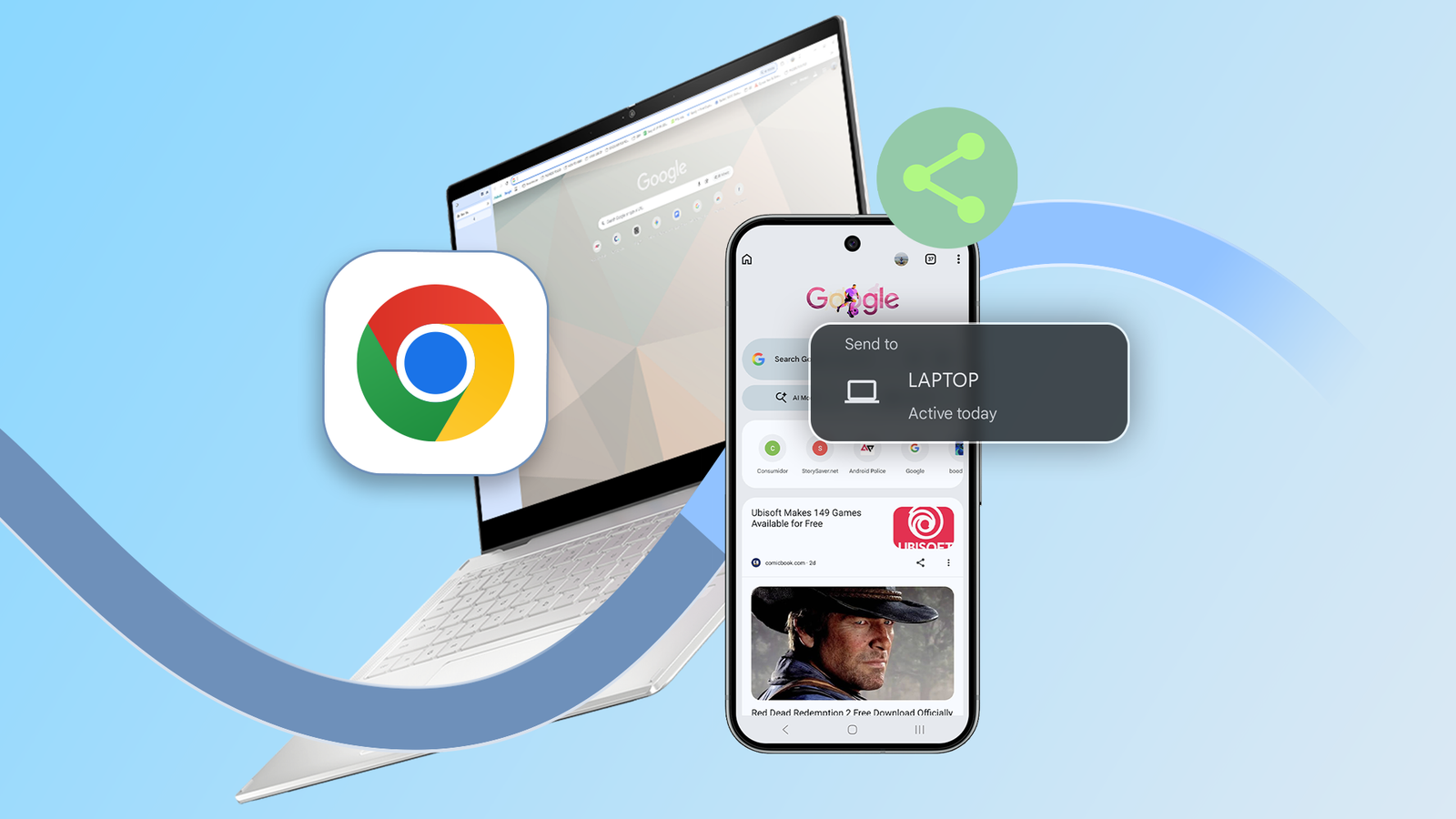
Credit: Lucas Gouveia / Android Police Published Sep 24, 2026, 3:43 PM EDT Chandra Steele has been writing about tech for the entirety of her journalism career. She loves making tough topics easy to understand. Before joining Android Police, Chandra was senior features writer at PCMag where she did everything from interviewing Jeff Goldblum to explaining crypto. Sign in to your Android Police account Google Chrome introduced a big boost to cross-device tab sharing today that is aimed at simplifying studying but can be used by anyone looking for a productivity boost via their browser. The ability to send a tab from your laptop to your phone or from your phone to your laptop has been around for a while, but now when you perform the action, Chrome remembers exactly where in that tab you were when you sent it over. Credit: Google This saves scrolling back and forth to try to get to the exact spot you left off on. Google frames it as useful for those reading through lengthy research papers. “So if you're halfway through a 50-page paper on behavioral economics, you can send it to your phone and pick up exactly where you left during your commute,” it wrote in the announcement. But the feature is just as useful if you’re partway through a longform story about pop culture and want to pick it up to read on the go after you started it on the desktop. If you want to share a tab you have open on your desktop to your phone, select the three vertical dots in the upper right of the tab then select Cast, save, and share > Send to your devices. You can also right click anywhere on the page which will give you two options. The first is that you can select Cast and then select your device. Or you can just click Send to your device, which is a little farther down in the menu, and select your device. And to share it from your phone to your desktop, in the Chrome tab on your phone, select the three vertical dots in the upper right of the tab and then Share > Send to your devices. Or you can long press on the URL bar or the tab selector and click Send to your devices.
Chrome's latest update saves you from endless scrolling on shared tabs
Full Article
Original Source
Read the full article at Androidpolice →KhanList aggregates and links to publicly available news content. We do not host full articles from third-party sources. Always verify important information with original sources.