
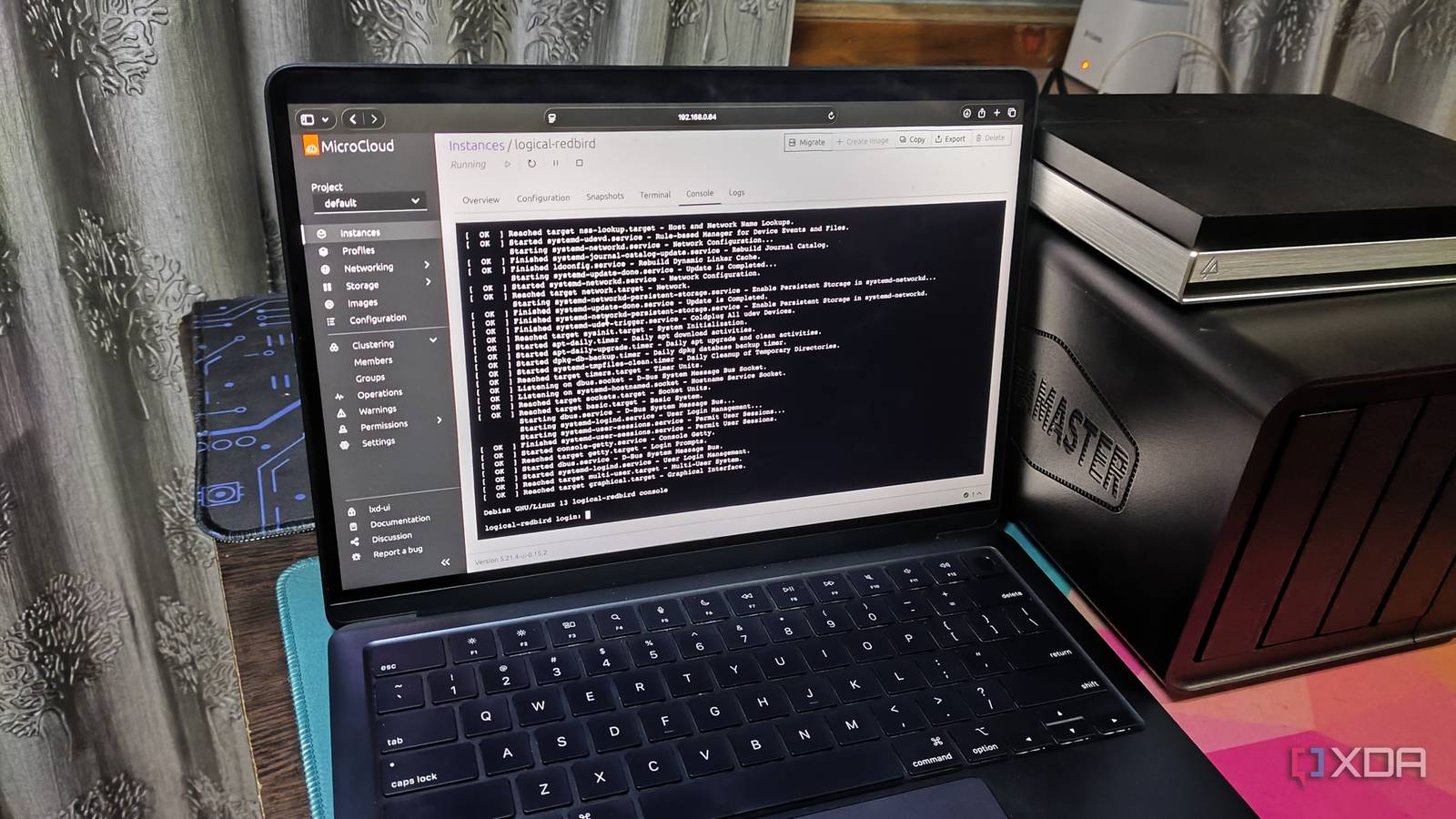
Published Aug 24, 2026, 11:00 AM EDT Ayush Pande is a PC hardware and gaming writer. When he's not working on a new article, you can find him with his head stuck inside a PC or tinkering with a server operating system. Besides computing, his interests include spending hours in long RPGs, yelling at his friends in co-op games, and practicing guitar. A couple of weeks ago, Proxmox finally released an ARM version of the virtualization platform, which is a massive win for folks with non-x86 architecture. Unfortunately, the catch is that not every ARM system can drive Proxmox Virtual Environment. Sure, Nvidia’s Grace Hopper and Vera systems are fully supported by Proxmox VE, and devices featuring UEFI-based ARMv9-A architecture tend to have better support for the new PVE 9.2 ARM image. The Raspberry Pi single-board computers, on the other hand, aren’t compatible with Proxmox’s official image. As such, I’d have to look into a handful of workarounds and third-party packages just to get PVE up and running on these tiny tinkering boards. Since some of these workarounds can be a bit of a pain to configure, I decided to arm my Raspberry Pi 5 (8GB) board with Canonical MicroCloud to get similar container and VM deployment features as Proxmox. Setting up Canonical MicroCloud is fairly easy As long as I go with Ubuntu Server as the base distro, that is When it comes to running containerized services, there are a bunch of distributions and platforms I can configure on the Raspberry Pi. Cosmos Cloud, for example, can provide a simple web UI to spin up Docker containers once you install it on an existing OS, and the same holds true for CasaOS and Runtipi. Meanwhile, UmbrelOS, Freedom Box, YunoHost, and a handful of other distributions need to be flashed directly on a microSD card. Although these platforms are pretty handy for deploying containers, they can’t really run virtual machines on the Raspberry Pi. That’s where MicroCloud comes into the equation. Despite being a relatively obscure platform in the home lab ecosystem, it can run LXD containers and KVM-powered virtual machines on any lightweight device, including the humble Raspberry Pi. Sadly, it doesn’t have an ISO or IMG file, and needs to be configured on top of another distribution. When I last tried this project, I had trouble getting the MicroCloud packages running on the Raspberry Pi OS. So, I decided to go with Ubuntu Server, which, unlike its bloated Desktop counterpart, has minimal performance overhead. Once I’d flashed Ubuntu Server on a microSD card, I created a user account and enabled the openssh-server package at the initial configuration wizard. That way, I could SSH into my tiny tinkering companion from the comfort of my PC. Following a reboot, I simply executed these instructions to pull the MicroCloud packages: sudo snap install lxd --cohort="+"sudo snap install microceph --cohort="+"sudo snap install microovn --cohort="+"sudo snap install microcloud --cohort="+" Then, I ran sudo microcloud init to start MicroCloud and used the URL (and key) generated by the command to launch the platform’s web UI and start tinkering with virtual guests. MicroCloud meshes surprisingly well with the Raspberry Pi It ain’t no Proxmox, but it’s pretty handy for deploying containers and VMs on the RPi Thanks to MicroCloud’s straightforward UI, creating virtual guests containers is a cakewalk, especially since the platform already includes pre-built templates for most distributions. Unlike Proxmox’s template collection, MicroCloud’s Ubuntu-centric templates cater to both virtual machines and LXD containers, so I don’t need to manually download ARM variants of this distro for my VMs. Of course, the collection of templates on the ARM-based Raspberry Pi is a bit smaller than what I’m accustomed to on my x86 MicroCloud instances, with Debian, Fedora, and other distributions only supporting LXD container images. However, it does include built-in snapshots for virtual guests, and although I couldn’t figure out how to implement PBS-type offsite backups, I can still use MicroCeph to put together a replication cluster of MicroCloud nodes. Likewise, it doesn’t have the same detailed network stack as good ol’ Proxmox, though I can still modify most of the essential bridge and Ethernet settings. But managing volumes, tweaking ACLs, and configuring buckets is still fairly simple on MicroCloud. On the performance front, I didn’t encounter any issues even after running over ten LXD containers, though I’ll add that I had to be a bit stingy when allocating resources. For virtual machines, I had to stop a couple of LXDs, or else the web UI would start getting sluggish. Nevertheless, I was still able to get two CLI Ubuntu virtual machines alongside a few Debian and Arch LXDs running without tanking my Raspberry Pi's performance. MicroCloud + Raspberry Pi is quite a handy combo Despite MicroCloud’s utility, this setup can’t replace my dedicated Proxmox server node. For one, Proxmox Backup Server makes organizing snapshots pretty painless, while its Datacenter Manager utility performs a similar role for clusters. There’s also Proxmox’s superior SDN stack, and configuring network shares is painless on PVE, while MicroCloud requires a lot more elbow grease to mount SMB and NFS shares. Nevertheless, for folks who only have a Raspberry Pi and are longing to get some Proxmox functionality on the SBC, Canonical’s MicroCloud isn’t a bad option by any means. If anything, it’s a pretty impressive virtualization and containerization platform for low-end systems, and the fact that it natively supports Raspberry Pi makes it a lot better than Proxmox for pint-size server nodes built with these ARM machines. Ubuntu MicroCloud
Canonical MicroCloud does what Proxmox won't: run on a Raspberry Pi without workarounds
Full Article
Original Source
Read the full article at Xda-developers →KhanList aggregates and links to publicly available news content. We do not host full articles from third-party sources. Always verify important information with original sources.