
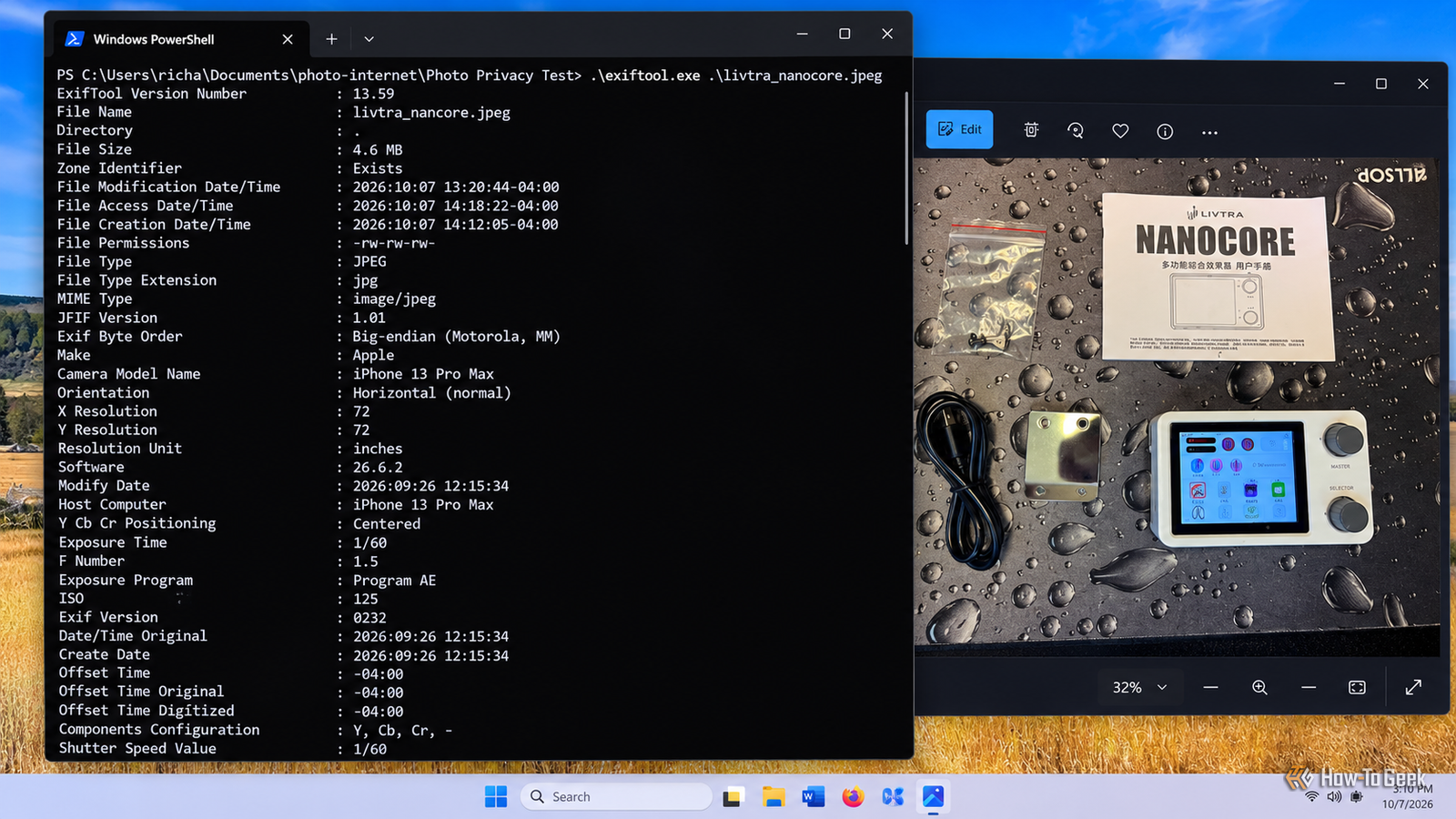
Published Oct 9, 2026, 10:30 AM EDT Rich Hein is a veteran technology journalist with more than two decades covering developer, consumer and enterprise topics. Rich's career has been dedicated to service journalism, connecting readers to content that informs and delights. Previously, Rich was vice president and editor-in-chief for Simpler Media Group, director of audience development for IDG and editor/writer for sites like CIO.com, ComputerWorld, CodeGuru and other tech-centric publications. He's received numerous accolades, including the IDG Summit and Azbee awards and has been covered by Medium for his work in audience development. When not at his desk, Rich lives in Daytona Beach with his wife and three dogs. He enjoys playing guitar, surfing and staying abreast of the latest in tech. I think most of us have uploaded an image to the internet without giving it much thought. But those images hold more information than you may have guessed. A photo from your mobile phone can hold data about the device used, when the image was taken, and even where the image was taken. These are the kinds of clues someone trying to learn more about you can use. Combine that with information you’ve shared on social media and elsewhere, and it begins to paint a picture I’d rather not share with John Q. Public. Here, I'll use some of my images to show what you could be revealing, along with what you can do to protect your personal data. Location data can expose where a photo was taken Your photo may include exact GPS coordinates Are Location Services turned on for your camera? If you answered yes, the photos you take can store the GPS location where they were taken in the form of latitude and longitude. It’s not something you can see in the image. It’s embedded in the image’s metadata. If you’re at a vacation spot, then no harm, no foul. But if you’re taking images in your home or at your child’s school, you can see how that might be problematic. I typically keep Location Services turned off for the Camera app on my iPhone. This prevents the photos I take from capturing GPS location data. On the iPhone, go to Settings > Privacy & Security > Location Services > Camera, then choose Never. Even if you use geotagging, it’s still worth knowing what data you’re sharing before putting an image out in public. The file can reveal much more than the photo itself To see the metadata I was sharing, I downloaded ExifTool, a free command-line utility that reads metadata from image files. Once I had it downloaded, I unzipped the contents, renamed the executable from exiftool(-k).exe to exiftool.exe, and copied it into my image folder. Then I right-clicked inside the folder in File Explorer and chose Open in Terminal. Once the PowerShell window opened, I typed the following command to see a data dump of the image: .\exiftool.exe .\livtra_nanocore.jpeg Once the data dump was complete, it identified my image as a JPEG and showed a lot more. It identified Apple as the manufacturer and the model as an iPhone 13 Pro Max (I know, it’s old). It also showed the software version running on my iPhone, along with the date and time the photo was taken. It even contained information about the camera settings used for the image, including shutter speed, aperture, ISO, and other technical details. My first image didn’t have any location data attached because, as I mentioned, I keep Location Services turned off for the Camera app. But in another image I took with Location Services turned on, you can clearly see the GPS coordinates, along with GPS date and time information. You can narrow ExifTool down to GPS data If you only want to know whether a photo contains location data, you can skip the full metadata dump and query the GPS fields directly. This makes it much easier to see whether latitude, longitude, and GPS position are stored in the file. .\exiftool.exe -GPSLatitude -GPSLongitude -GPSPosition .\htg_home-1.jpg Windows can remove some metadata for you Windows provides a way to strip away basic metadata from your photos. In File Explorer, right-click the image, choose Properties > Details, then click Remove Properties and Personal Information. Windows can create a copy with removable properties stripped out, or let you choose specific fields to remove. Look closely at what’s visible in the background The image itself can reveal more than you intended Even if your image has no metadata attached, what’s going on in the background can still provide bad actors with useful clues. Maybe it’s an image by your front door with the house number, the license plate on your car, or a picture of you dropping your kid off at school on the first day with the school’s name in the background. There are a lot of things that can identify a person or place. I also look for smaller clues in the background that I may not have noticed when I took the photo. For example, the Nanocore image I used here shows the product name, Chinese text on the manual, and the Allsop logo on my desk mat. None of that is especially sensitive, but a house number, work badge, shipping label, or school name could be. Before I upload a photo, I check the whole frame, not just the thing I meant to photograph. The more photos you post over time, the more of those little clues can add up. One image may not reveal much, but several can start filling in details you never meant to share. A little caution goes a long way To some, this may sound a little paranoid, but I think we should all pay more attention to the data we put on the internet. Once something is public, you lose a lot of control over where it goes. Taking a minute to check the metadata, scan the background, or remove information you don't want to share seems like a pretty small step when compared with trying to claw the information back later.
Before you upload a photo to the internet, check these 3 privacy risks
Full Article
Original Source
Read the full article at Howtogeek →KhanList aggregates and links to publicly available news content. We do not host full articles from third-party sources. Always verify important information with original sources.