
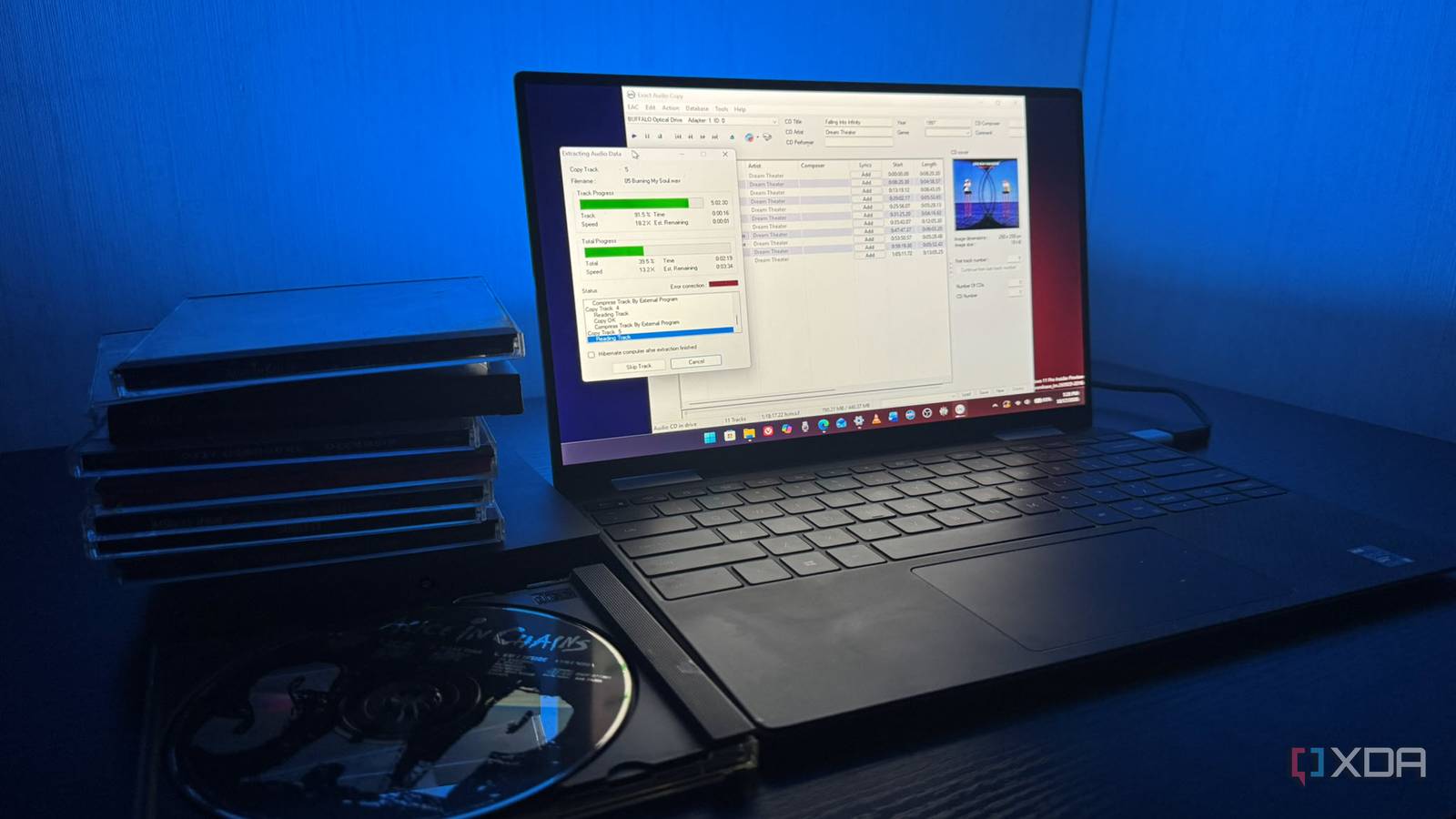
Published Oct 29, 2026, 3:01 PM EDT Based in rural Minnesota, Brian Burgess worked in IT for 10 years before finding his passion for writing about consumer technology. Brian earned his degree in computer and network technology in 2000. He held various IT positions, including help desk support, router installations for IBM, database administration, and other associate network administration roles. He's been a personal technology journalist for 18 years and has written thousands of articles about Microsoft products and services, Android, iOS, streaming, and more. He has written for notable tech sites including XDA, InformationWeek, How-To Geek, Byte, groovyPost, and others. When he is away from the keyboard, you will hear him playing guitar, working outdoors, and watching Star Trek. I started getting into the groove of ripping my CDs to lossless audio to replace my enormous collection of crappy, low-quality MP3s. Years ago, I was ripping discs to smaller files to save space on MP3 players. I don't need to worry about that anymore, and I want to put high-quality FLAC rips on my self-hosted media servers like Jellyfin and Plex. It gives me a huge audio upgrade and lets me listen to my music the way it was meant to be heard. I typically select an album on my TV and play it through my AV receiver system. During the new ripping process, I've found ways to make it quick and efficient while maintaining quality audio from my CD rips. Ripping CDs again It brings back memories, but I was doing it wrong Ripping CDs again brings back fond memories of using free tools like Windows Media Player, MusicMatch, and iTunes. Windows Media Player would rip CDs to WMA, and iTunes to AAC. At the time, neither offered FLAC. However, each also offered lossless audio versions. For instance, iTunes supported ALAC (saved as M4A), plus uncompressed WAV and AIFF. WMP also offered WMA Lossless and uncompressed WAV. But neither tool offered lossless by default. These formats weren't universal, causing compatibility issues. Apple's iPod couldn't natively play WMA, and Microsoft's Zune (if you remember it) didn't play Apple's ALAC format. MP3 was popular because it's small and widely compatible across platforms. FLAC was a better alternative for archiving music because it's open-source and uses lossless compression. It isn't dependent on one company's software ecosystem. At the time, however, everyone was ripping CDs to low-quality MP3s to save bandwidth and storage on our devices. We also tricked ourselves into thinking MP3s, even under 320 kbps, sounded good. We worried about how many songs we could fit on a device, not the true immersive sound quality of our music. Plus, Napster and the file-sharing craze were around, and internet speeds weren't very fast. This time, I am ripping to FLAC to keep an open, lossless master copy, so I can keep the original audio intact and create compatible copies if needed. I have hundreds of discs, many I forgot about, and I want to digitize my music collection the right way. The right software for CD ripping workflow I went for quality audio with a burst of speed When I started my ripping project, I used dBpoweramp since it is designed for a large workload of CD rips. However, it is trialware and is close to $50 after that. I needed something fast, free, and accurate to make the tedious process a cinch. So I went back to Exact Audio Copy (EAC), since it's freeware and produces high-quality FLAC rips. I've used it to rip discs before, but I found settings that made my workflow easier. For instance, using the "Copy Selected Tracks" option instead of "Test & Copy Selected Tracks" prevents multiple passes before ripping. I also set the extraction method to "Burst mode" under drive options, which keeps the ripping process to 10 minutes or less, depending on the CD. I also set it to eject the disc automatically after the rip completes. That way, I can remove the disc, put it in its case, and pop the next one back in. Another useful option is to have it automatically use the AccurateRip metadata engine to find the disc's information, like artist, album, track names, and cover art. If that doesn't work, I can use the CUETools DB Metadata Plugin or MusicBrainz to look up the details. I've found that AccurateRip retrieves album data the fastest. But sometimes I need to use extensive search settings in CUETools if a disc is rare or the other database plugins can't find the correct info. I also set EAC to rip directly to an external drive so I can put the FLAC files on my self-hosted media server platforms. I am still organizing where I want each album to go. Ripping once to an external drive lets me choose where to put my music. I can plug the drive into my Raspberry Pi jukebox, put some albums on my other devices, and keep my library archived. Exact Audio Copy Playing lossless music Quality audio through my AV receiver and other devices EAC does a fabulous job making a tedious task easier. It found the disc metadata right away, ripped it quickly in burst mode, and popped the finished CD out so I could add a new one. I used a 1 TB external drive, so I didn't need to worry about the larger size of FLAC files. Even after what seemed like the 1,000th disc, I had plenty of room. After the ripping was complete, I added files to my self-hosted media servers, other drives, and devices. My main AV receiver is connected to my TV, where I listen most often. I use Plex or Jellyfin to sort through albums and playlists and find and play what I want. I also use Jellybox or Plexamp to download music to my phone for offline listening. With high-quality files, listening to my old CDs feels like rediscovering something new. I hear sounds, effects, even lyrics I hadn't heard before. Instead of the crappy MP3s I'd given up on, I have a new, fully immersive music collection. Plus, I don't have to worry about scratching discs or putting them back into the right case. A CD ripping audio upgrade workflow that works best It had been ages since I ripped a CD when I first started this project. Now, after ripping stacks of them, I finally found the best workflow for me. Sometimes discs are too damaged to read, but EAC can usually get them working if I use the right settings and allow for patience. Overall, I can't complain about the speed or the improved audio quality of my re-ripped CD library, which is accessible everywhere.
After digitizing stacks of my old CDs to lossless audio, I finally perfected my ripping workflow
Full Article
Original Source
Read the full article at Xda-developers →KhanList aggregates and links to publicly available news content. We do not host full articles from third-party sources. Always verify important information with original sources.