
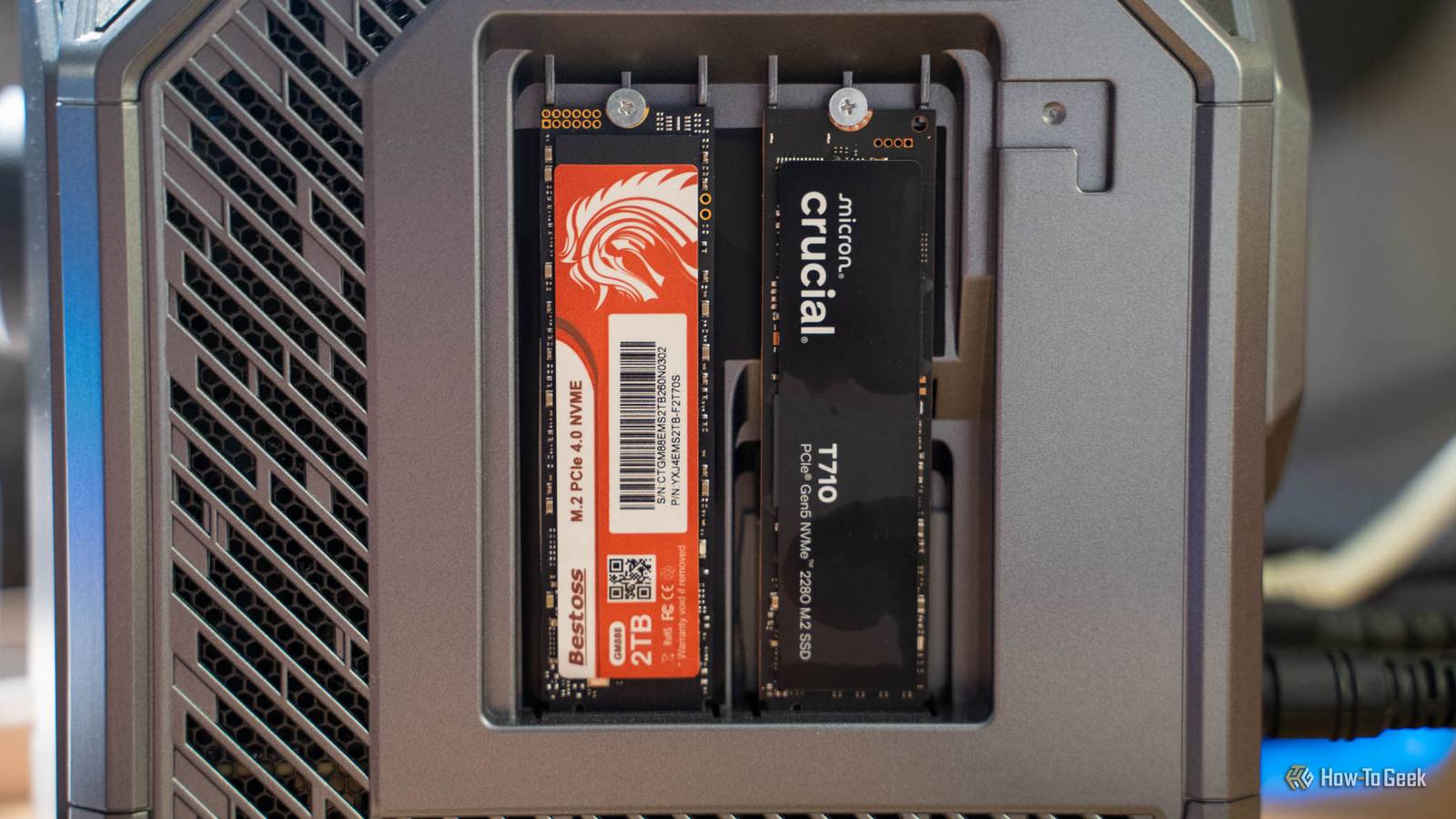
Published Nov 26, 2026, 11:30 AM EST Patrick Campanale has been in the tech space for well over a decade, specializing in PC/gaming news and reviews, as well as maker-focused products to build small businesses. With a start in technology back in 2010 surrounding the Palm/webOS ecosystem, Patrick spent his formative years developing mobile applications as well as blogging for various publications, eventually leading to starting his own website in 2014. After running a technology blog for a few years, he stepped out of that role and into the world of high-end custom PC manufacturing and building, with a focus on YouTube video production and overclocking. Then, in 2017, Patrick joined the 9to5Toys team as an editor/writer/reviewer with over 14,000 articles being published during his time there, ranging from deals and roundups to in-depth reviews on the latest technology, video games, 3D printers, and more. In his free time, Patrick loves to create projects from wood using various robots and methods, including leveraging the technologies of CNCs and lasers. If Patrick isn't working on a computer or playing video games, he's likely in his 2-car garage workshop creating something unique. In addition to all this, Patrick is also the media director at his local church where he feels God has called him to serve, and he loves every minute of it. My multi-thousand-dollar Strix Halo mini PC felt slower than a cheap Core 3 laptop after just a few weeks. I tried everything to figure out why this beast of a desktop was so laggy. It wasn’t the RAM, CPU, or anything else, so what could it be? It ended up being a no-name SSD that the company shipped as the stock drive. The drive’s dynamic SLC cache filled up fast and it slowed things down to a crawl. In fact, some writes took over seven seconds to even start, and then only moved at around 100MB/s. Thankfully, changing the drive out fixed the issue, but here’s everything I went through to figure it out and how I fixed it. My $3,000+ mini PC kept freezing for seemingly no reason I chased RAM, drivers, and my network first About a month or so ago, I got a new desktop that was supposed to be blazing fast—Ryzen AI Max+ 395 CPU, 128GB LPDDR5X RAM, 2TB NVMe storage, and the Radeon 8060S GPU. It was as fast as I expected it to be…for the first few weeks. Once I had some time under my belt with the mini PC, I found that it felt as sluggish as a much lower-powered system that was several years old. I’m used to Windows slowing down over time and a fresh install fixing it, but this was a fresh install. It also felt very different than I’m used to Windows feeling when it slows down. I would go to launch an app and it would take several seconds. I would click back into Slack to respond to a message and would get a spinner for 30 seconds before I could start typing. It felt like I was back on a computer from 2010, and I couldn’t figure it out. At first, I thought that RAM might be the problem. I run a lot of programs and, even though it has 128GB of RAM, maybe one of the apps had a memory leak and that was causing the RAM to run out—this was not the case. Then, I moved on to checking CPU utilization. Again, maybe it was a runaway process that was using more resources than it should. It was not. I kept diagnosing and kept coming up empty. I was able to do a full diagnostic during one of the slowdowns, and found 62GB of 112GB was free (with 8GB dedicated to the GPU and the rest taken by Windows), the CPU was sitting at just 10-12%. I was finally able to catch it in the act though, and the problem was not what I expected at all. The freezes showed up the moment I logged the drive It took almost 8 seconds before it would even start writing Credit: Patrick Campanale / How-To Geek During one of the slowdowns, I had Claude run a test on the SSD in the system just to see if it could possibly be the problem. Claude had a hard time running it because the SSD actually locked up completely. The stuttering the system was experiencing wasn’t the CPU, GPU, network, or RAM—it was the SSD. I eventually had Claude set up a background per-second logger for the C:\ drive and it found freezes at four different points over a 30-minute period. Each time the drive went to 100% busy, single writes took between 0.5 and 2.1 seconds (normal is under 1ms), and it was only moving data at 20 to 130MB/s. The final straw was when Windows logged an NVMe controller reset on boot. This told me that it was the drive that was causing the problems, but the interesting thing was it wasn’t actually failing, it was just unbelievably slow, even though it started out fast. The SSD was only fast while it was empty At 64% full it wrote at 24MB/s The stock drive in the ACEMAGIC M1A PRO+ is a Bestoss GM888 2TB drive that doesn’t have any DRAM on-device, so it has to borrow system RAM. While I do wish the drive had DRAM, the main issue is the caching system is dynamic SLC that shrinks as the drive fills. This meant that, at first, when the drive was empty, everything was nice and speedy. There was plenty of dynamic SLC cache to go around. However, as it started to fill up, that dynamic SLC cache shrank and made the drive nearly unusable. When the drive was only 64% full, I was seeing 24MB/s write speeds with the worst single write taking 7.6 seconds. Compare that to the 6,100MB/s the drive writes at when freshly formatted and it’s an abysmal story. I actually fully benchmarked the drive and found that it had an average write speed of 4,090MB/s up until around 500GB was written. After that, it fell to around 100MB/s, spending 52 seconds below 5MB/s. All of this happened because the empty drive had around 500GB of cache available, but the 64% full drive only had around 12GB of cache available. The read speeds never slowed down. It was just the write. This is why the problem only showed up occasionally. Whenever I was just reading from the drive everything felt normal, but whenever I’d go to write to the ~64% filled drive, it would take several seconds to write the first byte and then it was just slow writing from there. Moving everything to a better SSD fixed it in one night Apps now open the moment I click I have the privilege of having a bunch of technology in my office, including a Crucial T710 2TB SSD that was sitting in a drawer from a previous review. I grabbed it out, installed it in the ACEMAGIC M1A PRO+, and simply cloned Windows over to it using a trial of Macrium Reflect X. It actually cloned the drive while Windows was running. At 55% full, the T710 was seeing a 2,570MB/s average write speed over a 10-minute sustained test instead of the 110MB/s that the Bestoss saw. Likewise, stalls were only 0.32s on the T710 compared to the 7.6s that the Bestoss stalled. Installing the T710 and moving Windows to it made the ACEMAGIC M1A PRO+ feel like an entirely new computer. I was honestly kind of surprised when I saw just how much performance difference there was between the stock SSD and me installing my own, so I reached out to ACEMAGIC and they confirmed that it should not have happened and they’re looking into the problem. A cheap SSD can drag down an expensive PC At the end of the day, I’m glad that my Strix Halo system didn’t have a hardware problem I couldn’t fix. It’s an expensive desktop, no question, and it shouldn’t ship with such an abysmal storage drive. Thankfully it was a few-minute fix and now the system is working flawlessly and the Bestoss drive is just a mass storage drive that I use as if it was a 2TB HDD. If you have a computer that should be fast, and it’s not, then take a look at the drive. Just because something is an SSD doesn’t mean that it’s automatically going to be as good as it should be. And, just because a drive benchmarks well when it’s empty doesn’t mean it’ll keep those same write speeds as it fills up.
A cheap stock SSD made my 128GB Strix Halo mini PC feel like a 2010 laptop
Full Article
Original Source
Read the full article at Howtogeek →KhanList aggregates and links to publicly available news content. We do not host full articles from third-party sources. Always verify important information with original sources.